> ## Documentation Index
> Fetch the complete documentation index at: https://docs.fentufsm.com/llms.txt
> Use this file to discover all available pages before exploring further.
# Export
> Exporting data from Fentu FSM for reporting and analysis
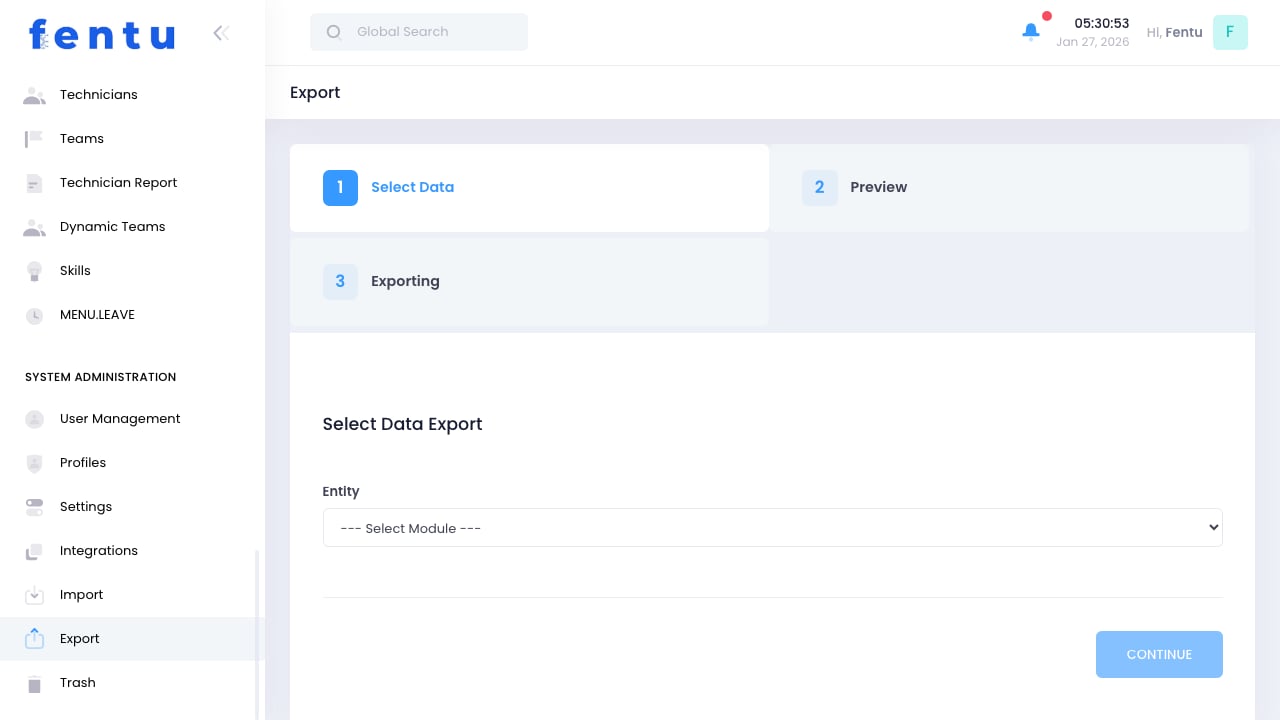 ## Overview
The Export function allows you to download data from Fentu FSM for use in external applications, reporting tools, or for backup purposes. Export provides flexibility in selecting what data to extract and in what format.
Exports are point-in-time snapshots. For ongoing data feeds to external systems, consider using Integrations or the API instead.
## When to Use Export
Use export for:
* **Reporting** - Creating custom reports in Excel or other tools
* **Analysis** - Analyzing data in external applications
* **Backup** - Creating data backups
* **Sharing** - Providing data to stakeholders
* **Migration** - Moving data to another system
* **Compliance** - Meeting data request requirements
***
## Exportable Data Types
| Data Type | Includes |
| ---------------- | ----------------------------- |
| **Customers** | Customer records with details |
| **Contacts** | Contact information |
| **Work Orders** | Work order data and status |
| **Tasks** | Task details and completion |
| **Technicians** | Workforce records |
| **Products** | Product catalog |
| **Parts** | Parts inventory |
| **Assets** | Customer equipment |
| **Invoices** | Billing records |
| **Time Entries** | Time tracking data |
### Export Formats
| Format | Best For |
| ----------------- | ------------------------------ |
| **Excel (.xlsx)** | Analysis, reporting, sharing |
| **CSV (.csv)** | Integration with other systems |
| **PDF** | Formatted reports, sharing |
| **XML** | System integrations |
***
## Exporting Data
Go to Administration > Export
Choose what data to export
Limit data by date range, status, etc.
Choose which fields to include
Select output format
Generate the export file
Download the generated file
### Filtering Options
| Filter | Description |
| ----------------- | ------------------------------- |
| **Date Range** | Records within date range |
| **Status** | Only specific statuses |
| **Branch** | Records from specific branch |
| **Customer** | Specific customer's records |
| **Technician** | Records for specific technician |
| **Custom Fields** | Filter by custom field values |
Use filters to limit export size. Large exports take longer and may be harder to work with.
***
## Field Selection
### Choosing Fields
* Select all fields for complete export
* Choose specific fields to limit data
* Required fields may be auto-included
* Related fields can be included (e.g., customer name on work orders)
### Field Categories
| Category | Examples |
| ----------------- | -------------------------------- |
| **Basic** | ID, name, status |
| **Details** | Description, notes, instructions |
| **Dates** | Created, modified, scheduled |
| **Relationships** | Customer, technician, branch |
| **Financial** | Amount, cost, price |
| **Custom** | Custom fields you've defined |
### Include Related Data
Options to include:
* Customer name and details on work orders
* Product information on line items
* Technician name on tasks
* Address details with locations
Including many related fields increases export size and processing time. Only include what you need.
***
## Export Scheduling
### Scheduled Exports
For regular exports:
1. Create export definition
2. Set schedule (daily, weekly, monthly)
3. Configure delivery (email, FTP)
4. Activate schedule
### Scheduled Export Settings
| Setting | Description |
| -------------- | ------------------- |
| **Frequency** | How often to run |
| **Time** | When to run |
| **Filters** | Dynamic date ranges |
| **Recipients** | Where to send |
| **Format** | Output format |
Scheduled exports use dynamic date filters (e.g., "last 7 days") that update each run.
***
## Large Exports
For exports with many records:
### Performance Considerations
* Exports run in background for large datasets
* Notification sent when complete
* Download link provided
* Files available for limited time
### Best Practices for Large Exports
* Apply filters to reduce size
* Limit fields to what's needed
* Schedule during off-hours
* Split into multiple smaller exports
### Export Limits
| Limit | Typical Value |
| ---------------------- | ------------- |
| **Records per Export** | 100,000+ |
| **File Size** | 100MB+ |
| **Timeout** | 30+ minutes |
| **Retention** | 7-30 days |
***
## Security & Permissions
### Export Permissions
| Permission | Allows |
| --------------------- | ---------------------------- |
| **Export** | General export capability |
| **Export Sensitive** | Export data marked sensitive |
| **Export All Fields** | Include all available fields |
| **Schedule Exports** | Create scheduled exports |
### Data Protection
* Exports may exclude sensitive fields
* Audit log records all exports
* Permissions control what users can export
* Consider data classification before exporting
Exports contain potentially sensitive data. Handle files securely and delete when no longer needed.
***
## Best Practices
Always apply appropriate filters. Exporting everything is rarely necessary or useful.
Export only the fields you need. Smaller exports are faster and easier to work with.
Use Excel for analysis, CSV for imports elsewhere, PDF for sharing.
Keep records of what was exported, when, and why. Important for compliance.
Treat export files as confidential. Don't leave them on shared drives indefinitely.
Set up scheduled exports for regular reporting needs instead of manual exports.
***
## Common Questions
Typically 7-30 days depending on configuration. Download promptly or set up scheduled delivery.
Not directly. Deleted records are in Trash. Export from Trash if needed before permanent deletion.
Check filters. Records may be excluded by date range, status, branch, or other filters.
Export to Excel or CSV, then import to Google Sheets. Direct export to Google Sheets isn't supported.
Yes, custom fields can be selected for export along with standard fields.
Administrators can see all scheduled exports. Regular users see only their own.
***
## Related Documentation
Importing data
Programmatic data access
Automated data sync
Export permissions
## Overview
The Export function allows you to download data from Fentu FSM for use in external applications, reporting tools, or for backup purposes. Export provides flexibility in selecting what data to extract and in what format.
Exports are point-in-time snapshots. For ongoing data feeds to external systems, consider using Integrations or the API instead.
## When to Use Export
Use export for:
* **Reporting** - Creating custom reports in Excel or other tools
* **Analysis** - Analyzing data in external applications
* **Backup** - Creating data backups
* **Sharing** - Providing data to stakeholders
* **Migration** - Moving data to another system
* **Compliance** - Meeting data request requirements
***
## Exportable Data Types
| Data Type | Includes |
| ---------------- | ----------------------------- |
| **Customers** | Customer records with details |
| **Contacts** | Contact information |
| **Work Orders** | Work order data and status |
| **Tasks** | Task details and completion |
| **Technicians** | Workforce records |
| **Products** | Product catalog |
| **Parts** | Parts inventory |
| **Assets** | Customer equipment |
| **Invoices** | Billing records |
| **Time Entries** | Time tracking data |
### Export Formats
| Format | Best For |
| ----------------- | ------------------------------ |
| **Excel (.xlsx)** | Analysis, reporting, sharing |
| **CSV (.csv)** | Integration with other systems |
| **PDF** | Formatted reports, sharing |
| **XML** | System integrations |
***
## Exporting Data
Go to Administration > Export
Choose what data to export
Limit data by date range, status, etc.
Choose which fields to include
Select output format
Generate the export file
Download the generated file
### Filtering Options
| Filter | Description |
| ----------------- | ------------------------------- |
| **Date Range** | Records within date range |
| **Status** | Only specific statuses |
| **Branch** | Records from specific branch |
| **Customer** | Specific customer's records |
| **Technician** | Records for specific technician |
| **Custom Fields** | Filter by custom field values |
Use filters to limit export size. Large exports take longer and may be harder to work with.
***
## Field Selection
### Choosing Fields
* Select all fields for complete export
* Choose specific fields to limit data
* Required fields may be auto-included
* Related fields can be included (e.g., customer name on work orders)
### Field Categories
| Category | Examples |
| ----------------- | -------------------------------- |
| **Basic** | ID, name, status |
| **Details** | Description, notes, instructions |
| **Dates** | Created, modified, scheduled |
| **Relationships** | Customer, technician, branch |
| **Financial** | Amount, cost, price |
| **Custom** | Custom fields you've defined |
### Include Related Data
Options to include:
* Customer name and details on work orders
* Product information on line items
* Technician name on tasks
* Address details with locations
Including many related fields increases export size and processing time. Only include what you need.
***
## Export Scheduling
### Scheduled Exports
For regular exports:
1. Create export definition
2. Set schedule (daily, weekly, monthly)
3. Configure delivery (email, FTP)
4. Activate schedule
### Scheduled Export Settings
| Setting | Description |
| -------------- | ------------------- |
| **Frequency** | How often to run |
| **Time** | When to run |
| **Filters** | Dynamic date ranges |
| **Recipients** | Where to send |
| **Format** | Output format |
Scheduled exports use dynamic date filters (e.g., "last 7 days") that update each run.
***
## Large Exports
For exports with many records:
### Performance Considerations
* Exports run in background for large datasets
* Notification sent when complete
* Download link provided
* Files available for limited time
### Best Practices for Large Exports
* Apply filters to reduce size
* Limit fields to what's needed
* Schedule during off-hours
* Split into multiple smaller exports
### Export Limits
| Limit | Typical Value |
| ---------------------- | ------------- |
| **Records per Export** | 100,000+ |
| **File Size** | 100MB+ |
| **Timeout** | 30+ minutes |
| **Retention** | 7-30 days |
***
## Security & Permissions
### Export Permissions
| Permission | Allows |
| --------------------- | ---------------------------- |
| **Export** | General export capability |
| **Export Sensitive** | Export data marked sensitive |
| **Export All Fields** | Include all available fields |
| **Schedule Exports** | Create scheduled exports |
### Data Protection
* Exports may exclude sensitive fields
* Audit log records all exports
* Permissions control what users can export
* Consider data classification before exporting
Exports contain potentially sensitive data. Handle files securely and delete when no longer needed.
***
## Best Practices
Always apply appropriate filters. Exporting everything is rarely necessary or useful.
Export only the fields you need. Smaller exports are faster and easier to work with.
Use Excel for analysis, CSV for imports elsewhere, PDF for sharing.
Keep records of what was exported, when, and why. Important for compliance.
Treat export files as confidential. Don't leave them on shared drives indefinitely.
Set up scheduled exports for regular reporting needs instead of manual exports.
***
## Common Questions
Typically 7-30 days depending on configuration. Download promptly or set up scheduled delivery.
Not directly. Deleted records are in Trash. Export from Trash if needed before permanent deletion.
Check filters. Records may be excluded by date range, status, branch, or other filters.
Export to Excel or CSV, then import to Google Sheets. Direct export to Google Sheets isn't supported.
Yes, custom fields can be selected for export along with standard fields.
Administrators can see all scheduled exports. Regular users see only their own.
***
## Related Documentation
Importing data
Programmatic data access
Automated data sync
Export permissions