> ## Documentation Index
> Fetch the complete documentation index at: https://docs.fentufsm.com/llms.txt
> Use this file to discover all available pages before exploring further.
# Trash
> Managing deleted records and data recovery
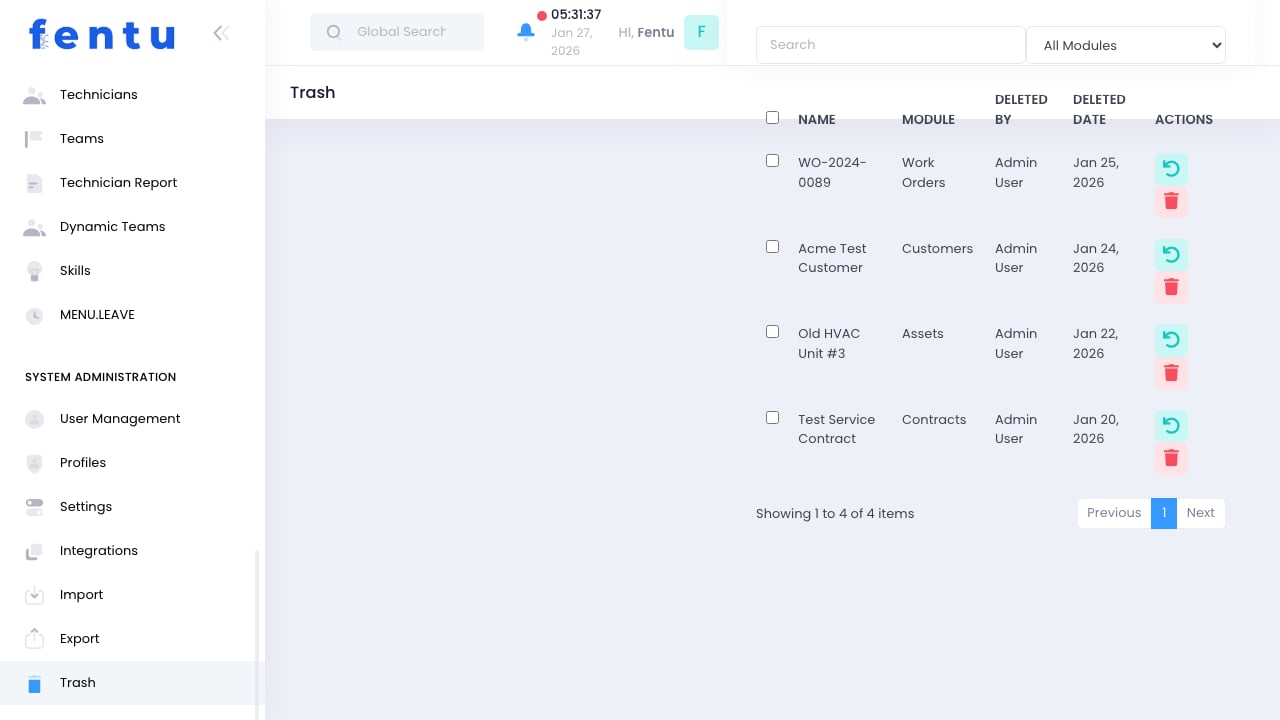 ## Overview
The Trash holds deleted records before permanent removal. This provides a safety net for accidental deletions and allows recovery of data within a retention period.
Deleted records remain in Trash for a configurable period before automatic permanent deletion. Restore records before this period expires.
## When to Use Trash
Access Trash to:
* **Recover Deleted Records** - Restore accidentally deleted items
* **Review Deletions** - See what has been deleted recently
* **Permanent Deletion** - Remove records permanently
* **Compliance** - Ensure proper data disposal
* **Clean Up** - Empty trash to free up space
***
## Trash Contents
The Trash contains deleted records from:
| Record Type | Example |
| --------------- | ------------------------- |
| **Customers** | Deleted customer accounts |
| **Contacts** | Removed contact records |
| **Work Orders** | Deleted work orders |
| **Products** | Removed product records |
| **Parts** | Deleted parts |
| **Assets** | Removed equipment records |
| **Technicians** | Deleted workforce records |
| **Other** | Any soft-deleted data |
### Trash Record Information
Each deleted record shows:
| Field | Description |
| ------------------ | ----------------------------- |
| **Record Type** | What kind of record |
| **Record Name** | Identifying information |
| **Deleted By** | Who deleted it |
| **Deleted Date** | When it was deleted |
| **Days Remaining** | Time until permanent deletion |
***
## Restoring Records
Go to Administration > Trash
Search or browse for the deleted record
Choose the record(s) to restore
Restore selected records
Confirm record is back in the system
### Restoration Considerations
When restoring records:
* **Related Records** - Relationships may need reconnecting
* **References** - Other records may have been updated
* **Duplicates** - A replacement may have been created
* **Permissions** - Verify you can restore that record type
Restored records may not have all original relationships intact. Review restored data and reconnect relationships as needed.
***
## Permanent Deletion
### Automatic Permanent Deletion
Records are permanently deleted after:
| Setting | Typical Value |
| ------------------------ | ------------- |
| **Default Retention** | 30 days |
| **Extended Retention** | 90 days |
| **Compliance Retention** | As required |
### Manual Permanent Deletion
To delete permanently before retention period:
Go to Administration > Trash
Choose records to permanently delete
Initiate permanent deletion
Confirm you want to permanently delete
Permanent deletion cannot be undone. Double-check before confirming permanent deletion.
### Empty Trash
To delete all items in trash:
1. Click "Empty Trash"
2. Confirm the action
3. All records are permanently deleted
Empty Trash is typically restricted to administrators. This prevents accidental mass deletion.
***
## Retention Settings
### Configuring Retention
| Setting | Description |
| ----------------------- | ----------------------------------------- |
| **Default Period** | Days before auto-deletion |
| **Per-Type Period** | Different retention for different records |
| **Compliance Override** | Extended retention for regulated data |
| **Immediate Delete** | Option to bypass trash |
### Retention Best Practices
* Set retention based on recovery needs
* Consider compliance requirements
* Balance storage costs vs recovery needs
* Document retention policies
***
## Searching Trash
### Search Options
| Filter | Purpose |
| --------------- | ------------------------------------- |
| **Record Type** | Show only specific types |
| **Deleted By** | Find records deleted by specific user |
| **Date Range** | Find records deleted within period |
| **Record Name** | Search by name or identifier |
### Finding Specific Records
1. Apply type filter if you know the record type
2. Search by name or ID
3. Filter by deletion date if known
4. Check "Deleted By" if you know who deleted it
***
## Audit Trail
### Deletion Logging
All deletions are logged with:
* Who deleted the record
* When it was deleted
* From where (module)
* Record details
### Restoration Logging
Restorations are logged with:
* Who restored the record
* When restored
* How long it was in trash
### Compliance
Logs support:
* Audit requirements
* Compliance reporting
* Security investigations
* Change tracking
***
## Best Practices
Check records carefully before deletion. Prevention is better than recovery.
Periodically review trash for accidentally deleted items before they're permanently removed.
Configure retention periods based on your recovery needs and compliance requirements.
Restrict who can delete records. Fewer people with delete access means fewer accidents.
Trash is for recovery, not archiving. Don't delete records to "archive" them.
Document your retention and deletion policies. Ensure compliance with regulations.
***
## Common Questions
No. Once permanently deleted, records cannot be recovered. Restore before the retention period expires.
Related records aren't automatically restored. You may need to restore multiple records or reconnect relationships.
Yes, deleted records in trash still consume storage. Empty trash to reclaim space.
Typically no. Restore records first, then export from the main system.
Depends on permissions. Typically administrators and users with restore permissions.
If configured, some deletions can bypass trash. This is typically restricted for safety.
***
## Related Documentation
Delete permissions
Retention configuration
Exporting before deletion
Permission configuration
## Overview
The Trash holds deleted records before permanent removal. This provides a safety net for accidental deletions and allows recovery of data within a retention period.
Deleted records remain in Trash for a configurable period before automatic permanent deletion. Restore records before this period expires.
## When to Use Trash
Access Trash to:
* **Recover Deleted Records** - Restore accidentally deleted items
* **Review Deletions** - See what has been deleted recently
* **Permanent Deletion** - Remove records permanently
* **Compliance** - Ensure proper data disposal
* **Clean Up** - Empty trash to free up space
***
## Trash Contents
The Trash contains deleted records from:
| Record Type | Example |
| --------------- | ------------------------- |
| **Customers** | Deleted customer accounts |
| **Contacts** | Removed contact records |
| **Work Orders** | Deleted work orders |
| **Products** | Removed product records |
| **Parts** | Deleted parts |
| **Assets** | Removed equipment records |
| **Technicians** | Deleted workforce records |
| **Other** | Any soft-deleted data |
### Trash Record Information
Each deleted record shows:
| Field | Description |
| ------------------ | ----------------------------- |
| **Record Type** | What kind of record |
| **Record Name** | Identifying information |
| **Deleted By** | Who deleted it |
| **Deleted Date** | When it was deleted |
| **Days Remaining** | Time until permanent deletion |
***
## Restoring Records
Go to Administration > Trash
Search or browse for the deleted record
Choose the record(s) to restore
Restore selected records
Confirm record is back in the system
### Restoration Considerations
When restoring records:
* **Related Records** - Relationships may need reconnecting
* **References** - Other records may have been updated
* **Duplicates** - A replacement may have been created
* **Permissions** - Verify you can restore that record type
Restored records may not have all original relationships intact. Review restored data and reconnect relationships as needed.
***
## Permanent Deletion
### Automatic Permanent Deletion
Records are permanently deleted after:
| Setting | Typical Value |
| ------------------------ | ------------- |
| **Default Retention** | 30 days |
| **Extended Retention** | 90 days |
| **Compliance Retention** | As required |
### Manual Permanent Deletion
To delete permanently before retention period:
Go to Administration > Trash
Choose records to permanently delete
Initiate permanent deletion
Confirm you want to permanently delete
Permanent deletion cannot be undone. Double-check before confirming permanent deletion.
### Empty Trash
To delete all items in trash:
1. Click "Empty Trash"
2. Confirm the action
3. All records are permanently deleted
Empty Trash is typically restricted to administrators. This prevents accidental mass deletion.
***
## Retention Settings
### Configuring Retention
| Setting | Description |
| ----------------------- | ----------------------------------------- |
| **Default Period** | Days before auto-deletion |
| **Per-Type Period** | Different retention for different records |
| **Compliance Override** | Extended retention for regulated data |
| **Immediate Delete** | Option to bypass trash |
### Retention Best Practices
* Set retention based on recovery needs
* Consider compliance requirements
* Balance storage costs vs recovery needs
* Document retention policies
***
## Searching Trash
### Search Options
| Filter | Purpose |
| --------------- | ------------------------------------- |
| **Record Type** | Show only specific types |
| **Deleted By** | Find records deleted by specific user |
| **Date Range** | Find records deleted within period |
| **Record Name** | Search by name or identifier |
### Finding Specific Records
1. Apply type filter if you know the record type
2. Search by name or ID
3. Filter by deletion date if known
4. Check "Deleted By" if you know who deleted it
***
## Audit Trail
### Deletion Logging
All deletions are logged with:
* Who deleted the record
* When it was deleted
* From where (module)
* Record details
### Restoration Logging
Restorations are logged with:
* Who restored the record
* When restored
* How long it was in trash
### Compliance
Logs support:
* Audit requirements
* Compliance reporting
* Security investigations
* Change tracking
***
## Best Practices
Check records carefully before deletion. Prevention is better than recovery.
Periodically review trash for accidentally deleted items before they're permanently removed.
Configure retention periods based on your recovery needs and compliance requirements.
Restrict who can delete records. Fewer people with delete access means fewer accidents.
Trash is for recovery, not archiving. Don't delete records to "archive" them.
Document your retention and deletion policies. Ensure compliance with regulations.
***
## Common Questions
No. Once permanently deleted, records cannot be recovered. Restore before the retention period expires.
Related records aren't automatically restored. You may need to restore multiple records or reconnect relationships.
Yes, deleted records in trash still consume storage. Empty trash to reclaim space.
Typically no. Restore records first, then export from the main system.
Depends on permissions. Typically administrators and users with restore permissions.
If configured, some deletions can bypass trash. This is typically restricted for safety.
***
## Related Documentation
Delete permissions
Retention configuration
Exporting before deletion
Permission configuration