> ## Documentation Index
> Fetch the complete documentation index at: https://docs.fentufsm.com/llms.txt
> Use this file to discover all available pages before exploring further.
# System Settings
> Configuring global system preferences and options
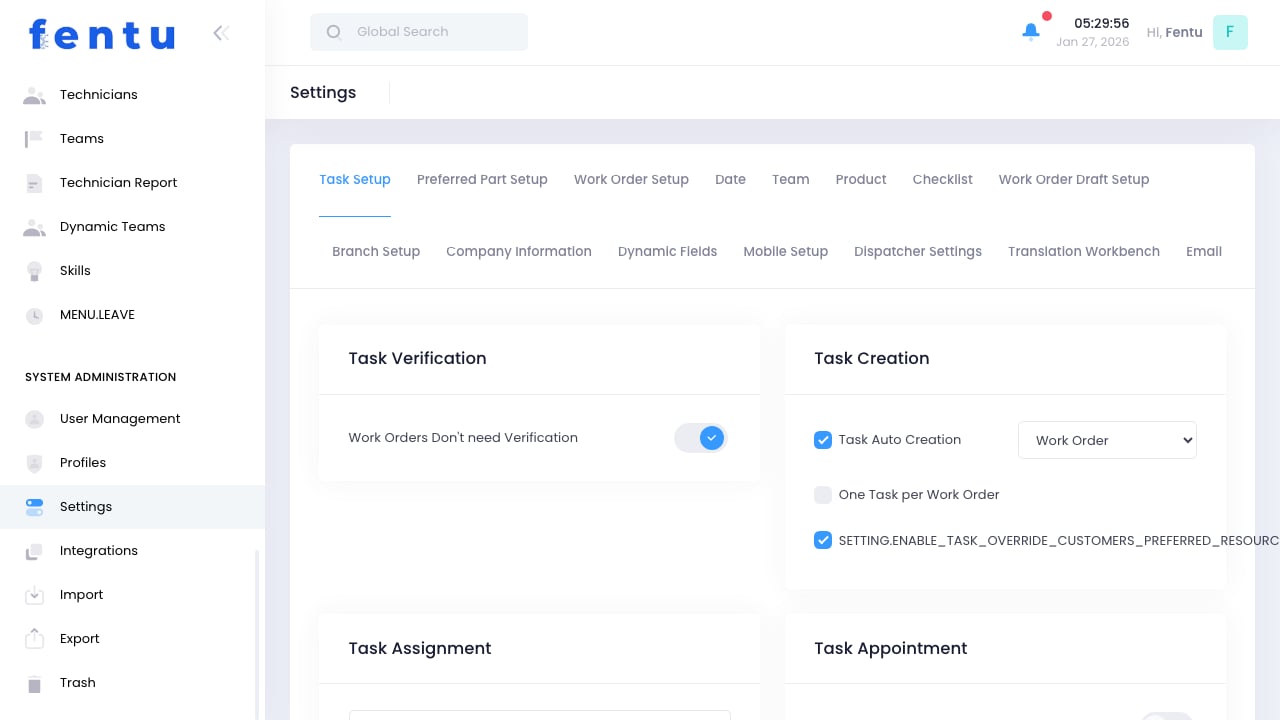 ## Overview
System Settings control global configurations that affect how Fentu FSM operates. These settings define default behaviors, formats, and options used throughout the application.
Changes to system settings affect all users. Test changes carefully and communicate modifications to your team.
## When to Configure Settings
Access settings to:
* **Initial Setup** - Configure system for your organization
* **Customization** - Adjust behaviors to match your processes
* **Regional Settings** - Set date formats, currencies, time zones
* **Notification Rules** - Configure system alerts
* **Default Values** - Set organization-wide defaults
***
## Setting Categories
### General Settings
| Setting | Description |
| --------------------- | ------------------------------------- |
| **Company Name** | Organization name displayed in system |
| **Company Logo** | Logo shown in headers and reports |
| **Default Language** | System language |
| **Default Time Zone** | Base time zone for scheduling |
| **Date Format** | How dates are displayed |
| **Currency** | Default currency for pricing |
### Work Order Settings
| Setting | Description |
| ------------------------- | ---------------------------------- |
| **ID Format** | Work order numbering pattern |
| **Default Priority** | Priority for new work orders |
| **Default Duration** | Estimated time for new work orders |
| **Auto-Assignment Rules** | How work is automatically assigned |
| **Status Workflow** | Available status transitions |
### Scheduling Settings
| Setting | Description |
| --------------------------- | --------------------------------- |
| **Business Hours** | Standard operating hours |
| **Holiday Calendar** | Non-working days |
| **Scheduling Window** | How far ahead to schedule |
| **Buffer Time** | Default time between appointments |
| **Travel Time Calculation** | How travel time is estimated |
### Notification Settings
| Setting | Description |
| ----------------------- | ------------------------------- |
| **Email Notifications** | When to send emails |
| **SMS Notifications** | When to send text messages |
| **In-App Alerts** | System notification preferences |
| **Reminder Timing** | When to send reminders |
***
## Configuring Settings
Go to Administration > Settings
Choose the settings category to configure
See existing configuration
Update settings as needed
Apply the new configuration
### Important Considerations
Before changing settings:
* **Understand Impact** - Know what the setting affects
* **Test When Possible** - Try in a test environment first
* **Communicate Changes** - Inform affected users
* **Document Changes** - Record what was changed and why
Some settings require system restart or cache clear to take effect. Check documentation for specific settings.
***
## Common Configurations
### Work Order ID Format
Define how work order numbers are generated:
| Pattern | Example | Description |
| ---------------------------- | -------------- | -------------------------- |
| `WO-{YEAR}-{SEQ}` | WO-2024-001 | Year and sequential number |
| `{BRANCH}-{SEQ}` | NORTH-00123 | Branch prefix |
| `{TYPE}-{YEAR}{MONTH}-{SEQ}` | SVC-202401-042 | Type, year-month, sequence |
### Date Formats
| Format | Example |
| ------------- | ----------- |
| `MM/DD/YYYY` | 01/27/2024 |
| `DD/MM/YYYY` | 27/01/2024 |
| `YYYY-MM-DD` | 2024-01-27 |
| `DD-MMM-YYYY` | 27-Jan-2024 |
### Business Hours
Configure for each day of the week:
* Start time
* End time
* Lunch break (if applicable)
* Or mark as non-working day
Business hours affect scheduling suggestions. The system won't suggest appointments outside configured hours.
***
## Security Settings
### Password Policy
| Setting | Recommendation |
| ------------------ | ------------------------------------ |
| **Minimum Length** | 8+ characters |
| **Complexity** | Require mixed case, numbers, symbols |
| **Expiration** | 90 days |
| **History** | Prevent reusing last 5 passwords |
| **Lockout** | Lock after 5 failed attempts |
### Session Settings
| Setting | Description |
| ----------------------- | ---------------------------- |
| **Session Timeout** | Auto-logout after inactivity |
| **Concurrent Sessions** | Allow multiple logins |
| **Remember Me** | Enable persistent login |
| **IP Restrictions** | Limit access by IP address |
### Audit Settings
| Setting | Description |
| -------------------- | --------------------------- |
| **Login Logging** | Track all login attempts |
| **Change Logging** | Record data modifications |
| **Export Logging** | Log data exports |
| **Retention Period** | How long to keep audit logs |
***
## Best Practices
Keep a record of all settings and why they're configured that way. Helps with troubleshooting and onboarding.
When possible, test setting changes in a non-production environment before applying to live system.
Notify users before making changes that affect their workflow. Provide training if needed.
Periodically review settings to ensure they still align with business needs.
Use strong security settings. Don't weaken security for convenience.
Keep a record of current settings before making changes so you can revert if needed.
***
## Common Questions
Only users with Administrator profile or specific settings permissions can modify system settings.
Most changes take effect immediately. Some may require logout/login or cache clear. Check documentation for specific settings.
Some settings are global, others can be configured per branch. Check each setting's scope.
Default values are shown for each setting. Manually change back to defaults, or contact support for system-wide reset.
Settings are included in system backups. You can also export settings for safekeeping.
If audit logging is enabled, setting changes are tracked with user, timestamp, and previous value.
***
## Related Documentation
User account settings
Third-party connections
Permission configuration
Branch-specific settings
## Overview
System Settings control global configurations that affect how Fentu FSM operates. These settings define default behaviors, formats, and options used throughout the application.
Changes to system settings affect all users. Test changes carefully and communicate modifications to your team.
## When to Configure Settings
Access settings to:
* **Initial Setup** - Configure system for your organization
* **Customization** - Adjust behaviors to match your processes
* **Regional Settings** - Set date formats, currencies, time zones
* **Notification Rules** - Configure system alerts
* **Default Values** - Set organization-wide defaults
***
## Setting Categories
### General Settings
| Setting | Description |
| --------------------- | ------------------------------------- |
| **Company Name** | Organization name displayed in system |
| **Company Logo** | Logo shown in headers and reports |
| **Default Language** | System language |
| **Default Time Zone** | Base time zone for scheduling |
| **Date Format** | How dates are displayed |
| **Currency** | Default currency for pricing |
### Work Order Settings
| Setting | Description |
| ------------------------- | ---------------------------------- |
| **ID Format** | Work order numbering pattern |
| **Default Priority** | Priority for new work orders |
| **Default Duration** | Estimated time for new work orders |
| **Auto-Assignment Rules** | How work is automatically assigned |
| **Status Workflow** | Available status transitions |
### Scheduling Settings
| Setting | Description |
| --------------------------- | --------------------------------- |
| **Business Hours** | Standard operating hours |
| **Holiday Calendar** | Non-working days |
| **Scheduling Window** | How far ahead to schedule |
| **Buffer Time** | Default time between appointments |
| **Travel Time Calculation** | How travel time is estimated |
### Notification Settings
| Setting | Description |
| ----------------------- | ------------------------------- |
| **Email Notifications** | When to send emails |
| **SMS Notifications** | When to send text messages |
| **In-App Alerts** | System notification preferences |
| **Reminder Timing** | When to send reminders |
***
## Configuring Settings
Go to Administration > Settings
Choose the settings category to configure
See existing configuration
Update settings as needed
Apply the new configuration
### Important Considerations
Before changing settings:
* **Understand Impact** - Know what the setting affects
* **Test When Possible** - Try in a test environment first
* **Communicate Changes** - Inform affected users
* **Document Changes** - Record what was changed and why
Some settings require system restart or cache clear to take effect. Check documentation for specific settings.
***
## Common Configurations
### Work Order ID Format
Define how work order numbers are generated:
| Pattern | Example | Description |
| ---------------------------- | -------------- | -------------------------- |
| `WO-{YEAR}-{SEQ}` | WO-2024-001 | Year and sequential number |
| `{BRANCH}-{SEQ}` | NORTH-00123 | Branch prefix |
| `{TYPE}-{YEAR}{MONTH}-{SEQ}` | SVC-202401-042 | Type, year-month, sequence |
### Date Formats
| Format | Example |
| ------------- | ----------- |
| `MM/DD/YYYY` | 01/27/2024 |
| `DD/MM/YYYY` | 27/01/2024 |
| `YYYY-MM-DD` | 2024-01-27 |
| `DD-MMM-YYYY` | 27-Jan-2024 |
### Business Hours
Configure for each day of the week:
* Start time
* End time
* Lunch break (if applicable)
* Or mark as non-working day
Business hours affect scheduling suggestions. The system won't suggest appointments outside configured hours.
***
## Security Settings
### Password Policy
| Setting | Recommendation |
| ------------------ | ------------------------------------ |
| **Minimum Length** | 8+ characters |
| **Complexity** | Require mixed case, numbers, symbols |
| **Expiration** | 90 days |
| **History** | Prevent reusing last 5 passwords |
| **Lockout** | Lock after 5 failed attempts |
### Session Settings
| Setting | Description |
| ----------------------- | ---------------------------- |
| **Session Timeout** | Auto-logout after inactivity |
| **Concurrent Sessions** | Allow multiple logins |
| **Remember Me** | Enable persistent login |
| **IP Restrictions** | Limit access by IP address |
### Audit Settings
| Setting | Description |
| -------------------- | --------------------------- |
| **Login Logging** | Track all login attempts |
| **Change Logging** | Record data modifications |
| **Export Logging** | Log data exports |
| **Retention Period** | How long to keep audit logs |
***
## Best Practices
Keep a record of all settings and why they're configured that way. Helps with troubleshooting and onboarding.
When possible, test setting changes in a non-production environment before applying to live system.
Notify users before making changes that affect their workflow. Provide training if needed.
Periodically review settings to ensure they still align with business needs.
Use strong security settings. Don't weaken security for convenience.
Keep a record of current settings before making changes so you can revert if needed.
***
## Common Questions
Only users with Administrator profile or specific settings permissions can modify system settings.
Most changes take effect immediately. Some may require logout/login or cache clear. Check documentation for specific settings.
Some settings are global, others can be configured per branch. Check each setting's scope.
Default values are shown for each setting. Manually change back to defaults, or contact support for system-wide reset.
Settings are included in system backups. You can also export settings for safekeeping.
If audit logging is enabled, setting changes are tracked with user, timestamp, and previous value.
***
## Related Documentation
User account settings
Third-party connections
Permission configuration
Branch-specific settings