> ## Documentation Index
> Fetch the complete documentation index at: https://docs.fentufsm.com/llms.txt
> Use this file to discover all available pages before exploring further.
# Profiles & Roles
> Configuring permission profiles and user roles
 ## Overview
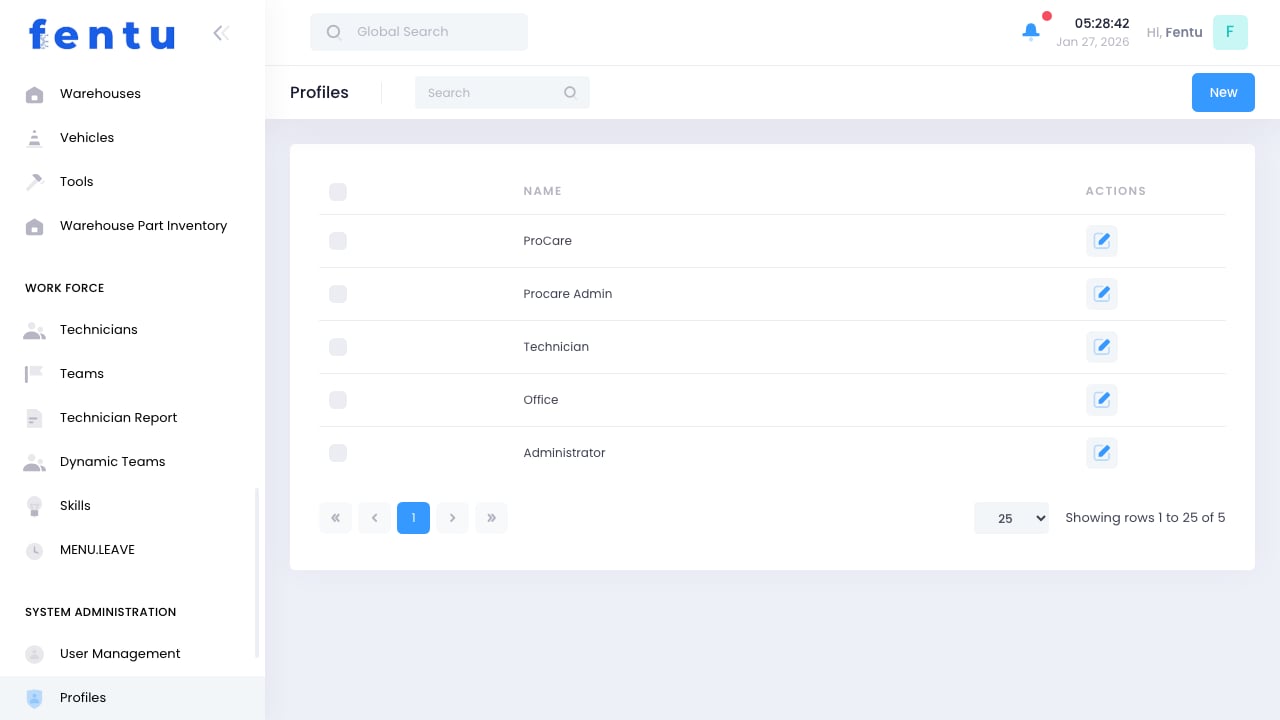
Profiles define what users can do within Fentu FSM. Each profile contains a set of permissions that control access to features, data, and actions. By assigning a profile to a user, you grant them all the permissions in that profile.
Design profiles around job functions, not individuals. Create profiles like "Dispatcher" or "Technician" that can be assigned to anyone in that role.
## When to Manage Profiles
Configure profiles when:
* **Setting Up System** - Creating initial permission structure
* **New Job Functions** - Adding roles that need unique permissions
* **Security Changes** - Adjusting what users can access
* **Feature Rollouts** - Enabling access to new features
* **Compliance** - Meeting security requirements
***
## Profile Information
Each profile includes:
| Field | Description |
| ------------------ | -------------------------------- |
| **Profile Name** | Descriptive name for the role |
| **Description** | Explanation of intended use |
| **Permissions** | Specific access grants |
| **Users Assigned** | Count of users with this profile |
| **Status** | Active or inactive |
### Permission Types
| Type | Controls |
| ------------------- | --------------------------------------- |
| **Module Access** | Which menu items/features are visible |
| **Create** | Ability to create new records |
| **Read** | Ability to view records |
| **Update** | Ability to modify records |
| **Delete** | Ability to remove records |
| **Special Actions** | Specific functions like approve, export |
***
## Default Profiles
Common profiles included by default:
### Administrator
Full system access including:
* All modules and features
* User management
* System configuration
* All data access
### Dispatcher
Service coordination access:
* Work orders (full access)
* Customers (view and edit)
* Technicians (view)
* Scheduling tools
* Material requests
### Technician
Field work access:
* Assigned work orders
* Mobile app access
* Time tracking
* Material usage
* Own schedule
### Manager
Supervisory access:
* Team work orders
* Reports and dashboards
* Approval functions
* Team member data
### Read Only
View-only access:
* View work orders
* View customers
* View reports
* No edit capabilities
***
## Creating Profiles
Go to Administration > Profiles
Start a new profile
Provide name and description
Enable/disable access to each module
For each module, set create/read/update/delete
Set any special action permissions
Save the new profile
### Copying Existing Profiles
To create a similar profile:
1. Open existing profile
2. Click Copy/Duplicate
3. Modify name and permissions
4. Save as new profile
Start with a similar profile and modify rather than building from scratch. This ensures you don't miss commonly needed permissions.
***
## Permission Configuration
### Module Permissions
For each module, configure:
| Permission | Grants |
| ---------- | -------------------------------- |
| **Access** | Can see the module in navigation |
| **List** | Can view list of records |
| **View** | Can view record details |
| **Create** | Can create new records |
| **Edit** | Can modify existing records |
| **Delete** | Can remove records |
### Data Scope Permissions
Limit data access:
| Scope | Sees |
| ---------- | ---------------------------- |
| **All** | All records in system |
| **Branch** | Records from assigned branch |
| **Team** | Records for assigned team |
| **Own** | Only own records |
### Special Permissions
Feature-specific permissions:
| Permission | Grants |
| ---------------- | ------------------------------ |
| **Approve** | Can approve requests/documents |
| **Export** | Can export data |
| **Import** | Can import data |
| **Assign** | Can assign work to others |
| **Bulk Actions** | Can perform bulk operations |
Be careful with Delete permissions. Data removal should be limited to specific roles. Consider using soft delete (move to trash) instead.
***
## Profile Management
### Auditing Profiles
Regularly review:
* Which users have each profile
* Whether profile permissions are still appropriate
* If profiles are actually being used
* Compliance with security policies
### Modifying Profiles
When changing profile permissions:
1. Review current users with this profile
2. Assess impact of changes
3. Communicate changes to affected users
4. Make changes
5. Verify everything works as expected
### Deactivating Profiles
Before deactivating:
1. Check how many users are assigned
2. Reassign users to different profiles
3. Then deactivate
Deactivated profiles cannot be assigned to users but historical records remain. This is preferred over deletion for audit purposes.
***
## Best Practices
Create profiles for job functions, not individuals. "Dispatcher" profile, not "John's profile."
Grant only permissions needed for the role. Avoid "everything" permissions unless truly needed.
Name profiles clearly. Anyone should understand what the profile is for from the name.
Maintain documentation of what each profile is intended for and why it has specific permissions.
Review profiles periodically. Remove unnecessary permissions, add needed ones.
Test profile changes with a test account before rolling out to production users.
***
## Common Questions
Typically no. Each user has one profile. If someone needs combined permissions, create a new profile with the combination.
Temporarily assign a different profile, then switch back. Or create a specific profile for temporary situations.
Either create a new profile or see if data scope adjustments can achieve the goal without a new profile.
Not typically. Each profile is independent. Use profile copying to maintain similar sets.
No access: user can't see the module at all. View-only: user can see and browse but not create/edit/delete.
Profile permissions determine what you can do. Branch restrictions determine which data you can see. Both apply.
***
## Related Documentation
Creating and managing users
Global security settings
Branch data scope
Team data scope
## Overview
Profiles define what users can do within Fentu FSM. Each profile contains a set of permissions that control access to features, data, and actions. By assigning a profile to a user, you grant them all the permissions in that profile.
Design profiles around job functions, not individuals. Create profiles like "Dispatcher" or "Technician" that can be assigned to anyone in that role.
## When to Manage Profiles
Configure profiles when:
* **Setting Up System** - Creating initial permission structure
* **New Job Functions** - Adding roles that need unique permissions
* **Security Changes** - Adjusting what users can access
* **Feature Rollouts** - Enabling access to new features
* **Compliance** - Meeting security requirements
***
## Profile Information
Each profile includes:
| Field | Description |
| ------------------ | -------------------------------- |
| **Profile Name** | Descriptive name for the role |
| **Description** | Explanation of intended use |
| **Permissions** | Specific access grants |
| **Users Assigned** | Count of users with this profile |
| **Status** | Active or inactive |
### Permission Types
| Type | Controls |
| ------------------- | --------------------------------------- |
| **Module Access** | Which menu items/features are visible |
| **Create** | Ability to create new records |
| **Read** | Ability to view records |
| **Update** | Ability to modify records |
| **Delete** | Ability to remove records |
| **Special Actions** | Specific functions like approve, export |
***
## Default Profiles
Common profiles included by default:
### Administrator
Full system access including:
* All modules and features
* User management
* System configuration
* All data access
### Dispatcher
Service coordination access:
* Work orders (full access)
* Customers (view and edit)
* Technicians (view)
* Scheduling tools
* Material requests
### Technician
Field work access:
* Assigned work orders
* Mobile app access
* Time tracking
* Material usage
* Own schedule
### Manager
Supervisory access:
* Team work orders
* Reports and dashboards
* Approval functions
* Team member data
### Read Only
View-only access:
* View work orders
* View customers
* View reports
* No edit capabilities
***
## Creating Profiles
Go to Administration > Profiles
Start a new profile
Provide name and description
Enable/disable access to each module
For each module, set create/read/update/delete
Set any special action permissions
Save the new profile
### Copying Existing Profiles
To create a similar profile:
1. Open existing profile
2. Click Copy/Duplicate
3. Modify name and permissions
4. Save as new profile
Start with a similar profile and modify rather than building from scratch. This ensures you don't miss commonly needed permissions.
***
## Permission Configuration
### Module Permissions
For each module, configure:
| Permission | Grants |
| ---------- | -------------------------------- |
| **Access** | Can see the module in navigation |
| **List** | Can view list of records |
| **View** | Can view record details |
| **Create** | Can create new records |
| **Edit** | Can modify existing records |
| **Delete** | Can remove records |
### Data Scope Permissions
Limit data access:
| Scope | Sees |
| ---------- | ---------------------------- |
| **All** | All records in system |
| **Branch** | Records from assigned branch |
| **Team** | Records for assigned team |
| **Own** | Only own records |
### Special Permissions
Feature-specific permissions:
| Permission | Grants |
| ---------------- | ------------------------------ |
| **Approve** | Can approve requests/documents |
| **Export** | Can export data |
| **Import** | Can import data |
| **Assign** | Can assign work to others |
| **Bulk Actions** | Can perform bulk operations |
Be careful with Delete permissions. Data removal should be limited to specific roles. Consider using soft delete (move to trash) instead.
***
## Profile Management
### Auditing Profiles
Regularly review:
* Which users have each profile
* Whether profile permissions are still appropriate
* If profiles are actually being used
* Compliance with security policies
### Modifying Profiles
When changing profile permissions:
1. Review current users with this profile
2. Assess impact of changes
3. Communicate changes to affected users
4. Make changes
5. Verify everything works as expected
### Deactivating Profiles
Before deactivating:
1. Check how many users are assigned
2. Reassign users to different profiles
3. Then deactivate
Deactivated profiles cannot be assigned to users but historical records remain. This is preferred over deletion for audit purposes.
***
## Best Practices
Create profiles for job functions, not individuals. "Dispatcher" profile, not "John's profile."
Grant only permissions needed for the role. Avoid "everything" permissions unless truly needed.
Name profiles clearly. Anyone should understand what the profile is for from the name.
Maintain documentation of what each profile is intended for and why it has specific permissions.
Review profiles periodically. Remove unnecessary permissions, add needed ones.
Test profile changes with a test account before rolling out to production users.
***
## Common Questions
Typically no. Each user has one profile. If someone needs combined permissions, create a new profile with the combination.
Temporarily assign a different profile, then switch back. Or create a specific profile for temporary situations.
Either create a new profile or see if data scope adjustments can achieve the goal without a new profile.
Not typically. Each profile is independent. Use profile copying to maintain similar sets.
No access: user can't see the module at all. View-only: user can see and browse but not create/edit/delete.
Profile permissions determine what you can do. Branch restrictions determine which data you can see. Both apply.
***
## Related Documentation
Creating and managing users
Global security settings
Branch data scope
Team data scope