> ## Documentation Index
> Fetch the complete documentation index at: https://docs.fentufsm.com/llms.txt
> Use this file to discover all available pages before exploring further.
# User Management
> Creating and managing system user accounts
 ## Overview
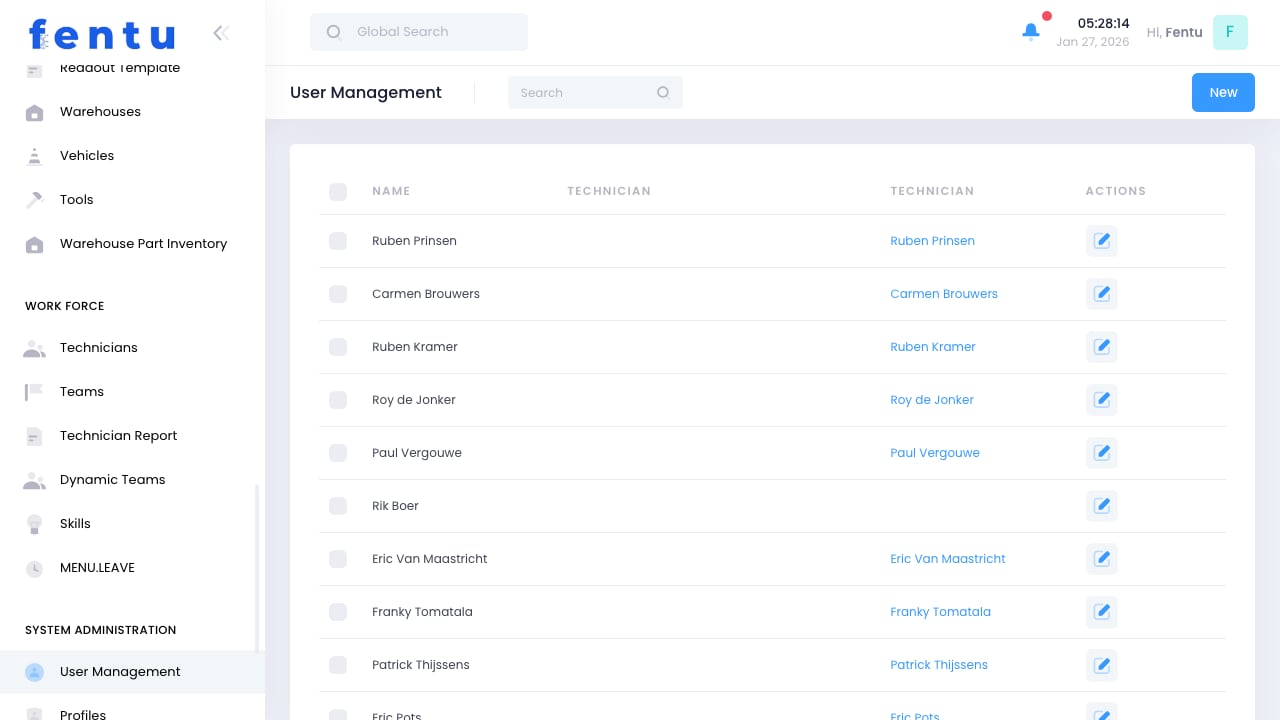
User Management controls who can access Fentu FSM and what they can do within the system. Each person who needs to log in requires a user account with appropriate permissions based on their role.
User accounts are separate from technician records. A technician needs both a technician profile (workforce data) and a user account (system access) to use the mobile app.
## When to Manage Users
Access this module to:
* **Create Accounts** - Set up new users
* **Manage Permissions** - Control what users can access
* **Reset Passwords** - Help users who are locked out
* **Deactivate Accounts** - Remove access for departing employees
* **Audit Access** - Review who has access to what
***
## User Information
Each user account includes:
| Field | Description |
| ---------------- | -------------------------------------- |
| **Username** | Login identifier |
| **Email** | Contact email (often used as username) |
| **Full Name** | Display name |
| **Profile** | Permission profile assigned |
| **Branch** | Associated branch |
| **Status** | Active, Inactive, Locked |
| **Last Login** | Most recent access |
| **Created Date** | When account was created |
### User Types
| Type | Description | Typical Access |
| ----------------- | --------------------- | ---------------------------------- |
| **Administrator** | System administrators | Full access to all features |
| **Dispatcher** | Service coordinators | Work orders, scheduling, customers |
| **Technician** | Field technicians | Mobile app, assigned work |
| **Manager** | Team managers | Team data, reports |
| **Accountant** | Finance users | Invoicing, financial reports |
| **Read-Only** | View-only access | Reports and dashboards |
***
## Creating Users
Go to Administration > User Management
Start a new user account
Provide username, email, and name
Create initial password (user should change on first login)
Select the permission profile
Associate with appropriate branch
If applicable, link to technician record
Create the account
### Linking Users to Technicians
For field technicians:
1. Create the user account first
2. Open the technician record
3. Link to the user account
4. Or select existing technician when creating user
Users without technician links cannot be assigned work orders. Always link accounts for field personnel.
***
## Managing Permissions
### Through Profiles
Permissions are assigned via profiles:
* Each user gets one profile
* Profile determines accessible features
* Change profile to change permissions
* See [Profiles & Roles](/administration/users/profiles-roles) for details
### Data Access
Control what data users can see:
| Level | Description |
| ------------ | ----------------------------- |
| **Global** | All data across all branches |
| **Branch** | Only data for assigned branch |
| **Team** | Only data for assigned team |
| **Personal** | Only own records |
Combine permission profiles with data access levels for granular control. A dispatcher profile with branch-level access sees all work orders but only for their branch.
***
## Account Administration
### Password Management
| Action | How |
| ------------------- | --------------------------------------------- |
| **Reset Password** | Admin sets new temporary password |
| **Force Change** | Require password change at next login |
| **Unlock Account** | Clear lockout after too many failed attempts |
| **Password Policy** | Set minimum requirements (length, complexity) |
### Account Status
| Status | Meaning | Action |
| ------------ | ----------------------- | ---------------------------- |
| **Active** | Normal, can log in | None needed |
| **Inactive** | Disabled, cannot log in | Reactivate to restore access |
| **Locked** | Temporarily blocked | Unlock to restore access |
| **Pending** | Awaiting first login | User needs to set password |
### Security Features
* **Session Timeout** - Automatic logout after inactivity
* **Login Attempts** - Lock after too many failures
* **Two-Factor Authentication** - Additional login verification
* **Password Expiration** - Force regular password changes
***
## Bulk Operations
### Importing Users
For multiple new users:
1. Prepare user data in spreadsheet
2. Use Import function
3. Map columns to user fields
4. Review and confirm import
5. Send welcome emails with credentials
### Exporting User List
Export user data for:
* Audit purposes
* Integration with HR systems
* Backup before changes
* Compliance reporting
***
## Best Practices
Use email addresses as usernames when possible. They're unique and users remember them.
Give users only the permissions they need. More access means more risk.
Periodically review user accounts. Remove or deactivate unused accounts.
Deactivate accounts immediately when employees leave. Don't wait for cleanup later.
Enforce password complexity. Weak passwords are the most common security vulnerability.
Keep records of why users have specific profiles. This helps with audits and reviews.
***
## Common Questions
A user account provides system login access. A technician record contains workforce data. Field technicians need both.
Generally no. One person should have one account. Use profiles to grant access to multiple areas.
Avoid shared logins. They prevent accountability tracking. Create individual accounts for each person.
The user cannot log in. An administrator must unlock it. This typically happens after too many failed login attempts.
Depending on configuration, users may update their email. Username changes usually require admin action.
Reassign open work orders before deactivating the account. The system may prevent deactivation with active assignments.
***
## Related Documentation
Permission configuration
Technician management
Security settings
Bulk user import
## Overview
User Management controls who can access Fentu FSM and what they can do within the system. Each person who needs to log in requires a user account with appropriate permissions based on their role.
User accounts are separate from technician records. A technician needs both a technician profile (workforce data) and a user account (system access) to use the mobile app.
## When to Manage Users
Access this module to:
* **Create Accounts** - Set up new users
* **Manage Permissions** - Control what users can access
* **Reset Passwords** - Help users who are locked out
* **Deactivate Accounts** - Remove access for departing employees
* **Audit Access** - Review who has access to what
***
## User Information
Each user account includes:
| Field | Description |
| ---------------- | -------------------------------------- |
| **Username** | Login identifier |
| **Email** | Contact email (often used as username) |
| **Full Name** | Display name |
| **Profile** | Permission profile assigned |
| **Branch** | Associated branch |
| **Status** | Active, Inactive, Locked |
| **Last Login** | Most recent access |
| **Created Date** | When account was created |
### User Types
| Type | Description | Typical Access |
| ----------------- | --------------------- | ---------------------------------- |
| **Administrator** | System administrators | Full access to all features |
| **Dispatcher** | Service coordinators | Work orders, scheduling, customers |
| **Technician** | Field technicians | Mobile app, assigned work |
| **Manager** | Team managers | Team data, reports |
| **Accountant** | Finance users | Invoicing, financial reports |
| **Read-Only** | View-only access | Reports and dashboards |
***
## Creating Users
Go to Administration > User Management
Start a new user account
Provide username, email, and name
Create initial password (user should change on first login)
Select the permission profile
Associate with appropriate branch
If applicable, link to technician record
Create the account
### Linking Users to Technicians
For field technicians:
1. Create the user account first
2. Open the technician record
3. Link to the user account
4. Or select existing technician when creating user
Users without technician links cannot be assigned work orders. Always link accounts for field personnel.
***
## Managing Permissions
### Through Profiles
Permissions are assigned via profiles:
* Each user gets one profile
* Profile determines accessible features
* Change profile to change permissions
* See [Profiles & Roles](/administration/users/profiles-roles) for details
### Data Access
Control what data users can see:
| Level | Description |
| ------------ | ----------------------------- |
| **Global** | All data across all branches |
| **Branch** | Only data for assigned branch |
| **Team** | Only data for assigned team |
| **Personal** | Only own records |
Combine permission profiles with data access levels for granular control. A dispatcher profile with branch-level access sees all work orders but only for their branch.
***
## Account Administration
### Password Management
| Action | How |
| ------------------- | --------------------------------------------- |
| **Reset Password** | Admin sets new temporary password |
| **Force Change** | Require password change at next login |
| **Unlock Account** | Clear lockout after too many failed attempts |
| **Password Policy** | Set minimum requirements (length, complexity) |
### Account Status
| Status | Meaning | Action |
| ------------ | ----------------------- | ---------------------------- |
| **Active** | Normal, can log in | None needed |
| **Inactive** | Disabled, cannot log in | Reactivate to restore access |
| **Locked** | Temporarily blocked | Unlock to restore access |
| **Pending** | Awaiting first login | User needs to set password |
### Security Features
* **Session Timeout** - Automatic logout after inactivity
* **Login Attempts** - Lock after too many failures
* **Two-Factor Authentication** - Additional login verification
* **Password Expiration** - Force regular password changes
***
## Bulk Operations
### Importing Users
For multiple new users:
1. Prepare user data in spreadsheet
2. Use Import function
3. Map columns to user fields
4. Review and confirm import
5. Send welcome emails with credentials
### Exporting User List
Export user data for:
* Audit purposes
* Integration with HR systems
* Backup before changes
* Compliance reporting
***
## Best Practices
Use email addresses as usernames when possible. They're unique and users remember them.
Give users only the permissions they need. More access means more risk.
Periodically review user accounts. Remove or deactivate unused accounts.
Deactivate accounts immediately when employees leave. Don't wait for cleanup later.
Enforce password complexity. Weak passwords are the most common security vulnerability.
Keep records of why users have specific profiles. This helps with audits and reviews.
***
## Common Questions
A user account provides system login access. A technician record contains workforce data. Field technicians need both.
Generally no. One person should have one account. Use profiles to grant access to multiple areas.
Avoid shared logins. They prevent accountability tracking. Create individual accounts for each person.
The user cannot log in. An administrator must unlock it. This typically happens after too many failed login attempts.
Depending on configuration, users may update their email. Username changes usually require admin action.
Reassign open work orders before deactivating the account. The system may prevent deactivation with active assignments.
***
## Related Documentation
Permission configuration
Technician management
Security settings
Bulk user import