> ## Documentation Index
> Fetch the complete documentation index at: https://docs.fentufsm.com/llms.txt
> Use this file to discover all available pages before exploring further.
# Asset Parts
> Track individual components and parts that make up customer assets
## Overview
Asset Parts represent individual components that make up larger assets. By tracking parts separately, you can monitor component lifecycles, schedule part-specific maintenance, track replacements, and identify patterns in equipment failures.
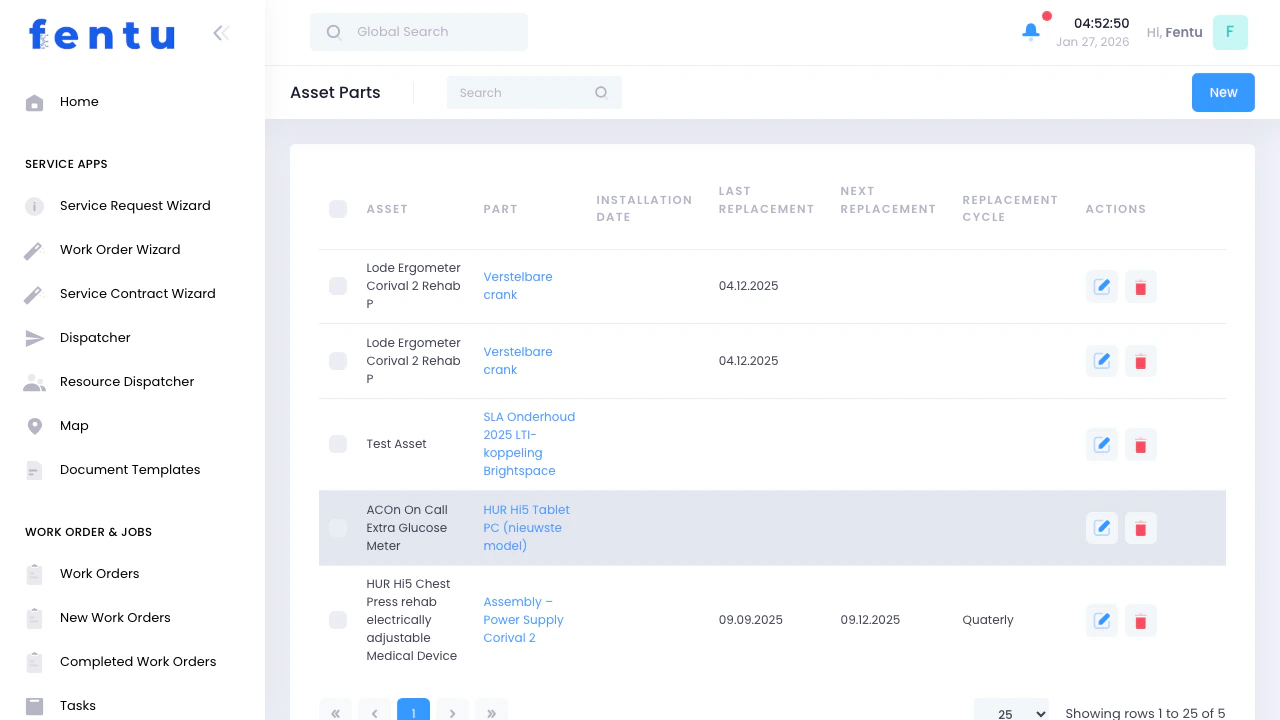 Asset Parts are optional but provide detailed tracking for complex equipment. Use them when component-level maintenance and replacement history matters to your service operations.
## When to Use Asset Parts
Use the Asset Parts module when you need to:
* Track major components of complex equipment
* Monitor component lifecycles and replacement intervals
* Schedule maintenance for specific parts
* Identify patterns in part failures
* Track warranty coverage for individual components
* Plan part replacements based on age and service history
* Manage inventory for frequently replaced components
***
## Understanding Asset Parts
### Part Hierarchy
```
Customer (Company)
└─ Object (Location)
└─ Asset (Equipment)
└─ Asset Part (Component)
```
**Example:**
* **Customer:** "Acme Corporation"
* **Object:** "Acme HQ Building"
* **Asset:** "Rooftop Machine Unit #1"
* **Asset Part:** "Compressor - Model ABC-123"
* **Asset Part:** "Evaporator Coil - 4 Ton"
* **Asset Part:** "Blower Motor - 1/2 HP"
* **Asset Part:** "Condenser Fan Motor - 1/4 HP"
### When to Create Asset Parts
Create part records for:
* **Major Components** - Expensive parts with independent service needs (compressors, motors, control boards)
* **Warranty-Tracked Parts** - Components with separate warranty coverage
* **Frequently Replaced Parts** - Items replaced on regular intervals (filters that cost tracking matters, wear parts)
* **Critical Components** - Parts whose failure causes equipment downtime (emergency replacement planning)
Don't create part records for:
* Consumables replaced at every service (filters, belts unless tracking matters)
* Inexpensive, easily obtained parts
* Parts that are always replaced together with the parent asset
***
## Asset Parts List View
### Key Features
Filter parts by branch to see components in your service area.
Each part shows which asset it belongs to, making it easy to track all components of specific equipment.
View replacement history and dates for each part to identify patterns.
Track warranty coverage for individual components separately from the parent asset.
Link parts to your inventory system for automated stock tracking and reordering.
### Asset Parts List Columns
| Column | Description |
| ------------------------ | ------------------------------------------------------------- |
| **Part Name** | Descriptive name for the component |
| **Part** | Links the Asset Part to a consumable Part in inventory |
| **Serial Number** | Component serial number (if applicable) |
| **Manufacturer** | Who makes this component (may differ from asset manufacturer) |
| **Specifications** | Key specs: horsepower, voltage, tonnage, capacity, size, etc. |
| **Asset** | Which asset this part belongs to |
| **Type/Category** | Type of part: Motor, Compressor, Control Board, Sensor, etc. |
| **Status** | Active, Replaced, Under Warranty, Failed |
| **Installation Date** | When this part was installed |
| **Replacement Cycle** | How often this part typically needs replacement |
| **Next Replacement Due** | Calculated based on expected life and installation date |
| **Last Service** | Most recent maintenance on this part |
| **Warranty Expires** | Warranty expiration date for this component |
| **Expected Life** | Expected lifespan based on manufacturer specs |
| **Actions** | View, edit, create work order, order replacement |
***
## Creating a New Asset Part
Click the "New Asset Part" or "+" button in the top right corner.
Choose which asset this part belongs to from the dropdown.
Fill in part name, manufacturer, part number, and serial number.
Document installation date, expected life, and warranty information.
Connect to your parts inventory for automated stock tracking (optional).
Click "Save" to create the asset part record.
***
## Asset Part Information Fields
### Basic Information
| Field | Description |
| ----------------- | ---------------------------------------------------------------------------------------------------------------------------- |
| **Part Name** | Descriptive name for the component. Be specific: "Compressor - Copeland Scroll 3 Ton" not just "Compressor". Required field. |
| **Part Code** | Internal code or stock number if you maintain inventory. |
| **Part Number** | Manufacturer part number or model number. Critical for ordering exact replacements. |
| **Serial Number** | Component serial number if available. Some parts have individual serial numbers. |
| **Asset** | Which asset (parent equipment) this part belongs to. Required field. |
| **Type/Category** | Type of component: Compressor, Motor, Control Board, Sensor, Coil, Fan, Belt, Filter, etc. |
| **Status** | Current status: Active, Replaced, Failed, Under Warranty, Retired. |
Include key specifications in the part name to avoid confusion: "Blower Motor - 1/2 HP, 115V, 1075 RPM" is much clearer than just "Blower Motor" when you have multiple motors in the system.
### Component Details
| Field | Description |
| ------------------ | --------------------------------------------------------------- |
| **Manufacturer** | Who makes this component (may differ from asset manufacturer). |
| **Brand** | Brand name if different from manufacturer. |
| **Model** | Specific model designation for this component. |
| **Specifications** | Key specs: horsepower, voltage, tonnage, capacity, size, etc. |
| **Material** | Component material (copper, aluminum, steel, etc.) if relevant. |
### Installation Information
| Field | Description |
| --------------------------- | ----------------------------------------------------------------------------------------------------------------------------------------------- |
| **Installation Date** | When this specific part was installed. For original parts, this is the asset installation date. For replacements, this is the replacement date. |
| **Installed By** | Technician or company who installed this part. |
| **Installation Cost** | Labor and material cost for installation (for replacement planning). |
| **Original vs Replacement** | Is this the original part from the asset or a replacement? |
### Lifecycle Information
| Field | Description |
| ------------------------- | --------------------------------------------------------------------------------------------------------------- |
| **Expected Life** | Expected lifespan in years or hours of operation based on manufacturer specs. |
| **Replacement Cycle** | How often this part typically needs replacement: annually, every 2 years, every 5 years, based on runtime, etc. |
| **Operating Hours** | For parts tracked by runtime, record total operating hours. |
| **Last Replacement Date** | When this part was last replaced (if it's been replaced multiple times). |
| **Next Replacement Due** | Calculated based on expected life and installation date. |
### Warranty Information
| Field | Description |
| ----------------------- | ------------------------------------------------------ |
| **Warranty Start Date** | When warranty coverage begins for this component. |
| **Warranty End Date** | When warranty expires. May differ from asset warranty. |
| **Warranty Type** | Parts only, labor included, or full coverage. |
| **Warranty Provider** | Manufacturer warranty or separate warranty company. |
| **Warranty Document** | Upload warranty certificate or terms. |
Some parts have warranties that outlast the main asset warranty or start when the part is installed/replaced. Always check part-level warranty before authorizing repairs.
### Inventory Connection
| Field | Description |
| -------------------- | --------------------------------------------------------------- |
| **Stock Item** | Link to inventory stock item if you maintain parts inventory. |
| **Reorder Point** | When stock of this part reaches this level, trigger reorder. |
| **Preferred Vendor** | Which supplier you purchase this part from. |
| **Lead Time** | How long it takes to obtain this part (for emergency planning). |
| **Cost** | Standard replacement cost for this part. |
### Maintenance Requirements
| Field | Description |
| ------------------------ | --------------------------------------------------------------------------------------------------------- |
| **Maintenance Schedule** | How often this specific component needs service: Monthly, Quarterly, Annual, or based on operating hours. |
| **Last Service Date** | When this part was last serviced or inspected. |
| **Next Service Due** | When next maintenance is scheduled. |
| **Service Notes** | Special service procedures or requirements for this component. |
### Technical Information
| Field | Description |
| ------------------------ | -------------------------------------------------------------- |
| **Specifications Sheet** | Upload technical spec sheet from manufacturer. |
| **Wiring Diagram** | Upload electrical diagrams if applicable. |
| **Installation Manual** | Installation instructions for this component. |
| **Service Manual** | Service and troubleshooting guide for this part. |
| **Photos** | Photos of the component, nameplate, and installation location. |
### Notes
| Field | Description |
| ----------------------- | ----------------------------------------------------------------------------------------------------------------------------------------------------------------------------- |
| **Notes** | Internal notes about this part. Document: common failure modes, special tools required, known issues, upgrade options, cross-reference part numbers from other manufacturers. |
| **Replacement History** | Track each time this part has been replaced: dates, reasons, costs. |
***
## Common Asset Parts by Equipment Type
### Machine Systems
**Track:** Model, tonnage, refrigerant type, serial number, warranty (typically 5-10 years)
**Expected Life:** 10-15 years
**Why Track:** Most expensive component, warranty coverage, failure patterns
**Track:** Horsepower, voltage, RPM, bearing type
**Expected Life:** 10-20 years
**Why Track:** Common failure point, multiple motors in system, different replacement intervals
**Track:** Size, material (copper/aluminum), fin type
**Expected Life:** 10-15 years
**Why Track:** Corrosion tracking, leak history, warranty coverage
**Track:** Model number, firmware version, voltage
**Expected Life:** 5-10 years
**Why Track:** Expensive, lightning damage common, obsolescence tracking
### Elevators
**Track:** Horsepower, type (AC/DC, traction/hydraulic), speed
**Expected Life:** 20-30 years
**Why Track:** Most expensive component, rebuild vs replace decisions
**Track:** Manufacturer, model, software version
**Expected Life:** 15-20 years
**Why Track:** Obsolescence issues, programming backups, upgrade planning
**Track:** Type, voltage, door weight capacity
**Expected Life:** 15-20 years
**Why Track:** Safety-critical, frequent service needs, code compliance
### Electrical Systems
**Track:** KW output, fuel type, engine model, transfer switch model
**Expected Life:** 20-30 years
**Why Track:** Critical emergency equipment, expensive, extensive service requirements
**Track:** Voltage, amp-hour capacity, number of batteries, manufacture date
**Expected Life:** 3-5 years
**Why Track:** Predictable replacement cycle, performance degradation, criticality
**Track:** KVA rating, primary/secondary voltage, cooling type
**Expected Life:** 30+ years
**Why Track:** Expensive, load capacity planning, oil sampling for diagnostics
***
## Part Status Management
### Status Types
| Status | Description | When to Use |
| ------------------ | ------------------------------------------------ | -------------------------------------- |
| **Active** | Part is currently installed and operational | Normal operating state |
| **Under Warranty** | Part is installed and covered by active warranty | Warranty period |
| **Replaced** | Part has been removed and replaced | After replacement work order completed |
| **Failed** | Part has failed but not yet replaced | When equipment is down awaiting part |
| **Retired** | Part was removed when asset was retired | Asset decommissioned |
| **Stock** | Spare part in inventory, not yet installed | Pre-stocked replacement parts |
### Tracking Replacements
When a part is replaced:
1. Update the old part status to "Replaced"
2. Note the replacement date and reason for replacement
3. Create a new part record for the replacement (or update installation date if tracking same part slot)
4. Document replacement cost and labor hours
5. Start new warranty period if applicable
This creates a complete replacement history for analysis and planning.
***
## Part Detail View
When you click on an asset part row in the list, you open the detailed view showing comprehensive information and additional features:
### Detail View Sections
The top section displays all part details:
* Part name and identification
* Type and category
* Approval numbers or certifications
* Installation date
* Replacement cycle information
* Last replacement date
* Next scheduled replacement
* Notes and remarks about replacement scheduling
Associate maintenance checklists with specific parts. This section shows:
* All checklists assigned to this part
* Checklist completion status
* Last time each checklist was completed
* Quick access to perform checklist inspections
**Use Case:** For parts requiring regular inspections (safety equipment, critical components), attach checklists to ensure consistent inspection procedures. For example, a generator part might have monthly inspection checklists for fluid levels, battery condition, and belt tension.
Complete audit trail showing every change made to this part record:
* **Date & Time** - When the change occurred
* **User** - Who made the change
* **Section** - Which area of the record was changed
* **Field Changed** - Specific field that was modified
* **Previous Value** - What the value was before
* **New Value** - What it was changed to
This history is permanent and cannot be deleted, providing full accountability and traceability for compliance and troubleshooting.
**Examples of tracked changes:**
* Status changes (Active → Replaced)
* Installation date updates
* Serial number corrections
* Warranty information changes
* Maintenance schedule adjustments
### Benefits of Detail View Features
The history log provides complete traceability for regulatory compliance and quality audits. Know exactly when parts were installed, who authorized changes, and what modifications were made.
Checklists ensure consistent inspection procedures across all technicians. Schedule recurring checklist inspections to catch issues before they become failures.
When investigating equipment problems, the history shows what changed and when. Did performance decline after a part was replaced? Check the history to see what happened.
New technicians can review part history to understand maintenance patterns, common issues, and service procedures used by experienced staff.
### Using Checklists Effectively
Develop standardized inspection checklists for common part types. For example, "Monthly Generator Inspection" or "Quarterly Compressor Check".
Link appropriate checklists to individual part records. Not every part needs a checklist - focus on safety-critical and high-value components.
Set up recurring reminders to complete checklist inspections based on part maintenance requirements.
When servicing equipment, technicians complete the checklist directly in the part detail view, recording observations and measurements.
Over time, checklist history reveals patterns: declining performance, recurring issues, or needed adjustments to maintenance frequency.
Use the history log to investigate recurring failures. If a part type consistently fails at certain intervals or after specific events, the history across multiple parts will reveal patterns that help you adjust maintenance schedules or identify installation issues.
***
## Asset Part Actions
### From the List View
See complete part information, replacement history, and service records.
Update part information, status, or maintenance schedule.
Generate a work order for part replacement or service.
Initiate purchase order for replacement part if linked to inventory.
Jump to the parent asset record to see the complete system.
View complete replacement history for this part type.
### From the Detail View
When viewing a part's detail page, you can:
* **Edit Part Information** - Update any field including installation dates, warranty info, or specifications
* **Manage Checklists** - Add, remove, or complete inspection checklists associated with this part
* **Perform Checklist Inspection** - Complete assigned checklists directly from the part record
* **Review Change History** - View complete audit trail of all modifications to this part record
* **Create Work Order** - Generate a work order specifically for this part
* **Link to Parent Asset** - Navigate to the parent asset to see the complete equipment context
* **Upload Documents** - Attach spec sheets, photos, or service records
* **View Service History** - See all work orders that involved this part
The history/audit trail is particularly valuable for compliance and troubleshooting. Every field change is logged permanently with timestamp, user, and before/after values.
***
## Tips and Best Practices
Don't track every component. Focus asset part records on:
* Expensive parts (compressors, motors, control boards)
* Warranty-tracked components
* Parts with predictable failure patterns
* Safety-critical components
Low-value consumables (filters, belts) don't need individual part records unless tracking provides business value.
When replacing parts, always document why:
* Normal wear/end of life
* Unexpected failure
* Upgrade or improvement
* Damage (lightning, corrosion, accident)
This data helps identify systemic issues and optimize maintenance schedules.
Take photos of parts showing:
* Nameplate with model/part number
* Serial number label
* Physical condition
* Installation location
Photos help technicians order correct parts and verify compatibility.
Document whether replacements are OEM (Original Equipment Manufacturer) or aftermarket parts. Track performance differences and use this data to make informed decisions about part sourcing.
Connect commonly replaced parts to your inventory system. This enables:
* Automatic reordering when stock is low
* Better cost tracking
* Faster emergency replacements (parts already in stock)
* Improved cash flow management
For control boards and electronic components, track:
* Manufacturer support end dates
* Availability of replacements
* Compatible upgrade options
This prevents emergency scrambles when critical parts are discontinued.
Analyze replacement history to identify parts that should be replaced preventively before failure. For example, if compressors consistently fail at 12 years, recommend preventive replacement at 10-11 years.
Before replacing any part, check warranty status at both:
* Asset level (whole unit warranty)
* Part level (component warranty)
Some components have extended warranties. Using warranty coverage saves money and improves margins.
***
## Common Questions
No. Create part records for components where tracking provides value:
* Expensive parts
* Frequently replaced items
* Warranty-tracked components
* Parts with independent service schedules
You don't need part records for inexpensive consumables or items that are always replaced as part of routine maintenance (unless you need that level of tracking).
Two approaches work:
**Option 1 - New Record:** Create a new part record for each replacement. Provides complete historical tracking but creates more records.
**Option 2 - Update Existing:** Update the same part record with new installation date and increment a "Times Replaced" counter. Simpler but less detailed history.
Choose based on your tracking needs. For expensive, infrequently replaced parts (compressors), option 1 provides better data. For routine replacements, option 2 may be sufficient.
Use the Replacement History field to document:
* Date of each replacement
* Reason for replacement
* Cost and labor hours
* Who performed the work
This creates a timeline showing how often the part fails and helps identify patterns.
Yes. Edit the part record and change the Parent Asset field. This is useful when components are salvaged from retired equipment and used in other systems. The part's history moves with it.
**Asset Status** reflects the overall operational state of the equipment (Active, Out of Service, etc.).
**Part Status** reflects the state of individual components (Active, Failed, Replaced, etc.).
An asset can be "Under Maintenance" while a specific part is "Failed" and awaiting replacement.
Document this in the notes and maintenance history. You might create a new service record noting:
* Date repaired/refurbished
* What was done
* Cost
* Expected remaining life after repair
This is common for expensive components like compressors that can be rebuilt rather than replaced.
Track serial numbers when:
* Manufacturer requires serial numbers for warranty claims
* Part is expensive and worth individual tracking
* Component has recall or safety concerns
Many parts don't have serial numbers or they're not relevant for tracking purposes. Don't force it if it doesn't add value.
Analyze replacement frequency to determine what to stock:
1. **Fast-Moving Parts** - Replaced frequently (quarterly/semi-annually): Keep in stock
2. **Slow-Moving Parts** - Replaced annually or less: Order as needed
3. **Emergency Critical** - Rare failures but critical when they happen: Consider stocking one spare
Parts data shows you what actually needs stocking based on your real service history, not guesswork.
**Checklists** are standardized inspection procedures you can attach to specific parts. When you click on a part to view its details, you'll see a Checklists section showing all assigned checklists.
**Use checklists for:**
* Recurring inspections (monthly generator checks, quarterly compressor inspections)
* Safety-critical components requiring documented inspections
* Warranty compliance (some warranties require documented maintenance)
* Training new technicians (checklists ensure consistent procedures)
Technicians complete checklists during service visits, and all completions are logged for compliance and analysis.
The **History** section in the part detail view shows a complete, permanent log of every change made to the part record. Each entry shows:
* When the change was made (date and time)
* Who made the change (user name)
* What section of the record was changed
* Which specific field was modified
* The previous value and new value
**This is valuable for:**
* Compliance and regulatory audits
* Investigating equipment problems (what changed before performance declined?)
* Accountability (who authorized part replacements or changes?)
* Training (see how experienced technicians handle situations)
The history cannot be deleted or modified - it's a permanent, tamper-proof audit trail.
Yes! Click on any part to open the detail view, then scroll to the **History** section at the bottom. Every modification is logged with the user's name, timestamp, and exactly what changed. This is especially useful for tracking down when serial numbers were updated, when warranty information was added, or when installation dates were modified.
***
## Related Documentation
Manage parent assets that contain these parts.
Manage inventory of replacement parts.
Create work orders for part replacement.
Schedule part-specific maintenance tasks.
Asset Parts are optional but provide detailed tracking for complex equipment. Use them when component-level maintenance and replacement history matters to your service operations.
## When to Use Asset Parts
Use the Asset Parts module when you need to:
* Track major components of complex equipment
* Monitor component lifecycles and replacement intervals
* Schedule maintenance for specific parts
* Identify patterns in part failures
* Track warranty coverage for individual components
* Plan part replacements based on age and service history
* Manage inventory for frequently replaced components
***
## Understanding Asset Parts
### Part Hierarchy
```
Customer (Company)
└─ Object (Location)
└─ Asset (Equipment)
└─ Asset Part (Component)
```
**Example:**
* **Customer:** "Acme Corporation"
* **Object:** "Acme HQ Building"
* **Asset:** "Rooftop Machine Unit #1"
* **Asset Part:** "Compressor - Model ABC-123"
* **Asset Part:** "Evaporator Coil - 4 Ton"
* **Asset Part:** "Blower Motor - 1/2 HP"
* **Asset Part:** "Condenser Fan Motor - 1/4 HP"
### When to Create Asset Parts
Create part records for:
* **Major Components** - Expensive parts with independent service needs (compressors, motors, control boards)
* **Warranty-Tracked Parts** - Components with separate warranty coverage
* **Frequently Replaced Parts** - Items replaced on regular intervals (filters that cost tracking matters, wear parts)
* **Critical Components** - Parts whose failure causes equipment downtime (emergency replacement planning)
Don't create part records for:
* Consumables replaced at every service (filters, belts unless tracking matters)
* Inexpensive, easily obtained parts
* Parts that are always replaced together with the parent asset
***
## Asset Parts List View
### Key Features
Filter parts by branch to see components in your service area.
Each part shows which asset it belongs to, making it easy to track all components of specific equipment.
View replacement history and dates for each part to identify patterns.
Track warranty coverage for individual components separately from the parent asset.
Link parts to your inventory system for automated stock tracking and reordering.
### Asset Parts List Columns
| Column | Description |
| ------------------------ | ------------------------------------------------------------- |
| **Part Name** | Descriptive name for the component |
| **Part** | Links the Asset Part to a consumable Part in inventory |
| **Serial Number** | Component serial number (if applicable) |
| **Manufacturer** | Who makes this component (may differ from asset manufacturer) |
| **Specifications** | Key specs: horsepower, voltage, tonnage, capacity, size, etc. |
| **Asset** | Which asset this part belongs to |
| **Type/Category** | Type of part: Motor, Compressor, Control Board, Sensor, etc. |
| **Status** | Active, Replaced, Under Warranty, Failed |
| **Installation Date** | When this part was installed |
| **Replacement Cycle** | How often this part typically needs replacement |
| **Next Replacement Due** | Calculated based on expected life and installation date |
| **Last Service** | Most recent maintenance on this part |
| **Warranty Expires** | Warranty expiration date for this component |
| **Expected Life** | Expected lifespan based on manufacturer specs |
| **Actions** | View, edit, create work order, order replacement |
***
## Creating a New Asset Part
Click the "New Asset Part" or "+" button in the top right corner.
Choose which asset this part belongs to from the dropdown.
Fill in part name, manufacturer, part number, and serial number.
Document installation date, expected life, and warranty information.
Connect to your parts inventory for automated stock tracking (optional).
Click "Save" to create the asset part record.
***
## Asset Part Information Fields
### Basic Information
| Field | Description |
| ----------------- | ---------------------------------------------------------------------------------------------------------------------------- |
| **Part Name** | Descriptive name for the component. Be specific: "Compressor - Copeland Scroll 3 Ton" not just "Compressor". Required field. |
| **Part Code** | Internal code or stock number if you maintain inventory. |
| **Part Number** | Manufacturer part number or model number. Critical for ordering exact replacements. |
| **Serial Number** | Component serial number if available. Some parts have individual serial numbers. |
| **Asset** | Which asset (parent equipment) this part belongs to. Required field. |
| **Type/Category** | Type of component: Compressor, Motor, Control Board, Sensor, Coil, Fan, Belt, Filter, etc. |
| **Status** | Current status: Active, Replaced, Failed, Under Warranty, Retired. |
Include key specifications in the part name to avoid confusion: "Blower Motor - 1/2 HP, 115V, 1075 RPM" is much clearer than just "Blower Motor" when you have multiple motors in the system.
### Component Details
| Field | Description |
| ------------------ | --------------------------------------------------------------- |
| **Manufacturer** | Who makes this component (may differ from asset manufacturer). |
| **Brand** | Brand name if different from manufacturer. |
| **Model** | Specific model designation for this component. |
| **Specifications** | Key specs: horsepower, voltage, tonnage, capacity, size, etc. |
| **Material** | Component material (copper, aluminum, steel, etc.) if relevant. |
### Installation Information
| Field | Description |
| --------------------------- | ----------------------------------------------------------------------------------------------------------------------------------------------- |
| **Installation Date** | When this specific part was installed. For original parts, this is the asset installation date. For replacements, this is the replacement date. |
| **Installed By** | Technician or company who installed this part. |
| **Installation Cost** | Labor and material cost for installation (for replacement planning). |
| **Original vs Replacement** | Is this the original part from the asset or a replacement? |
### Lifecycle Information
| Field | Description |
| ------------------------- | --------------------------------------------------------------------------------------------------------------- |
| **Expected Life** | Expected lifespan in years or hours of operation based on manufacturer specs. |
| **Replacement Cycle** | How often this part typically needs replacement: annually, every 2 years, every 5 years, based on runtime, etc. |
| **Operating Hours** | For parts tracked by runtime, record total operating hours. |
| **Last Replacement Date** | When this part was last replaced (if it's been replaced multiple times). |
| **Next Replacement Due** | Calculated based on expected life and installation date. |
### Warranty Information
| Field | Description |
| ----------------------- | ------------------------------------------------------ |
| **Warranty Start Date** | When warranty coverage begins for this component. |
| **Warranty End Date** | When warranty expires. May differ from asset warranty. |
| **Warranty Type** | Parts only, labor included, or full coverage. |
| **Warranty Provider** | Manufacturer warranty or separate warranty company. |
| **Warranty Document** | Upload warranty certificate or terms. |
Some parts have warranties that outlast the main asset warranty or start when the part is installed/replaced. Always check part-level warranty before authorizing repairs.
### Inventory Connection
| Field | Description |
| -------------------- | --------------------------------------------------------------- |
| **Stock Item** | Link to inventory stock item if you maintain parts inventory. |
| **Reorder Point** | When stock of this part reaches this level, trigger reorder. |
| **Preferred Vendor** | Which supplier you purchase this part from. |
| **Lead Time** | How long it takes to obtain this part (for emergency planning). |
| **Cost** | Standard replacement cost for this part. |
### Maintenance Requirements
| Field | Description |
| ------------------------ | --------------------------------------------------------------------------------------------------------- |
| **Maintenance Schedule** | How often this specific component needs service: Monthly, Quarterly, Annual, or based on operating hours. |
| **Last Service Date** | When this part was last serviced or inspected. |
| **Next Service Due** | When next maintenance is scheduled. |
| **Service Notes** | Special service procedures or requirements for this component. |
### Technical Information
| Field | Description |
| ------------------------ | -------------------------------------------------------------- |
| **Specifications Sheet** | Upload technical spec sheet from manufacturer. |
| **Wiring Diagram** | Upload electrical diagrams if applicable. |
| **Installation Manual** | Installation instructions for this component. |
| **Service Manual** | Service and troubleshooting guide for this part. |
| **Photos** | Photos of the component, nameplate, and installation location. |
### Notes
| Field | Description |
| ----------------------- | ----------------------------------------------------------------------------------------------------------------------------------------------------------------------------- |
| **Notes** | Internal notes about this part. Document: common failure modes, special tools required, known issues, upgrade options, cross-reference part numbers from other manufacturers. |
| **Replacement History** | Track each time this part has been replaced: dates, reasons, costs. |
***
## Common Asset Parts by Equipment Type
### Machine Systems
**Track:** Model, tonnage, refrigerant type, serial number, warranty (typically 5-10 years)
**Expected Life:** 10-15 years
**Why Track:** Most expensive component, warranty coverage, failure patterns
**Track:** Horsepower, voltage, RPM, bearing type
**Expected Life:** 10-20 years
**Why Track:** Common failure point, multiple motors in system, different replacement intervals
**Track:** Size, material (copper/aluminum), fin type
**Expected Life:** 10-15 years
**Why Track:** Corrosion tracking, leak history, warranty coverage
**Track:** Model number, firmware version, voltage
**Expected Life:** 5-10 years
**Why Track:** Expensive, lightning damage common, obsolescence tracking
### Elevators
**Track:** Horsepower, type (AC/DC, traction/hydraulic), speed
**Expected Life:** 20-30 years
**Why Track:** Most expensive component, rebuild vs replace decisions
**Track:** Manufacturer, model, software version
**Expected Life:** 15-20 years
**Why Track:** Obsolescence issues, programming backups, upgrade planning
**Track:** Type, voltage, door weight capacity
**Expected Life:** 15-20 years
**Why Track:** Safety-critical, frequent service needs, code compliance
### Electrical Systems
**Track:** KW output, fuel type, engine model, transfer switch model
**Expected Life:** 20-30 years
**Why Track:** Critical emergency equipment, expensive, extensive service requirements
**Track:** Voltage, amp-hour capacity, number of batteries, manufacture date
**Expected Life:** 3-5 years
**Why Track:** Predictable replacement cycle, performance degradation, criticality
**Track:** KVA rating, primary/secondary voltage, cooling type
**Expected Life:** 30+ years
**Why Track:** Expensive, load capacity planning, oil sampling for diagnostics
***
## Part Status Management
### Status Types
| Status | Description | When to Use |
| ------------------ | ------------------------------------------------ | -------------------------------------- |
| **Active** | Part is currently installed and operational | Normal operating state |
| **Under Warranty** | Part is installed and covered by active warranty | Warranty period |
| **Replaced** | Part has been removed and replaced | After replacement work order completed |
| **Failed** | Part has failed but not yet replaced | When equipment is down awaiting part |
| **Retired** | Part was removed when asset was retired | Asset decommissioned |
| **Stock** | Spare part in inventory, not yet installed | Pre-stocked replacement parts |
### Tracking Replacements
When a part is replaced:
1. Update the old part status to "Replaced"
2. Note the replacement date and reason for replacement
3. Create a new part record for the replacement (or update installation date if tracking same part slot)
4. Document replacement cost and labor hours
5. Start new warranty period if applicable
This creates a complete replacement history for analysis and planning.
***
## Part Detail View
When you click on an asset part row in the list, you open the detailed view showing comprehensive information and additional features:
### Detail View Sections
The top section displays all part details:
* Part name and identification
* Type and category
* Approval numbers or certifications
* Installation date
* Replacement cycle information
* Last replacement date
* Next scheduled replacement
* Notes and remarks about replacement scheduling
Associate maintenance checklists with specific parts. This section shows:
* All checklists assigned to this part
* Checklist completion status
* Last time each checklist was completed
* Quick access to perform checklist inspections
**Use Case:** For parts requiring regular inspections (safety equipment, critical components), attach checklists to ensure consistent inspection procedures. For example, a generator part might have monthly inspection checklists for fluid levels, battery condition, and belt tension.
Complete audit trail showing every change made to this part record:
* **Date & Time** - When the change occurred
* **User** - Who made the change
* **Section** - Which area of the record was changed
* **Field Changed** - Specific field that was modified
* **Previous Value** - What the value was before
* **New Value** - What it was changed to
This history is permanent and cannot be deleted, providing full accountability and traceability for compliance and troubleshooting.
**Examples of tracked changes:**
* Status changes (Active → Replaced)
* Installation date updates
* Serial number corrections
* Warranty information changes
* Maintenance schedule adjustments
### Benefits of Detail View Features
The history log provides complete traceability for regulatory compliance and quality audits. Know exactly when parts were installed, who authorized changes, and what modifications were made.
Checklists ensure consistent inspection procedures across all technicians. Schedule recurring checklist inspections to catch issues before they become failures.
When investigating equipment problems, the history shows what changed and when. Did performance decline after a part was replaced? Check the history to see what happened.
New technicians can review part history to understand maintenance patterns, common issues, and service procedures used by experienced staff.
### Using Checklists Effectively
Develop standardized inspection checklists for common part types. For example, "Monthly Generator Inspection" or "Quarterly Compressor Check".
Link appropriate checklists to individual part records. Not every part needs a checklist - focus on safety-critical and high-value components.
Set up recurring reminders to complete checklist inspections based on part maintenance requirements.
When servicing equipment, technicians complete the checklist directly in the part detail view, recording observations and measurements.
Over time, checklist history reveals patterns: declining performance, recurring issues, or needed adjustments to maintenance frequency.
Use the history log to investigate recurring failures. If a part type consistently fails at certain intervals or after specific events, the history across multiple parts will reveal patterns that help you adjust maintenance schedules or identify installation issues.
***
## Asset Part Actions
### From the List View
See complete part information, replacement history, and service records.
Update part information, status, or maintenance schedule.
Generate a work order for part replacement or service.
Initiate purchase order for replacement part if linked to inventory.
Jump to the parent asset record to see the complete system.
View complete replacement history for this part type.
### From the Detail View
When viewing a part's detail page, you can:
* **Edit Part Information** - Update any field including installation dates, warranty info, or specifications
* **Manage Checklists** - Add, remove, or complete inspection checklists associated with this part
* **Perform Checklist Inspection** - Complete assigned checklists directly from the part record
* **Review Change History** - View complete audit trail of all modifications to this part record
* **Create Work Order** - Generate a work order specifically for this part
* **Link to Parent Asset** - Navigate to the parent asset to see the complete equipment context
* **Upload Documents** - Attach spec sheets, photos, or service records
* **View Service History** - See all work orders that involved this part
The history/audit trail is particularly valuable for compliance and troubleshooting. Every field change is logged permanently with timestamp, user, and before/after values.
***
## Tips and Best Practices
Don't track every component. Focus asset part records on:
* Expensive parts (compressors, motors, control boards)
* Warranty-tracked components
* Parts with predictable failure patterns
* Safety-critical components
Low-value consumables (filters, belts) don't need individual part records unless tracking provides business value.
When replacing parts, always document why:
* Normal wear/end of life
* Unexpected failure
* Upgrade or improvement
* Damage (lightning, corrosion, accident)
This data helps identify systemic issues and optimize maintenance schedules.
Take photos of parts showing:
* Nameplate with model/part number
* Serial number label
* Physical condition
* Installation location
Photos help technicians order correct parts and verify compatibility.
Document whether replacements are OEM (Original Equipment Manufacturer) or aftermarket parts. Track performance differences and use this data to make informed decisions about part sourcing.
Connect commonly replaced parts to your inventory system. This enables:
* Automatic reordering when stock is low
* Better cost tracking
* Faster emergency replacements (parts already in stock)
* Improved cash flow management
For control boards and electronic components, track:
* Manufacturer support end dates
* Availability of replacements
* Compatible upgrade options
This prevents emergency scrambles when critical parts are discontinued.
Analyze replacement history to identify parts that should be replaced preventively before failure. For example, if compressors consistently fail at 12 years, recommend preventive replacement at 10-11 years.
Before replacing any part, check warranty status at both:
* Asset level (whole unit warranty)
* Part level (component warranty)
Some components have extended warranties. Using warranty coverage saves money and improves margins.
***
## Common Questions
No. Create part records for components where tracking provides value:
* Expensive parts
* Frequently replaced items
* Warranty-tracked components
* Parts with independent service schedules
You don't need part records for inexpensive consumables or items that are always replaced as part of routine maintenance (unless you need that level of tracking).
Two approaches work:
**Option 1 - New Record:** Create a new part record for each replacement. Provides complete historical tracking but creates more records.
**Option 2 - Update Existing:** Update the same part record with new installation date and increment a "Times Replaced" counter. Simpler but less detailed history.
Choose based on your tracking needs. For expensive, infrequently replaced parts (compressors), option 1 provides better data. For routine replacements, option 2 may be sufficient.
Use the Replacement History field to document:
* Date of each replacement
* Reason for replacement
* Cost and labor hours
* Who performed the work
This creates a timeline showing how often the part fails and helps identify patterns.
Yes. Edit the part record and change the Parent Asset field. This is useful when components are salvaged from retired equipment and used in other systems. The part's history moves with it.
**Asset Status** reflects the overall operational state of the equipment (Active, Out of Service, etc.).
**Part Status** reflects the state of individual components (Active, Failed, Replaced, etc.).
An asset can be "Under Maintenance" while a specific part is "Failed" and awaiting replacement.
Document this in the notes and maintenance history. You might create a new service record noting:
* Date repaired/refurbished
* What was done
* Cost
* Expected remaining life after repair
This is common for expensive components like compressors that can be rebuilt rather than replaced.
Track serial numbers when:
* Manufacturer requires serial numbers for warranty claims
* Part is expensive and worth individual tracking
* Component has recall or safety concerns
Many parts don't have serial numbers or they're not relevant for tracking purposes. Don't force it if it doesn't add value.
Analyze replacement frequency to determine what to stock:
1. **Fast-Moving Parts** - Replaced frequently (quarterly/semi-annually): Keep in stock
2. **Slow-Moving Parts** - Replaced annually or less: Order as needed
3. **Emergency Critical** - Rare failures but critical when they happen: Consider stocking one spare
Parts data shows you what actually needs stocking based on your real service history, not guesswork.
**Checklists** are standardized inspection procedures you can attach to specific parts. When you click on a part to view its details, you'll see a Checklists section showing all assigned checklists.
**Use checklists for:**
* Recurring inspections (monthly generator checks, quarterly compressor inspections)
* Safety-critical components requiring documented inspections
* Warranty compliance (some warranties require documented maintenance)
* Training new technicians (checklists ensure consistent procedures)
Technicians complete checklists during service visits, and all completions are logged for compliance and analysis.
The **History** section in the part detail view shows a complete, permanent log of every change made to the part record. Each entry shows:
* When the change was made (date and time)
* Who made the change (user name)
* What section of the record was changed
* Which specific field was modified
* The previous value and new value
**This is valuable for:**
* Compliance and regulatory audits
* Investigating equipment problems (what changed before performance declined?)
* Accountability (who authorized part replacements or changes?)
* Training (see how experienced technicians handle situations)
The history cannot be deleted or modified - it's a permanent, tamper-proof audit trail.
Yes! Click on any part to open the detail view, then scroll to the **History** section at the bottom. Every modification is logged with the user's name, timestamp, and exactly what changed. This is especially useful for tracking down when serial numbers were updated, when warranty information was added, or when installation dates were modified.
***
## Related Documentation
Manage parent assets that contain these parts.
Manage inventory of replacement parts.
Create work orders for part replacement.
Schedule part-specific maintenance tasks.