> ## Documentation Index
> Fetch the complete documentation index at: https://docs.fentufsm.com/llms.txt
> Use this file to discover all available pages before exploring further.
# Assets
> Manage equipment and assets that require service and maintenance
## Overview
Assets represent equipment, machinery, or systems that require service, maintenance, or monitoring. Each asset record tracks detailed information about the equipment, including serial numbers, installation dates, warranty information, and complete service history.
 Assets are the core of preventive maintenance and service tracking. By maintaining detailed asset records, you can schedule proactive maintenance, track equipment lifecycles, and provide better service.
## When to Use Assets
Use the Assets module when you need to:
* Register new equipment for service tracking
* Record asset details (serial number, model, installation date)
* Schedule preventive maintenance
* Track service history for specific equipment
* Monitor warranty status and expiration dates
* Plan equipment replacement based on age and condition
* Generate asset-specific reports
***
## Understanding Assets
### Asset Hierarchy
```
Customer (Company)
└─ Object (Location)
└─ Asset (Equipment)
└─ Asset Parts (Components)
```
**Example:**
* **Customer:** "Acme Corporation"
* **Object:** "Acme HQ Building"
* **Asset:** "Rooftop Machine Unit #1"
* Asset Parts: Compressor, Condenser Coil, Evaporator Coil, Blower Motor
* **Asset:** "Main Elevator"
* Asset Parts: Motor, Control Panel, Door System
### Assets in the Service Workflow
Assets are central to field service operations:
1. **Work Order Creation** - Select the asset that needs service
2. **Task Assignment** - Technicians service specific assets
3. **Preventive Maintenance** - Schedule based on asset requirements
4. **Service History** - Track all work performed on each asset
5. **Replacement Planning** - Monitor asset age and condition
***
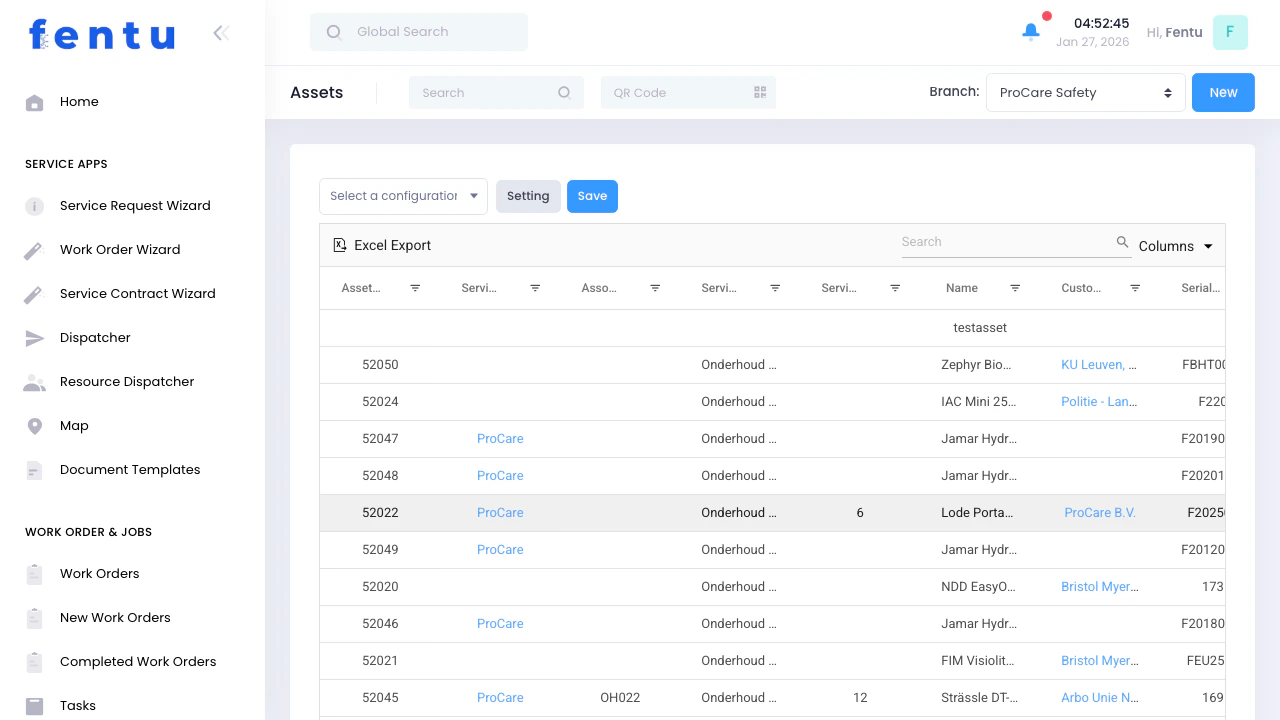
## Assets List View
### Key Features
Filter assets by branch to see equipment in your service area.
Search by asset name, serial number, model, customer, or location. Use filters to find assets by type, status, warranty status, or installation date.
Visual indicators show asset status: Active, Under Maintenance, Out of Service, Retired.
Quickly identify assets with active warranties or upcoming warranty expirations.
See which assets have preventive maintenance coming due or overdue.
### Asset List Columns
| Column | Description |
| ------------------------ | ---------------------------------------------------------------------------- |
| **Asset Name** | Descriptive name for the equipment (click to view details) |
| **Asset Code / ID** | Unique identifier assigned by Fentu FSM |
| **Serial Number** | Manufacturer serial number. Critical for warranty claims and part ordering |
| **Model / Model Number** | Equipment model number |
| **Type** | Asset type or category (Ice Box, Soda Fountain, etc.) |
| **Customer** | Which customer owns or operates this asset |
| **Location** | Which location the asset is at |
| **Status** | Active, Under Maintenance, Out of Service, or Retired |
| **Warranty Status** | Active warranty indicator |
| **Warranty Start Date** | When warranty coverage begins |
| **Warranty End Date** | When warranty coverage expires. The system can alert when warranty is ending |
| **Last Service** | Date of most recent service |
| **Next Service** | Scheduled preventive maintenance date |
| **Maintenance Schedule** | Preventive maintenance frequency: Monthly, Quarterly, Semi-Annual, Annual |
| **Service Interval** | Number of days or months between preventive maintenance visits |
| **Manufacturer** | Equipment manufacturer or brand name |
| **Product** | Product the asset is associated with |
| **Product Type** | Product type the asset is associated with |
| **Documentation** | Attached manuals, photos, certificates, etc. |
| **Actions** | Quick links to view, edit, create work order |
When integrated with SAP Business One, assets can be created via the integration: **SAP Business One Equipment → Fentu FSM Asset**.
***
## Creating a New Asset
Click the "New Asset" or "+" button in the top right corner.
Choose which customer owns the asset and at which object (location) it's installed.
Fill in equipment name, type, manufacturer, model, and serial number.
Document installation date, warranty info, and any special requirements.
Attach manuals, spec sheets, photos, or warranties (optional).
Click "Save" to create the asset record.
***
## Asset Information Fields
### Basic Information
| Field | Description |
| --------------------- | ------------------------------------------------------------------------------------------------------------------- |
| **Asset Name** | Descriptive name for the equipment. Use clear naming: "Rooftop Machine Unit #1" not just "Machine". Required field. |
| **Asset Code** | Unique internal code or asset tag number. Use barcode labels for easy scanning. |
| **Asset Type** | Category of equipment: Machine, Electrical, Plumbing, Elevator, Mechanical, IT Equipment, etc. Required field. |
| **Status** | Current operational status: Active, Under Maintenance, Out of Service, Retired. |
| **Customer** | Which customer owns or operates this asset. Required field. |
| **Location (Object)** | Physical location where the asset is installed. Required field. |
| **Zone/Area** | Specific area within the location: "Rooftop", "Basement", "Floor 3 East Wing". |
Use consistent naming conventions for assets. Include location identifiers in the name when multiple similar assets exist: "West Wing Machine Unit" vs "East Wing Machine Unit".
### Equipment Details
| Field | Description |
| --------------------- | ---------------------------------------------------------------------------------- |
| **Manufacturer** | Equipment manufacturer or brand name. |
| **Model Number** | Specific model designation from manufacturer. |
| **Serial Number** | Manufacturer serial number. Critical for warranty claims and part ordering. |
| **Capacity/Rating** | Equipment capacity: tons for Machine, horsepower for motors, BTU for heating, etc. |
| **Year Manufactured** | Year the equipment was manufactured (may differ from installation date). |
### Installation Information
| Field | Description |
| ---------------------- | ------------------------------------------------------------------------------------ |
| **Installation Date** | When the asset was installed at its current location. |
| **Commissioning Date** | When the asset was put into service and tested. |
| **Installed By** | Company or contractor who performed installation. |
| **Installation Cost** | Original purchase and installation cost (for depreciation and replacement planning). |
### Warranty Information
| Field | Description |
| ----------------------- | ------------------------------------------------------------------------- |
| **Warranty Start Date** | When warranty coverage begins. |
| **Warranty End Date** | When warranty coverage expires. System can alert when warranty is ending. |
| **Warranty Type** | Parts only, labor only, or comprehensive coverage. |
| **Warranty Provider** | Manufacturer warranty or extended warranty provider. |
| **Warranty Number** | Warranty certificate or policy number. |
Always verify warranty status before authorizing repairs. Performing unauthorized work on equipment under warranty can void coverage.
### Maintenance Requirements
| Field | Description |
| -------------------------- | -------------------------------------------------------------------------------------- |
| **Maintenance Schedule** | How often preventive maintenance is required: Monthly, Quarterly, Semi-Annual, Annual. |
| **Last Service Date** | When the asset was last serviced. |
| **Next Service Due** | When preventive maintenance is next scheduled. |
| **Service Interval** | Number of days/months between preventive maintenance visits. |
| **Estimated Annual Hours** | How many hours per year the equipment operates (for hour-based maintenance). |
### Specifications
| Field | Description |
| -------------------- | --------------------------------------------------------- |
| **Voltage** | Electrical voltage requirements. |
| **Phase** | Single-phase or three-phase power. |
| **Amperage** | Electrical current draw. |
| **Refrigerant Type** | For Machine equipment, type of refrigerant used. |
| **Dimensions** | Physical size of equipment (for replacement planning). |
| **Weight** | Equipment weight (for rigging and installation planning). |
### Service Information
| Field | Description |
| -------------------------- | -------------------------------------------------------------------------------------- |
| **Service Priority** | Critical, High, Medium, Low. Determines response time for emergency calls. |
| **Access Requirements** | Special requirements to reach the asset: roof access, ladder, confined space, etc. |
| **Safety Requirements** | Required safety equipment or procedures: lockout/tagout, confined space training, etc. |
| **Special Tools Required** | Specialized tools or test equipment needed for service. |
### Financial Information
| Field | Description |
| -------------------- | ----------------------------------------------------------------- |
| **Purchase Price** | Original purchase price. |
| **Current Value** | Estimated current value (for insurance and replacement planning). |
| **Expected Life** | Expected useful life in years. |
| **Replacement Cost** | Estimated cost to replace the asset today. |
### Documentation
| Field | Description |
| ---------------------- | ------------------------------------------------------------------ |
| **Manuals** | Upload operation manuals, maintenance manuals, and service guides. |
| **Spec Sheets** | Technical specification sheets from manufacturer. |
| **Drawings** | Electrical drawings, mechanical drawings, installation diagrams. |
| **Photos** | Photos of equipment, location, nameplate, model/serial labels. |
| **Warranty Documents** | Upload warranty certificates and extended warranty contracts. |
### Notes
| Field | Description |
| --------------------------- | ------------------------------------------------------------------------------------------------------------------------------- |
| **Notes** | Internal notes about the asset. Document quirks, common issues, modification history, or anything else technicians should know. |
| **Technician Instructions** | Specific service instructions: "Must be shut down 24 hours before service" or "Requires 2 technicians for annual service". |
Take photos of asset nameplates showing model and serial numbers. Upload these photos to the asset record. This saves technicians time and prevents transcription errors when ordering parts.
***
## Asset Types and Examples
**Examples:** Rooftop units, split systems, chillers, boilers, air handlers, exhaust fans
**Key Fields:** Tonnage/capacity, refrigerant type, filter sizes, maintenance schedule
**Typical Maintenance:** Quarterly or semi-annual preventive maintenance
**Examples:** Passenger elevators, freight elevators, escalators, wheelchair lifts
**Key Fields:** Capacity, speed, number of floors, controller type
**Typical Maintenance:** Monthly inspections (often required by code)
**Examples:** Transformers, switchgear, generators, UPS systems, lighting systems
**Key Fields:** Voltage, amperage, phase, backup runtime
**Typical Maintenance:** Annual testing, quarterly for critical systems
**Examples:** Water heaters, pumps, backflow preventers, grease traps, sewage ejectors
**Key Fields:** Capacity, pressure rating, temperature rating
**Typical Maintenance:** Annual inspections, some require quarterly service
**Examples:** Fire alarm panels, sprinkler systems, emergency lighting, fire extinguishers
**Key Fields:** Inspection authority, certification dates, capacity
**Typical Maintenance:** Code-required inspections (monthly, quarterly, annual)
**Examples:** Compressors, motors, pumps, fans, conveyors
**Key Fields:** Horsepower, RPM, duty cycle, bearing type
**Typical Maintenance:** Based on runtime hours or annually
**Examples:** Walk-in coolers, freezers, reach-in refrigerators, ice machines
**Key Fields:** Temperature range, refrigerant type, defrost type
**Typical Maintenance:** Quarterly to semi-annual
***
## Asset Status Management
### Status Types
Asset is operational and in normal use. This is the default status for most assets.
Asset is currently being serviced. Work order is open and technician is working on it.
Asset is not functioning and awaiting repair. May require emergency service or parts.
Asset has been removed from service permanently. No longer requires maintenance scheduling.
New asset still under manufacturer warranty period. All service should go through manufacturer.
### Changing Asset Status
Asset status typically changes automatically based on work order status:
* When a work order is opened → Status changes to "Under Maintenance"
* When work order is completed → Status returns to "Active"
* Out of service status can be set manually when equipment fails
***
## Asset Actions
### From the List View
Click the asset name to see complete information, service history, and related records.
Update asset information, specifications, or maintenance schedule.
Quickly create a work order for this specific asset.
See all work orders, maintenance, and repairs performed on this asset.
Set up or modify preventive maintenance schedule.
Create QR code or barcode label for the asset for easy scanning.
### From the Detail View
When viewing an asset record, you can access all related records:
| Related Record | Description |
| ----------------- | -------------------------------------------------------------------------- |
| **Asset Parts** | Sub-components tracked independently (compressors, motors, control boards) |
| **Work Orders** | Complete service history for this asset |
| **Checklists** | Inspection and maintenance checklists linked to this asset |
| **Skills** | Required technician skills or certifications for servicing this asset |
| **Documentation** | Attached manuals, photos, spec sheets, and warranties |
***
## Tips and Best Practices
When taking on a new customer, invest time in thorough asset documentation. Collect serial numbers, model numbers, installation dates, and photos. This upfront investment pays dividends in faster service delivery and better maintenance scheduling.
Apply physical asset tags (barcode or QR code labels) to equipment. Technicians can scan tags with mobile devices to instantly pull up asset history, manuals, and service notes. This eliminates confusion and saves time.
Take and upload photos of:
* Equipment nameplate (model/serial number)
* Overall equipment view
* Location within building
* Access points
* Known issues or problem areas
Photos help new technicians quickly locate and identify equipment.
Set reminders for warranty expiration dates. Contact customers 60-90 days before warranty expires to discuss extended warranty or service contract options.
Use the notes field liberally. Document:
* Common problems and solutions
* Modification history
* Part numbers for frequently replaced items
* Special service procedures
* Historical issues
This knowledge base helps technicians work more efficiently.
Review and adjust preventive maintenance schedules based on actual equipment needs. Some assets may need more frequent service; others less. Use service history to optimize schedules.
For complex assets, create asset part records for major components. This allows tracking of individual part replacements and helps identify patterns (e.g., compressors failing every 5 years).
Establish asset naming conventions:
* Include location: "Rooftop Machine #1"
* Use numbers for multiples: "Elevator A" vs "Elevator B"
* Be specific: "West Parking Lot Light Pole #7" not just "Light"
Consistent naming prevents confusion and helps dispatchers assign the right technician.
***
## Common Questions
Create assets for equipment that:
* Requires regular maintenance
* Has warranty coverage
* Is expensive or critical to operations
* Has a service history you want to track
You don't need assets for small, disposable items (light bulbs, filters) unless tracking them provides value. Focus on equipment that matters to your service business.
Start with what you know and fill in details over time. The most important fields are:
* Asset name and type
* Customer and location
* Serial number (if available)
Technicians can collect additional information (model number, specifications) during service visits and update the record.
Edit the asset record and change the Location (Object) field to reflect the new location. The asset's complete service history moves with it, so you don't lose any historical data.
Assets with service history should not be deleted. Instead, change the status to "Retired" and note the retirement date. This preserves historical data for reporting and analysis. Only delete assets that were created in error and have no service history.
**Asset Type** is the broad category: Machine, Electrical, Plumbing, Elevator, etc. **Category** (if used in your setup) can be more specific: Rooftop Unit, Split System, Chiller (all Machine types). Use the classification system that works for your business.
Set the maintenance interval in the asset record (e.g., "Every 3 months"). Fentu can automatically generate work orders based on these schedules, or you can manually create scheduled work orders. The system tracks "Last Service Date" and calculates "Next Service Due".
It depends on service needs:
* **One Asset:** If all components are always serviced together as a system (e.g., an integrated Machine system)
* **Multiple Assets:** If components are serviced independently or have different maintenance schedules (e.g., air handler and condenser on different schedules)
When in doubt, create separate assets for better granularity in service tracking.
Use the Asset Parts module to document major components. For consumable parts (filters, belts), link them to the asset type in your inventory system. This allows automated part recommendations when creating work orders for specific assets.
***
## Related Documentation
Track individual components and parts of assets.
Manage physical locations where assets are installed.
Create work orders for asset service and maintenance.
Set up automated preventive maintenance schedules.
Assets are the core of preventive maintenance and service tracking. By maintaining detailed asset records, you can schedule proactive maintenance, track equipment lifecycles, and provide better service.
## When to Use Assets
Use the Assets module when you need to:
* Register new equipment for service tracking
* Record asset details (serial number, model, installation date)
* Schedule preventive maintenance
* Track service history for specific equipment
* Monitor warranty status and expiration dates
* Plan equipment replacement based on age and condition
* Generate asset-specific reports
***
## Understanding Assets
### Asset Hierarchy
```
Customer (Company)
└─ Object (Location)
└─ Asset (Equipment)
└─ Asset Parts (Components)
```
**Example:**
* **Customer:** "Acme Corporation"
* **Object:** "Acme HQ Building"
* **Asset:** "Rooftop Machine Unit #1"
* Asset Parts: Compressor, Condenser Coil, Evaporator Coil, Blower Motor
* **Asset:** "Main Elevator"
* Asset Parts: Motor, Control Panel, Door System
### Assets in the Service Workflow
Assets are central to field service operations:
1. **Work Order Creation** - Select the asset that needs service
2. **Task Assignment** - Technicians service specific assets
3. **Preventive Maintenance** - Schedule based on asset requirements
4. **Service History** - Track all work performed on each asset
5. **Replacement Planning** - Monitor asset age and condition
***
## Assets List View
### Key Features
Filter assets by branch to see equipment in your service area.
Search by asset name, serial number, model, customer, or location. Use filters to find assets by type, status, warranty status, or installation date.
Visual indicators show asset status: Active, Under Maintenance, Out of Service, Retired.
Quickly identify assets with active warranties or upcoming warranty expirations.
See which assets have preventive maintenance coming due or overdue.
### Asset List Columns
| Column | Description |
| ------------------------ | ---------------------------------------------------------------------------- |
| **Asset Name** | Descriptive name for the equipment (click to view details) |
| **Asset Code / ID** | Unique identifier assigned by Fentu FSM |
| **Serial Number** | Manufacturer serial number. Critical for warranty claims and part ordering |
| **Model / Model Number** | Equipment model number |
| **Type** | Asset type or category (Ice Box, Soda Fountain, etc.) |
| **Customer** | Which customer owns or operates this asset |
| **Location** | Which location the asset is at |
| **Status** | Active, Under Maintenance, Out of Service, or Retired |
| **Warranty Status** | Active warranty indicator |
| **Warranty Start Date** | When warranty coverage begins |
| **Warranty End Date** | When warranty coverage expires. The system can alert when warranty is ending |
| **Last Service** | Date of most recent service |
| **Next Service** | Scheduled preventive maintenance date |
| **Maintenance Schedule** | Preventive maintenance frequency: Monthly, Quarterly, Semi-Annual, Annual |
| **Service Interval** | Number of days or months between preventive maintenance visits |
| **Manufacturer** | Equipment manufacturer or brand name |
| **Product** | Product the asset is associated with |
| **Product Type** | Product type the asset is associated with |
| **Documentation** | Attached manuals, photos, certificates, etc. |
| **Actions** | Quick links to view, edit, create work order |
When integrated with SAP Business One, assets can be created via the integration: **SAP Business One Equipment → Fentu FSM Asset**.
***
## Creating a New Asset
Click the "New Asset" or "+" button in the top right corner.
Choose which customer owns the asset and at which object (location) it's installed.
Fill in equipment name, type, manufacturer, model, and serial number.
Document installation date, warranty info, and any special requirements.
Attach manuals, spec sheets, photos, or warranties (optional).
Click "Save" to create the asset record.
***
## Asset Information Fields
### Basic Information
| Field | Description |
| --------------------- | ------------------------------------------------------------------------------------------------------------------- |
| **Asset Name** | Descriptive name for the equipment. Use clear naming: "Rooftop Machine Unit #1" not just "Machine". Required field. |
| **Asset Code** | Unique internal code or asset tag number. Use barcode labels for easy scanning. |
| **Asset Type** | Category of equipment: Machine, Electrical, Plumbing, Elevator, Mechanical, IT Equipment, etc. Required field. |
| **Status** | Current operational status: Active, Under Maintenance, Out of Service, Retired. |
| **Customer** | Which customer owns or operates this asset. Required field. |
| **Location (Object)** | Physical location where the asset is installed. Required field. |
| **Zone/Area** | Specific area within the location: "Rooftop", "Basement", "Floor 3 East Wing". |
Use consistent naming conventions for assets. Include location identifiers in the name when multiple similar assets exist: "West Wing Machine Unit" vs "East Wing Machine Unit".
### Equipment Details
| Field | Description |
| --------------------- | ---------------------------------------------------------------------------------- |
| **Manufacturer** | Equipment manufacturer or brand name. |
| **Model Number** | Specific model designation from manufacturer. |
| **Serial Number** | Manufacturer serial number. Critical for warranty claims and part ordering. |
| **Capacity/Rating** | Equipment capacity: tons for Machine, horsepower for motors, BTU for heating, etc. |
| **Year Manufactured** | Year the equipment was manufactured (may differ from installation date). |
### Installation Information
| Field | Description |
| ---------------------- | ------------------------------------------------------------------------------------ |
| **Installation Date** | When the asset was installed at its current location. |
| **Commissioning Date** | When the asset was put into service and tested. |
| **Installed By** | Company or contractor who performed installation. |
| **Installation Cost** | Original purchase and installation cost (for depreciation and replacement planning). |
### Warranty Information
| Field | Description |
| ----------------------- | ------------------------------------------------------------------------- |
| **Warranty Start Date** | When warranty coverage begins. |
| **Warranty End Date** | When warranty coverage expires. System can alert when warranty is ending. |
| **Warranty Type** | Parts only, labor only, or comprehensive coverage. |
| **Warranty Provider** | Manufacturer warranty or extended warranty provider. |
| **Warranty Number** | Warranty certificate or policy number. |
Always verify warranty status before authorizing repairs. Performing unauthorized work on equipment under warranty can void coverage.
### Maintenance Requirements
| Field | Description |
| -------------------------- | -------------------------------------------------------------------------------------- |
| **Maintenance Schedule** | How often preventive maintenance is required: Monthly, Quarterly, Semi-Annual, Annual. |
| **Last Service Date** | When the asset was last serviced. |
| **Next Service Due** | When preventive maintenance is next scheduled. |
| **Service Interval** | Number of days/months between preventive maintenance visits. |
| **Estimated Annual Hours** | How many hours per year the equipment operates (for hour-based maintenance). |
### Specifications
| Field | Description |
| -------------------- | --------------------------------------------------------- |
| **Voltage** | Electrical voltage requirements. |
| **Phase** | Single-phase or three-phase power. |
| **Amperage** | Electrical current draw. |
| **Refrigerant Type** | For Machine equipment, type of refrigerant used. |
| **Dimensions** | Physical size of equipment (for replacement planning). |
| **Weight** | Equipment weight (for rigging and installation planning). |
### Service Information
| Field | Description |
| -------------------------- | -------------------------------------------------------------------------------------- |
| **Service Priority** | Critical, High, Medium, Low. Determines response time for emergency calls. |
| **Access Requirements** | Special requirements to reach the asset: roof access, ladder, confined space, etc. |
| **Safety Requirements** | Required safety equipment or procedures: lockout/tagout, confined space training, etc. |
| **Special Tools Required** | Specialized tools or test equipment needed for service. |
### Financial Information
| Field | Description |
| -------------------- | ----------------------------------------------------------------- |
| **Purchase Price** | Original purchase price. |
| **Current Value** | Estimated current value (for insurance and replacement planning). |
| **Expected Life** | Expected useful life in years. |
| **Replacement Cost** | Estimated cost to replace the asset today. |
### Documentation
| Field | Description |
| ---------------------- | ------------------------------------------------------------------ |
| **Manuals** | Upload operation manuals, maintenance manuals, and service guides. |
| **Spec Sheets** | Technical specification sheets from manufacturer. |
| **Drawings** | Electrical drawings, mechanical drawings, installation diagrams. |
| **Photos** | Photos of equipment, location, nameplate, model/serial labels. |
| **Warranty Documents** | Upload warranty certificates and extended warranty contracts. |
### Notes
| Field | Description |
| --------------------------- | ------------------------------------------------------------------------------------------------------------------------------- |
| **Notes** | Internal notes about the asset. Document quirks, common issues, modification history, or anything else technicians should know. |
| **Technician Instructions** | Specific service instructions: "Must be shut down 24 hours before service" or "Requires 2 technicians for annual service". |
Take photos of asset nameplates showing model and serial numbers. Upload these photos to the asset record. This saves technicians time and prevents transcription errors when ordering parts.
***
## Asset Types and Examples
**Examples:** Rooftop units, split systems, chillers, boilers, air handlers, exhaust fans
**Key Fields:** Tonnage/capacity, refrigerant type, filter sizes, maintenance schedule
**Typical Maintenance:** Quarterly or semi-annual preventive maintenance
**Examples:** Passenger elevators, freight elevators, escalators, wheelchair lifts
**Key Fields:** Capacity, speed, number of floors, controller type
**Typical Maintenance:** Monthly inspections (often required by code)
**Examples:** Transformers, switchgear, generators, UPS systems, lighting systems
**Key Fields:** Voltage, amperage, phase, backup runtime
**Typical Maintenance:** Annual testing, quarterly for critical systems
**Examples:** Water heaters, pumps, backflow preventers, grease traps, sewage ejectors
**Key Fields:** Capacity, pressure rating, temperature rating
**Typical Maintenance:** Annual inspections, some require quarterly service
**Examples:** Fire alarm panels, sprinkler systems, emergency lighting, fire extinguishers
**Key Fields:** Inspection authority, certification dates, capacity
**Typical Maintenance:** Code-required inspections (monthly, quarterly, annual)
**Examples:** Compressors, motors, pumps, fans, conveyors
**Key Fields:** Horsepower, RPM, duty cycle, bearing type
**Typical Maintenance:** Based on runtime hours or annually
**Examples:** Walk-in coolers, freezers, reach-in refrigerators, ice machines
**Key Fields:** Temperature range, refrigerant type, defrost type
**Typical Maintenance:** Quarterly to semi-annual
***
## Asset Status Management
### Status Types
Asset is operational and in normal use. This is the default status for most assets.
Asset is currently being serviced. Work order is open and technician is working on it.
Asset is not functioning and awaiting repair. May require emergency service or parts.
Asset has been removed from service permanently. No longer requires maintenance scheduling.
New asset still under manufacturer warranty period. All service should go through manufacturer.
### Changing Asset Status
Asset status typically changes automatically based on work order status:
* When a work order is opened → Status changes to "Under Maintenance"
* When work order is completed → Status returns to "Active"
* Out of service status can be set manually when equipment fails
***
## Asset Actions
### From the List View
Click the asset name to see complete information, service history, and related records.
Update asset information, specifications, or maintenance schedule.
Quickly create a work order for this specific asset.
See all work orders, maintenance, and repairs performed on this asset.
Set up or modify preventive maintenance schedule.
Create QR code or barcode label for the asset for easy scanning.
### From the Detail View
When viewing an asset record, you can access all related records:
| Related Record | Description |
| ----------------- | -------------------------------------------------------------------------- |
| **Asset Parts** | Sub-components tracked independently (compressors, motors, control boards) |
| **Work Orders** | Complete service history for this asset |
| **Checklists** | Inspection and maintenance checklists linked to this asset |
| **Skills** | Required technician skills or certifications for servicing this asset |
| **Documentation** | Attached manuals, photos, spec sheets, and warranties |
***
## Tips and Best Practices
When taking on a new customer, invest time in thorough asset documentation. Collect serial numbers, model numbers, installation dates, and photos. This upfront investment pays dividends in faster service delivery and better maintenance scheduling.
Apply physical asset tags (barcode or QR code labels) to equipment. Technicians can scan tags with mobile devices to instantly pull up asset history, manuals, and service notes. This eliminates confusion and saves time.
Take and upload photos of:
* Equipment nameplate (model/serial number)
* Overall equipment view
* Location within building
* Access points
* Known issues or problem areas
Photos help new technicians quickly locate and identify equipment.
Set reminders for warranty expiration dates. Contact customers 60-90 days before warranty expires to discuss extended warranty or service contract options.
Use the notes field liberally. Document:
* Common problems and solutions
* Modification history
* Part numbers for frequently replaced items
* Special service procedures
* Historical issues
This knowledge base helps technicians work more efficiently.
Review and adjust preventive maintenance schedules based on actual equipment needs. Some assets may need more frequent service; others less. Use service history to optimize schedules.
For complex assets, create asset part records for major components. This allows tracking of individual part replacements and helps identify patterns (e.g., compressors failing every 5 years).
Establish asset naming conventions:
* Include location: "Rooftop Machine #1"
* Use numbers for multiples: "Elevator A" vs "Elevator B"
* Be specific: "West Parking Lot Light Pole #7" not just "Light"
Consistent naming prevents confusion and helps dispatchers assign the right technician.
***
## Common Questions
Create assets for equipment that:
* Requires regular maintenance
* Has warranty coverage
* Is expensive or critical to operations
* Has a service history you want to track
You don't need assets for small, disposable items (light bulbs, filters) unless tracking them provides value. Focus on equipment that matters to your service business.
Start with what you know and fill in details over time. The most important fields are:
* Asset name and type
* Customer and location
* Serial number (if available)
Technicians can collect additional information (model number, specifications) during service visits and update the record.
Edit the asset record and change the Location (Object) field to reflect the new location. The asset's complete service history moves with it, so you don't lose any historical data.
Assets with service history should not be deleted. Instead, change the status to "Retired" and note the retirement date. This preserves historical data for reporting and analysis. Only delete assets that were created in error and have no service history.
**Asset Type** is the broad category: Machine, Electrical, Plumbing, Elevator, etc. **Category** (if used in your setup) can be more specific: Rooftop Unit, Split System, Chiller (all Machine types). Use the classification system that works for your business.
Set the maintenance interval in the asset record (e.g., "Every 3 months"). Fentu can automatically generate work orders based on these schedules, or you can manually create scheduled work orders. The system tracks "Last Service Date" and calculates "Next Service Due".
It depends on service needs:
* **One Asset:** If all components are always serviced together as a system (e.g., an integrated Machine system)
* **Multiple Assets:** If components are serviced independently or have different maintenance schedules (e.g., air handler and condenser on different schedules)
When in doubt, create separate assets for better granularity in service tracking.
Use the Asset Parts module to document major components. For consumable parts (filters, belts), link them to the asset type in your inventory system. This allows automated part recommendations when creating work orders for specific assets.
***
## Related Documentation
Track individual components and parts of assets.
Manage physical locations where assets are installed.
Create work orders for asset service and maintenance.
Set up automated preventive maintenance schedules.