> ## Documentation Index
> Fetch the complete documentation index at: https://docs.fentufsm.com/llms.txt
> Use this file to discover all available pages before exploring further.
# Contacts
> Manage individual contacts at customer organizations
## Overview
The Contacts module allows you to track individual people at your customer organizations. Each contact represents a specific person with their own phone number, email address, and role. Maintaining accurate contact information ensures efficient communication and better service delivery.
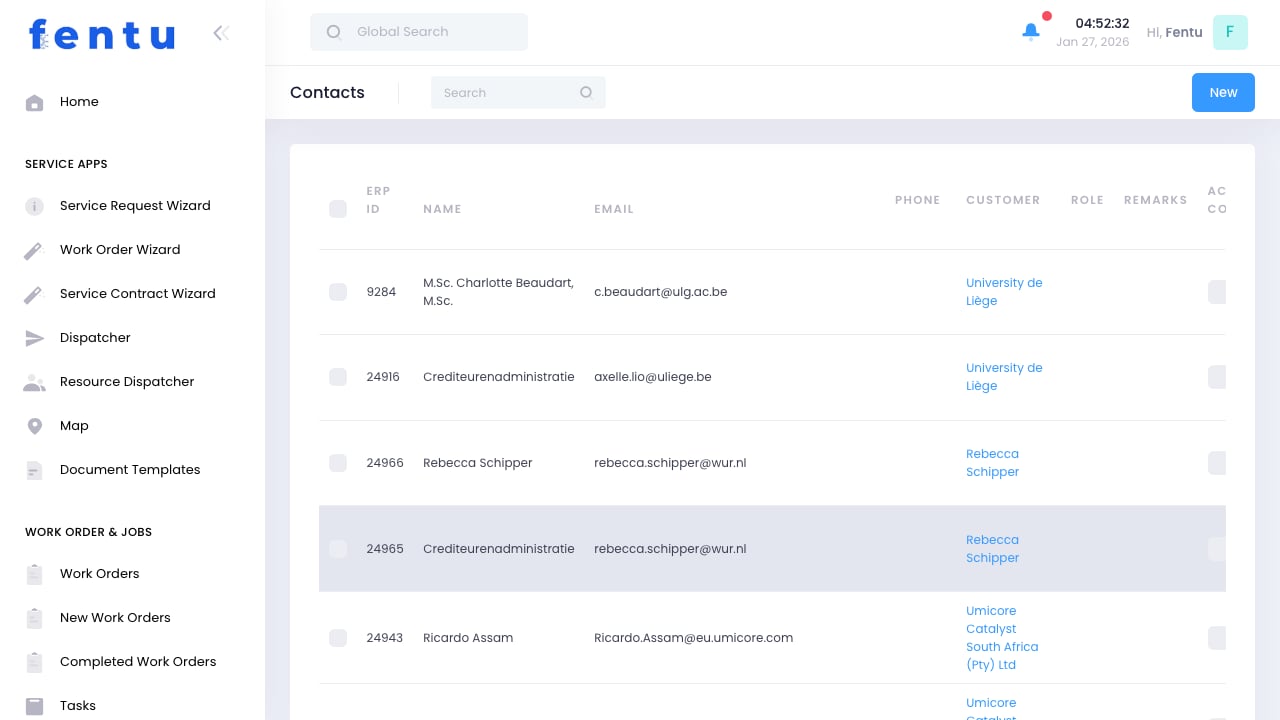 Contacts are associated with customers. A single customer can have multiple contacts (facilities manager, billing contact, technician, etc.).
## When to Use Contacts
Use the Contacts module when you need to:
* Add new contacts at customer organizations
* Update contact information (phone, email, title)
* Identify the right person for different situations (technical, billing, approvals)
* Send notifications to specific individuals
* Track who requested service or approved quotes
* Manage communication preferences
***
## Contacts vs Customers
A **Customer** is an organization or company. Example: "Acme Corporation"
A **Contact** is an individual at that company. Example: "John Smith, Facilities Manager at Acme Corporation"
***
## Contacts List View
### Key Features
Filter contacts by branch to see only contacts relevant to your service area.
Search by name, email, phone, or company. Click column headers to sort by any field.
Each row includes action buttons to view, edit, call, or email the contact directly.
Each contact shows which customer they're associated with, allowing you to quickly see all contacts for a given company.
### Contact List Columns
| Column | Description |
| -------------- | ------------------------------------------------------------------------ |
| **First Name** | Contact's first name (click to view full details) |
| **Last Name** | Contact's last name |
| **Email** | Email address for communication and notifications |
| **Phone** | Primary phone number |
| **Mobile** | Mobile or cell phone number |
| **Title/Role** | Job title or role (Facilities Manager, Billing Contact, etc.) |
| **Department** | Department the contact works in (Facilities, Maintenance, Finance, etc.) |
| **Customer** | Which customer/company this contact belongs to |
| **Actions** | Quick links to view, edit, call, or email |
When integrated with SAP Business One, contacts are created via the integration: **SAP Business Partner Contact → Fentu FSM Contact**. New contacts created directly in Fentu FSM will not be synced back into SAP B1.
***
## Creating a New Contact
Click the "New Contact" or "+" button in the top right corner.
Choose which customer this contact belongs to from the dropdown.
Fill in the contact's name, phone, email, and role.
Mark as primary contact if this is the main person for this customer.
Click "Save" to create the contact record.
***
## Contact Information Fields
### Basic Information
| Field | Description |
| ------------------- | -------------------------------------------------------------------------------------------------------------------------------------------------- |
| **First Name** | Contact's first name. Required field. |
| **Last Name** | Contact's last name. Required field. |
| **Title** | Job title or role (e.g., "Facilities Manager", "Maintenance Supervisor", "Billing Coordinator"). Helps identify who to contact for specific needs. |
| **Customer** | Which customer organization this contact belongs to. Required field. |
| **Primary Contact** | Checkbox to mark this as the main contact for the customer. Primary contacts appear first in lists and are used by default for notifications. |
### Contact Information
| Field | Description |
| ---------- | -------------------------------------------------------------------------------------------------- |
| **Email** | Primary email address. Used for work order notifications, quote approvals, and completion updates. |
| **Phone** | Main phone number (office or direct line). |
| **Mobile** | Mobile or cell phone number for urgent communications. |
| **Fax** | Fax number if applicable (less common today). |
### Role-Specific Information
| Field | Description |
| ---------------------------- | ---------------------------------------------------------------------------------------------- |
| **Department** | Which department the contact works in (Facilities, Maintenance, Finance, etc.). |
| **Role Type** | Categorize contact by responsibility: Technical, Billing, Approval Authority, General Contact. |
| **Location/Object** | Associate the contact with a specific location if they manage a particular site. |
| **Preferred Contact Method** | How this person prefers to be reached (Email, Phone, Text). |
### Notification Preferences
| Field | Description |
| ---------------------------- | --------------------------------------------------------------------- |
| **Work Order Notifications** | Send email when work orders are created or updated for this customer. |
| **Quote Approvals** | This contact can approve quotes and authorize work. |
| **Completion Notifications** | Send email when work orders are completed. |
| **Invoice Notifications** | Send invoices and billing statements to this contact. |
Set up multiple contacts with different roles to ensure the right person receives the right information. For example: Technical contact for service issues, Billing contact for invoices, Manager for quote approvals.
***
## Contact Roles and Use Cases
### Common Contact Types
**When to use:** Service coordination, scheduling, site access.
The person who coordinates service activities on-site. They know where equipment is located, can provide access to facilities, and can answer technical questions about assets.
**Example:** "Mike Johnson, Facilities Technician"
**When to use:** Invoicing, payment questions, financial matters.
The person responsible for processing invoices and payments. Send all billing documents to this contact.
**Example:** "Susan Williams, Accounts Payable Coordinator"
**When to use:** Quote approvals, authorization for additional work.
The person with authority to approve quotes and authorize work beyond the original scope. Required for any change orders or upsells.
**Example:** "David Chen, Facilities Manager"
**When to use:** Person who reports issues and requests service.
The person who calls in service requests or reports equipment problems. May or may not have approval authority.
**Example:** "Lisa Martinez, Office Manager"
**When to use:** After-hours emergencies, critical situations.
The person to contact outside normal business hours for emergencies. Include mobile number.
**Example:** "Robert Taylor, Building Manager (Mobile: 555-0199)"
***
## Managing Multiple Contacts
### Best Practices for Multiple Contacts
When a customer has multiple contacts, follow these guidelines:
Mark one contact as "Primary" - this becomes the default for work order notifications.
Use the Title and Role Type fields to clearly identify what each contact is responsible for.
Configure who receives what type of notification (service updates, billing, approvals).
For critical contacts, maintain current mobile numbers for urgent situations.
Always confirm you have approval authority from the right contact before starting work that exceeds the original quote. Performing unauthorized work can lead to payment disputes.
***
## Contact Actions
### From the List View
Click the contact name to see complete information and service history.
Update phone numbers, email, title, or other contact information.
Click the email address to open your email client with the contact's address pre-filled.
Click the phone number to initiate a call (if using VoIP or compatible phone system).
### From the Detail View
When viewing a contact record, you can access all related records:
| Related Record | Description |
| --------------- | -------------------------------------------------------- |
| **Work Orders** | Work orders where this contact was involved or submitted |
| **Email Logs** | Email communications sent to or from this contact |
***
## Tips and Best Practices
When setting up a new customer, try to get at least two contacts: a technical contact for service coordination and a billing contact for invoices. This prevents bottlenecks if one person is unavailable.
Be specific with job titles and roles. "Facilities Manager - North Campus" is more helpful than just "Manager". This clarity helps dispatchers and technicians know who to call.
For primary contacts, approval authorities, and emergency contacts, always get and maintain mobile phone numbers. Service often needs coordination outside office hours.
Send a test email when adding new contacts to verify the email address works. Bounced emails mean missed notifications and communication gaps.
People change jobs, phone numbers, and email addresses frequently. Make it a practice to verify contact information during each service visit.
Some contacts prefer email, others prefer phone calls. Use the notes field to document preferences: "Prefers text messages for scheduling" or "Only call after 10 AM".
Clearly identify who has authority to approve work and spending. Never assume someone can authorize additional work without confirming their approval authority.
If a customer has multiple sites, associate contacts with specific locations. This helps technicians know who to contact at each site.
***
## Common Questions
There's no limit. A customer can have as many contacts as needed. Large customers often have dozens of contacts across different locations and departments.
The primary contact is the main person for that customer. When creating work orders or sending notifications, the system defaults to the primary contact unless you specify otherwise. Each customer should have one primary contact.
No, each contact record belongs to one customer. If a person works for multiple customers (e.g., a property manager managing multiple buildings), create separate contact records for each customer.
Deleting a contact removes them from the system. However, historical records (work orders they requested, quotes they approved) remain intact for audit purposes. The system just shows the contact name without an active link.
Contacts are not user accounts by default. However, if your Fentu implementation includes a customer portal, contacts can be given login credentials to view work orders, request service, and approve quotes. This is configured separately.
Use the search and filter options in the contacts list. You can filter by customer name to see all associated contacts. Alternatively, view the customer record to see all their contacts.
No, only create contacts for people you actually need to communicate with: service coordinators, billing contacts, approval authorities, and emergency contacts. Creating too many contacts makes it harder to find the right person.
Edit the contact record and update their notification preferences. You can also specify different contacts for different notification types (work orders vs invoices).
***
## Related Documentation
Manage customer companies and organizations.
Associate contacts with specific service locations.
Select contacts when creating work orders.
Contacts can submit service requests.
Contacts are associated with customers. A single customer can have multiple contacts (facilities manager, billing contact, technician, etc.).
## When to Use Contacts
Use the Contacts module when you need to:
* Add new contacts at customer organizations
* Update contact information (phone, email, title)
* Identify the right person for different situations (technical, billing, approvals)
* Send notifications to specific individuals
* Track who requested service or approved quotes
* Manage communication preferences
***
## Contacts vs Customers
A **Customer** is an organization or company. Example: "Acme Corporation"
A **Contact** is an individual at that company. Example: "John Smith, Facilities Manager at Acme Corporation"
***
## Contacts List View
### Key Features
Filter contacts by branch to see only contacts relevant to your service area.
Search by name, email, phone, or company. Click column headers to sort by any field.
Each row includes action buttons to view, edit, call, or email the contact directly.
Each contact shows which customer they're associated with, allowing you to quickly see all contacts for a given company.
### Contact List Columns
| Column | Description |
| -------------- | ------------------------------------------------------------------------ |
| **First Name** | Contact's first name (click to view full details) |
| **Last Name** | Contact's last name |
| **Email** | Email address for communication and notifications |
| **Phone** | Primary phone number |
| **Mobile** | Mobile or cell phone number |
| **Title/Role** | Job title or role (Facilities Manager, Billing Contact, etc.) |
| **Department** | Department the contact works in (Facilities, Maintenance, Finance, etc.) |
| **Customer** | Which customer/company this contact belongs to |
| **Actions** | Quick links to view, edit, call, or email |
When integrated with SAP Business One, contacts are created via the integration: **SAP Business Partner Contact → Fentu FSM Contact**. New contacts created directly in Fentu FSM will not be synced back into SAP B1.
***
## Creating a New Contact
Click the "New Contact" or "+" button in the top right corner.
Choose which customer this contact belongs to from the dropdown.
Fill in the contact's name, phone, email, and role.
Mark as primary contact if this is the main person for this customer.
Click "Save" to create the contact record.
***
## Contact Information Fields
### Basic Information
| Field | Description |
| ------------------- | -------------------------------------------------------------------------------------------------------------------------------------------------- |
| **First Name** | Contact's first name. Required field. |
| **Last Name** | Contact's last name. Required field. |
| **Title** | Job title or role (e.g., "Facilities Manager", "Maintenance Supervisor", "Billing Coordinator"). Helps identify who to contact for specific needs. |
| **Customer** | Which customer organization this contact belongs to. Required field. |
| **Primary Contact** | Checkbox to mark this as the main contact for the customer. Primary contacts appear first in lists and are used by default for notifications. |
### Contact Information
| Field | Description |
| ---------- | -------------------------------------------------------------------------------------------------- |
| **Email** | Primary email address. Used for work order notifications, quote approvals, and completion updates. |
| **Phone** | Main phone number (office or direct line). |
| **Mobile** | Mobile or cell phone number for urgent communications. |
| **Fax** | Fax number if applicable (less common today). |
### Role-Specific Information
| Field | Description |
| ---------------------------- | ---------------------------------------------------------------------------------------------- |
| **Department** | Which department the contact works in (Facilities, Maintenance, Finance, etc.). |
| **Role Type** | Categorize contact by responsibility: Technical, Billing, Approval Authority, General Contact. |
| **Location/Object** | Associate the contact with a specific location if they manage a particular site. |
| **Preferred Contact Method** | How this person prefers to be reached (Email, Phone, Text). |
### Notification Preferences
| Field | Description |
| ---------------------------- | --------------------------------------------------------------------- |
| **Work Order Notifications** | Send email when work orders are created or updated for this customer. |
| **Quote Approvals** | This contact can approve quotes and authorize work. |
| **Completion Notifications** | Send email when work orders are completed. |
| **Invoice Notifications** | Send invoices and billing statements to this contact. |
Set up multiple contacts with different roles to ensure the right person receives the right information. For example: Technical contact for service issues, Billing contact for invoices, Manager for quote approvals.
***
## Contact Roles and Use Cases
### Common Contact Types
**When to use:** Service coordination, scheduling, site access.
The person who coordinates service activities on-site. They know where equipment is located, can provide access to facilities, and can answer technical questions about assets.
**Example:** "Mike Johnson, Facilities Technician"
**When to use:** Invoicing, payment questions, financial matters.
The person responsible for processing invoices and payments. Send all billing documents to this contact.
**Example:** "Susan Williams, Accounts Payable Coordinator"
**When to use:** Quote approvals, authorization for additional work.
The person with authority to approve quotes and authorize work beyond the original scope. Required for any change orders or upsells.
**Example:** "David Chen, Facilities Manager"
**When to use:** Person who reports issues and requests service.
The person who calls in service requests or reports equipment problems. May or may not have approval authority.
**Example:** "Lisa Martinez, Office Manager"
**When to use:** After-hours emergencies, critical situations.
The person to contact outside normal business hours for emergencies. Include mobile number.
**Example:** "Robert Taylor, Building Manager (Mobile: 555-0199)"
***
## Managing Multiple Contacts
### Best Practices for Multiple Contacts
When a customer has multiple contacts, follow these guidelines:
Mark one contact as "Primary" - this becomes the default for work order notifications.
Use the Title and Role Type fields to clearly identify what each contact is responsible for.
Configure who receives what type of notification (service updates, billing, approvals).
For critical contacts, maintain current mobile numbers for urgent situations.
Always confirm you have approval authority from the right contact before starting work that exceeds the original quote. Performing unauthorized work can lead to payment disputes.
***
## Contact Actions
### From the List View
Click the contact name to see complete information and service history.
Update phone numbers, email, title, or other contact information.
Click the email address to open your email client with the contact's address pre-filled.
Click the phone number to initiate a call (if using VoIP or compatible phone system).
### From the Detail View
When viewing a contact record, you can access all related records:
| Related Record | Description |
| --------------- | -------------------------------------------------------- |
| **Work Orders** | Work orders where this contact was involved or submitted |
| **Email Logs** | Email communications sent to or from this contact |
***
## Tips and Best Practices
When setting up a new customer, try to get at least two contacts: a technical contact for service coordination and a billing contact for invoices. This prevents bottlenecks if one person is unavailable.
Be specific with job titles and roles. "Facilities Manager - North Campus" is more helpful than just "Manager". This clarity helps dispatchers and technicians know who to call.
For primary contacts, approval authorities, and emergency contacts, always get and maintain mobile phone numbers. Service often needs coordination outside office hours.
Send a test email when adding new contacts to verify the email address works. Bounced emails mean missed notifications and communication gaps.
People change jobs, phone numbers, and email addresses frequently. Make it a practice to verify contact information during each service visit.
Some contacts prefer email, others prefer phone calls. Use the notes field to document preferences: "Prefers text messages for scheduling" or "Only call after 10 AM".
Clearly identify who has authority to approve work and spending. Never assume someone can authorize additional work without confirming their approval authority.
If a customer has multiple sites, associate contacts with specific locations. This helps technicians know who to contact at each site.
***
## Common Questions
There's no limit. A customer can have as many contacts as needed. Large customers often have dozens of contacts across different locations and departments.
The primary contact is the main person for that customer. When creating work orders or sending notifications, the system defaults to the primary contact unless you specify otherwise. Each customer should have one primary contact.
No, each contact record belongs to one customer. If a person works for multiple customers (e.g., a property manager managing multiple buildings), create separate contact records for each customer.
Deleting a contact removes them from the system. However, historical records (work orders they requested, quotes they approved) remain intact for audit purposes. The system just shows the contact name without an active link.
Contacts are not user accounts by default. However, if your Fentu implementation includes a customer portal, contacts can be given login credentials to view work orders, request service, and approve quotes. This is configured separately.
Use the search and filter options in the contacts list. You can filter by customer name to see all associated contacts. Alternatively, view the customer record to see all their contacts.
No, only create contacts for people you actually need to communicate with: service coordinators, billing contacts, approval authorities, and emergency contacts. Creating too many contacts makes it harder to find the right person.
Edit the contact record and update their notification preferences. You can also specify different contacts for different notification types (work orders vs invoices).
***
## Related Documentation
Manage customer companies and organizations.
Associate contacts with specific service locations.
Select contacts when creating work orders.
Contacts can submit service requests.