> ## Documentation Index
> Fetch the complete documentation index at: https://docs.fentufsm.com/llms.txt
> Use this file to discover all available pages before exploring further.
# Connection Config
> Configure connection credentials and authentication for external systems
## Overview
Connection Config stores the credentials and connection details needed to communicate with external systems. Before you can create inbound or outbound connections, you must first configure the connection settings for each external system.
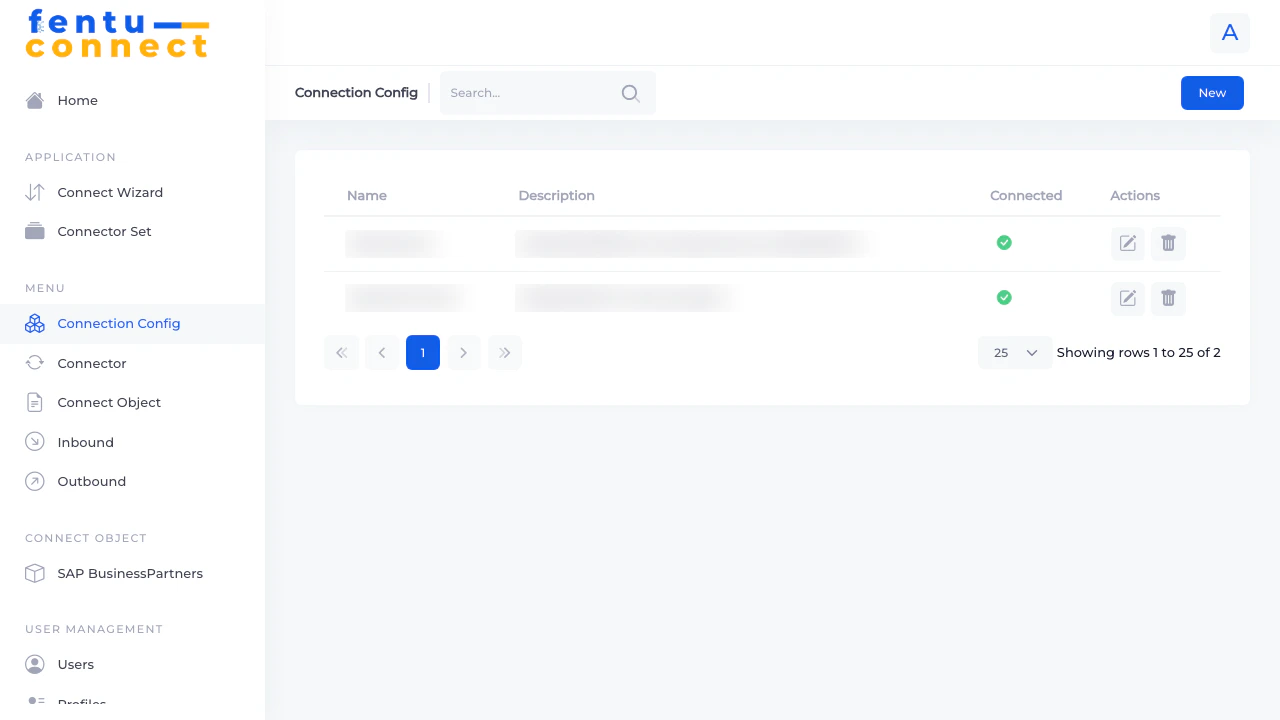 ## Connection Config List
The list displays all configured connections with the following information:
| Column | Description |
| ---------------- | ------------------------------------------------------ |
| **Name** | The display name of the connection configuration |
| **Endpoint URL** | The API endpoint or server URL for the external system |
| **Actions** | Edit or delete the connection configuration |
### List Features
* **Search** - Filter configurations by name
* **New Button** - Create a new connection configuration
* **Pagination** - Navigate through multiple pages
* **Items per Page** - Choose 5, 10, 25, 50, or 100 items per page
***
## Creating a Connection Config
## Connection Config List
The list displays all configured connections with the following information:
| Column | Description |
| ---------------- | ------------------------------------------------------ |
| **Name** | The display name of the connection configuration |
| **Endpoint URL** | The API endpoint or server URL for the external system |
| **Actions** | Edit or delete the connection configuration |
### List Features
* **Search** - Filter configurations by name
* **New Button** - Create a new connection configuration
* **Pagination** - Navigate through multiple pages
* **Items per Page** - Choose 5, 10, 25, 50, or 100 items per page
***
## Creating a Connection Config
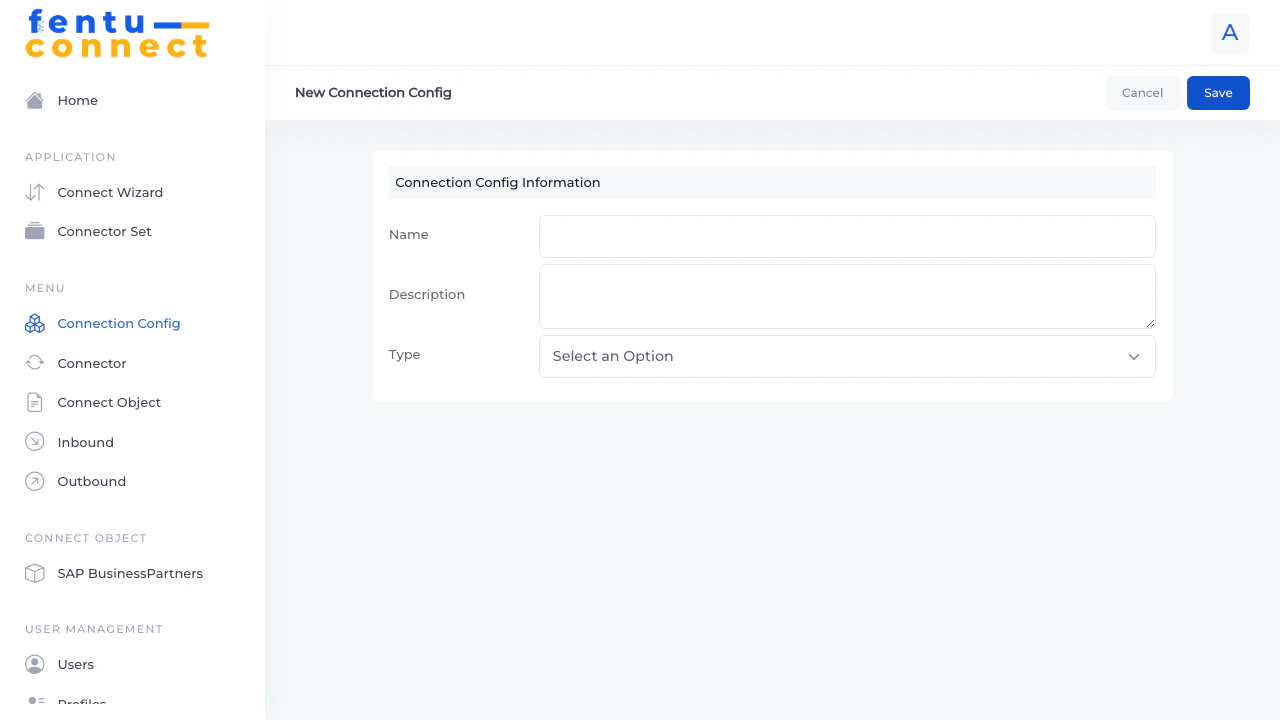 To create a new connection configuration:
1. Click the **New** button from the Connection Config list
2. Enter a name and endpoint URL
3. Select the system type from the dropdown
4. Fill in the type-specific credentials
5. Click **Connect** to test the connection
6. Click **Save** to store the configuration
### Basic Fields
| Field | Description | Required |
| ---------------- | -------------------------------------------------------------------------------------------------- | -------- |
| **Name** | A descriptive name for this connection (e.g., "\[LIVE] Production SAP", "\[DEV] Test Environment") | Yes |
| **Endpoint URL** | The base URL of the external system's API | Yes |
| **Type** | The integration type - determines which additional fields appear | Yes |
***
## Type-Specific Configuration
Different system types require different authentication credentials. Select the type to see the appropriate fields.
### SAP B1 Configuration
To create a new connection configuration:
1. Click the **New** button from the Connection Config list
2. Enter a name and endpoint URL
3. Select the system type from the dropdown
4. Fill in the type-specific credentials
5. Click **Connect** to test the connection
6. Click **Save** to store the configuration
### Basic Fields
| Field | Description | Required |
| ---------------- | -------------------------------------------------------------------------------------------------- | -------- |
| **Name** | A descriptive name for this connection (e.g., "\[LIVE] Production SAP", "\[DEV] Test Environment") | Yes |
| **Endpoint URL** | The base URL of the external system's API | Yes |
| **Type** | The integration type - determines which additional fields appear | Yes |
***
## Type-Specific Configuration
Different system types require different authentication credentials. Select the type to see the appropriate fields.
### SAP B1 Configuration
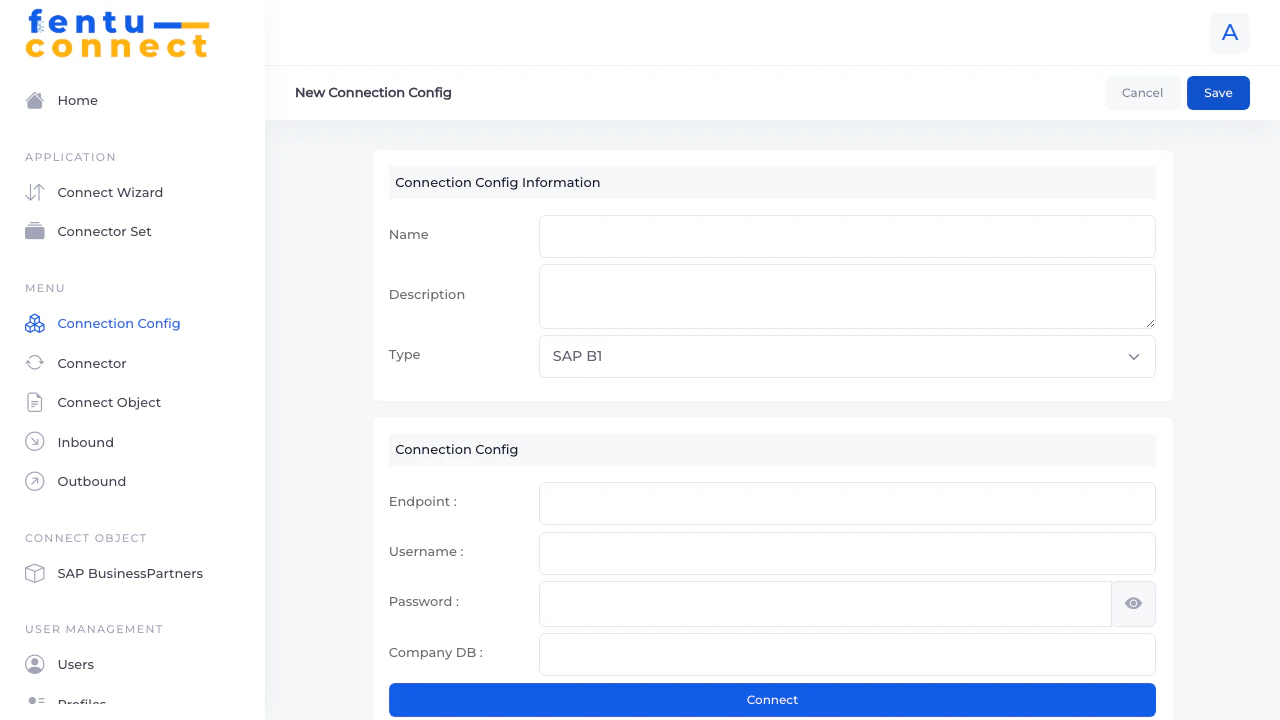 | Field | Description |
| -------------- | ------------------------------------------ |
| **Company DB** | The SAP Business One company database name |
| **Username** | SAP B1 service layer username |
| **Password** | SAP B1 service layer password |
| **Session ID** | Auto-populated after successful connection |
The SAP B1 Service Layer typically runs on port 50000. Example endpoint: `https://your-sap-server:50000/b1s/v1`
### Fentu-FSM Configuration
| Field | Description |
| -------------- | ------------------------------------------ |
| **Company DB** | The SAP Business One company database name |
| **Username** | SAP B1 service layer username |
| **Password** | SAP B1 service layer password |
| **Session ID** | Auto-populated after successful connection |
The SAP B1 Service Layer typically runs on port 50000. Example endpoint: `https://your-sap-server:50000/b1s/v1`
### Fentu-FSM Configuration
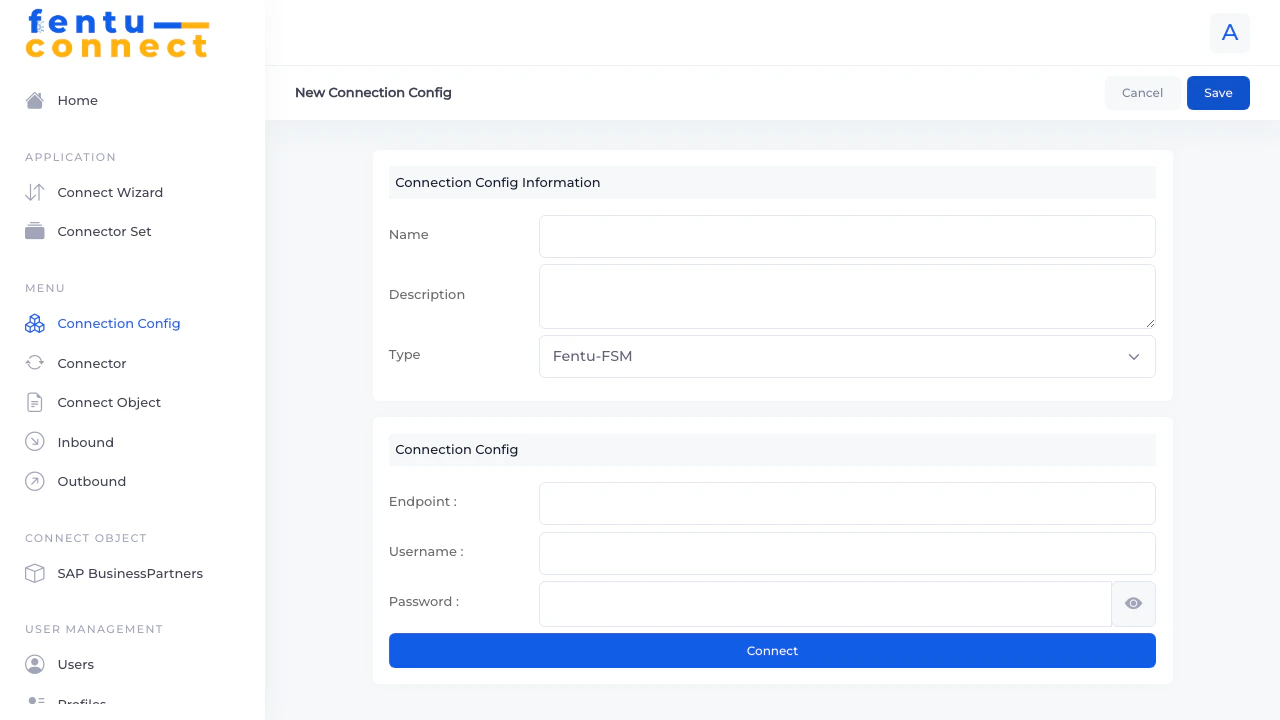 | Field | Description |
| ---------------- | ---------------------------------------------------- |
| **Username** | Fentu FSM user email |
| **Password** | Fentu FSM user password |
| **Endpoint URL** | The Fentu FSM API URL (e.g., `https://api.fentu.io`) |
### Other System Types
Each system type displays its specific authentication fields when selected. Common patterns include:
* **API Key Authentication** - Single API key field
* **OAuth** - Client ID and Client Secret
* **Basic Auth** - Username and Password
* **Token-based** - Access token or bearer token
***
## Testing the Connection
Before saving, always test your connection:
1. Fill in all required fields
2. Click the **Connect** button
3. If successful, a session ID or confirmation will appear
4. If failed, check your credentials and endpoint URL
A successful connection test does not guarantee all features will work. Some operations may require additional permissions on the external system.
***
## Editing a Connection Config
1. Find the configuration in the list
2. Click the edit icon in the Actions column
3. Update the necessary fields
4. Click **Re-Connect** to test with new credentials
5. Click **Save** to apply changes
When credentials change (password rotation, API key renewal), update the Connection Config and test the connection to ensure integrations continue working.
***
## Deleting a Connection Config
1. Find the configuration in the list
2. Click the delete icon in the Actions column
3. Confirm the deletion
Deleting a Connection Config will break any inbound or outbound connections that use it. Ensure no active integrations depend on this configuration before deleting.
***
## Security Best Practices
Include environment indicators in names to prevent confusion:
* `[LIVE] Production SAP B1`
* `[UAT] Staging Environment`
* `[DEV] Local Testing`
Create dedicated service accounts in external systems for Fentu Connect rather than using personal user credentials. This:
* Improves security
* Simplifies credential rotation
* Provides clearer audit trails
Implement a schedule to rotate API keys and passwords periodically. Update the Connection Config when credentials change.
Grant the minimum permissions necessary for the integration to function. Avoid using admin-level credentials when read-only access is sufficient.
***
## Troubleshooting
**Common causes:**
* Incorrect endpoint URL (check for typos, missing port numbers)
* Invalid credentials
* Network firewall blocking the connection
* External system is down or unreachable
* SSL/TLS certificate issues
**Solutions:**
* Verify the endpoint URL is correct
* Confirm credentials work by logging into the external system directly
* Check if the Fentu Connect server can reach the external system (firewall rules, VPN)
The Connection Config only establishes connectivity. If data isn't syncing:
* Check the Inbound/Outbound connection settings
* Verify field mappings are correct
* Ensure the connection is marked as Active
* Check the service account has permissions to read/write the relevant data
Some systems (like SAP B1) use session-based authentication that expires. Fentu Connect automatically handles session renewal in most cases. If you see persistent session errors:
* Verify the credentials are still valid
* Check if the external system has session limits or timeouts configured
***
## Related Documentation
Configure inbound data connections using your Connection Config
Configure outbound data connections using your Connection Config
Create connectors that use your Connection Config
Quickly set up integrations with guided wizard
| Field | Description |
| ---------------- | ---------------------------------------------------- |
| **Username** | Fentu FSM user email |
| **Password** | Fentu FSM user password |
| **Endpoint URL** | The Fentu FSM API URL (e.g., `https://api.fentu.io`) |
### Other System Types
Each system type displays its specific authentication fields when selected. Common patterns include:
* **API Key Authentication** - Single API key field
* **OAuth** - Client ID and Client Secret
* **Basic Auth** - Username and Password
* **Token-based** - Access token or bearer token
***
## Testing the Connection
Before saving, always test your connection:
1. Fill in all required fields
2. Click the **Connect** button
3. If successful, a session ID or confirmation will appear
4. If failed, check your credentials and endpoint URL
A successful connection test does not guarantee all features will work. Some operations may require additional permissions on the external system.
***
## Editing a Connection Config
1. Find the configuration in the list
2. Click the edit icon in the Actions column
3. Update the necessary fields
4. Click **Re-Connect** to test with new credentials
5. Click **Save** to apply changes
When credentials change (password rotation, API key renewal), update the Connection Config and test the connection to ensure integrations continue working.
***
## Deleting a Connection Config
1. Find the configuration in the list
2. Click the delete icon in the Actions column
3. Confirm the deletion
Deleting a Connection Config will break any inbound or outbound connections that use it. Ensure no active integrations depend on this configuration before deleting.
***
## Security Best Practices
Include environment indicators in names to prevent confusion:
* `[LIVE] Production SAP B1`
* `[UAT] Staging Environment`
* `[DEV] Local Testing`
Create dedicated service accounts in external systems for Fentu Connect rather than using personal user credentials. This:
* Improves security
* Simplifies credential rotation
* Provides clearer audit trails
Implement a schedule to rotate API keys and passwords periodically. Update the Connection Config when credentials change.
Grant the minimum permissions necessary for the integration to function. Avoid using admin-level credentials when read-only access is sufficient.
***
## Troubleshooting
**Common causes:**
* Incorrect endpoint URL (check for typos, missing port numbers)
* Invalid credentials
* Network firewall blocking the connection
* External system is down or unreachable
* SSL/TLS certificate issues
**Solutions:**
* Verify the endpoint URL is correct
* Confirm credentials work by logging into the external system directly
* Check if the Fentu Connect server can reach the external system (firewall rules, VPN)
The Connection Config only establishes connectivity. If data isn't syncing:
* Check the Inbound/Outbound connection settings
* Verify field mappings are correct
* Ensure the connection is marked as Active
* Check the service account has permissions to read/write the relevant data
Some systems (like SAP B1) use session-based authentication that expires. Fentu Connect automatically handles session renewal in most cases. If you see persistent session errors:
* Verify the credentials are still valid
* Check if the external system has session limits or timeouts configured
***
## Related Documentation
Configure inbound data connections using your Connection Config
Configure outbound data connections using your Connection Config
Create connectors that use your Connection Config
Quickly set up integrations with guided wizard