> ## Documentation Index
> Fetch the complete documentation index at: https://docs.fentufsm.com/llms.txt
> Use this file to discover all available pages before exploring further.
# Connector Set
> Group related connectors together for better organization and management
## Overview
Connector Sets allow you to organize related connectors into logical groups. This is particularly useful when you have multiple integrations with the same external system or when you want to group connectors by business function.
 ## Connector Set List
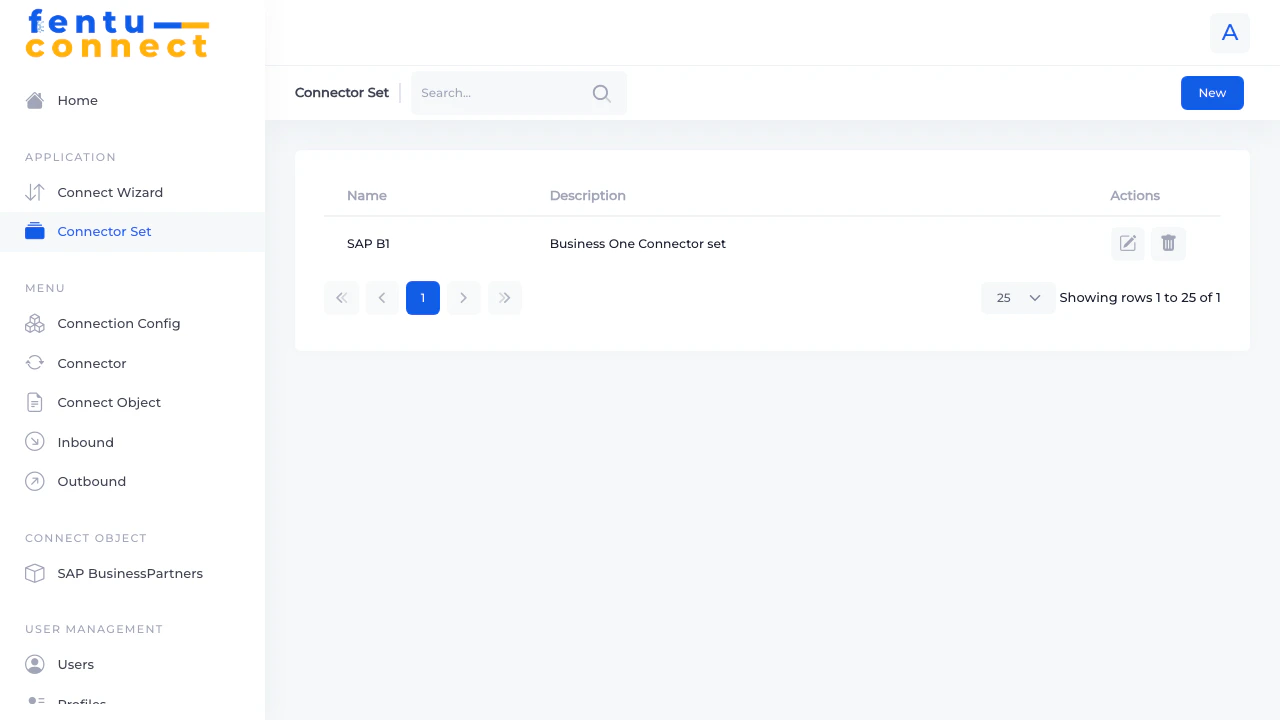
The Connector Set list displays all your defined connector groups with the following information:
| Column | Description |
| --------------- | ------------------------------------------ |
| **Name** | The display name of the connector set |
| **Description** | Additional details about the connector set |
| **Actions** | Edit or delete the connector set |
### List Features
* **Search** - Filter connector sets by name using the search box
* **New Button** - Create a new connector set
* **Pagination** - Navigate through multiple pages of connector sets
* **Items per Page** - Choose to display 5, 10, 25, 50, or 100 items per page
***
## Creating a Connector Set
## Connector Set List
The Connector Set list displays all your defined connector groups with the following information:
| Column | Description |
| --------------- | ------------------------------------------ |
| **Name** | The display name of the connector set |
| **Description** | Additional details about the connector set |
| **Actions** | Edit or delete the connector set |
### List Features
* **Search** - Filter connector sets by name using the search box
* **New Button** - Create a new connector set
* **Pagination** - Navigate through multiple pages of connector sets
* **Items per Page** - Choose to display 5, 10, 25, 50, or 100 items per page
***
## Creating a Connector Set
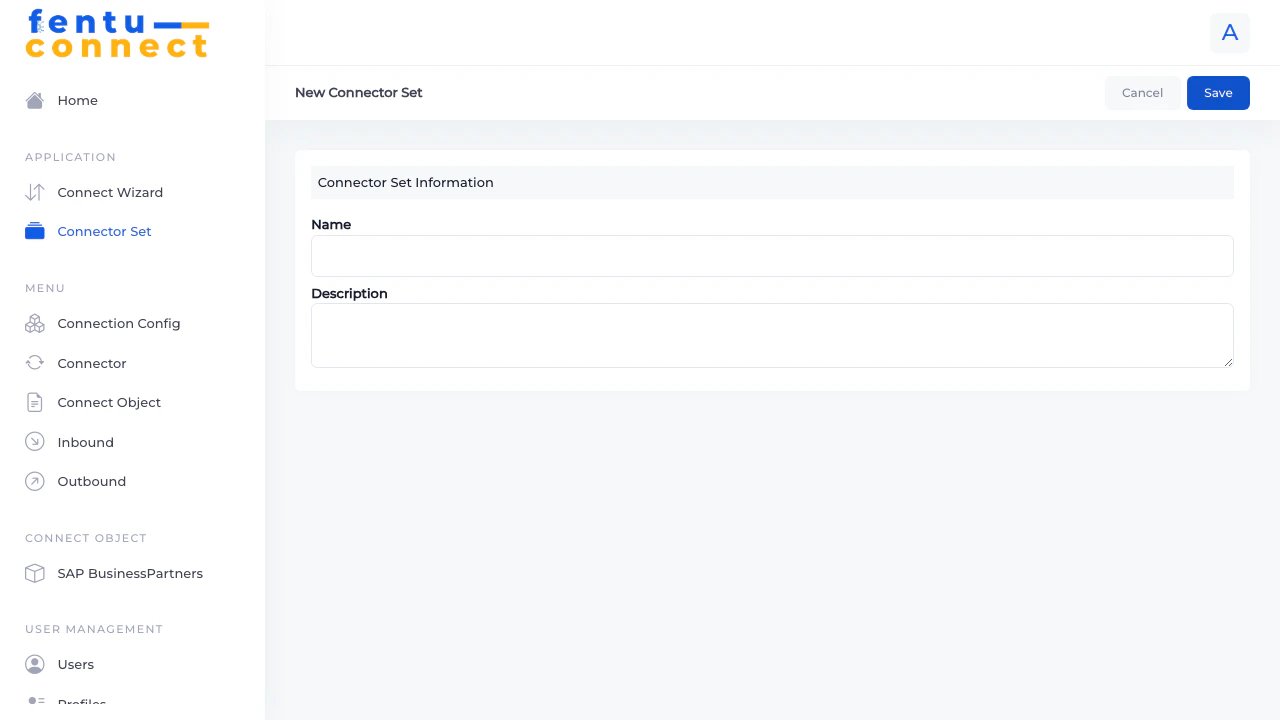 To create a new connector set:
1. Click the **New** button from the Connector Set list
2. Fill in the required fields
3. Click **Save** to create the connector set
### Fields
| Field | Description | Required |
| --------------- | --------------------------------------------------- | -------- |
| **Name** | A unique, descriptive name for this connector set | Yes |
| **Description** | Optional notes explaining the purpose of this group | No |
Name connector sets based on their purpose or the system they connect to. For example: "SAP B1 Integration", "CRM Sync", or "E-commerce Connectors".
***
## Editing a Connector Set
1. Find the connector set in the list
2. Click the edit icon (pencil) in the Actions column
3. Modify the Name or Description
4. Click **Save** to apply changes
***
## Deleting a Connector Set
1. Find the connector set in the list
2. Click the delete icon (trash) in the Actions column
3. Confirm the deletion
Deleting a connector set does not delete the connectors within it, but they will no longer be grouped. Consider reassigning connectors before deleting a set.
***
## Use Cases
Create a connector set for each external system you integrate with:
* "SAP Business One"
* "Salesforce CRM"
* "Shopware Store"
This makes it easy to find all integrations related to a specific system.
Create connector sets based on the type of data being synchronized:
* "Customer Data Sync"
* "Product Catalog"
* "Work Order Integration"
Useful when the same data flows to multiple systems.
Create separate connector sets for different environments:
* "Production Integrations"
* "Staging/UAT"
* "Development/Testing"
Helps prevent accidental changes to production configurations.
***
## Best Practices
Establish a naming convention for connector sets across your organization. This makes it easier for team members to find and understand integrations.
Use the description field to explain what the connector set contains and any important configuration notes.
Regularly review your connector sets to remove unused groups and ensure connectors are properly organized.
***
## Related Documentation
Create and manage individual connectors
Quick setup wizard for new integrations
To create a new connector set:
1. Click the **New** button from the Connector Set list
2. Fill in the required fields
3. Click **Save** to create the connector set
### Fields
| Field | Description | Required |
| --------------- | --------------------------------------------------- | -------- |
| **Name** | A unique, descriptive name for this connector set | Yes |
| **Description** | Optional notes explaining the purpose of this group | No |
Name connector sets based on their purpose or the system they connect to. For example: "SAP B1 Integration", "CRM Sync", or "E-commerce Connectors".
***
## Editing a Connector Set
1. Find the connector set in the list
2. Click the edit icon (pencil) in the Actions column
3. Modify the Name or Description
4. Click **Save** to apply changes
***
## Deleting a Connector Set
1. Find the connector set in the list
2. Click the delete icon (trash) in the Actions column
3. Confirm the deletion
Deleting a connector set does not delete the connectors within it, but they will no longer be grouped. Consider reassigning connectors before deleting a set.
***
## Use Cases
Create a connector set for each external system you integrate with:
* "SAP Business One"
* "Salesforce CRM"
* "Shopware Store"
This makes it easy to find all integrations related to a specific system.
Create connector sets based on the type of data being synchronized:
* "Customer Data Sync"
* "Product Catalog"
* "Work Order Integration"
Useful when the same data flows to multiple systems.
Create separate connector sets for different environments:
* "Production Integrations"
* "Staging/UAT"
* "Development/Testing"
Helps prevent accidental changes to production configurations.
***
## Best Practices
Establish a naming convention for connector sets across your organization. This makes it easier for team members to find and understand integrations.
Use the description field to explain what the connector set contains and any important configuration notes.
Regularly review your connector sets to remove unused groups and ensure connectors are properly organized.
***
## Related Documentation
Create and manage individual connectors
Quick setup wizard for new integrations