> ## Documentation Index
> Fetch the complete documentation index at: https://docs.fentufsm.com/llms.txt
> Use this file to discover all available pages before exploring further.
# Inbound Connections
> Configure inbound data synchronization from external systems to Fentu FSM
## Overview
Inbound connections pull data FROM external systems INTO Fentu FSM. This is typically used for master data like customers, products, and inventory that originates in your ERP or CRM system.
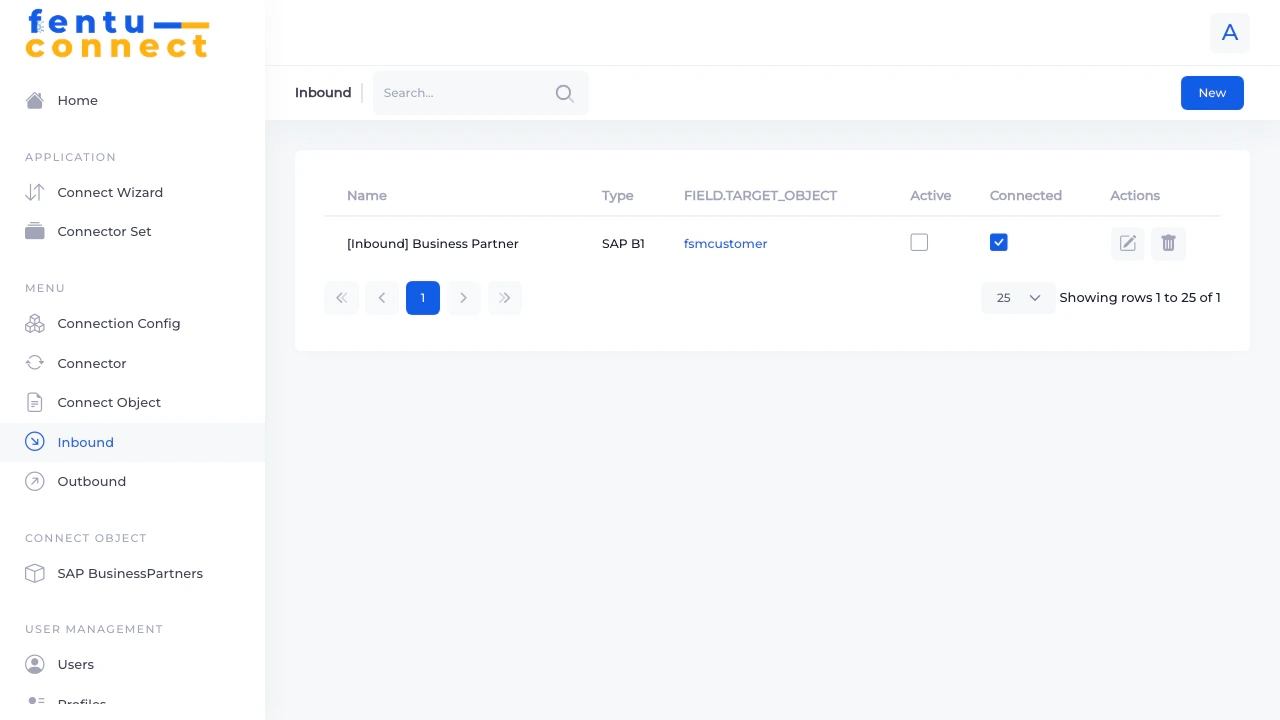 ## Inbound Connection List
The list displays all configured inbound connections:
| Column | Description |
| -------------- | -------------------------------------------------- |
| **Name** | The display name of the inbound connection |
| **Type** | The external system type (e.g., SAP B1, Fentu-FSM) |
| **Object In** | The destination Connect Object in Fentu FSM |
| **Object Out** | The source object from the external system |
| **Actions** | Edit, configure, or delete the connection |
### List Features
* **Search** - Filter connections by name
* **New Button** - Create a new inbound connection
* **Pagination** - Navigate through pages
* **Items per Page** - Choose display count
***
## Inbound Connection Detail
## Inbound Connection List
The list displays all configured inbound connections:
| Column | Description |
| -------------- | -------------------------------------------------- |
| **Name** | The display name of the inbound connection |
| **Type** | The external system type (e.g., SAP B1, Fentu-FSM) |
| **Object In** | The destination Connect Object in Fentu FSM |
| **Object Out** | The source object from the external system |
| **Actions** | Edit, configure, or delete the connection |
### List Features
* **Search** - Filter connections by name
* **New Button** - Create a new inbound connection
* **Pagination** - Navigate through pages
* **Items per Page** - Choose display count
***
## Inbound Connection Detail
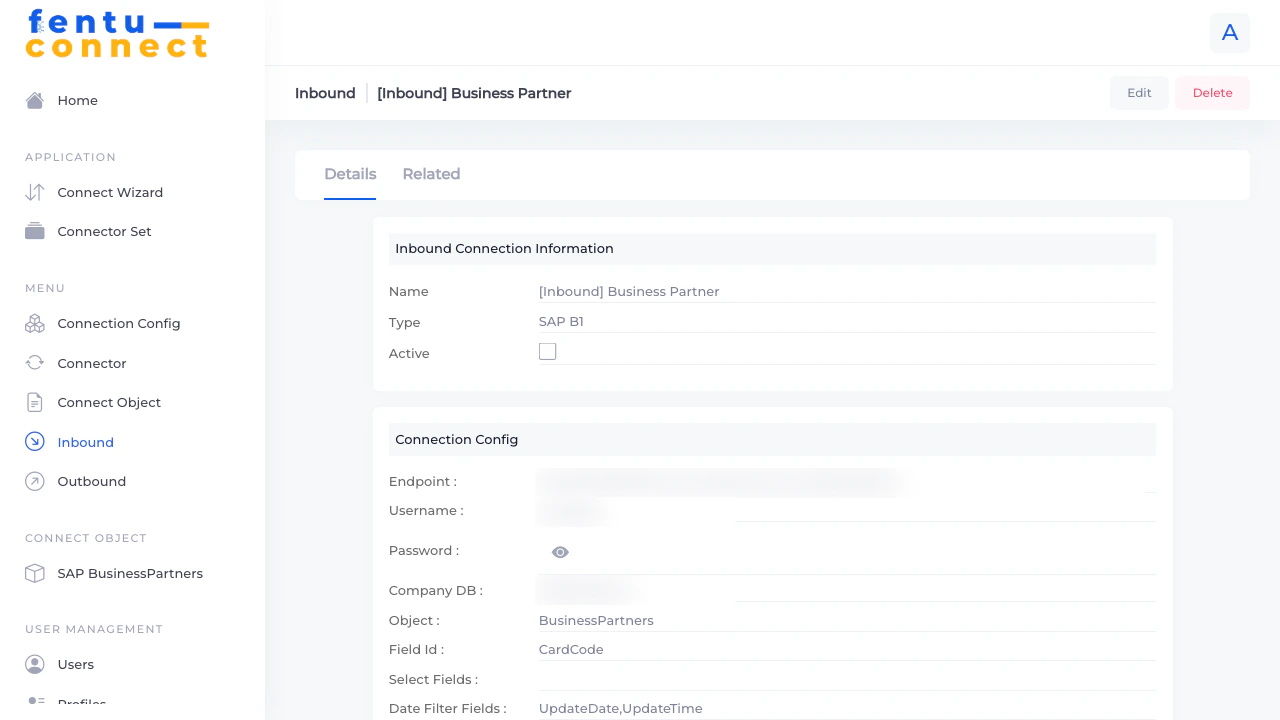 Clicking on an inbound connection shows:
* **Edit Button** - Modify connection settings
* **Delete Button** - Remove the connection
* **Details Tab** - View connection configuration
* **Related Tab** - View related configurations
### Details Tab
Shows all configuration settings for the inbound connection including:
* Connection name and type
* Source and destination objects
* Activation status
### Related Tab
Clicking on an inbound connection shows:
* **Edit Button** - Modify connection settings
* **Delete Button** - Remove the connection
* **Details Tab** - View connection configuration
* **Related Tab** - View related configurations
### Details Tab
Shows all configuration settings for the inbound connection including:
* Connection name and type
* Source and destination objects
* Activation status
### Related Tab
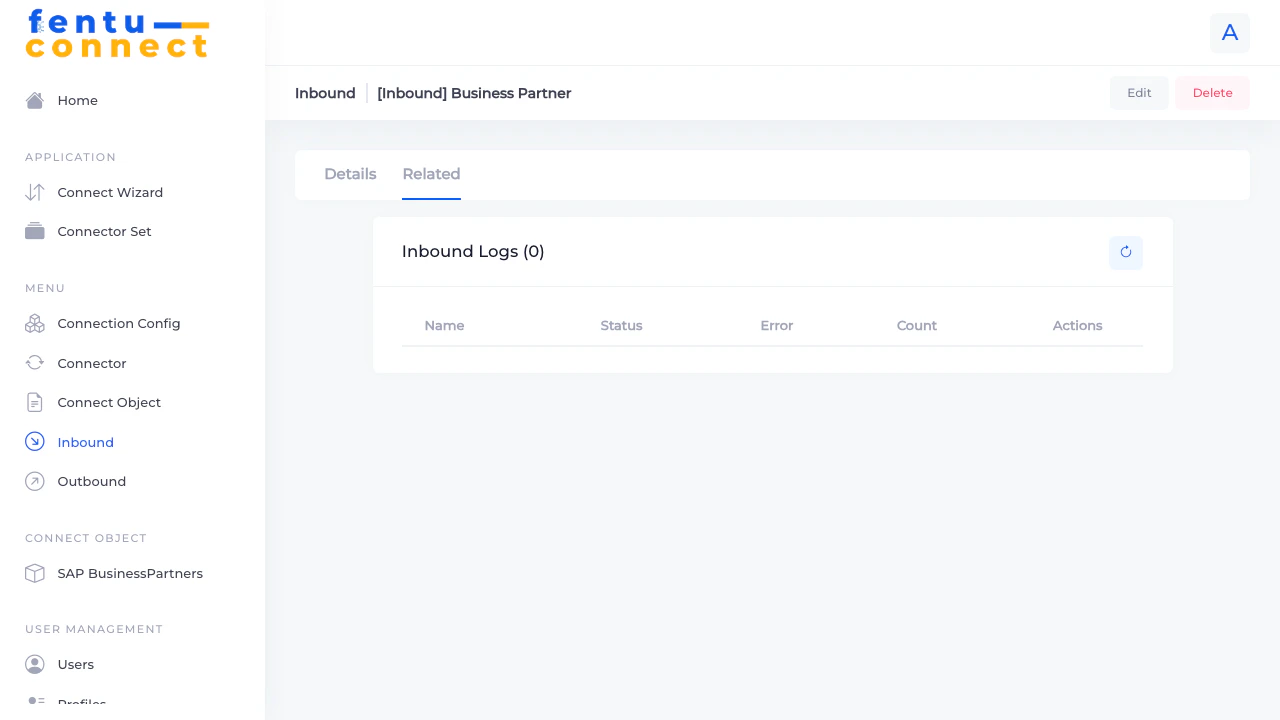 Shows related entities and configurations linked to this inbound connection.
***
## Creating an Inbound Connection
To create a new inbound connection:
1. Click **New** from the Inbound list
2. Configure the connection settings
3. Set up field mappings
4. Click **Save**
***
## Editing an Inbound Connection
Shows related entities and configurations linked to this inbound connection.
***
## Creating an Inbound Connection
To create a new inbound connection:
1. Click **New** from the Inbound list
2. Configure the connection settings
3. Set up field mappings
4. Click **Save**
***
## Editing an Inbound Connection
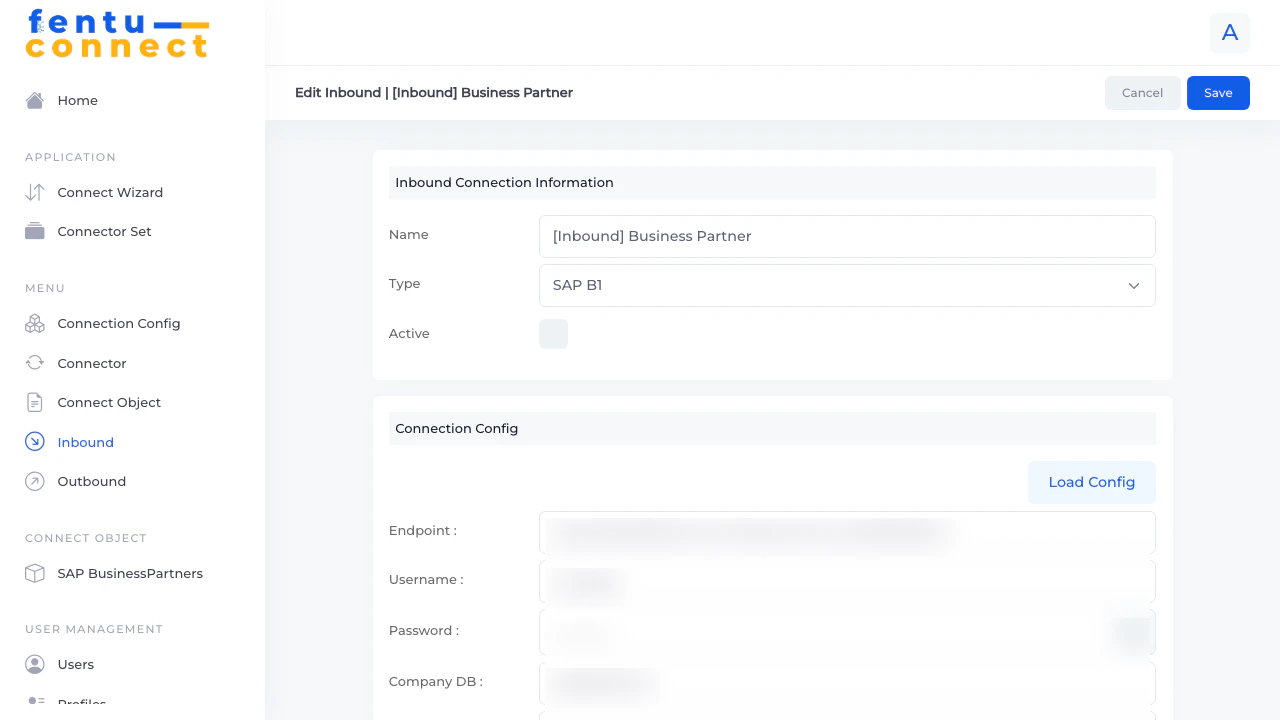 The edit form contains multiple sections:
### Basic Settings
| Field | Description |
| ---------- | --------------------------------------- |
| **Name** | Display name for the inbound connection |
| **Type** | The external system type |
| **Active** | Enable/disable synchronization |
### Connection Settings
Click **Load Config** to load saved connection configurations.
| Field | Description |
| ---------------- | ----------------------------------------- |
| **Endpoint URL** | API endpoint for the external system |
| **Company DB** | Database name (SAP B1) |
| **Username** | Authentication username |
| **Password** | Authentication password |
| **Session ID** | Session token (auto-populated on connect) |
Additional fields vary by system type:
| Field | Description |
| ----------------- | ------------------------------------------------- |
| **Entity** | The external system entity/table to query |
| **Query Filter** | Optional filter to limit which records are synced |
| **Select Fields** | Specify which fields to retrieve |
| **Timeout** | Request timeout in seconds |
Click **Re-Connect** to test the connection with current settings.
### Object Mapping
| Field | Description |
| --------------------- | ------------------------------------------- |
| **Object In** | The destination Connect Object in Fentu FSM |
| **Primary Key Field** | The field used to match/identify records |
***
## Field Mapping Configuration
The edit form contains multiple sections:
### Basic Settings
| Field | Description |
| ---------- | --------------------------------------- |
| **Name** | Display name for the inbound connection |
| **Type** | The external system type |
| **Active** | Enable/disable synchronization |
### Connection Settings
Click **Load Config** to load saved connection configurations.
| Field | Description |
| ---------------- | ----------------------------------------- |
| **Endpoint URL** | API endpoint for the external system |
| **Company DB** | Database name (SAP B1) |
| **Username** | Authentication username |
| **Password** | Authentication password |
| **Session ID** | Session token (auto-populated on connect) |
Additional fields vary by system type:
| Field | Description |
| ----------------- | ------------------------------------------------- |
| **Entity** | The external system entity/table to query |
| **Query Filter** | Optional filter to limit which records are synced |
| **Select Fields** | Specify which fields to retrieve |
| **Timeout** | Request timeout in seconds |
Click **Re-Connect** to test the connection with current settings.
### Object Mapping
| Field | Description |
| --------------------- | ------------------------------------------- |
| **Object In** | The destination Connect Object in Fentu FSM |
| **Primary Key Field** | The field used to match/identify records |
***
## Field Mapping Configuration
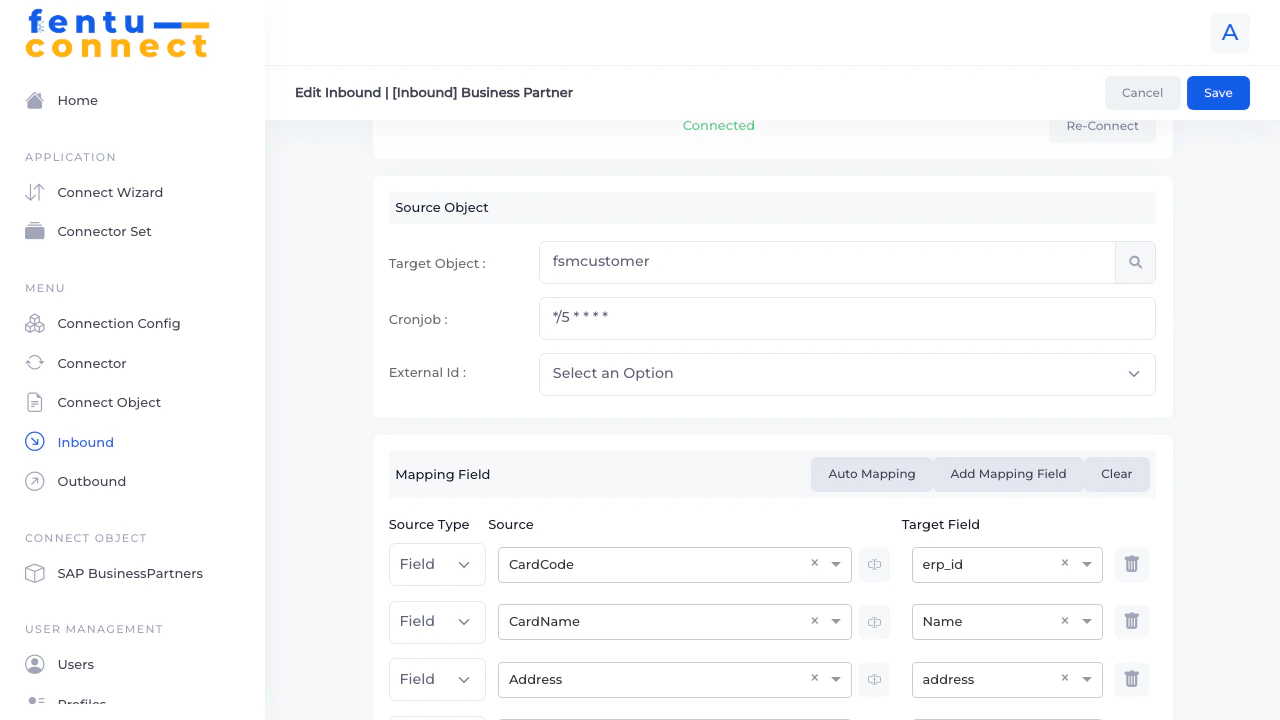 The field mapping section allows you to define how source fields map to destination fields.
### Mapping Controls
| Button | Description |
| --------------------- | -------------------------------------------- |
| **Auto Mapping** | Automatically map fields with matching names |
| **Add Mapping Field** | Add a new field mapping row |
| **Clear** | Remove all field mappings |
### Mapping Row Structure
Each mapping row contains:
| Column | Description |
| ---------------- | -------------------------------------- |
| **Mapping Type** | Field, Raw Data, or Formula |
| **Source** | The source field or expression |
| **Destination** | The target field in the Connect Object |
| **Delete** | Remove this mapping row |
### Mapping Types
Direct field-to-field mapping. Select a source field from the dropdown.
Static value that applies to all records. Enter the value directly.
Calculated value using formula syntax. See Formula Reference.
***
## Destination Fields
The destination dropdown shows all fields from the selected Connect Object:
Common Fentu FSM customer fields include:
* `Name`, `address`, `description`
* `billing_address`, `billing_city`, `billing_country`, `billing_state`, `billing_street`, `billing_zip`
* `shipping_address`, `shipping_city`, `shipping_country`, `shipping_state`, `shipping_street`, `shipping_zip`
* `email`, `phone`, `phone_mobile`, `fax`
* `customer_id`, `erp_id`, `external_id`
* `type`, `industry`, `rating`
* Array fields: `BPAddresses`, `ContactEmployees`, `BPPaymentMethods`
***
## Working with Array Fields
Some external systems return nested arrays (like multiple addresses or contacts). Handle these with:
1. **Array Fields** - Map the entire array to an array field in the Connect Object
2. **Formulas** - Use `findvalue()` to extract specific values from arrays
**Example:** Extract shipping street from an address array:
```
findvalue(data('BPAddresses'),['AddressName'=>'Ship to'],'Street')
```
***
## Best Practices
Always configure the Primary Key Field correctly. This field is used to:
* Match existing records for updates
* Prevent duplicate record creation
* Track record relationships
Leave the connection inactive while configuring. Use the Re-Connect button to verify credentials work before enabling live synchronization.
When the external system has large datasets, use Query Filters to limit which records sync. This improves performance and reduces unnecessary data transfer.
Begin by mapping only essential fields. Add more mappings gradually as needed rather than trying to map everything at once.
Decide how to handle null/empty values from the source system. Use formulas like `ifempty()` to provide defaults when needed.
***
## Common Questions
Sync frequency depends on your configuration. Check with your administrator for the scheduled sync intervals.
Records are matched using the Primary Key Field. If a match is found, the existing record is updated. If no match, a new record is created.
Yes, use Query Filters to filter by modification date or change flags in the source system to sync only records that have changed.
Fentu Connect handles connection failures gracefully. Records that synced before the failure remain, and the sync can be retried.
***
## Troubleshooting
**Check:**
* Is the connection Active?
* Are connection credentials valid? (Test with Re-Connect)
* Does the Query Filter exclude the expected records?
* Is the Primary Key Field correctly configured?
**Cause:** Primary Key Field not matching correctly
**Solution:**
* Verify the Primary Key Field contains unique values
* Check the field mapping for the primary key is correct
* Ensure the source field name matches exactly
**Check:**
* Is the field mapping configured correctly?
* For formula mappings, is the formula syntax correct?
* Does the destination field exist in the Connect Object?
***
## Related Documentation
Configure outbound data push to external systems
Define data structures for integration
Learn formula syntax for data transformation
Configure connection credentials
The field mapping section allows you to define how source fields map to destination fields.
### Mapping Controls
| Button | Description |
| --------------------- | -------------------------------------------- |
| **Auto Mapping** | Automatically map fields with matching names |
| **Add Mapping Field** | Add a new field mapping row |
| **Clear** | Remove all field mappings |
### Mapping Row Structure
Each mapping row contains:
| Column | Description |
| ---------------- | -------------------------------------- |
| **Mapping Type** | Field, Raw Data, or Formula |
| **Source** | The source field or expression |
| **Destination** | The target field in the Connect Object |
| **Delete** | Remove this mapping row |
### Mapping Types
Direct field-to-field mapping. Select a source field from the dropdown.
Static value that applies to all records. Enter the value directly.
Calculated value using formula syntax. See Formula Reference.
***
## Destination Fields
The destination dropdown shows all fields from the selected Connect Object:
Common Fentu FSM customer fields include:
* `Name`, `address`, `description`
* `billing_address`, `billing_city`, `billing_country`, `billing_state`, `billing_street`, `billing_zip`
* `shipping_address`, `shipping_city`, `shipping_country`, `shipping_state`, `shipping_street`, `shipping_zip`
* `email`, `phone`, `phone_mobile`, `fax`
* `customer_id`, `erp_id`, `external_id`
* `type`, `industry`, `rating`
* Array fields: `BPAddresses`, `ContactEmployees`, `BPPaymentMethods`
***
## Working with Array Fields
Some external systems return nested arrays (like multiple addresses or contacts). Handle these with:
1. **Array Fields** - Map the entire array to an array field in the Connect Object
2. **Formulas** - Use `findvalue()` to extract specific values from arrays
**Example:** Extract shipping street from an address array:
```
findvalue(data('BPAddresses'),['AddressName'=>'Ship to'],'Street')
```
***
## Best Practices
Always configure the Primary Key Field correctly. This field is used to:
* Match existing records for updates
* Prevent duplicate record creation
* Track record relationships
Leave the connection inactive while configuring. Use the Re-Connect button to verify credentials work before enabling live synchronization.
When the external system has large datasets, use Query Filters to limit which records sync. This improves performance and reduces unnecessary data transfer.
Begin by mapping only essential fields. Add more mappings gradually as needed rather than trying to map everything at once.
Decide how to handle null/empty values from the source system. Use formulas like `ifempty()` to provide defaults when needed.
***
## Common Questions
Sync frequency depends on your configuration. Check with your administrator for the scheduled sync intervals.
Records are matched using the Primary Key Field. If a match is found, the existing record is updated. If no match, a new record is created.
Yes, use Query Filters to filter by modification date or change flags in the source system to sync only records that have changed.
Fentu Connect handles connection failures gracefully. Records that synced before the failure remain, and the sync can be retried.
***
## Troubleshooting
**Check:**
* Is the connection Active?
* Are connection credentials valid? (Test with Re-Connect)
* Does the Query Filter exclude the expected records?
* Is the Primary Key Field correctly configured?
**Cause:** Primary Key Field not matching correctly
**Solution:**
* Verify the Primary Key Field contains unique values
* Check the field mapping for the primary key is correct
* Ensure the source field name matches exactly
**Check:**
* Is the field mapping configured correctly?
* For formula mappings, is the formula syntax correct?
* Does the destination field exist in the Connect Object?
***
## Related Documentation
Configure outbound data push to external systems
Define data structures for integration
Learn formula syntax for data transformation
Configure connection credentials