> ## Documentation Index
> Fetch the complete documentation index at: https://docs.fentufsm.com/llms.txt
> Use this file to discover all available pages before exploring further.
# Products
> Manage service products and equipment catalog
## Overview
Products represent the equipment, systems, and devices that your organization services and maintains. Each product serves as a template that can be installed at customer sites as Assets. Products define the characteristics, maintenance requirements, and technical specifications needed for service delivery.
 Products are the catalog items (fire doors, Machine units, security systems) while Assets are the specific instances installed at customer locations. One product can have many assets deployed across different customers.
## When to Use Products
Access the Products module when you need to:
* Define new equipment types for your service catalog
* Set up maintenance intervals and requirements
* Link technical checklists to equipment types
* Specify required skills for servicing equipment
* Track inventory levels per warehouse
* Standardize service procedures across similar equipment
* Configure equipment specifications for installations
***
## Products List View
### What You See
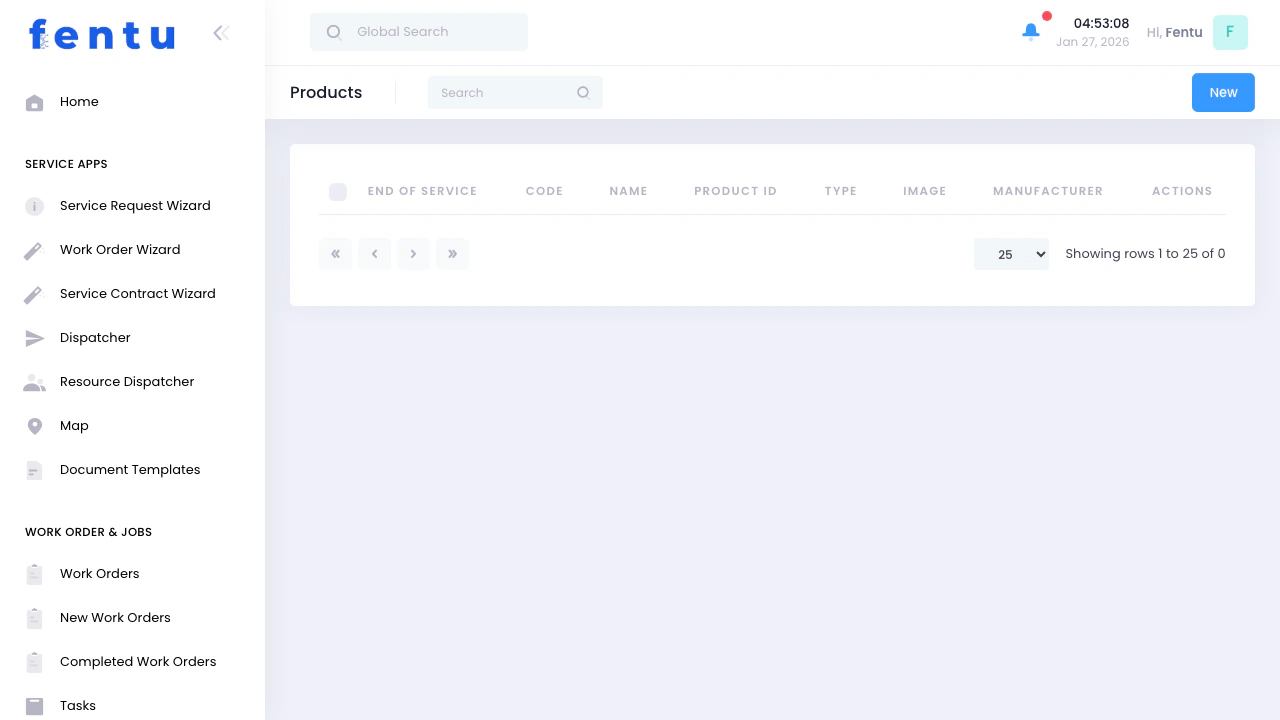
The Products list displays your service catalog:
| Column | Shows |
| ------------------ | ---------------------------------------------- |
| **End of Service** | Date when product reaches end-of-life |
| **Code** | Product code/SKU for identification |
| **Name** | Product name (e.g., "Fire Door System FD-200") |
| **Product ID** | Internal product identifier |
| **Type** | Product type classification |
| **Image** | Product photo or diagram |
| **Manufacturer** | Equipment manufacturer name |
### List Features
* **Search** - Find products by name, code, or manufacturer
* **New** - Create new product in your catalog
* **Actions** - Edit or delete existing products
* **Sorting** - Click column headers to sort
* **Pagination** - Navigate through large product catalogs
***
## Creating a Product
When you click **New**, you'll configure the product details:
### Basic Information
| Field | Description |
| --------------- | ----------------------------------------------------- |
| **Name** | Product name (e.g., "Automatic Sliding Door ASD-500") |
| **Code** | Product code/SKU for quick reference |
| **Running ID** | Auto-generated sequential identifier |
| **External ID** | Link to external system (SAP, ERP) |
| **Description** | Detailed product description and specifications |
| **Type** | Assign product type (can select multiple types) |
| **Image** | Upload product photo or technical diagram |
### Manufacturer Details
| Field | Description |
| ---------------- | ----------------- |
| **Brand** | Brand name |
| **Producer** | Producer/OEM |
| **Manufacturer** | Manufacturer name |
### Technical Specifications
Products can have extensive technical fields depending on equipment type:
* **Number of Wings** - 1, 2, 3, or 4 wing configurations
* **Escape Route Requirement** - Flag for emergency exit compliance
* **Door Request** - Fire rating (T30, T60, T90, RS, etc.)
* **Number of Windows** - Windows in door
* **DIN Direction** - DIN L or DIN R hinge direction
* **Latch Type** - Escape door lock, magnet, aviation lock
* **Locking Type** - Locking catch, magnet, freewheel
* **Mounting Side** - Hinge side or opposite
* **Arm System** - Slide rail, linkage, sensor slide rail
* **Maintenance Start** - When regular maintenance begins
* **Interval** - Service frequency (monthly, quarterly, semi-annual, yearly, every 2/4/8 years)
* **Battery Replacement Cycle** - How often batteries need replacement
* **Replacement Cycle** - General replacement schedule
* **Number of Smoke Detectors** - Smoke detector count
* **Smoke Switch Type** - Type of smoke detection
* **Smoke Switch Installation Date** - When installed
* **Smoke Switch Replacement Cycle** - Replacement schedule
* **Ceiling Detector Type** - Ceiling detector model
* **Ceiling Detector Installation Date** - Installation date
* **Ceiling Detector Replacement Cycle** - Replacement frequency
* **T30** - T30 fire rating checkbox
* **RS** - Smoke rating checkbox
* **Permit** - Permit information
* **Battery Type** - Battery specification
* **Battery Capacity** - Battery capacity rating
* **Battery Installation Date** - When batteries installed
* **Number of Engines** - Motor/engine count
* **Motor Type** - Spindle drive, chain drive, scissor drive
* **Number of Trigger Buttons** - Trigger button count
* **Number of RWA Buttons** - RWA button count
* **Number of Fan Buttons** - Ventilation button count
* **Ventilation Function** - Yes/No ventilation capability
* **Sensor Type** - Sensor specifications
* **Part of the Building** - Building section
* **Location** - Specific location
* **Location Description** - Detailed location notes
* **Floor** - Floor number or name
* **Door Number Customer** - Customer's door numbering
* **Serial Number** - Equipment serial number
* **QR Code** - QR code for mobile scanning
* **Registration Number** - Registration or certification number
* **Special Requirements** - Radiation protection, burglary protection, hermetic sealing
* **Escape Route Control Locking Type** - Magnet, FTV, FTO
* **Accessibility to Drives** - Drive access notes
* **Record Type** - Record classification
* **Themis** - Themis system reference
Not all fields apply to every product. The system shows relevant fields based on your product type. Configure what's needed for accurate service delivery.
***
## Product Detail View
When you click on a product from the list, you'll see:
### Product Information Tab
Complete product specifications including all technical fields configured during creation.
### Related Items Tabs
Multiple type classifications for this product. Products can belong to several types for flexible categorization and filtering.
Maintenance and inspection checklists linked to this product. When technicians service assets based on this product, these checklists become available.
**Usage:** Standardizes service procedures across all assets of this product type.
Required technician skills for servicing this product. Used for technician assignment and scheduling.
**Example:** "Electrical Certification", "Fire Door Specialist", "Machine Licensed"
All assets (actual installations) based on this product. Shows where this product is deployed across your customer base.
**Use Case:** Track all fire doors of a specific model across all buildings.
Inventory levels per warehouse for this product. View and manage stock quantities across multiple warehouse locations.
**Stock Management:** Book quantities for work orders, track usage, trigger reorders.
Work orders that include this product - either for installation, replacement, or related service work.
Complete audit trail of all changes to this product record including who made changes and when.
***
## Common Product Scenarios
### Scenario 1: Adding New Equipment to Catalog
**Goal:** Your company starts servicing a new type of Machine system
**Steps:**
1. Go to **Inventory → Products**
2. Click **New**
3. Enter basic info:
* Name: "Commercial Rooftop Machine RTU-500"
* Code: "MACH-RTU-500"
* Manufacturer: "ClimateControl Corp"
4. Assign Product Type: "Machine Systems"
5. Set maintenance interval: "Quarterly"
6. Upload product image
7. Link maintenance checklist: "Machine Quarterly Inspection"
8. Assign required skill: "Machine Certified Technician"
9. Save
**Result:** Product is now available for asset creation and work order planning.
***
### Scenario 2: Linking Checklists to Products
**Goal:** Ensure all fire door maintenance follows standardized procedures
**Steps:**
1. Open product: "Fire Door System FD-200"
2. Go to **Checklists** tab
3. Click **Add Checklist**
4. Select checklists:
* "Fire Door Inspection - Monthly"
* "Fire Door Annual Certification"
* "Emergency Exit Compliance Check"
5. Save
**Result:** When technicians service any asset of this product, these checklists automatically appear in their task list.
***
### Scenario 3: Managing Product Inventory
**Goal:** Track stock levels for products kept in inventory
**Steps:**
1. Open product
2. Go to **Warehouse Stock** tab
3. View current quantities:
* Main Warehouse: 5 units
* Branch Office A: 2 units
* Branch Office B: 0 units
4. Adjust quantities as needed
5. Book quantities for upcoming installations
**Why:** Prevents scheduling installations without available stock.
***
### Scenario 4: Finding All Installations of a Product
**Goal:** Review all deployed fire doors for recall notice
**Steps:**
1. Open product: "Fire Door Model X"
2. Go to **Assets** tab
3. View list of all installations:
* Shows customer, location, installation date
* Links to each asset record
4. Export list if needed
5. Create work orders for recall service
**Use Case:** Product recalls, warranty work, preventive campaigns.
***
## Product Actions
Modify product details, specifications, or settings. Updates don't affect existing assets unless you explicitly update them.
Remove product from catalog. Only possible if no assets exist and no work orders reference it.
Create new product based on existing one. Saves time when adding similar equipment.
Quick access to all assets based on this product across all customers.
***
## Tips and Best Practices
Standardize product names for easy searching:
* Include manufacturer and model: "Brand Model-Number"
* Use descriptive names: "Automatic Sliding Door ASD-500" not "Door 1"
* Add capacity/size when relevant: "Machine Unit 5-Ton Commercial"
**Why:** Makes product selection easier during work order creation.
Attach maintenance checklists at the product level:
* Regular inspection checklists
* Annual certification procedures
* Troubleshooting guides
* Safety compliance checks
**Benefit:** Technicians automatically see correct procedures for every asset.
Configure intervals based on:
* Manufacturer recommendations
* Regulatory requirements
* Historical performance data
* Customer contract terms
**Impact:** Scheduled maintenances auto-generate from service contracts based on these intervals.
Link skills needed for service:
* Certifications required by law
* Specialized training
* Safety qualifications
**Result:** System suggests appropriate technicians during scheduling.
Include:
* Product photo from multiple angles
* Technical diagrams
* Component locations
* Model label/nameplate photo
**Why:** Helps technicians identify equipment on-site and during parts ordering.
For products kept in stock:
* Set up warehouse quantities
* Define reorder points
* Track usage patterns
* Book inventory for scheduled work
**Prevents:** Scheduling installations without available equipment.
Assign products to multiple types:
* Equipment category (Machine, Fire Safety, Security)
* Service complexity (Basic, Advanced, Specialist)
* Regulatory class (Life Safety, Standard Equipment)
**Enables:** Flexible filtering and reporting across your catalog.
Use description and custom fields:
* Special tools needed
* Safety precautions
* Access requirements
* Parts lead times
**Helps:** Technicians prepare properly before service calls.
***
## Common Questions
**Product:** The catalog item, template, or equipment type (e.g., "Fire Door Model FD-200")
**Asset:** The specific installed equipment at a customer site (e.g., "Fire Door #A-101 at Building 5, Floor 2")
**Relationship:** One product → many assets across multiple customers
**Analogy:** Product is like a car model (Honda Civic), Asset is a specific car (your Honda Civic with VIN #123).
Yes, you can edit product details anytime. However:
**What Updates Automatically:**
* Product name, description
* Linked checklists (appear in new tasks)
* Required skills (affect future scheduling)
**What Doesn't Update:**
* Existing asset specifications (must update individually if needed)
* Past work order references
* Historical maintenance intervals
**Best Practice:** Create new product version if making major technical changes.
When you set a maintenance interval on a product:
1. Service contracts generate scheduled maintenances based on this interval
2. Assets inherit the interval (but can be overridden per asset)
3. System creates maintenance tasks automatically at specified frequency
**Example:** Product has "Quarterly" interval → Every 3 months, a scheduled maintenance task is created for each asset with an active service contract.
It depends on service differences:
**Create Separate Products When:**
* Different maintenance procedures
* Different required skills
* Different replacement parts
* Different service intervals
**Use Same Product With Notes When:**
* Cosmetic differences only
* Same service procedures
* Minor capacity variations
**Example:** "Machine Unit 3-Ton" and "Machine Unit 5-Ton" - separate if service differs, same product if procedures identical.
Products can have **multiple types** assigned:
* Used for flexible classification
* Helps with filtering and reporting
* No hierarchy - flat structure
**Example:** A fire door might have types:
* "Fire Safety Equipment"
* "Door Systems"
* "Life Safety Critical"
**Usage:** Filter work orders by type, assign specialists, generate compliance reports.
Yes, through the **Warehouse Stock** tab:
* Track quantity per warehouse
* Book quantities for work orders
* View inventory changes over time
* Set reorder points
**Use When:** You stock products for installation or replacement (not just servicing customer-owned equipment).
Deletion is **only possible if**:
* No assets based on this product exist
* No work orders reference it
* No inventory bookings exist
**If in use:** System prevents deletion and shows where it's referenced.
**Alternative:** Mark as inactive or end-of-life instead of deleting.
Checklists linked to products:
**Automatically Available When:**
* Technician works on any asset of this product
* Work order includes this product
* Scheduled maintenance for this product type
**Benefit:** Standardization - every technician follows same procedures regardless of which specific asset they're servicing.
**Override:** Individual assets can have additional checklists too.
***
## Related Documentation
Organize products into type categories for filtering and classification.
Create specific asset installations based on products at customer sites.
Create inspection and maintenance checklists to link to products.
Manage warehouse locations where product inventory is stored.
Products are the catalog items (fire doors, Machine units, security systems) while Assets are the specific instances installed at customer locations. One product can have many assets deployed across different customers.
## When to Use Products
Access the Products module when you need to:
* Define new equipment types for your service catalog
* Set up maintenance intervals and requirements
* Link technical checklists to equipment types
* Specify required skills for servicing equipment
* Track inventory levels per warehouse
* Standardize service procedures across similar equipment
* Configure equipment specifications for installations
***
## Products List View
### What You See
The Products list displays your service catalog:
| Column | Shows |
| ------------------ | ---------------------------------------------- |
| **End of Service** | Date when product reaches end-of-life |
| **Code** | Product code/SKU for identification |
| **Name** | Product name (e.g., "Fire Door System FD-200") |
| **Product ID** | Internal product identifier |
| **Type** | Product type classification |
| **Image** | Product photo or diagram |
| **Manufacturer** | Equipment manufacturer name |
### List Features
* **Search** - Find products by name, code, or manufacturer
* **New** - Create new product in your catalog
* **Actions** - Edit or delete existing products
* **Sorting** - Click column headers to sort
* **Pagination** - Navigate through large product catalogs
***
## Creating a Product
When you click **New**, you'll configure the product details:
### Basic Information
| Field | Description |
| --------------- | ----------------------------------------------------- |
| **Name** | Product name (e.g., "Automatic Sliding Door ASD-500") |
| **Code** | Product code/SKU for quick reference |
| **Running ID** | Auto-generated sequential identifier |
| **External ID** | Link to external system (SAP, ERP) |
| **Description** | Detailed product description and specifications |
| **Type** | Assign product type (can select multiple types) |
| **Image** | Upload product photo or technical diagram |
### Manufacturer Details
| Field | Description |
| ---------------- | ----------------- |
| **Brand** | Brand name |
| **Producer** | Producer/OEM |
| **Manufacturer** | Manufacturer name |
### Technical Specifications
Products can have extensive technical fields depending on equipment type:
* **Number of Wings** - 1, 2, 3, or 4 wing configurations
* **Escape Route Requirement** - Flag for emergency exit compliance
* **Door Request** - Fire rating (T30, T60, T90, RS, etc.)
* **Number of Windows** - Windows in door
* **DIN Direction** - DIN L or DIN R hinge direction
* **Latch Type** - Escape door lock, magnet, aviation lock
* **Locking Type** - Locking catch, magnet, freewheel
* **Mounting Side** - Hinge side or opposite
* **Arm System** - Slide rail, linkage, sensor slide rail
* **Maintenance Start** - When regular maintenance begins
* **Interval** - Service frequency (monthly, quarterly, semi-annual, yearly, every 2/4/8 years)
* **Battery Replacement Cycle** - How often batteries need replacement
* **Replacement Cycle** - General replacement schedule
* **Number of Smoke Detectors** - Smoke detector count
* **Smoke Switch Type** - Type of smoke detection
* **Smoke Switch Installation Date** - When installed
* **Smoke Switch Replacement Cycle** - Replacement schedule
* **Ceiling Detector Type** - Ceiling detector model
* **Ceiling Detector Installation Date** - Installation date
* **Ceiling Detector Replacement Cycle** - Replacement frequency
* **T30** - T30 fire rating checkbox
* **RS** - Smoke rating checkbox
* **Permit** - Permit information
* **Battery Type** - Battery specification
* **Battery Capacity** - Battery capacity rating
* **Battery Installation Date** - When batteries installed
* **Number of Engines** - Motor/engine count
* **Motor Type** - Spindle drive, chain drive, scissor drive
* **Number of Trigger Buttons** - Trigger button count
* **Number of RWA Buttons** - RWA button count
* **Number of Fan Buttons** - Ventilation button count
* **Ventilation Function** - Yes/No ventilation capability
* **Sensor Type** - Sensor specifications
* **Part of the Building** - Building section
* **Location** - Specific location
* **Location Description** - Detailed location notes
* **Floor** - Floor number or name
* **Door Number Customer** - Customer's door numbering
* **Serial Number** - Equipment serial number
* **QR Code** - QR code for mobile scanning
* **Registration Number** - Registration or certification number
* **Special Requirements** - Radiation protection, burglary protection, hermetic sealing
* **Escape Route Control Locking Type** - Magnet, FTV, FTO
* **Accessibility to Drives** - Drive access notes
* **Record Type** - Record classification
* **Themis** - Themis system reference
Not all fields apply to every product. The system shows relevant fields based on your product type. Configure what's needed for accurate service delivery.
***
## Product Detail View
When you click on a product from the list, you'll see:
### Product Information Tab
Complete product specifications including all technical fields configured during creation.
### Related Items Tabs
Multiple type classifications for this product. Products can belong to several types for flexible categorization and filtering.
Maintenance and inspection checklists linked to this product. When technicians service assets based on this product, these checklists become available.
**Usage:** Standardizes service procedures across all assets of this product type.
Required technician skills for servicing this product. Used for technician assignment and scheduling.
**Example:** "Electrical Certification", "Fire Door Specialist", "Machine Licensed"
All assets (actual installations) based on this product. Shows where this product is deployed across your customer base.
**Use Case:** Track all fire doors of a specific model across all buildings.
Inventory levels per warehouse for this product. View and manage stock quantities across multiple warehouse locations.
**Stock Management:** Book quantities for work orders, track usage, trigger reorders.
Work orders that include this product - either for installation, replacement, or related service work.
Complete audit trail of all changes to this product record including who made changes and when.
***
## Common Product Scenarios
### Scenario 1: Adding New Equipment to Catalog
**Goal:** Your company starts servicing a new type of Machine system
**Steps:**
1. Go to **Inventory → Products**
2. Click **New**
3. Enter basic info:
* Name: "Commercial Rooftop Machine RTU-500"
* Code: "MACH-RTU-500"
* Manufacturer: "ClimateControl Corp"
4. Assign Product Type: "Machine Systems"
5. Set maintenance interval: "Quarterly"
6. Upload product image
7. Link maintenance checklist: "Machine Quarterly Inspection"
8. Assign required skill: "Machine Certified Technician"
9. Save
**Result:** Product is now available for asset creation and work order planning.
***
### Scenario 2: Linking Checklists to Products
**Goal:** Ensure all fire door maintenance follows standardized procedures
**Steps:**
1. Open product: "Fire Door System FD-200"
2. Go to **Checklists** tab
3. Click **Add Checklist**
4. Select checklists:
* "Fire Door Inspection - Monthly"
* "Fire Door Annual Certification"
* "Emergency Exit Compliance Check"
5. Save
**Result:** When technicians service any asset of this product, these checklists automatically appear in their task list.
***
### Scenario 3: Managing Product Inventory
**Goal:** Track stock levels for products kept in inventory
**Steps:**
1. Open product
2. Go to **Warehouse Stock** tab
3. View current quantities:
* Main Warehouse: 5 units
* Branch Office A: 2 units
* Branch Office B: 0 units
4. Adjust quantities as needed
5. Book quantities for upcoming installations
**Why:** Prevents scheduling installations without available stock.
***
### Scenario 4: Finding All Installations of a Product
**Goal:** Review all deployed fire doors for recall notice
**Steps:**
1. Open product: "Fire Door Model X"
2. Go to **Assets** tab
3. View list of all installations:
* Shows customer, location, installation date
* Links to each asset record
4. Export list if needed
5. Create work orders for recall service
**Use Case:** Product recalls, warranty work, preventive campaigns.
***
## Product Actions
Modify product details, specifications, or settings. Updates don't affect existing assets unless you explicitly update them.
Remove product from catalog. Only possible if no assets exist and no work orders reference it.
Create new product based on existing one. Saves time when adding similar equipment.
Quick access to all assets based on this product across all customers.
***
## Tips and Best Practices
Standardize product names for easy searching:
* Include manufacturer and model: "Brand Model-Number"
* Use descriptive names: "Automatic Sliding Door ASD-500" not "Door 1"
* Add capacity/size when relevant: "Machine Unit 5-Ton Commercial"
**Why:** Makes product selection easier during work order creation.
Attach maintenance checklists at the product level:
* Regular inspection checklists
* Annual certification procedures
* Troubleshooting guides
* Safety compliance checks
**Benefit:** Technicians automatically see correct procedures for every asset.
Configure intervals based on:
* Manufacturer recommendations
* Regulatory requirements
* Historical performance data
* Customer contract terms
**Impact:** Scheduled maintenances auto-generate from service contracts based on these intervals.
Link skills needed for service:
* Certifications required by law
* Specialized training
* Safety qualifications
**Result:** System suggests appropriate technicians during scheduling.
Include:
* Product photo from multiple angles
* Technical diagrams
* Component locations
* Model label/nameplate photo
**Why:** Helps technicians identify equipment on-site and during parts ordering.
For products kept in stock:
* Set up warehouse quantities
* Define reorder points
* Track usage patterns
* Book inventory for scheduled work
**Prevents:** Scheduling installations without available equipment.
Assign products to multiple types:
* Equipment category (Machine, Fire Safety, Security)
* Service complexity (Basic, Advanced, Specialist)
* Regulatory class (Life Safety, Standard Equipment)
**Enables:** Flexible filtering and reporting across your catalog.
Use description and custom fields:
* Special tools needed
* Safety precautions
* Access requirements
* Parts lead times
**Helps:** Technicians prepare properly before service calls.
***
## Common Questions
**Product:** The catalog item, template, or equipment type (e.g., "Fire Door Model FD-200")
**Asset:** The specific installed equipment at a customer site (e.g., "Fire Door #A-101 at Building 5, Floor 2")
**Relationship:** One product → many assets across multiple customers
**Analogy:** Product is like a car model (Honda Civic), Asset is a specific car (your Honda Civic with VIN #123).
Yes, you can edit product details anytime. However:
**What Updates Automatically:**
* Product name, description
* Linked checklists (appear in new tasks)
* Required skills (affect future scheduling)
**What Doesn't Update:**
* Existing asset specifications (must update individually if needed)
* Past work order references
* Historical maintenance intervals
**Best Practice:** Create new product version if making major technical changes.
When you set a maintenance interval on a product:
1. Service contracts generate scheduled maintenances based on this interval
2. Assets inherit the interval (but can be overridden per asset)
3. System creates maintenance tasks automatically at specified frequency
**Example:** Product has "Quarterly" interval → Every 3 months, a scheduled maintenance task is created for each asset with an active service contract.
It depends on service differences:
**Create Separate Products When:**
* Different maintenance procedures
* Different required skills
* Different replacement parts
* Different service intervals
**Use Same Product With Notes When:**
* Cosmetic differences only
* Same service procedures
* Minor capacity variations
**Example:** "Machine Unit 3-Ton" and "Machine Unit 5-Ton" - separate if service differs, same product if procedures identical.
Products can have **multiple types** assigned:
* Used for flexible classification
* Helps with filtering and reporting
* No hierarchy - flat structure
**Example:** A fire door might have types:
* "Fire Safety Equipment"
* "Door Systems"
* "Life Safety Critical"
**Usage:** Filter work orders by type, assign specialists, generate compliance reports.
Yes, through the **Warehouse Stock** tab:
* Track quantity per warehouse
* Book quantities for work orders
* View inventory changes over time
* Set reorder points
**Use When:** You stock products for installation or replacement (not just servicing customer-owned equipment).
Deletion is **only possible if**:
* No assets based on this product exist
* No work orders reference it
* No inventory bookings exist
**If in use:** System prevents deletion and shows where it's referenced.
**Alternative:** Mark as inactive or end-of-life instead of deleting.
Checklists linked to products:
**Automatically Available When:**
* Technician works on any asset of this product
* Work order includes this product
* Scheduled maintenance for this product type
**Benefit:** Standardization - every technician follows same procedures regardless of which specific asset they're servicing.
**Override:** Individual assets can have additional checklists too.
***
## Related Documentation
Organize products into type categories for filtering and classification.
Create specific asset installations based on products at customer sites.
Create inspection and maintenance checklists to link to products.
Manage warehouse locations where product inventory is stored.