> ## Documentation Index
> Fetch the complete documentation index at: https://docs.fentufsm.com/llms.txt
> Use this file to discover all available pages before exploring further.
# Readout Templates
> Creating templates for recording equipment readings and measurements
 ## Overview
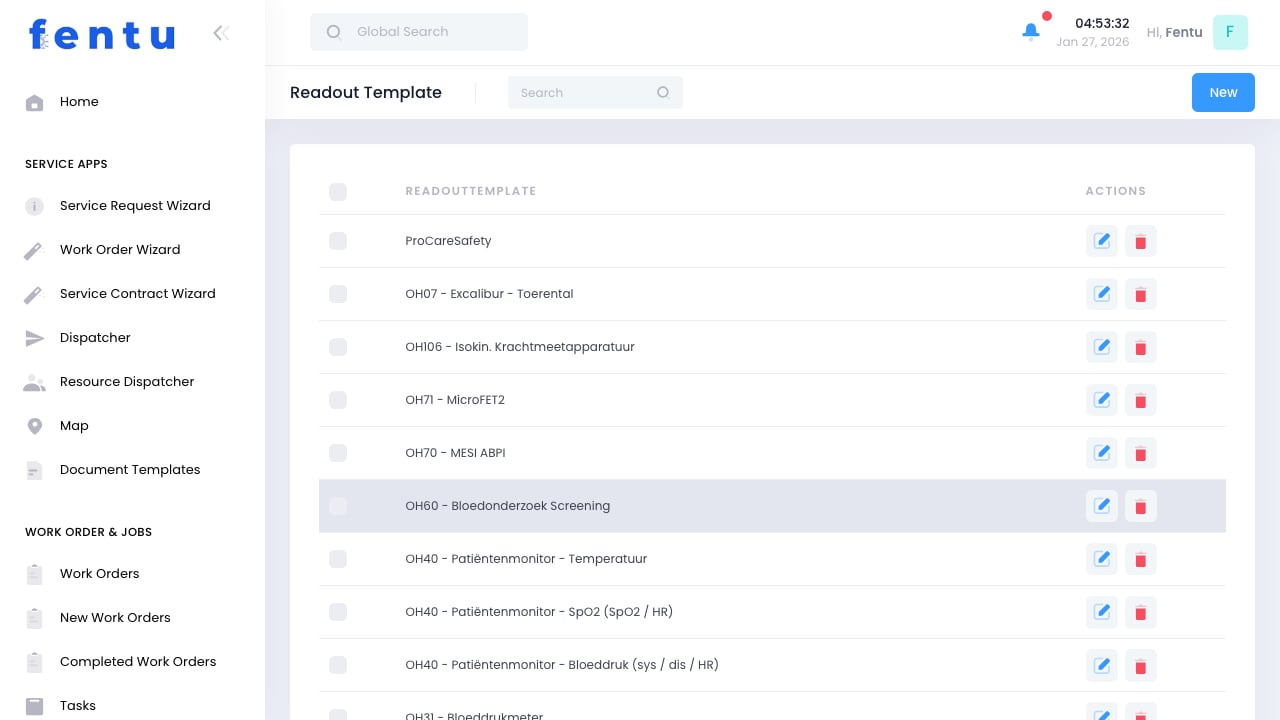
Readout Templates define the measurements, readings, and data points that technicians need to capture during service visits. These templates standardize data collection, ensuring consistent and complete information is recorded for every piece of equipment.
Readout Templates are essential for preventive maintenance programs. They ensure technicians capture the right data points every time, enabling trend analysis and predictive maintenance.
## When to Use Readout Templates
Create readout templates when:
* **Preventive Maintenance** - Standardizing readings collected during routine maintenance
* **Equipment Inspections** - Capturing operational parameters for analysis
* **Commissioning** - Recording baseline measurements for new installations
* **Compliance Requirements** - Meeting regulatory documentation requirements
* **Performance Monitoring** - Tracking equipment efficiency over time
Design readout templates around the specific data points that indicate equipment health. Include both current readings and acceptable ranges to help technicians identify problems.
***
## Readout Template Information
Each readout template includes:
| Field | Description |
| ------------------ | ------------------------------------------------ |
| **Template Name** | Descriptive name for the template |
| **Description** | Explanation of when and how to use this template |
| **Equipment Type** | Type of equipment this template applies to |
| **Fields** | The specific data points to be captured |
| **Status** | Active or inactive |
### Field Types
Readout templates can include various field types:
| Field Type | Description | Example Use |
| ------------- | --------------------------- | ------------------------- |
| **Numeric** | Numbers with optional units | Temperature: 72 F |
| **Text** | Free-form text entry | Serial number, notes |
| **Selection** | Dropdown choices | Pass/Fail, Good/Fair/Poor |
| **Checkbox** | Yes/No options | Filter replaced: Yes |
| **Date** | Date picker | Last calibration date |
| **Photo** | Image attachment | Condition photo |
***
## Creating Readout Templates
Go to Products & Inventory > Readout Templates
Start a new readout template
Provide name, description, and equipment type
Define each data point to capture
Set field types, units, ranges, and requirements
Save and activate the template
### Field Configuration
For each field, you can configure:
| Setting | Description |
| ----------------- | ------------------------------------------- |
| **Field Label** | Display name for the field |
| **Field Type** | Type of data to capture |
| **Required** | Whether the field must be completed |
| **Default Value** | Pre-filled value (optional) |
| **Units** | Measurement units (for numeric fields) |
| **Min/Max Range** | Acceptable value range (for numeric fields) |
| **Help Text** | Instructions for technicians |
### Edit Measured Variable
When adding or editing an individual variable inside a readout template, the following fields are available:
| Field | Description |
| -------------------- | ------------------------------------------------------------------------------------------------------------------------- |
| **Label** | Display name shown to the technician (e.g., "Supply Air Temperature") |
| **Position** | Order (sequence number) in which this variable appears on the form |
| **Axis** | Groups variables into rows/columns on a matrix-style readout sheet (e.g., Row A, Row B) |
| **Unit** | Measurement unit displayed alongside the value (e.g., °C, PSI, V, A) |
| **Type** | Data type for the input: `Number`, `Text`, `Selection`, `Checkbox`, `Date`, `Photo` |
| **Field 1** | Primary input field. For `Number` types, captures the measured value; for `Selection` types, captures the selected option |
| **Calculation Type** | Optional. Defines an automatic calculation to apply: `Sum`, `Difference`, `Average`, `Min`, `Max`, `Formula` |
| **Calculation Way** | Determines whether the calculation is applied `Per Row`, `Per Column`, or `Across All` values |
| **Label Before** | Optional text displayed to the left of the input field (e.g., a lower bound indicator or units label) |
| **Label After** | Optional text displayed to the right of the input field (e.g., an upper bound indicator or pass/fail tag) |
| **Field 2** | Secondary input field available for variables that capture two related values (e.g., min and max pressure) |
Use **Label Before** and **Label After** to show acceptable ranges directly on the form (e.g., Label Before: "≥ 60 PSI", Label After: "≤ 80 PSI"). This gives technicians instant pass/fail feedback without needing to look up specifications.
Consider the technician's experience when designing templates. Include clear labels and help text to ensure accurate data collection.
***
## Using Readout Templates
### Linking to Assets
Readout templates can be linked to:
* **Asset Types** - Applied to all assets of a specific type
* **Individual Assets** - Applied to specific equipment
* **Service Contracts** - Required for contract maintenance visits
### Field Completion
When technicians perform service:
1. Template fields appear on the work order or task
2. Technician enters current readings
3. System validates entries against defined ranges
4. Out-of-range values are flagged for attention
5. Data is stored with the asset history
Historical readout data enables trend analysis. Over time, you can identify patterns that indicate developing problems before failures occur.
***
## Template Examples
### Machine System Template
| Field | Type | Units | Range |
| --------------------------- | --------- | ----- | ------------------------- |
| Supply Air Temperature | Numeric | F | 50-65 |
| Return Air Temperature | Numeric | F | 68-78 |
| Refrigerant Pressure (High) | Numeric | PSI | 200-400 |
| Refrigerant Pressure (Low) | Numeric | PSI | 60-80 |
| Filter Condition | Selection | - | Good/Fair/Replace |
| Compressor Amperage | Numeric | Amps | 0-30 |
| Overall System Condition | Selection | - | Pass/Needs Attention/Fail |
### Elevator Inspection Template
| Field | Type | Units | Range |
| -------------------- | --------- | ------- | -------------------- |
| Door Opening Time | Numeric | Seconds | 2-5 |
| Door Closing Time | Numeric | Seconds | 3-8 |
| Car Level Accuracy | Numeric | Inches | 0-0.5 |
| Emergency Phone Test | Checkbox | - | - |
| Safety Edge Test | Selection | - | Pass/Fail |
| Pit Condition | Selection | - | Clean/Needs Cleaning |
| Notes | Text | - | - |
***
## Best Practices
Include only essential data points. Too many fields slow down technicians and may lead to incomplete data.
Set realistic min/max ranges based on manufacturer specifications and actual operating conditions.
Provide expected values or acceptable ranges in field help text to guide technicians.
Organize fields logically (e.g., all temperature readings together) to improve data entry flow.
Periodically review templates based on technician feedback and equipment changes.
Ensure technicians understand what each reading means and how to capture it accurately.
***
## Common Questions
Yes, but be careful. Changes affect future data collection but not historical records. Consider creating a new version for significant changes to maintain data consistency.
Create separate templates for models with different data requirements, or use conditional fields that appear based on equipment attributes.
Yes, work orders and tasks have notes sections for additional observations. Templates capture structured data, notes capture context.
The system can be configured to flag out-of-range values. This alerts technicians immediately and can trigger follow-up actions.
Yes, readout data can be exported through the Export function or accessed via API for integration with analysis tools.
Yes, mobile apps cache templates for offline use. Data syncs when connectivity is restored.
***
## Related Documentation
Inspection and maintenance checklists
Managing customer equipment
Preventive maintenance scheduling
Work order task execution
## Overview
Readout Templates define the measurements, readings, and data points that technicians need to capture during service visits. These templates standardize data collection, ensuring consistent and complete information is recorded for every piece of equipment.
Readout Templates are essential for preventive maintenance programs. They ensure technicians capture the right data points every time, enabling trend analysis and predictive maintenance.
## When to Use Readout Templates
Create readout templates when:
* **Preventive Maintenance** - Standardizing readings collected during routine maintenance
* **Equipment Inspections** - Capturing operational parameters for analysis
* **Commissioning** - Recording baseline measurements for new installations
* **Compliance Requirements** - Meeting regulatory documentation requirements
* **Performance Monitoring** - Tracking equipment efficiency over time
Design readout templates around the specific data points that indicate equipment health. Include both current readings and acceptable ranges to help technicians identify problems.
***
## Readout Template Information
Each readout template includes:
| Field | Description |
| ------------------ | ------------------------------------------------ |
| **Template Name** | Descriptive name for the template |
| **Description** | Explanation of when and how to use this template |
| **Equipment Type** | Type of equipment this template applies to |
| **Fields** | The specific data points to be captured |
| **Status** | Active or inactive |
### Field Types
Readout templates can include various field types:
| Field Type | Description | Example Use |
| ------------- | --------------------------- | ------------------------- |
| **Numeric** | Numbers with optional units | Temperature: 72 F |
| **Text** | Free-form text entry | Serial number, notes |
| **Selection** | Dropdown choices | Pass/Fail, Good/Fair/Poor |
| **Checkbox** | Yes/No options | Filter replaced: Yes |
| **Date** | Date picker | Last calibration date |
| **Photo** | Image attachment | Condition photo |
***
## Creating Readout Templates
Go to Products & Inventory > Readout Templates
Start a new readout template
Provide name, description, and equipment type
Define each data point to capture
Set field types, units, ranges, and requirements
Save and activate the template
### Field Configuration
For each field, you can configure:
| Setting | Description |
| ----------------- | ------------------------------------------- |
| **Field Label** | Display name for the field |
| **Field Type** | Type of data to capture |
| **Required** | Whether the field must be completed |
| **Default Value** | Pre-filled value (optional) |
| **Units** | Measurement units (for numeric fields) |
| **Min/Max Range** | Acceptable value range (for numeric fields) |
| **Help Text** | Instructions for technicians |
### Edit Measured Variable
When adding or editing an individual variable inside a readout template, the following fields are available:
| Field | Description |
| -------------------- | ------------------------------------------------------------------------------------------------------------------------- |
| **Label** | Display name shown to the technician (e.g., "Supply Air Temperature") |
| **Position** | Order (sequence number) in which this variable appears on the form |
| **Axis** | Groups variables into rows/columns on a matrix-style readout sheet (e.g., Row A, Row B) |
| **Unit** | Measurement unit displayed alongside the value (e.g., °C, PSI, V, A) |
| **Type** | Data type for the input: `Number`, `Text`, `Selection`, `Checkbox`, `Date`, `Photo` |
| **Field 1** | Primary input field. For `Number` types, captures the measured value; for `Selection` types, captures the selected option |
| **Calculation Type** | Optional. Defines an automatic calculation to apply: `Sum`, `Difference`, `Average`, `Min`, `Max`, `Formula` |
| **Calculation Way** | Determines whether the calculation is applied `Per Row`, `Per Column`, or `Across All` values |
| **Label Before** | Optional text displayed to the left of the input field (e.g., a lower bound indicator or units label) |
| **Label After** | Optional text displayed to the right of the input field (e.g., an upper bound indicator or pass/fail tag) |
| **Field 2** | Secondary input field available for variables that capture two related values (e.g., min and max pressure) |
Use **Label Before** and **Label After** to show acceptable ranges directly on the form (e.g., Label Before: "≥ 60 PSI", Label After: "≤ 80 PSI"). This gives technicians instant pass/fail feedback without needing to look up specifications.
Consider the technician's experience when designing templates. Include clear labels and help text to ensure accurate data collection.
***
## Using Readout Templates
### Linking to Assets
Readout templates can be linked to:
* **Asset Types** - Applied to all assets of a specific type
* **Individual Assets** - Applied to specific equipment
* **Service Contracts** - Required for contract maintenance visits
### Field Completion
When technicians perform service:
1. Template fields appear on the work order or task
2. Technician enters current readings
3. System validates entries against defined ranges
4. Out-of-range values are flagged for attention
5. Data is stored with the asset history
Historical readout data enables trend analysis. Over time, you can identify patterns that indicate developing problems before failures occur.
***
## Template Examples
### Machine System Template
| Field | Type | Units | Range |
| --------------------------- | --------- | ----- | ------------------------- |
| Supply Air Temperature | Numeric | F | 50-65 |
| Return Air Temperature | Numeric | F | 68-78 |
| Refrigerant Pressure (High) | Numeric | PSI | 200-400 |
| Refrigerant Pressure (Low) | Numeric | PSI | 60-80 |
| Filter Condition | Selection | - | Good/Fair/Replace |
| Compressor Amperage | Numeric | Amps | 0-30 |
| Overall System Condition | Selection | - | Pass/Needs Attention/Fail |
### Elevator Inspection Template
| Field | Type | Units | Range |
| -------------------- | --------- | ------- | -------------------- |
| Door Opening Time | Numeric | Seconds | 2-5 |
| Door Closing Time | Numeric | Seconds | 3-8 |
| Car Level Accuracy | Numeric | Inches | 0-0.5 |
| Emergency Phone Test | Checkbox | - | - |
| Safety Edge Test | Selection | - | Pass/Fail |
| Pit Condition | Selection | - | Clean/Needs Cleaning |
| Notes | Text | - | - |
***
## Best Practices
Include only essential data points. Too many fields slow down technicians and may lead to incomplete data.
Set realistic min/max ranges based on manufacturer specifications and actual operating conditions.
Provide expected values or acceptable ranges in field help text to guide technicians.
Organize fields logically (e.g., all temperature readings together) to improve data entry flow.
Periodically review templates based on technician feedback and equipment changes.
Ensure technicians understand what each reading means and how to capture it accurately.
***
## Common Questions
Yes, but be careful. Changes affect future data collection but not historical records. Consider creating a new version for significant changes to maintain data consistency.
Create separate templates for models with different data requirements, or use conditional fields that appear based on equipment attributes.
Yes, work orders and tasks have notes sections for additional observations. Templates capture structured data, notes capture context.
The system can be configured to flag out-of-range values. This alerts technicians immediately and can trigger follow-up actions.
Yes, readout data can be exported through the Export function or accessed via API for integration with analysis tools.
Yes, mobile apps cache templates for offline use. Data syncs when connectivity is restored.
***
## Related Documentation
Inspection and maintenance checklists
Managing customer equipment
Preventive maintenance scheduling
Work order task execution