> ## Documentation Index
> Fetch the complete documentation index at: https://docs.fentufsm.com/llms.txt
> Use this file to discover all available pages before exploring further.
# Warehouses
> Managing storage locations and inventory distribution
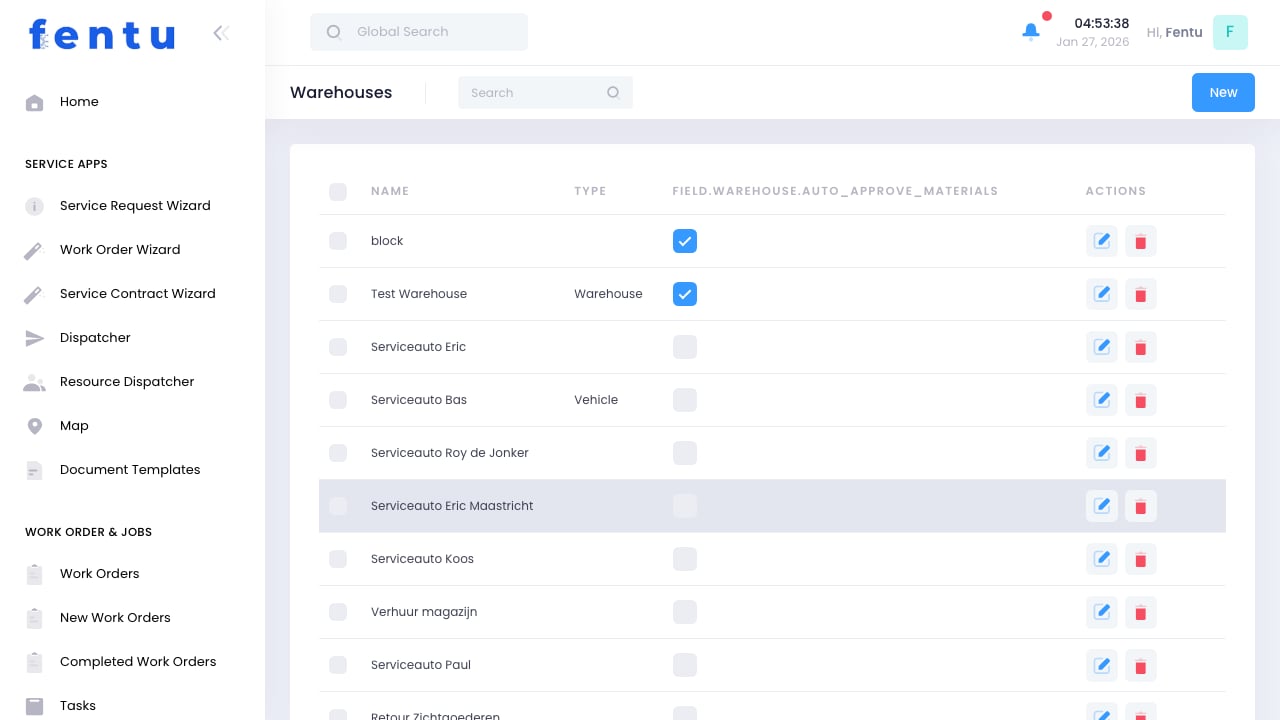 ## Overview
Warehouses in Fentu FSM represent physical locations where parts, products, and supplies are stored. This includes central distribution centers, branch locations, and even technician vehicles that carry mobile inventory.
Properly configured warehouses enable accurate inventory tracking across all locations, ensuring technicians have the parts they need when they need them.
## When to Use Warehouses
Configure warehouses for:
* **Central Storage** - Main distribution centers holding bulk inventory
* **Branch Locations** - Regional warehouses serving specific areas
* **Technician Vehicles** - Mobile inventory assigned to service vehicles
* **Consignment Locations** - Inventory stored at customer sites
* **Third-Party Locations** - Supplier-managed inventory
Create a warehouse for each distinct location where inventory is physically stored and tracked. This provides accurate visibility into where parts are located.
***
## Warehouse Information
Each warehouse record includes:
| Field | Description |
| ------------------ | ----------------------------------------------- |
| **Warehouse Name** | Descriptive name for the location |
| **Code** | Short unique identifier |
| **Type** | Classification (Central, Branch, Vehicle, etc.) |
| **Address** | Physical location address |
| **Contact** | Primary contact person |
| **Phone** | Contact phone number |
| **Branch** | Associated service branch |
| **Status** | Active or inactive |
### Warehouse Types
| Type | Description | Use Case |
| --------------- | -------------------------- | ----------------------------------- |
| **Central** | Main distribution facility | Primary inventory storage |
| **Branch** | Regional storage location | Local parts access |
| **Vehicle** | Technician truck/van | Mobile field inventory |
| **Consignment** | Customer site storage | On-site parts for specific customer |
| **Virtual** | Non-physical location | In-transit or reserved inventory |
***
## Creating Warehouses
Go to Products & Inventory > Warehouses
Start a new warehouse record
Provide name, code, and type
Enter address and contact information
Link to the service branch this warehouse serves
Save the new warehouse record
### Setting Up Vehicle Warehouses
For technician vehicles:
1. Create warehouse with type "Vehicle"
2. Assign to specific technician
3. Set default replenishment source
4. Configure par levels for common parts
5. Enable mobile inventory features
Each technician vehicle should have its own warehouse record. This enables accurate tracking of who has which parts and simplifies replenishment.
***
## Managing Warehouse Inventory
### Stock Transfers
Move inventory between warehouses:
Select source warehouse and items to transfer
Choose receiving warehouse
Specify amounts to transfer
Review and confirm the transfer
Destination warehouse confirms receipt
### Stock Adjustments
Correct inventory discrepancies:
| Adjustment Type | When to Use |
| -------------------- | ------------------------------------ |
| **Count Adjustment** | After physical inventory count |
| **Damage Write-off** | Parts damaged and unusable |
| **Theft/Loss** | Inventory missing or stolen |
| **Found Inventory** | Parts located that weren't in system |
### Replenishment
Automatic reorder suggestions based on:
* **Min/Max Levels** - Reorder when stock falls below minimum
* **Par Levels** - Target stock level for location
* **Lead Time** - Time to receive from supplier
* **Usage History** - Historical consumption patterns
Configure min/max levels for each warehouse-part combination to ensure adequate stock without over-ordering.
***
## Warehouse Operations
### Receiving Inventory
When parts arrive:
1. Verify shipment against purchase order
2. Inspect for damage or defects
3. Enter received quantities
4. Put away to appropriate bin locations
5. Update system inventory
### Picking and Shipping
When parts are needed:
1. Generate pick list from orders
2. Locate items in warehouse
3. Pick and verify quantities
4. Pack for shipment or hand off
5. Confirm shipment in system
### Cycle Counting
Regular inventory verification:
* **Full Count** - Complete inventory of all items
* **Cycle Count** - Rotating count of specific items/areas
* **ABC Analysis** - Focus on high-value items
***
## Best Practices
Organize warehouse layout logically with clear bin locations. This speeds up picking and reduces errors.
Perform regular cycle counts to maintain accuracy. Don't wait for annual inventory to find discrepancies.
Use First In, First Out for parts with shelf life or date codes to prevent obsolescence.
Limit warehouse access to authorized personnel. Track who accesses inventory and when.
Periodically audit technician vehicle inventory. Field stock is often the hardest to track accurately.
Label all bin locations and parts clearly. Good labeling prevents picking errors and speeds up work.
***
## Common Questions
Yes, technicians can be given access to their vehicle warehouse plus branch warehouses for pickup. Permissions control which warehouses each user can access.
Use a virtual warehouse or transfer status to track parts being moved between locations. The parts show as "in transit" until received.
Inventory must be transferred out before deactivating. The system prevents deactivation while inventory remains assigned to the location.
If a warehouse has multiple physical areas (buildings, rooms), create each as a separate warehouse for accurate tracking.
Configure automatic replenishment from a source warehouse. When vehicle stock falls below par levels, transfer orders are created.
Yes, the Part Inventory view shows stock levels across all warehouses. You can filter by specific locations or view totals.
***
## Related Documentation
Stock levels across locations
Managing part records
Service vehicle management
Requesting parts for work orders
## Overview
Warehouses in Fentu FSM represent physical locations where parts, products, and supplies are stored. This includes central distribution centers, branch locations, and even technician vehicles that carry mobile inventory.
Properly configured warehouses enable accurate inventory tracking across all locations, ensuring technicians have the parts they need when they need them.
## When to Use Warehouses
Configure warehouses for:
* **Central Storage** - Main distribution centers holding bulk inventory
* **Branch Locations** - Regional warehouses serving specific areas
* **Technician Vehicles** - Mobile inventory assigned to service vehicles
* **Consignment Locations** - Inventory stored at customer sites
* **Third-Party Locations** - Supplier-managed inventory
Create a warehouse for each distinct location where inventory is physically stored and tracked. This provides accurate visibility into where parts are located.
***
## Warehouse Information
Each warehouse record includes:
| Field | Description |
| ------------------ | ----------------------------------------------- |
| **Warehouse Name** | Descriptive name for the location |
| **Code** | Short unique identifier |
| **Type** | Classification (Central, Branch, Vehicle, etc.) |
| **Address** | Physical location address |
| **Contact** | Primary contact person |
| **Phone** | Contact phone number |
| **Branch** | Associated service branch |
| **Status** | Active or inactive |
### Warehouse Types
| Type | Description | Use Case |
| --------------- | -------------------------- | ----------------------------------- |
| **Central** | Main distribution facility | Primary inventory storage |
| **Branch** | Regional storage location | Local parts access |
| **Vehicle** | Technician truck/van | Mobile field inventory |
| **Consignment** | Customer site storage | On-site parts for specific customer |
| **Virtual** | Non-physical location | In-transit or reserved inventory |
***
## Creating Warehouses
Go to Products & Inventory > Warehouses
Start a new warehouse record
Provide name, code, and type
Enter address and contact information
Link to the service branch this warehouse serves
Save the new warehouse record
### Setting Up Vehicle Warehouses
For technician vehicles:
1. Create warehouse with type "Vehicle"
2. Assign to specific technician
3. Set default replenishment source
4. Configure par levels for common parts
5. Enable mobile inventory features
Each technician vehicle should have its own warehouse record. This enables accurate tracking of who has which parts and simplifies replenishment.
***
## Managing Warehouse Inventory
### Stock Transfers
Move inventory between warehouses:
Select source warehouse and items to transfer
Choose receiving warehouse
Specify amounts to transfer
Review and confirm the transfer
Destination warehouse confirms receipt
### Stock Adjustments
Correct inventory discrepancies:
| Adjustment Type | When to Use |
| -------------------- | ------------------------------------ |
| **Count Adjustment** | After physical inventory count |
| **Damage Write-off** | Parts damaged and unusable |
| **Theft/Loss** | Inventory missing or stolen |
| **Found Inventory** | Parts located that weren't in system |
### Replenishment
Automatic reorder suggestions based on:
* **Min/Max Levels** - Reorder when stock falls below minimum
* **Par Levels** - Target stock level for location
* **Lead Time** - Time to receive from supplier
* **Usage History** - Historical consumption patterns
Configure min/max levels for each warehouse-part combination to ensure adequate stock without over-ordering.
***
## Warehouse Operations
### Receiving Inventory
When parts arrive:
1. Verify shipment against purchase order
2. Inspect for damage or defects
3. Enter received quantities
4. Put away to appropriate bin locations
5. Update system inventory
### Picking and Shipping
When parts are needed:
1. Generate pick list from orders
2. Locate items in warehouse
3. Pick and verify quantities
4. Pack for shipment or hand off
5. Confirm shipment in system
### Cycle Counting
Regular inventory verification:
* **Full Count** - Complete inventory of all items
* **Cycle Count** - Rotating count of specific items/areas
* **ABC Analysis** - Focus on high-value items
***
## Best Practices
Organize warehouse layout logically with clear bin locations. This speeds up picking and reduces errors.
Perform regular cycle counts to maintain accuracy. Don't wait for annual inventory to find discrepancies.
Use First In, First Out for parts with shelf life or date codes to prevent obsolescence.
Limit warehouse access to authorized personnel. Track who accesses inventory and when.
Periodically audit technician vehicle inventory. Field stock is often the hardest to track accurately.
Label all bin locations and parts clearly. Good labeling prevents picking errors and speeds up work.
***
## Common Questions
Yes, technicians can be given access to their vehicle warehouse plus branch warehouses for pickup. Permissions control which warehouses each user can access.
Use a virtual warehouse or transfer status to track parts being moved between locations. The parts show as "in transit" until received.
Inventory must be transferred out before deactivating. The system prevents deactivation while inventory remains assigned to the location.
If a warehouse has multiple physical areas (buildings, rooms), create each as a separate warehouse for accurate tracking.
Configure automatic replenishment from a source warehouse. When vehicle stock falls below par levels, transfer orders are created.
Yes, the Part Inventory view shows stock levels across all warehouses. You can filter by specific locations or view totals.
***
## Related Documentation
Stock levels across locations
Managing part records
Service vehicle management
Requesting parts for work orders