> ## Documentation Index
> Fetch the complete documentation index at: https://docs.fentufsm.com/llms.txt
> Use this file to discover all available pages before exploring further.
# Introduction
> The Fentu Mobile Technician app — your field service companion for Android and iOS
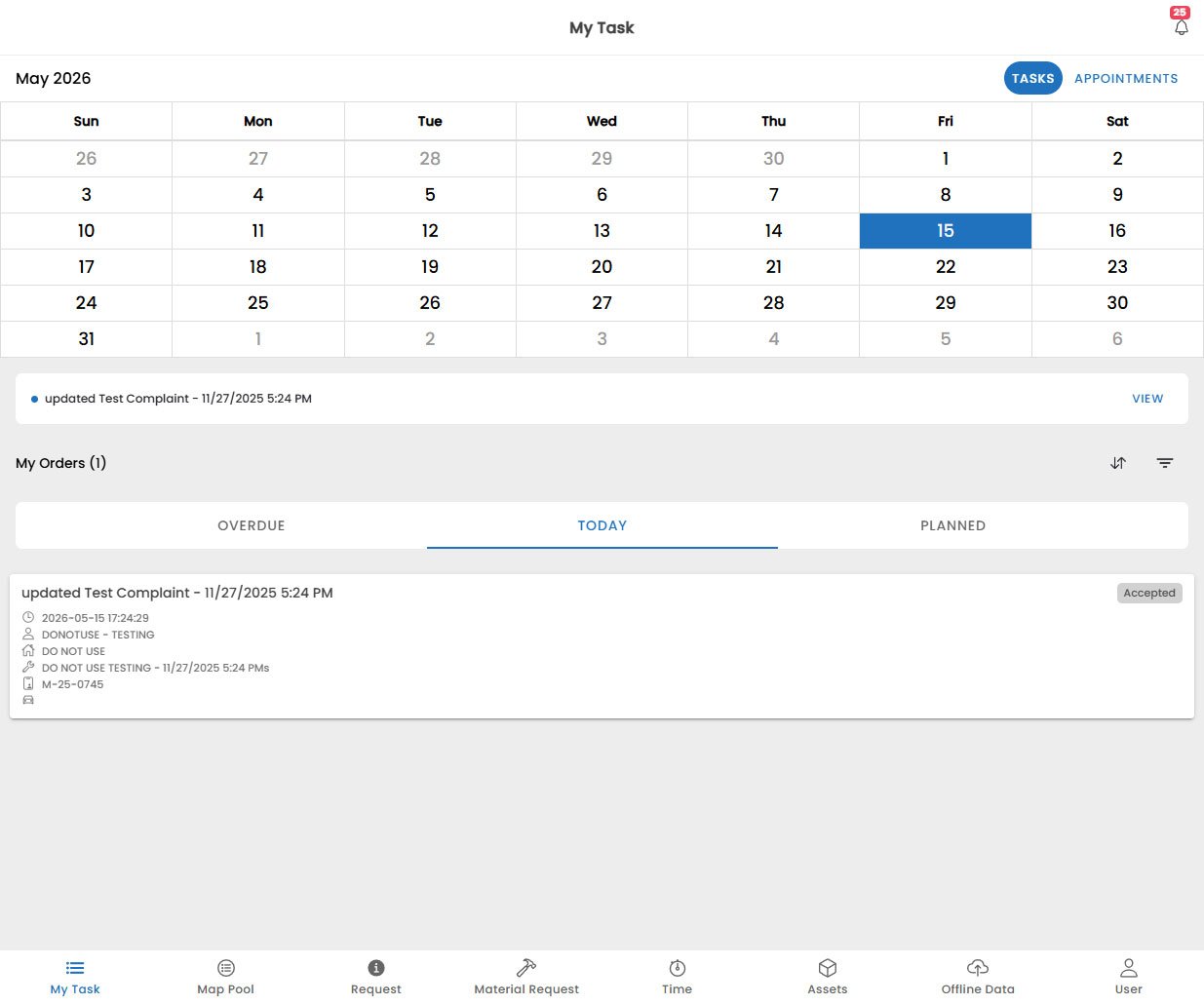 ## What is the Fentu Mobile Technician App?
The Fentu Mobile Technician app is a native mobile application for Android and iOS designed for field technicians. It provides everything a technician needs to manage their daily workload directly from their smartphone — without needing access to a desktop computer.
From the moment a task is assigned, the mobile app keeps the technician informed, guided, and connected to the back office — even when working in areas with limited or no internet connectivity.
The Mobile Technician app works alongside Fentu FSM. Dispatchers and managers use the desktop application to assign and manage work, while technicians use the mobile app to execute tasks in the field.
***
## Key Features
View all tasks assigned to you, access task details, complete checklists, fill in readouts, and run guided wizards.
See your tasks on an interactive map or in a calendar pool view for schedule awareness.
Receive and respond to incoming service requests and notifications from the back office.
Request parts and materials needed to complete a job directly from the field.
Log work time, travel time, and breaks accurately for each task.
Scan and inspect customer assets on-site using QR codes or barcodes.
Continue working without an internet connection. All changes sync automatically when connectivity is restored.
Manage your profile, preferences, and app settings.
***
## How It Works
The mobile app integrates seamlessly with Fentu FSM. Here is a typical technician workflow:
```mermaid theme={null}
graph LR
A[Dispatcher assigns task] --> B[Technician receives notification]
B --> C[Technician opens task on mobile]
C --> D[Navigate to customer location via map]
D --> E[Complete task line items]
E --> F[Request materials if needed]
F --> G[Log time]
G --> H[Collect customer signature]
H --> I[Mark task complete]
I --> J[Data synced to Fentu FSM]
```
All data entered on the mobile app — task progress, material requests, time logs, checklist answers — is immediately visible in Fentu FSM once synced.
***
## Getting Started
Install the Fentu Mobile app from the App Store or Google Play.
Configure your server connection and log in for the first time.
Access your assigned tasks and start completing jobs.
## What is the Fentu Mobile Technician App?
The Fentu Mobile Technician app is a native mobile application for Android and iOS designed for field technicians. It provides everything a technician needs to manage their daily workload directly from their smartphone — without needing access to a desktop computer.
From the moment a task is assigned, the mobile app keeps the technician informed, guided, and connected to the back office — even when working in areas with limited or no internet connectivity.
The Mobile Technician app works alongside Fentu FSM. Dispatchers and managers use the desktop application to assign and manage work, while technicians use the mobile app to execute tasks in the field.
***
## Key Features
View all tasks assigned to you, access task details, complete checklists, fill in readouts, and run guided wizards.
See your tasks on an interactive map or in a calendar pool view for schedule awareness.
Receive and respond to incoming service requests and notifications from the back office.
Request parts and materials needed to complete a job directly from the field.
Log work time, travel time, and breaks accurately for each task.
Scan and inspect customer assets on-site using QR codes or barcodes.
Continue working without an internet connection. All changes sync automatically when connectivity is restored.
Manage your profile, preferences, and app settings.
***
## How It Works
The mobile app integrates seamlessly with Fentu FSM. Here is a typical technician workflow:
```mermaid theme={null}
graph LR
A[Dispatcher assigns task] --> B[Technician receives notification]
B --> C[Technician opens task on mobile]
C --> D[Navigate to customer location via map]
D --> E[Complete task line items]
E --> F[Request materials if needed]
F --> G[Log time]
G --> H[Collect customer signature]
H --> I[Mark task complete]
I --> J[Data synced to Fentu FSM]
```
All data entered on the mobile app — task progress, material requests, time logs, checklist answers — is immediately visible in Fentu FSM once synced.
***
## Getting Started
Install the Fentu Mobile app from the App Store or Google Play.
Configure your server connection and log in for the first time.
Access your assigned tasks and start completing jobs.