> ## Documentation Index
> Fetch the complete documentation index at: https://docs.fentufsm.com/llms.txt
> Use this file to discover all available pages before exploring further.
# Map & Pool
> Visualise your tasks on a map or in a calendar pool view to manage your day efficiently
 ## Overview
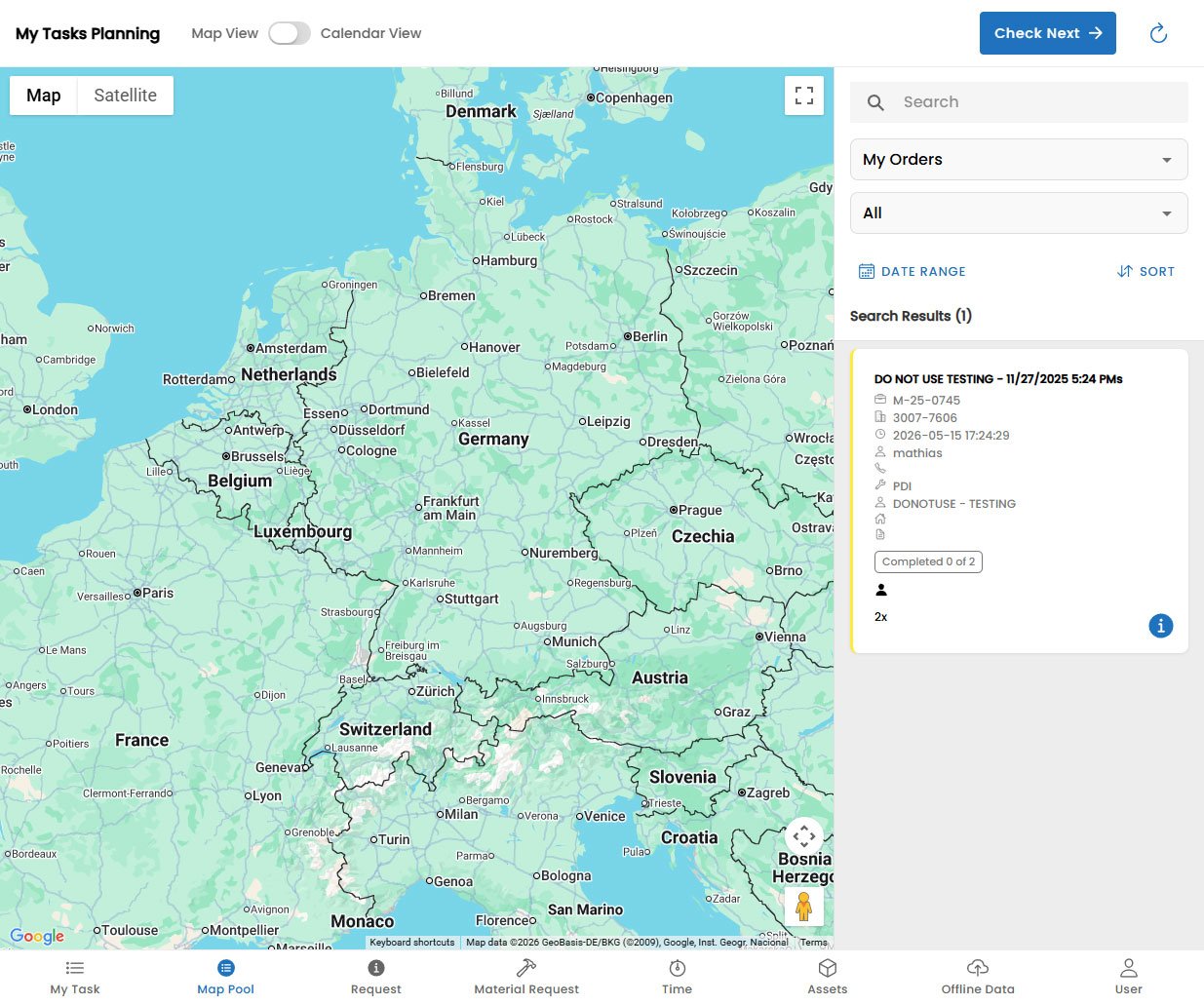
The **Map & Pool** screen gives you two complementary views of your schedule: a geographic **Map View** that shows where your tasks are located, and a time-based **Pool View** that displays your tasks in a calendar layout. Toggle between the two views using the tabs at the top of the screen.
***
## Map View
The Map View displays all your assigned tasks as pins on an interactive map, centred on your current GPS location. Use this view to plan your route, understand travel distances, and navigate to a customer site.
### Map Features
A blue pulsing dot indicates your current GPS position on the map. The map re-centres on you automatically as you move, or you can tap the **Re-centre** button to snap back to your position.
Each task appears as a colour-coded pin on the map:
* **Blue**: Upcoming task
* **Orange**: Task scheduled for today
* **Red**: Overdue or urgent task
* **Green**: Completed task
Tap a pin to see the task name, customer, and scheduled time in a pop-up card.
Tapping a task pin opens a small card showing:
* Task name and work order number
* Customer name and address
* Scheduled time and estimated duration
* A **Navigate** button to open directions in your device's maps app
* An **Open Task** button to go directly to the Task Detail screen
Tap **Navigate** on any task card to launch turn-by-turn directions to the customer's location. The app will open your device's default maps application (Google Maps, Apple Maps, etc.) with the destination pre-filled.
### Map Controls
| Control | Action |
| -------------------- | --------------------------------------------- |
| Pinch in / out | Zoom the map |
| Drag | Pan around the map |
| **Re-centre** button | Snap the map back to your current location |
| **Filter** icon | Show only tasks for a specific date or status |
| **List** icon | Switch to the task list view |
***
## Pool View (Calendar)
## Overview
The **Map & Pool** screen gives you two complementary views of your schedule: a geographic **Map View** that shows where your tasks are located, and a time-based **Pool View** that displays your tasks in a calendar layout. Toggle between the two views using the tabs at the top of the screen.
***
## Map View
The Map View displays all your assigned tasks as pins on an interactive map, centred on your current GPS location. Use this view to plan your route, understand travel distances, and navigate to a customer site.
### Map Features
A blue pulsing dot indicates your current GPS position on the map. The map re-centres on you automatically as you move, or you can tap the **Re-centre** button to snap back to your position.
Each task appears as a colour-coded pin on the map:
* **Blue**: Upcoming task
* **Orange**: Task scheduled for today
* **Red**: Overdue or urgent task
* **Green**: Completed task
Tap a pin to see the task name, customer, and scheduled time in a pop-up card.
Tapping a task pin opens a small card showing:
* Task name and work order number
* Customer name and address
* Scheduled time and estimated duration
* A **Navigate** button to open directions in your device's maps app
* An **Open Task** button to go directly to the Task Detail screen
Tap **Navigate** on any task card to launch turn-by-turn directions to the customer's location. The app will open your device's default maps application (Google Maps, Apple Maps, etc.) with the destination pre-filled.
### Map Controls
| Control | Action |
| -------------------- | --------------------------------------------- |
| Pinch in / out | Zoom the map |
| Drag | Pan around the map |
| **Re-centre** button | Snap the map back to your current location |
| **Filter** icon | Show only tasks for a specific date or status |
| **List** icon | Switch to the task list view |
***
## Pool View (Calendar)
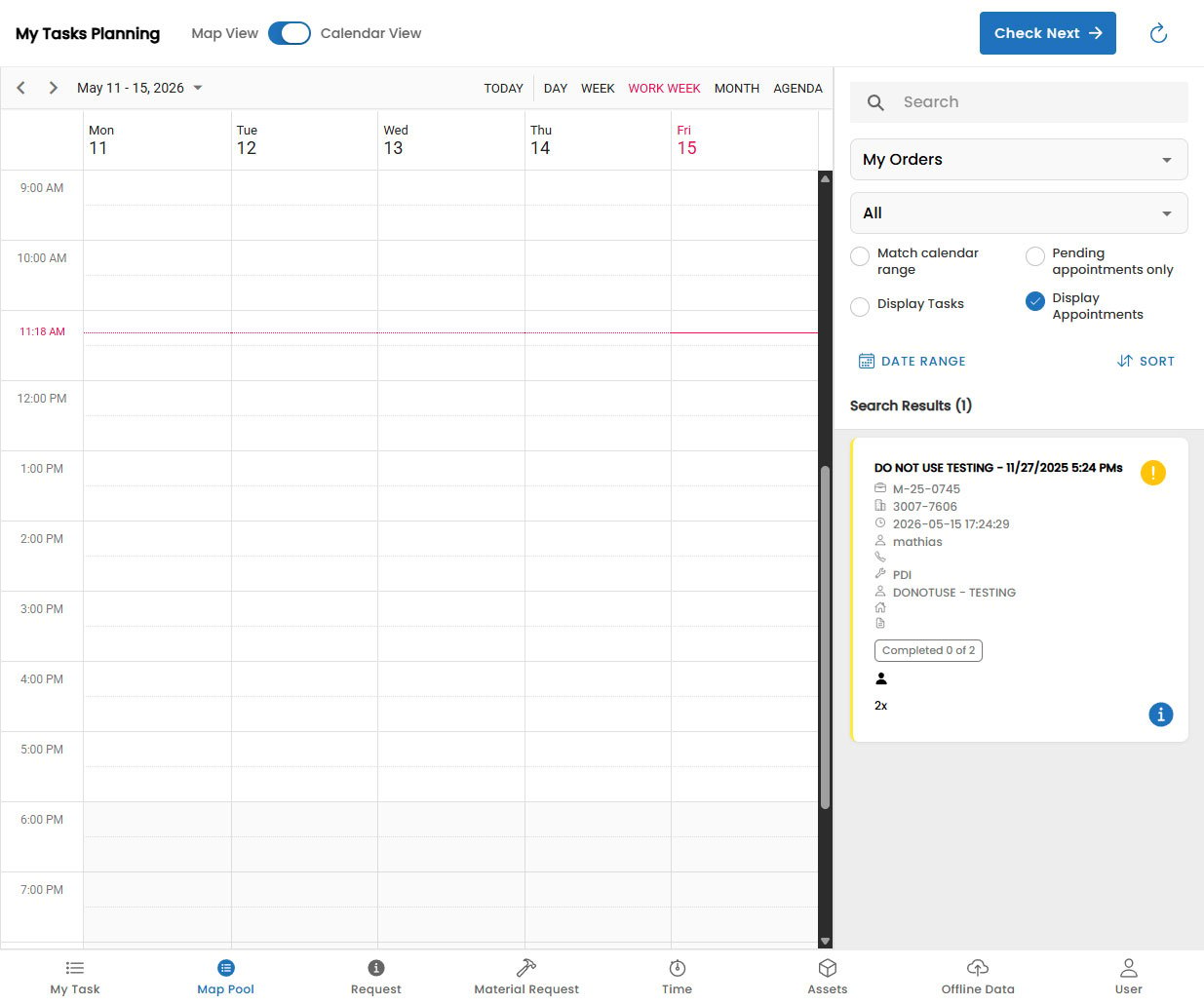 The Pool View shows your tasks arranged in a time-based calendar layout. It gives you a clear picture of how your day or week is structured — useful for understanding your workload, spotting gaps, and planning travel time between jobs.
### Pool View Layouts
Switch between time perspectives using the view selector at the top:
Shows all tasks scheduled for the selected day in a vertical timeline. Tap a time slot to see task details.
Displays the full working week with tasks as blocks in a grid. Ideal for planning ahead.
High-level overview of the month. Days with tasks are highlighted; tap a day to see its tasks.
### Reading the Calendar
Each task block in the calendar shows:
* **Task name** (truncated if the time slot is short)
* **Colour coding** matching the task status (same colour scheme as map pins)
* **Duration bar** proportional to the scheduled task duration
Tap any task block to open the Task Detail screen for that task.
In Week View, you can see overlapping tasks side by side, which helps identify scheduling conflicts to discuss with your dispatcher.
***
## Switching Between Views
Tap the **Map** or **Pool** tab at the top of the screen to switch views. Your current date selection is preserved when switching, so you won't lose context.
Both views share the same filter settings. If you filter by date or status in one view, the same filter applies when you switch to the other view.
The Pool View shows your tasks arranged in a time-based calendar layout. It gives you a clear picture of how your day or week is structured — useful for understanding your workload, spotting gaps, and planning travel time between jobs.
### Pool View Layouts
Switch between time perspectives using the view selector at the top:
Shows all tasks scheduled for the selected day in a vertical timeline. Tap a time slot to see task details.
Displays the full working week with tasks as blocks in a grid. Ideal for planning ahead.
High-level overview of the month. Days with tasks are highlighted; tap a day to see its tasks.
### Reading the Calendar
Each task block in the calendar shows:
* **Task name** (truncated if the time slot is short)
* **Colour coding** matching the task status (same colour scheme as map pins)
* **Duration bar** proportional to the scheduled task duration
Tap any task block to open the Task Detail screen for that task.
In Week View, you can see overlapping tasks side by side, which helps identify scheduling conflicts to discuss with your dispatcher.
***
## Switching Between Views
Tap the **Map** or **Pool** tab at the top of the screen to switch views. Your current date selection is preserved when switching, so you won't lose context.
Both views share the same filter settings. If you filter by date or status in one view, the same filter applies when you switch to the other view.