> ## Documentation Index
> Fetch the complete documentation index at: https://docs.fentufsm.com/llms.txt
> Use this file to discover all available pages before exploring further.
# Material Request
> Request parts and materials needed to complete a job directly from the field
 ## Overview
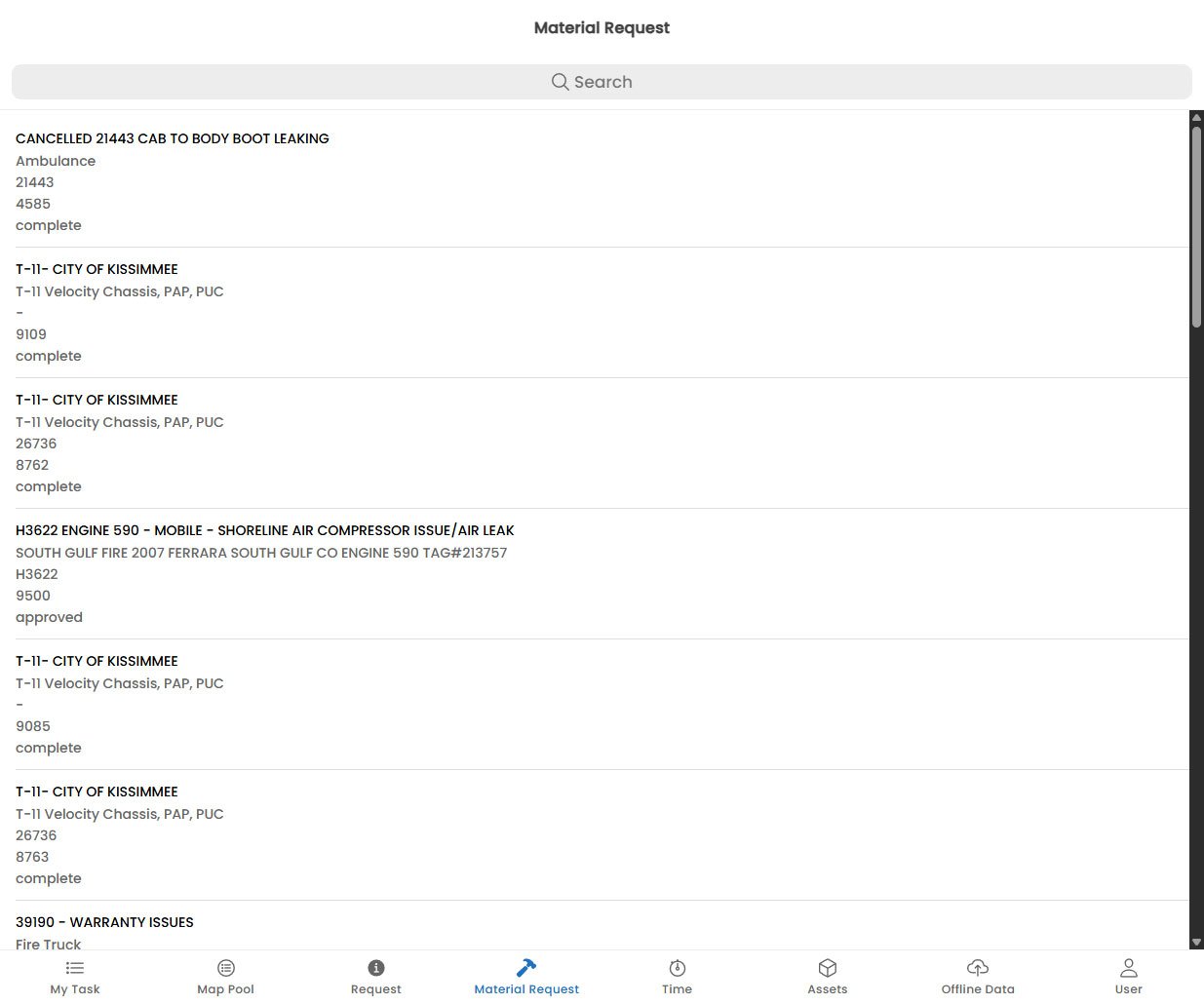
The **Material Request** feature allows technicians to request parts and materials needed to complete a task when the required items were not pre-staged for the job. Requests are sent to the back office for approval, and once approved, the parts are dispatched or made available for pick-up.
Material requests are linked to a specific task and work order. A back-office administrator or warehouse manager reviews and approves each request before the parts are issued.
***
## Why Use Material Requests?
Material requests are used when:
* A part is unexpectedly broken or missing during a repair and a replacement is needed
* Additional materials are required beyond what was originally planned
* A part on the technician's vehicle stock needs to be replenished for the current job
* An on-site inspection reveals additional components that must be replaced
***
## Viewing Your Material Requests
The Material Request screen shows all requests you have submitted, grouped by task. Each request card displays:
| Field | Description |
| --------------------- | ------------------------------------------------------- |
| **Part Name** | The name and code of the requested part |
| **Quantity** | How many units were requested |
| **Task / Work Order** | The task and work order this request is associated with |
| **Submitted** | Date and time the request was submitted |
| **Status** | Current approval status |
### Request Statuses
| Status | Meaning |
| ------------- | -------------------------------------------------------------- |
| **Pending** | Awaiting review by the back office |
| **Approved** | Approved — the part will be dispatched or prepared for pick-up |
| **Rejected** | Not approved — check the reason in the request details |
| **Fulfilled** | The part has been delivered or is ready for collection |
***
## After a Request is Approved
Once the back office approves your material request, you will receive a push notification. The request status will change to **Approved** or **Fulfilled** depending on whether the parts have already been issued.
* If parts are **dispatched to site**, your dispatcher will confirm delivery timing.
* If parts are **available for collection**, you will be told which warehouse or vehicle to pick them up from.
Do not proceed with work that requires the requested parts until you have confirmed receipt of the materials. Attempting to complete a task with missing parts may result in an incomplete job report.
***
## Viewing Material Request History
To see all material requests for a specific work order, open the work order from the Task Detail screen and navigate to the **Materials** tab. This shows all requested, approved, and fulfilled parts across all tasks in the work order.
## Overview
The **Material Request** feature allows technicians to request parts and materials needed to complete a task when the required items were not pre-staged for the job. Requests are sent to the back office for approval, and once approved, the parts are dispatched or made available for pick-up.
Material requests are linked to a specific task and work order. A back-office administrator or warehouse manager reviews and approves each request before the parts are issued.
***
## Why Use Material Requests?
Material requests are used when:
* A part is unexpectedly broken or missing during a repair and a replacement is needed
* Additional materials are required beyond what was originally planned
* A part on the technician's vehicle stock needs to be replenished for the current job
* An on-site inspection reveals additional components that must be replaced
***
## Viewing Your Material Requests
The Material Request screen shows all requests you have submitted, grouped by task. Each request card displays:
| Field | Description |
| --------------------- | ------------------------------------------------------- |
| **Part Name** | The name and code of the requested part |
| **Quantity** | How many units were requested |
| **Task / Work Order** | The task and work order this request is associated with |
| **Submitted** | Date and time the request was submitted |
| **Status** | Current approval status |
### Request Statuses
| Status | Meaning |
| ------------- | -------------------------------------------------------------- |
| **Pending** | Awaiting review by the back office |
| **Approved** | Approved — the part will be dispatched or prepared for pick-up |
| **Rejected** | Not approved — check the reason in the request details |
| **Fulfilled** | The part has been delivered or is ready for collection |
***
## After a Request is Approved
Once the back office approves your material request, you will receive a push notification. The request status will change to **Approved** or **Fulfilled** depending on whether the parts have already been issued.
* If parts are **dispatched to site**, your dispatcher will confirm delivery timing.
* If parts are **available for collection**, you will be told which warehouse or vehicle to pick them up from.
Do not proceed with work that requires the requested parts until you have confirmed receipt of the materials. Attempting to complete a task with missing parts may result in an incomplete job report.
***
## Viewing Material Request History
To see all material requests for a specific work order, open the work order from the Task Detail screen and navigate to the **Materials** tab. This shows all requested, approved, and fulfilled parts across all tasks in the work order.