> ## Documentation Index
> Fetch the complete documentation index at: https://docs.fentufsm.com/llms.txt
> Use this file to discover all available pages before exploring further.
# My Tasks
> View, manage, and complete the tasks assigned to you in the field
 ## Overview
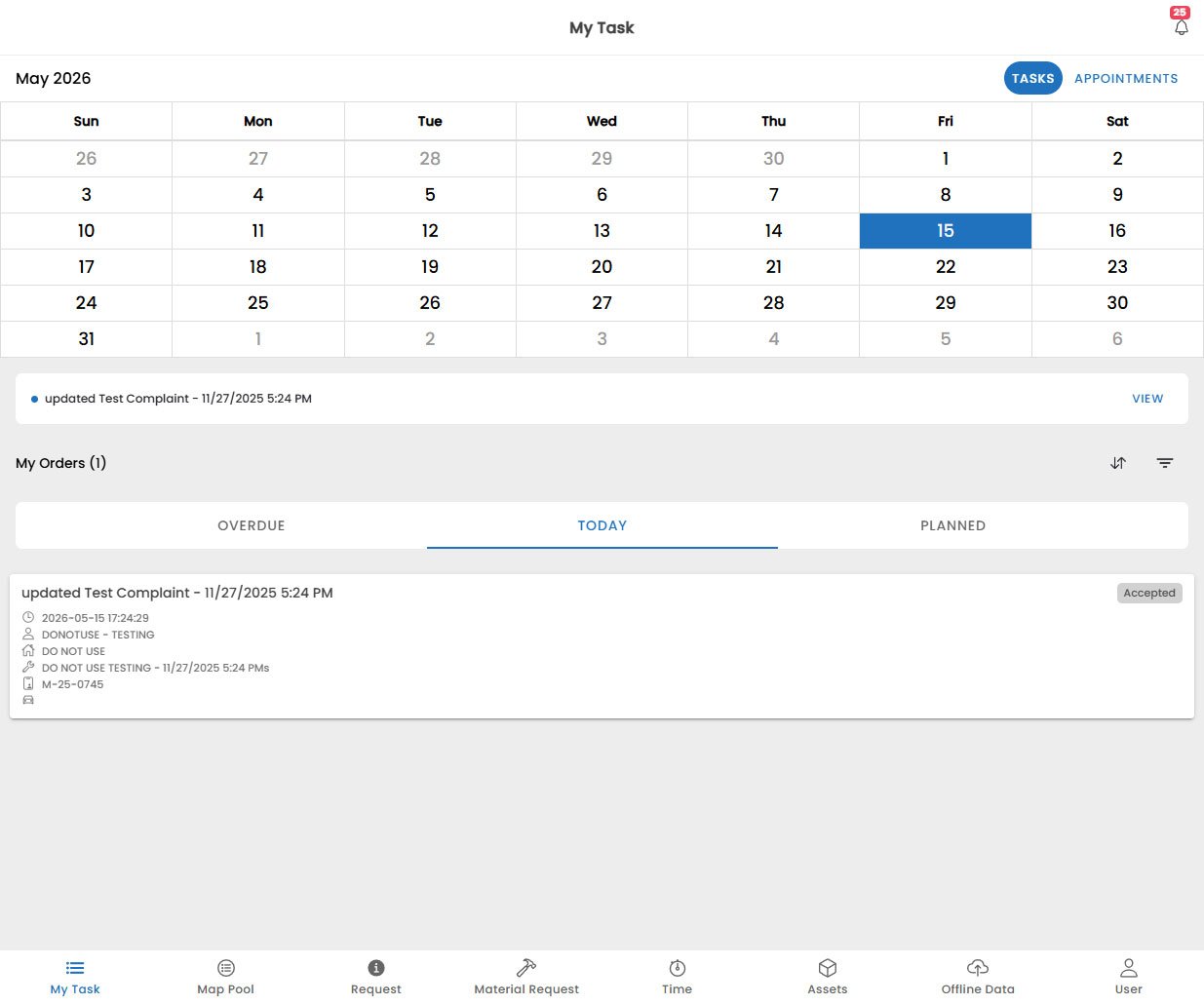
**My Tasks** is the home screen of the Fentu Mobile Technician app. It shows all tasks that have been assigned to you by your dispatcher, sorted by scheduled date. From here you can open a task, review its details, execute all required steps, and mark it as complete.
Only tasks assigned specifically to you will appear in My Tasks. If you expect to see a task but it is not listed, contact your dispatcher to verify the assignment.
***
## Task List
The task list gives you a quick overview of your workload for the day and upcoming days.
Each task card displays:
| Field | Description |
| ------------------ | ----------------------------------------------------------- |
| **Task Name** | The name of the task and associated work order |
| **Customer** | Customer name and service location address |
| **Scheduled Time** | Planned start and end time |
| **Status** | Current task status (Assigned, Accepted, In Progress, etc.) |
| **Priority** | Visual indicator for urgent or high-priority tasks |
### Filtering and Sorting
Use the filter bar at the top of the list to narrow down tasks:
* **Date**: Show tasks for today, tomorrow, this week, or a custom date range
* **Status**: Filter by task status (e.g. show only *In Progress* tasks)
* **Work Order**: Filter by a specific work order
Swipe down on the task list to refresh and pull the latest assignments from the server.
***
## Task Detail
## Overview
**My Tasks** is the home screen of the Fentu Mobile Technician app. It shows all tasks that have been assigned to you by your dispatcher, sorted by scheduled date. From here you can open a task, review its details, execute all required steps, and mark it as complete.
Only tasks assigned specifically to you will appear in My Tasks. If you expect to see a task but it is not listed, contact your dispatcher to verify the assignment.
***
## Task List
The task list gives you a quick overview of your workload for the day and upcoming days.
Each task card displays:
| Field | Description |
| ------------------ | ----------------------------------------------------------- |
| **Task Name** | The name of the task and associated work order |
| **Customer** | Customer name and service location address |
| **Scheduled Time** | Planned start and end time |
| **Status** | Current task status (Assigned, Accepted, In Progress, etc.) |
| **Priority** | Visual indicator for urgent or high-priority tasks |
### Filtering and Sorting
Use the filter bar at the top of the list to narrow down tasks:
* **Date**: Show tasks for today, tomorrow, this week, or a custom date range
* **Status**: Filter by task status (e.g. show only *In Progress* tasks)
* **Work Order**: Filter by a specific work order
Swipe down on the task list to refresh and pull the latest assignments from the server.
***
## Task Detail
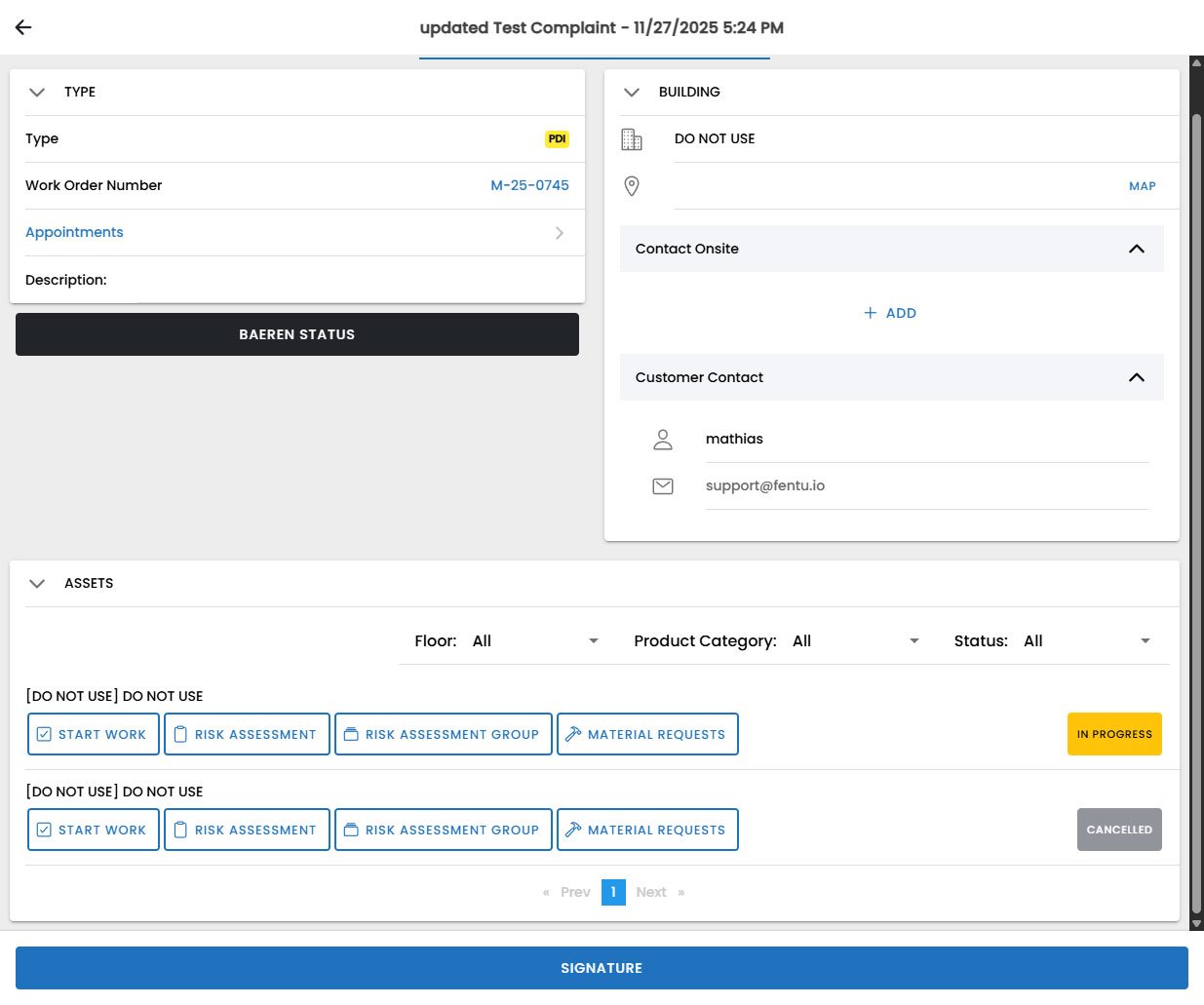 Tap any task card to open the **Task Detail** screen. This screen contains all information you need to complete the job.
### Information Sections
* Work order number and task name
* Customer name, address, and contact phone number
* Scheduled start and end time
* Task description and special instructions
* Assigned technicians (useful for multi-technician tasks)
The assets (equipment) that need to be serviced during this task. Each asset shows:
* Asset name and model
* Serial number
* Last service date
* Current condition / notes from previous visits
Tap an asset to view its full history or scan it with the camera to identify it.
A list of parts and tools that have been pre-assigned to this task. Review this list before arriving on site to ensure you have everything you need.
Files attached to the task by the back office — manuals, diagrams, photos from previous visits. Tap a file to open it. Files marked with a download icon need to be downloaded before they can be viewed offline.
Internal notes from the dispatcher or previous technicians. You can add your own notes here during or after the job. Notes are visible to the back office immediately upon sync.
***
## Task Status Flow
Update the task status as you progress through the job. Status changes are synced to Fentu FSM in real time.
```mermaid theme={null}
graph LR
A[Assigned] --> B[Accepted]
B --> C[Traveling]
C --> D[On Site]
D --> E[In Progress]
E --> F[Pending Verification]
F --> G[Completed]
E -.-> H[Paused]
H -.-> E
```
Tap the **Update Status** button on the Task Detail screen to transition to the next status. The app will prompt for confirmation before submitting status changes.
***
## Task Line Items
Task line items are the individual work steps that must be completed within a task. They appear at the bottom of the Task Detail screen. Each line item must be addressed before the task can be marked as complete.
Line items come in several types, each with a dedicated interaction screen:
### Checklist
Tap any task card to open the **Task Detail** screen. This screen contains all information you need to complete the job.
### Information Sections
* Work order number and task name
* Customer name, address, and contact phone number
* Scheduled start and end time
* Task description and special instructions
* Assigned technicians (useful for multi-technician tasks)
The assets (equipment) that need to be serviced during this task. Each asset shows:
* Asset name and model
* Serial number
* Last service date
* Current condition / notes from previous visits
Tap an asset to view its full history or scan it with the camera to identify it.
A list of parts and tools that have been pre-assigned to this task. Review this list before arriving on site to ensure you have everything you need.
Files attached to the task by the back office — manuals, diagrams, photos from previous visits. Tap a file to open it. Files marked with a download icon need to be downloaded before they can be viewed offline.
Internal notes from the dispatcher or previous technicians. You can add your own notes here during or after the job. Notes are visible to the back office immediately upon sync.
***
## Task Status Flow
Update the task status as you progress through the job. Status changes are synced to Fentu FSM in real time.
```mermaid theme={null}
graph LR
A[Assigned] --> B[Accepted]
B --> C[Traveling]
C --> D[On Site]
D --> E[In Progress]
E --> F[Pending Verification]
F --> G[Completed]
E -.-> H[Paused]
H -.-> E
```
Tap the **Update Status** button on the Task Detail screen to transition to the next status. The app will prompt for confirmation before submitting status changes.
***
## Task Line Items
Task line items are the individual work steps that must be completed within a task. They appear at the bottom of the Task Detail screen. Each line item must be addressed before the task can be marked as complete.
Line items come in several types, each with a dedicated interaction screen:
### Checklist
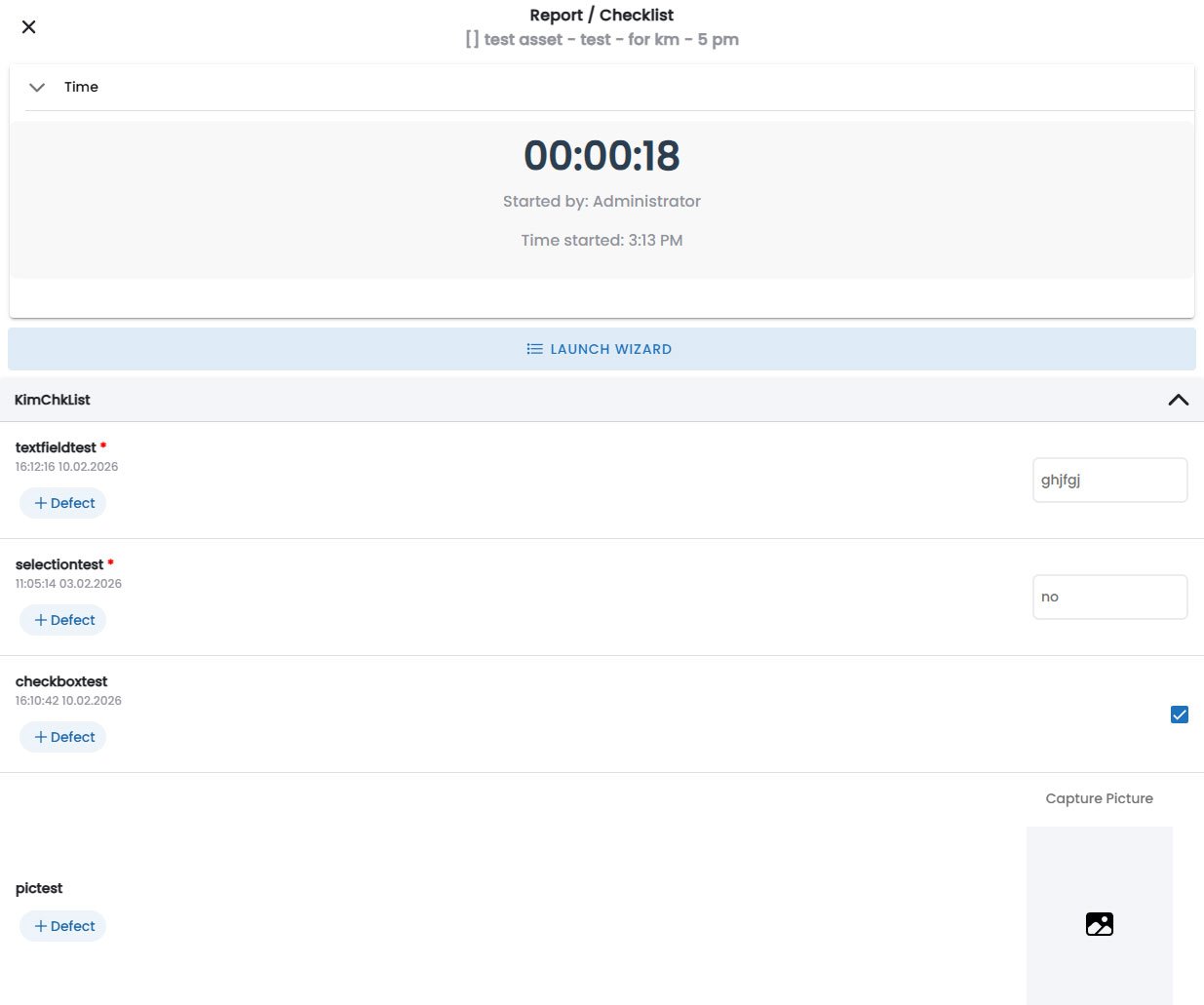 A checklist is a list of yes/no or pass/fail questions that the technician must answer, often used for safety checks, quality control, or standard operating procedures.
**How to complete a checklist:**
1. Tap the checklist line item to open it.
2. For each checklist item, tap content on the right (**Text**, **Checkbox**, **Dropdown**, **Image**, **Start Readout**, **Date**).
3. Answer the question or fill in the required information. The app may require certain items to be completed before allowing you to proceed.
4. If an item fails, you may be required to add a comment explaining the failure.
5. Press **Defect** to flag any failed items for review by the dispatcher.
6. Tap **Save** when all items are answered.
If any checklist item is marked as **Defect**, the system may flag the task for review. The dispatcher will be notified automatically.
### Checklist Wizard
A checklist is a list of yes/no or pass/fail questions that the technician must answer, often used for safety checks, quality control, or standard operating procedures.
**How to complete a checklist:**
1. Tap the checklist line item to open it.
2. For each checklist item, tap content on the right (**Text**, **Checkbox**, **Dropdown**, **Image**, **Start Readout**, **Date**).
3. Answer the question or fill in the required information. The app may require certain items to be completed before allowing you to proceed.
4. If an item fails, you may be required to add a comment explaining the failure.
5. Press **Defect** to flag any failed items for review by the dispatcher.
6. Tap **Save** when all items are answered.
If any checklist item is marked as **Defect**, the system may flag the task for review. The dispatcher will be notified automatically.
### Checklist Wizard
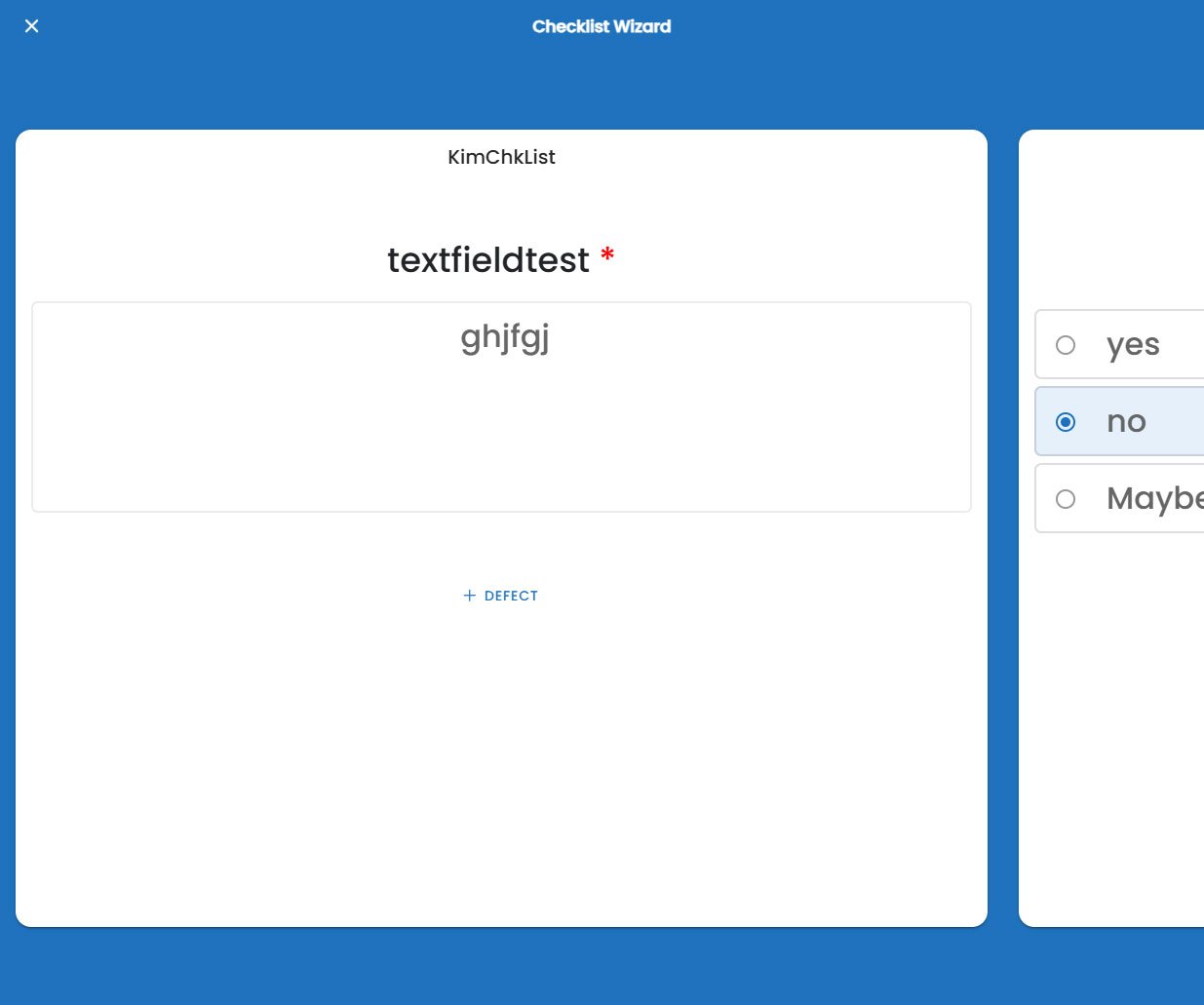 A checklist wizard is a multi-step checklist that guides the technician through a complex procedure. Each step may have its own set of questions and required inputs.
**How to complete a checklist wizard:**
1. Tap the checklist **Launch Wizard** button to open it.
2. For each checklist item, tap content in the center (**Text**, **Checkbox**, **Dropdown**, **Image**, **Start Readout**, **Date**).
3. Follow the on-screen steps. Each step may include instructions, input fields, photos, or decision points.
4. If an item fails, you may be required to add a comment explaining the failure.
5. Press **Defect** to flag any failed items for review by the dispatcher.
6. Once all items in the current checklist are completed, tap **Complete** on the last slide to finish.
A checklist wizard is a multi-step checklist that guides the technician through a complex procedure. Each step may have its own set of questions and required inputs.
**How to complete a checklist wizard:**
1. Tap the checklist **Launch Wizard** button to open it.
2. For each checklist item, tap content in the center (**Text**, **Checkbox**, **Dropdown**, **Image**, **Start Readout**, **Date**).
3. Follow the on-screen steps. Each step may include instructions, input fields, photos, or decision points.
4. If an item fails, you may be required to add a comment explaining the failure.
5. Press **Defect** to flag any failed items for review by the dispatcher.
6. Once all items in the current checklist are completed, tap **Complete** on the last slide to finish.
 If any checklist item is marked as **Defect**, the system may flag the task for review. The dispatcher will be notified automatically.
If you are interrupted mid-wizard, your progress is automatically saved. Tap the wizard line item again to resume from where you left off.
### Readout
If any checklist item is marked as **Defect**, the system may flag the task for review. The dispatcher will be notified automatically.
If you are interrupted mid-wizard, your progress is automatically saved. Tap the wizard line item again to resume from where you left off.
### Readout
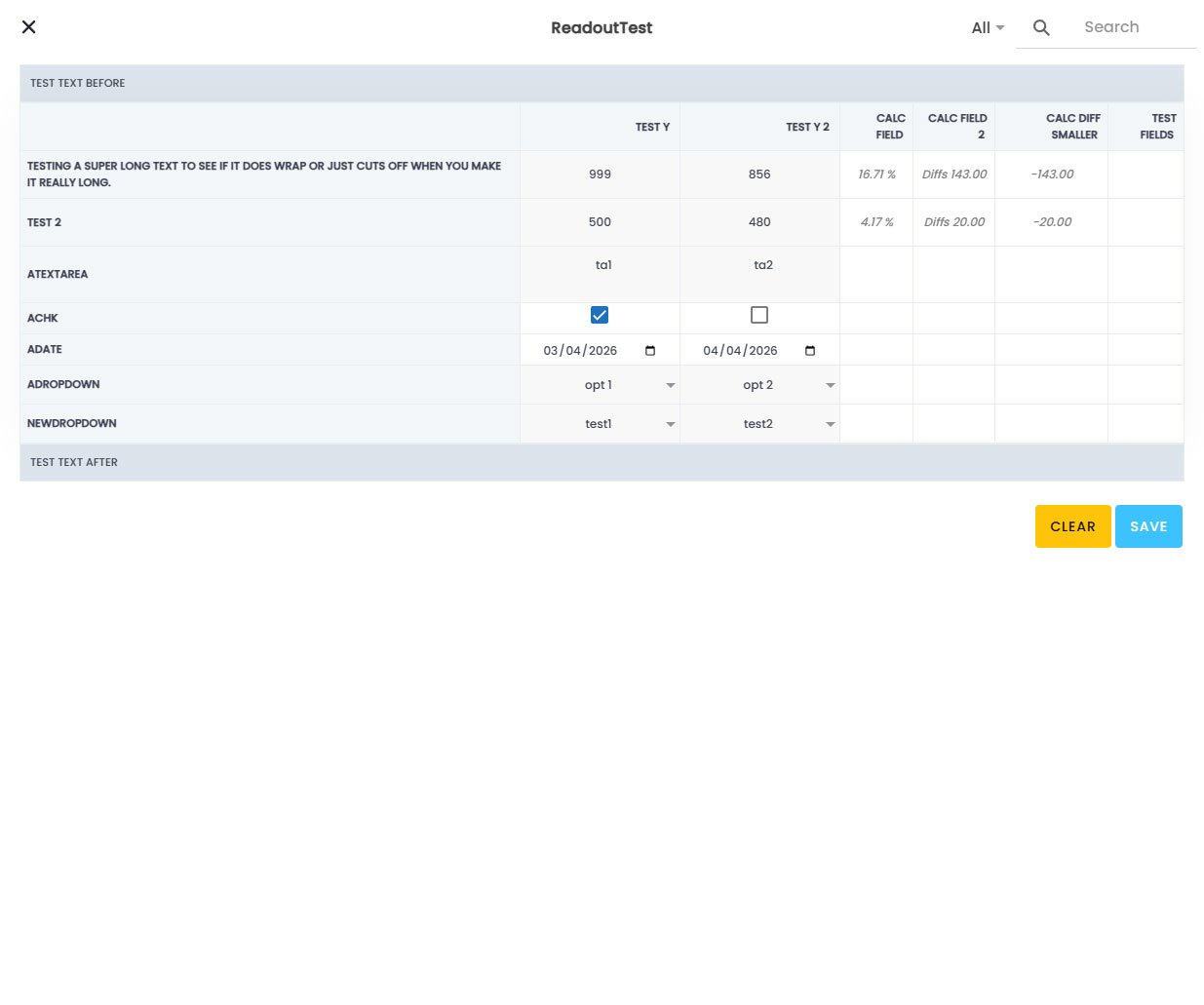 A readout line item collects a numeric or text measurement from equipment — for example, a pressure reading, temperature, meter value, or odometer reading.
**How to complete a readout:**
1. Tap the readout cell you want to edit.
2. Enter the measured value in the input field.
3. If the value is out of the expected range, the field will highlight in red and you may need to add a note.
4. Continue to the next readout cell and fill in all required values.
5. Once done tap **Save** to confirm the entry.
Readouts are stored historically per asset, allowing you to track trends over time in Fentu FSM.
***
## Asset Parts
Coming soon: Line items that allow you to record parts used during a task, including part number, quantity, and serial numbers. This will help ensure accurate inventory tracking and streamline the invoicing process in Fentu FSM.
***
## Time
Coming soon: A dedicated time tracking interface where you can start/stop timers for work, travel, and breaks, as well as manually enter time entries if needed. Time data will sync to Fentu FSM for payroll and billing purposes.
***
## Material Consumption
Coming soon: A feature that allows you to request additional materials or parts directly from the task screen if you find that you need something that was not pre-assigned. This will send a request to the back office and help ensure you have what you need to complete the job without unnecessary delays.
***
## New Request
Coming soon: A streamlined process for requesting new assets to be added to Fentu FSM when you encounter unregistered equipment on site. This will allow you to capture essential asset information and photos directly from the field, ensuring accurate records and easier future service visits.
***
## Stopping a Task
If you need to stop work on a task temporarily (for example, if you are waiting for parts or customer access), you can stop the task without marking it as complete
1. Tap the **Stop Work** button to stop current task.
2. Verify Time information (Fill out data if needed) in the dialog that appears.
3. Save using **Save**, the task will update and the timer will stop.
While a task is stopped, it will remain in your My Tasks list. You can resume the task later by continuing the task.
***
## Completing a Task
Once all task line items are completed and the work is done, you can finalise the task:
Ensure every line item shows a green checkmark. Incomplete line items will block task completion.
Add any closing notes or observations in the **Notes** section.
If required, tap **Customer Signature** and hand the device to the customer. The customer signs directly on the screen with their finger.
Tap **Complete Task** at the bottom of the screen. Confirm the action in the dialog that appears.
After completing the task, all data is synced to Fentu FSM. The work order status will be updated automatically if all tasks within the work order are now complete.
A readout line item collects a numeric or text measurement from equipment — for example, a pressure reading, temperature, meter value, or odometer reading.
**How to complete a readout:**
1. Tap the readout cell you want to edit.
2. Enter the measured value in the input field.
3. If the value is out of the expected range, the field will highlight in red and you may need to add a note.
4. Continue to the next readout cell and fill in all required values.
5. Once done tap **Save** to confirm the entry.
Readouts are stored historically per asset, allowing you to track trends over time in Fentu FSM.
***
## Asset Parts
Coming soon: Line items that allow you to record parts used during a task, including part number, quantity, and serial numbers. This will help ensure accurate inventory tracking and streamline the invoicing process in Fentu FSM.
***
## Time
Coming soon: A dedicated time tracking interface where you can start/stop timers for work, travel, and breaks, as well as manually enter time entries if needed. Time data will sync to Fentu FSM for payroll and billing purposes.
***
## Material Consumption
Coming soon: A feature that allows you to request additional materials or parts directly from the task screen if you find that you need something that was not pre-assigned. This will send a request to the back office and help ensure you have what you need to complete the job without unnecessary delays.
***
## New Request
Coming soon: A streamlined process for requesting new assets to be added to Fentu FSM when you encounter unregistered equipment on site. This will allow you to capture essential asset information and photos directly from the field, ensuring accurate records and easier future service visits.
***
## Stopping a Task
If you need to stop work on a task temporarily (for example, if you are waiting for parts or customer access), you can stop the task without marking it as complete
1. Tap the **Stop Work** button to stop current task.
2. Verify Time information (Fill out data if needed) in the dialog that appears.
3. Save using **Save**, the task will update and the timer will stop.
While a task is stopped, it will remain in your My Tasks list. You can resume the task later by continuing the task.
***
## Completing a Task
Once all task line items are completed and the work is done, you can finalise the task:
Ensure every line item shows a green checkmark. Incomplete line items will block task completion.
Add any closing notes or observations in the **Notes** section.
If required, tap **Customer Signature** and hand the device to the customer. The customer signs directly on the screen with their finger.
Tap **Complete Task** at the bottom of the screen. Confirm the action in the dialog that appears.
After completing the task, all data is synced to Fentu FSM. The work order status will be updated automatically if all tasks within the work order are now complete.