> ## Documentation Index
> Fetch the complete documentation index at: https://docs.fentufsm.com/llms.txt
> Use this file to discover all available pages before exploring further.
# Navigation
> Learn how to navigate through the Fentu Mobile Technician app and access all its features with ease
 ## Using the App Navigation
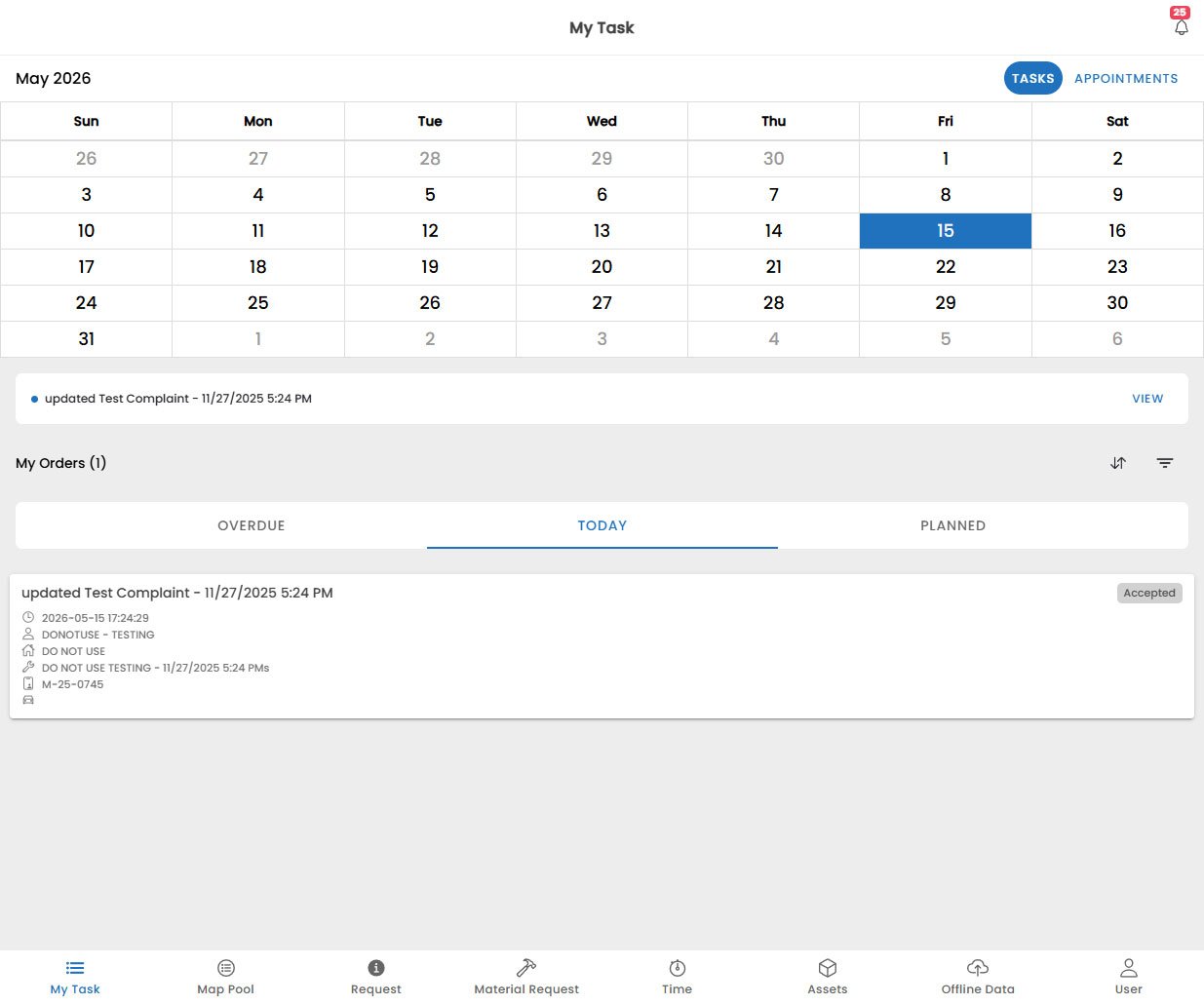
To change any page in the app, use the bottom navigation bar to switch between the main sections:
* **My Tasks**: View and manage your assigned work orders and tasks.
* **Map**: See your scheduled tasks and customer locations on an interactive map.
* **Request**: Create new service requests and view notifications from the back office.
* **Material Request**: Submit and track material requests for parts and supplies.
* **Time Tracking**: Log your work hours and breaks for accurate timekeeping.
* **Assets**: View and manage the assets you are working on, including serial numbers and maintenance history.
* **Offline Data**: Check the status of your offline data and sync any unsynced work.
* **User**: Manage your profile, preferences, and app settings.
## Inside Each Section
When inside a page, section or module and the Navigatinon bar is not visible, you can always return to the main sections by tapping the **Back** button in the top-left
corner of the screen. This will take you back to the previous screen or the main section list.
Navigating back will not cause you to lose any unsaved work, but it is always a good idea to ensure that your changes are saved or synced before navigating away from a screen.
See [Offline Data](/mobile-technician/offline-data) for details on checking sync status.
## Using the App Navigation
To change any page in the app, use the bottom navigation bar to switch between the main sections:
* **My Tasks**: View and manage your assigned work orders and tasks.
* **Map**: See your scheduled tasks and customer locations on an interactive map.
* **Request**: Create new service requests and view notifications from the back office.
* **Material Request**: Submit and track material requests for parts and supplies.
* **Time Tracking**: Log your work hours and breaks for accurate timekeeping.
* **Assets**: View and manage the assets you are working on, including serial numbers and maintenance history.
* **Offline Data**: Check the status of your offline data and sync any unsynced work.
* **User**: Manage your profile, preferences, and app settings.
## Inside Each Section
When inside a page, section or module and the Navigatinon bar is not visible, you can always return to the main sections by tapping the **Back** button in the top-left
corner of the screen. This will take you back to the previous screen or the main section list.
Navigating back will not cause you to lose any unsaved work, but it is always a good idea to ensure that your changes are saved or synced before navigating away from a screen.
See [Offline Data](/mobile-technician/offline-data) for details on checking sync status.