> ## Documentation Index
> Fetch the complete documentation index at: https://docs.fentufsm.com/llms.txt
> Use this file to discover all available pages before exploring further.
# Setup
> Configure your server connection and log in to the Fentu Mobile Technician app for the first time
 ## Before You Begin
To set up the app, you need the following information from your system administrator:
* **Orginazation**: The originazation ID of your company's Fentu server (e.g. `mycompany`)
* **Username**: Your Fentu user account email address
* **Password**: Your Fentu account password
Your account must have the **Technician** role assigned in Fentu FSM. If you cannot log in, contact your system administrator to verify your account permissions.
***
## First-Time Configuration
Launch the Fentu Mobile Technician app from your device's home screen or app drawer.
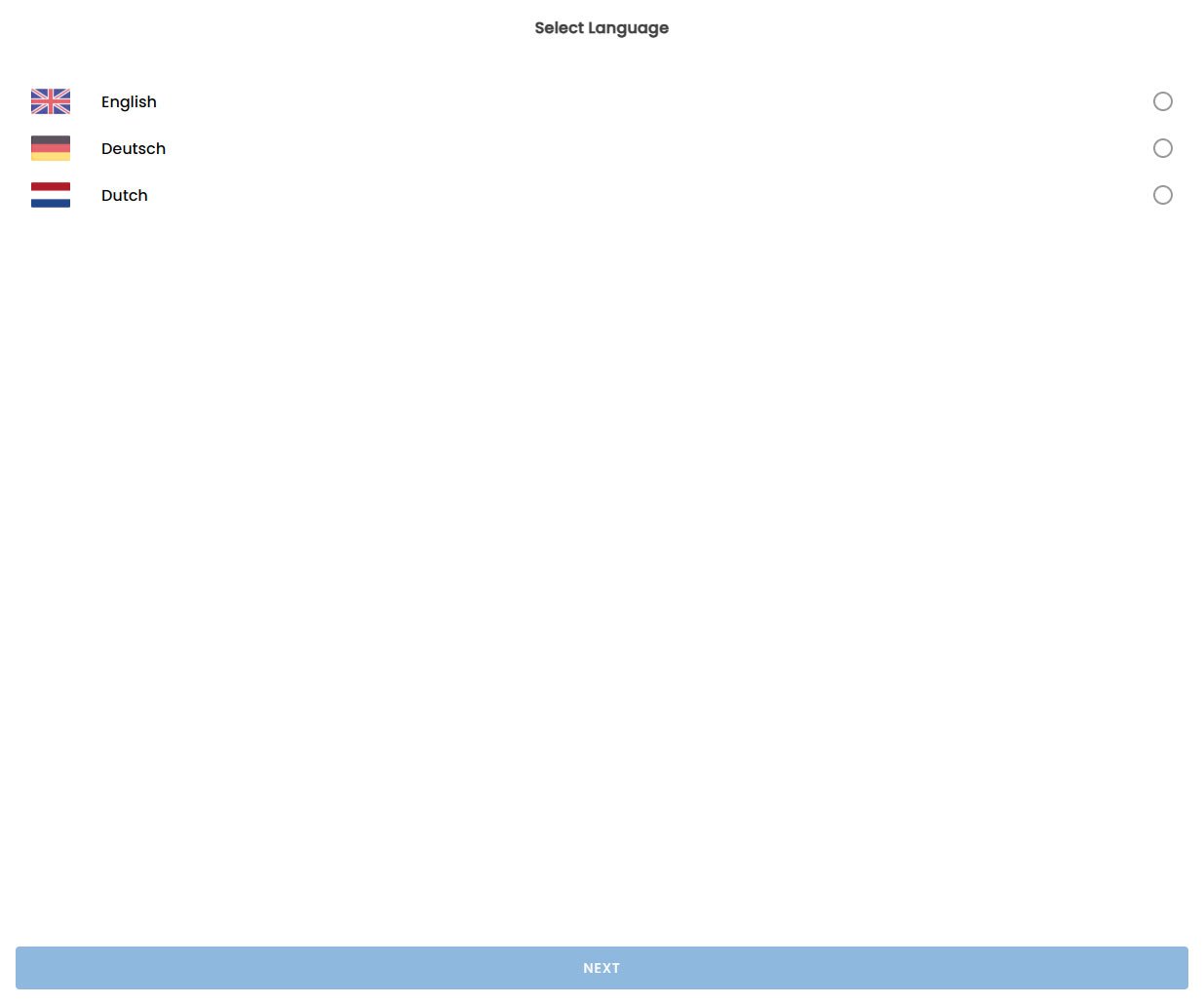
Choose your preferred language from the list and tap **Continue**.
## Before You Begin
To set up the app, you need the following information from your system administrator:
* **Orginazation**: The originazation ID of your company's Fentu server (e.g. `mycompany`)
* **Username**: Your Fentu user account email address
* **Password**: Your Fentu account password
Your account must have the **Technician** role assigned in Fentu FSM. If you cannot log in, contact your system administrator to verify your account permissions.
***
## First-Time Configuration
Launch the Fentu Mobile Technician app from your device's home screen or app drawer.
Choose your preferred language from the list and tap **Continue**.
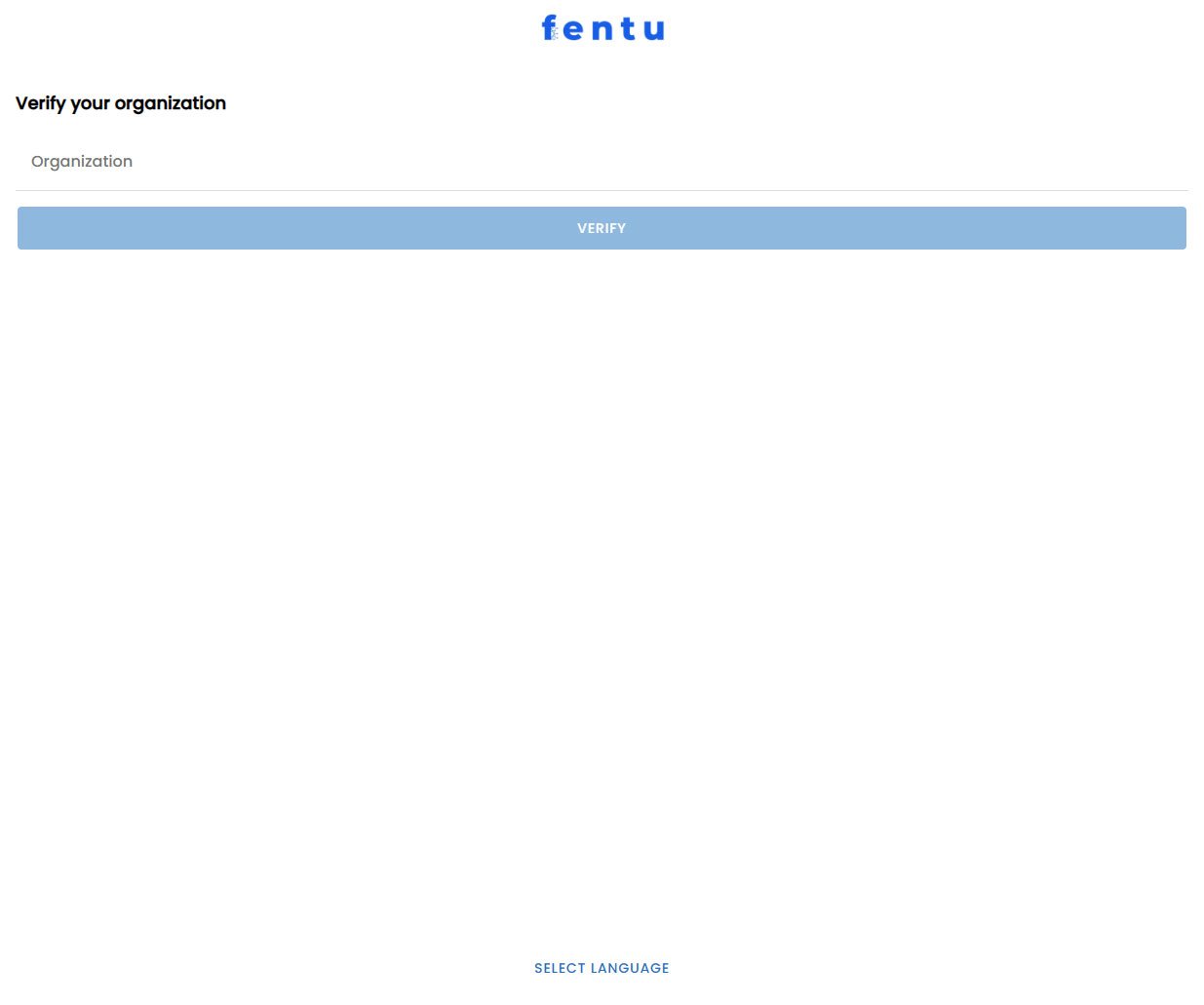
 Enter your company's **Orginazation ID** (e.g. `mycompany`) and tap **Continue**.
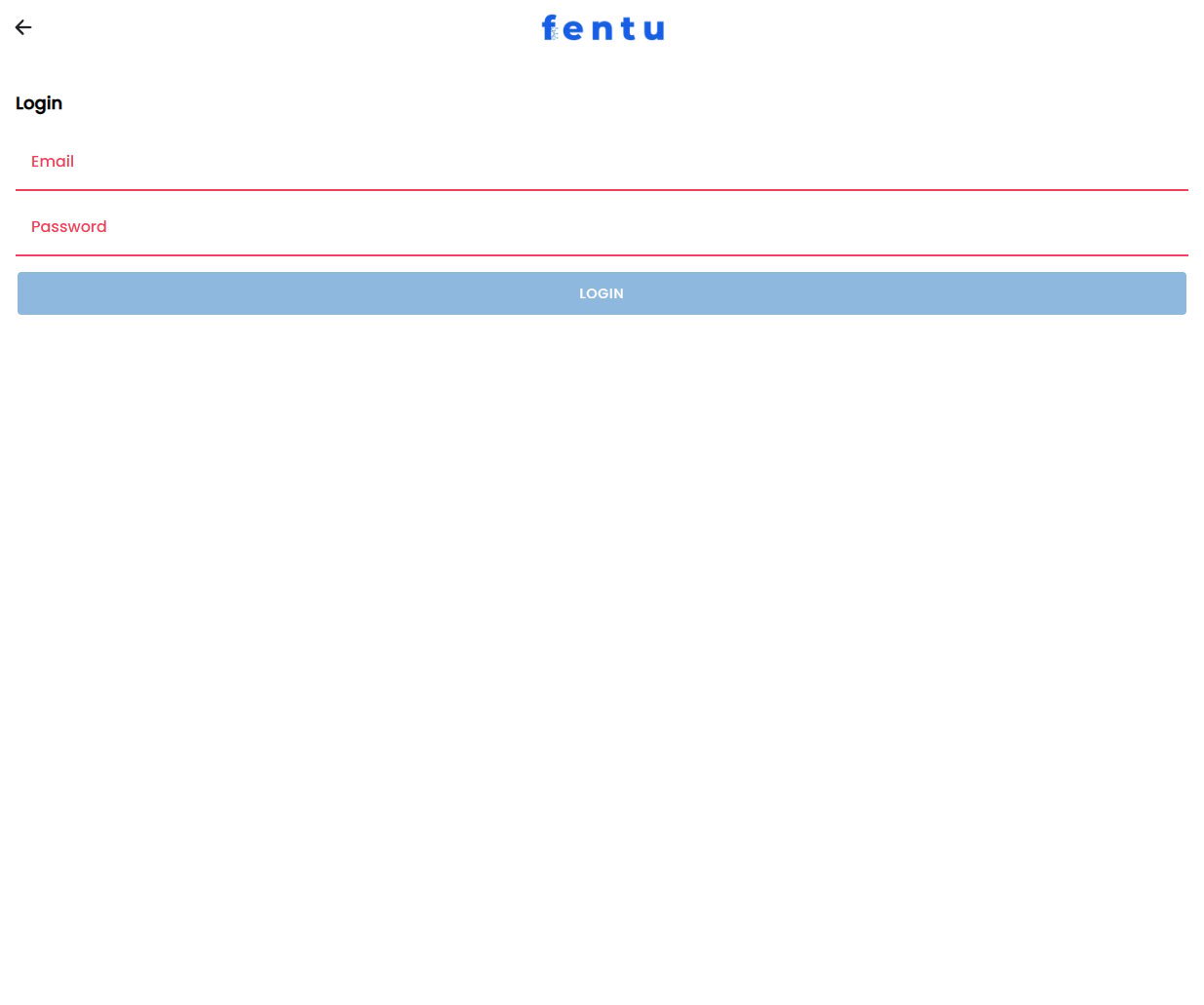
 Enter your **Username** (email address) and **Password**, then tap **Log In**.
Accept the requested permissions (Location, Camera, Notifications) to enable all app features. See the [Download](/mobile-technician/download) page for details on each permission.
The app will download your profile and assigned tasks. You are now ready to work.
***
## Two-Factor Authentication
If your organisation has enabled two-factor authentication (2FA), you will be prompted to verify your identity after entering your credentials.
Open your authenticator app (e.g. Google Authenticator, Microsoft Authenticator) and enter the 6-digit code shown for your Fentu account.
Check your email or SMS messages for the verification code sent by Fentu and enter it in the app.
2FA settings are managed by your administrator in Fentu FSM. Contact your administrator if you do not receive your verification code.
***
## Single Sign-On (SSO)
If your company uses Single Sign-On, tap **Sign in with SSO** on the login screen. You will be redirected to your company's identity provider (e.g. Microsoft Entra ID, Google Workspace, Okta) to authenticate. Once authenticated, you will be returned to the app automatically.
***
## Changing the Server URL
If you need to connect to a different Fentu server (for example, when moving between test and production environments):
1. Go to **User Profile** → **Sign Out** in the app.
2. Set a different Tap **Orginazation ID**.
3. Log in again with your credentials for the new server.
***
## Logging Out
To log out of the app:
1. Tap the **User** icon in the bottom navigation bar.
2. Scroll to the bottom and tap **Sign Out**.
Logging out will clear any unsynced offline data. Make sure all your work is synced before logging out. See [Offline Data](/mobile-technician/offline-data) for details on checking sync status.
***
## Troubleshooting Login Issues
| Issue | Solution |
| -------------------------- | ---------------------------------------------------------------------------------------- |
| *Cannot connect to server* | Check that the **Orginazation ID** is correct and that you have an internet connection. |
| *Invalid credentials* | Verify your username and password. Try resetting your password via the Fentu web portal. |
| *Account locked* | Contact your system administrator to unlock your account. |
| *2FA code not working* | Ensure your device time is correct — TOTP codes are time-sensitive. |
| *SSO redirect fails* | Clear the app cache or try again on a Wi-Fi connection. |
Enter your **Username** (email address) and **Password**, then tap **Log In**.
Accept the requested permissions (Location, Camera, Notifications) to enable all app features. See the [Download](/mobile-technician/download) page for details on each permission.
The app will download your profile and assigned tasks. You are now ready to work.
***
## Two-Factor Authentication
If your organisation has enabled two-factor authentication (2FA), you will be prompted to verify your identity after entering your credentials.
Open your authenticator app (e.g. Google Authenticator, Microsoft Authenticator) and enter the 6-digit code shown for your Fentu account.
Check your email or SMS messages for the verification code sent by Fentu and enter it in the app.
2FA settings are managed by your administrator in Fentu FSM. Contact your administrator if you do not receive your verification code.
***
## Single Sign-On (SSO)
If your company uses Single Sign-On, tap **Sign in with SSO** on the login screen. You will be redirected to your company's identity provider (e.g. Microsoft Entra ID, Google Workspace, Okta) to authenticate. Once authenticated, you will be returned to the app automatically.
***
## Changing the Server URL
If you need to connect to a different Fentu server (for example, when moving between test and production environments):
1. Go to **User Profile** → **Sign Out** in the app.
2. Set a different Tap **Orginazation ID**.
3. Log in again with your credentials for the new server.
***
## Logging Out
To log out of the app:
1. Tap the **User** icon in the bottom navigation bar.
2. Scroll to the bottom and tap **Sign Out**.
Logging out will clear any unsynced offline data. Make sure all your work is synced before logging out. See [Offline Data](/mobile-technician/offline-data) for details on checking sync status.
***
## Troubleshooting Login Issues
| Issue | Solution |
| -------------------------- | ---------------------------------------------------------------------------------------- |
| *Cannot connect to server* | Check that the **Orginazation ID** is correct and that you have an internet connection. |
| *Invalid credentials* | Verify your username and password. Try resetting your password via the Fentu web portal. |
| *Account locked* | Contact your system administrator to unlock your account. |
| *2FA code not working* | Ensure your device time is correct — TOTP codes are time-sensitive. |
| *SSO redirect fails* | Clear the app cache or try again on a Wi-Fi connection. |