> ## Documentation Index
> Fetch the complete documentation index at: https://docs.fentufsm.com/llms.txt
> Use this file to discover all available pages before exploring further.
# User Profile
> Manage your profile, preferences, and app settings
 ## Overview
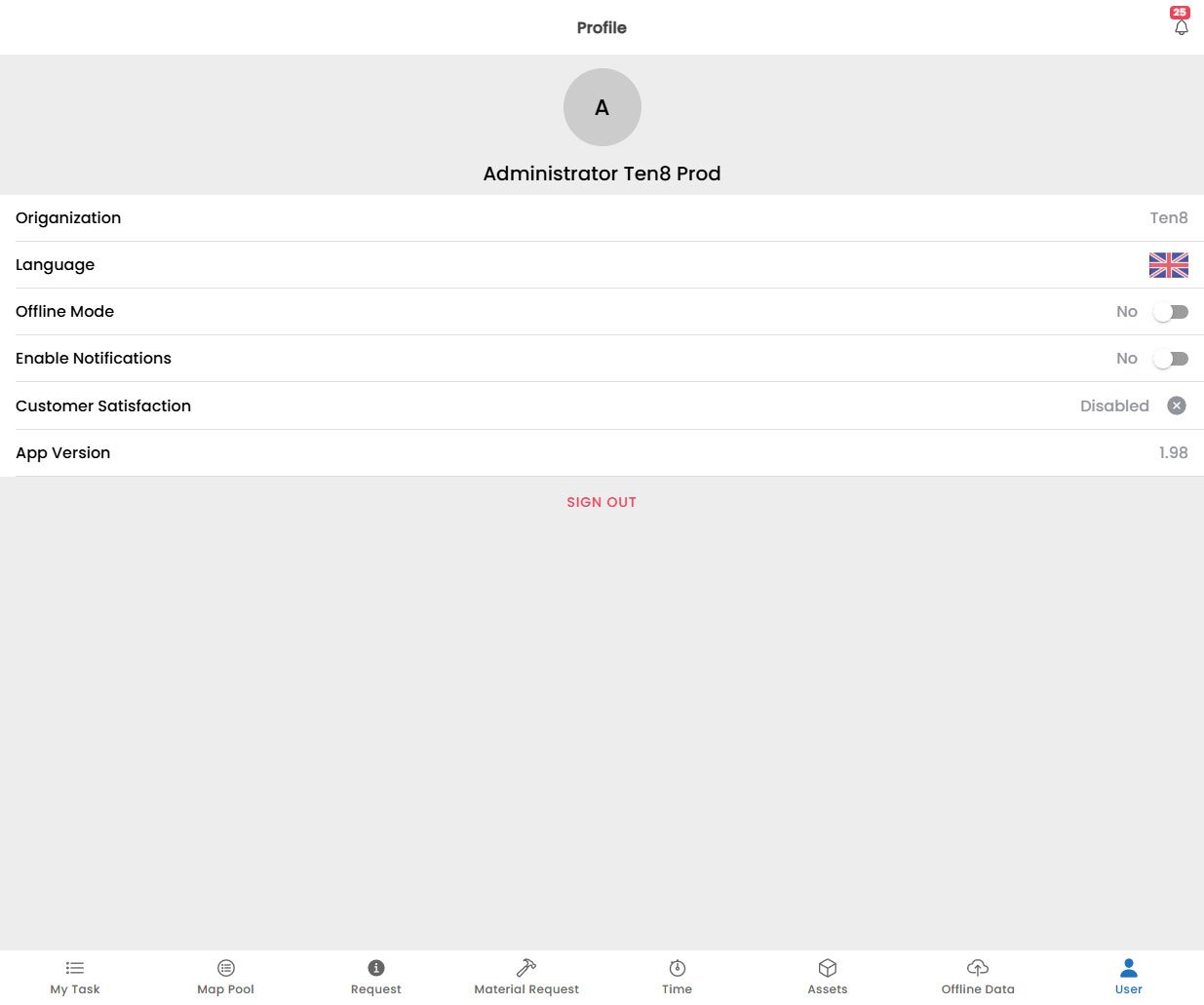
The **User** screen is your personal hub within the Fentu Mobile Technician app. Here you can view your profile information, manage app preferences.
Access the User screen by tapping the **User** icon in the bottom navigation bar.
***
## Profile Information
The top section of the User screen displays your personal profile:
| Field | Description |
| ------------------------- | -------------------------------------------------------- |
| **Origanization** | Current connected Origanization |
| **Language** | Current language set for the application |
| **Offline Mode** | Toggle Offline/Online mode |
| **Enable Notificaitons** | Enable Application Notifications |
| **Customer Satisfaction** | Show Customer Satisfaction screen when completing a task |
| **App Version** | Current application version |
***
## Logging Out
To log out of the app:
1. Scroll to the bottom of the User screen.
2. Tap **Log Out**.
3. Confirm the action in the dialog that appears.
Logging out clears your session and any locally cached data. Make sure all offline changes are synced before logging out. See [Offline Data](/mobile-technician/offline-data) for how to verify sync status.
## Overview
The **User** screen is your personal hub within the Fentu Mobile Technician app. Here you can view your profile information, manage app preferences.
Access the User screen by tapping the **User** icon in the bottom navigation bar.
***
## Profile Information
The top section of the User screen displays your personal profile:
| Field | Description |
| ------------------------- | -------------------------------------------------------- |
| **Origanization** | Current connected Origanization |
| **Language** | Current language set for the application |
| **Offline Mode** | Toggle Offline/Online mode |
| **Enable Notificaitons** | Enable Application Notifications |
| **Customer Satisfaction** | Show Customer Satisfaction screen when completing a task |
| **App Version** | Current application version |
***
## Logging Out
To log out of the app:
1. Scroll to the bottom of the User screen.
2. Tap **Log Out**.
3. Confirm the action in the dialog that appears.
Logging out clears your session and any locally cached data. Make sure all offline changes are synced before logging out. See [Offline Data](/mobile-technician/offline-data) for how to verify sync status.