> ## Documentation Index
> Fetch the complete documentation index at: https://docs.fentufsm.com/llms.txt
> Use this file to discover all available pages before exploring further.
# Map View
> Visual geographic dispatch and work order assignment using interactive maps
## Overview
The Map View provides a geographic visualization of your work orders, displaying them as color-coded pins on an interactive map. This view is ideal for location-based dispatching, allowing you to see work order distribution, assign technicians based on proximity, and optimize routes by visualizing work locations.
The Map View is designed for **geographic dispatch** - see where work orders are located, identify clustering, assign nearby work to technicians, and make location-aware scheduling decisions.
## When to Use the Map View
Use the Map View when:
* Assigning work orders based on geographic proximity
* Visualizing work order distribution across your service area
* Identifying clusters of work in specific regions
* Planning efficient routes by seeing work locations
* Finding unassigned work near a technician's current location
* Checking which areas have the most service requests
* Optimizing technician assignments to minimize travel time
## Map View Interface
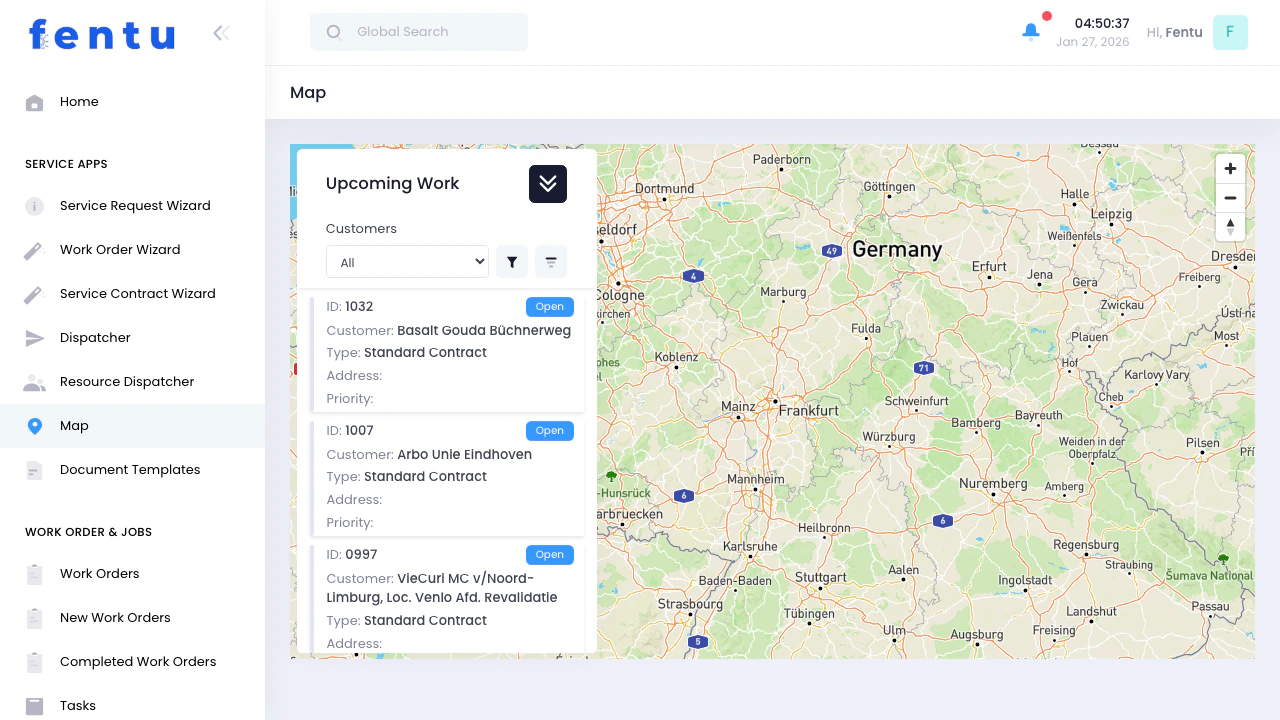 The Map View consists of two main areas:
1. **Upcoming Work Panel** (Left) - Collapsible panel with work order list and filters
2. **Interactive Map** (Right) - Geographic view showing work order locations as color-coded pins
***
## Interactive Map
The right side displays an interactive map powered by Mapbox:
### Map Features
| Feature | Description |
| ---------------------- | --------------------------------------------------------------------------------------- |
| **Color-Coded Pins** | Work orders appear as pins colored by work order type (Installation, Maintenance, etc.) |
| **Zoom Controls** | +/- buttons to zoom in and out of the map |
| **Navigation Control** | Compass and tilt controls for map orientation |
| **Pan and Drag** | Click and drag to move around the map |
| **Auto-Center** | Clicking a work order in the list centers the map on that location |
### Map Pin Colors
Pins are color-coded to match work order types:
| Work Order Type | Pin Color |
| ---------------- | --------- |
| **Installation** | Blue |
| **Maintenance** | Green |
| **Delivery** | Yellow |
| **Repair** | Red |
| **Conversion** | Purple |
Use the color-coded pins to quickly identify work order types at a glance. If you see multiple pins of the same color clustered together, you can assign them to the same technician for efficient routing.
### Interacting with the Map
* **Click a work order card** - The map automatically zooms and centers on that work order's location
* **Zoom in** - Get detailed street-level view for precise location identification
* **Zoom out** - See the broader service area and work order distribution
* **Pan** - Drag the map to explore different regions
Only work orders with valid location data appear as pins on the map. Work orders without coordinates won't have pins.
***
## Upcoming Work Panel
The left panel shows all work orders matching your filter criteria:
### Collapsing the Panel
Click the **double arrow button** in the panel header to:
* **Collapse** - Minimize the panel to show only the header, maximizing map visibility
* **Expand** - Show the full work order list with filters and details
Collapse the panel when you need maximum map visibility to see geographic patterns, then expand it to filter and select work orders.
### Work Order Cards
Each work order card displays:
| Information | Description |
| ------------ | ------------------------------------------------- |
| **ID** | Work order identifier with "Open" status badge |
| **Customer** | Customer name |
| **Type** | Work order type (Installation, Maintenance, etc.) |
| **Address** | Service location address |
| **Priority** | Priority level indicator |
### Selecting Work Orders
Click any work order card to:
1. **Select** the work order (card highlights)
2. **Center map** on the work order's location
3. **Show action buttons** below the selected card
***
## Work Order Actions
When you select a work order, three action buttons appear:
### View Button
Opens the detailed view panel showing full work order information
See work order name, customer, type, status, address, and description
Click the back arrow to return to the work order list
The detail view shows:
* **Work Order Name** - Full description of the work
* **Customer** - Customer name and details
* **Type** - Work order category
* **Status** - Current work order status
* **Address** - Complete service location address
* **Description** - Detailed work order notes
### Assign Worker to Myself
Instantly assign the selected work order to yourself (the logged-in user):
Click on a work order card to select it
The button shows a loading spinner while assigning
Success notification appears and the work order list refreshes
This is the fastest way for dispatchers or technicians to self-assign work. Great for mobile dispatchers in the field who want to claim nearby work.
### Dispatch to Technician
Assign the work order to any technician in your organization:
Click on a work order card to select it
Opens a technician lookup modal
Type the technician's name or browse the list
Click the technician to assign them to the work order
Success notification appears and the work order updates
Use the map to identify work orders near a specific technician's current location or home base, then dispatch those work orders to them for efficient routing.
***
## Filters
The Upcoming Work panel includes powerful filtering options:
### Customer Filter
Select a specific customer to show only their work orders:
| Option | Description |
| --------------------- | ------------------------------------------------ |
| **All** | Shows work orders for all customers |
| **Specific Customer** | Shows only work orders for the selected customer |
Use this to:
* Focus on a single customer's service requests
* Review all work for a major account
* Identify geographic patterns for specific customers
### Filter Dropdown
Click the **Filter** icon to access three filter categories:
#### Status Filter
| Status | Description |
| ------------- | ------------------------------------------ |
| **All** | Shows work orders in any status |
| **Open** | New work orders not yet assigned (default) |
| **Completed** | Finished work orders |
The Map View shows only "Open" and "Completed" statuses, unlike the Dispatcher which shows all statuses. This keeps the map focused on active work.
#### Assignment Filter
| Filter | Description |
| -------------- | ------------------------------------------------------- |
| **All** | Shows all work orders regardless of assignment |
| **Assigned** | Only work orders with assigned technicians |
| **Unassigned** | Work orders waiting for technician assignment (default) |
| **My Task** | Work orders assigned to you (if you're a technician) |
The default is **"Unassigned"** - focusing on work orders that need assignment. This helps dispatchers prioritize work that hasn't been claimed yet.
#### Type Filter
| Type | Description |
| ---------------- | ------------------------------------ |
| **All** | Shows all work order types |
| **Installation** | Installation work orders (M- prefix) |
| **Maintenance** | Maintenance work orders (W- prefix) |
| **Delivery** | Delivery work orders (L- prefix) |
| **Repair** | Repair work orders (R- prefix) |
| **Conversion** | Conversion work orders (U- prefix) |
Each type option shows a color bar matching the pin color on the map.
### Sort Options
Click the **Sort** icon to organize work orders:
#### Sort By
| Sort Field | Description |
| ---------------- | ------------------------------------------ |
| **Planned Date** | Sort by scheduled date (default) |
| **Priority** | Sort by priority level (High, Medium, Low) |
#### Sort Order
| Order | Description |
| -------- | ------------------------------------------------- |
| **DESC** | Descending order (newest/highest first) - default |
| **ASC** | Ascending order (oldest/lowest first) |
Combine filters for powerful queries. For example: "Unassigned + Installation + Priority" shows unassigned installation work sorted by priority.
***
## Workflow: Typical Map View Use
Here's how dispatchers typically use the Map View:
Navigate to the Map section to see all work orders geographically
Ensure filters are set to show the work you need (usually "Unassigned" + "Open")
Zoom out to see where work orders are concentrated
Filter by Type or Customer to focus on specific work
Click a work order card to view its location on the map
Check the map pin to understand the exact service location
Click "View" to see full work order information
Use "Assign Worker to Myself" or "Dispatch to Technician" based on proximity and skills
Look for other pins near the assigned location and assign them to the same technician
Switch to "Assigned" filter to review what's been dispatched
***
## Tips and Best Practices
Assign multiple work orders in the same area to one technician. Zoom in on clusters of pins and dispatch all nearby work to minimize travel time.
If you see many pins of one color (type) in an area, it may indicate a systemic issue or a scheduled maintenance campaign. Use this insight for planning.
The default "Unassigned" filter shows work that needs attention. Clear this list daily to ensure nothing gets overlooked.
Collapse the Upcoming Work panel when you need to see the entire service area. This helps identify which regions have the most work.
When dispatching, consider the technician's current or home location. Assign nearby work to reduce travel time and increase productivity.
If work orders appear in the list but have no pins, their location data may be missing or incorrect. Update addresses to ensure accurate mapping.
Technicians with dispatcher access can use "My Task" filter to see only their assigned work on the map, helping them plan routes.
Sort by Priority to handle urgent work first. Combine with geographic proximity for optimal dispatching.
***
## Common Questions
Only work orders with valid location coordinates appear as pins. Work orders without addresses or geocoded locations won't show pins but still appear in the Upcoming Work list. Ensure all work orders have complete address information.
The current Map View shows work order locations only. To see technician locations and schedules, use the Resource Dispatcher which provides technician-focused views.
Pins at the exact same location may overlap. Zoom in closely to see if multiple pins are stacked, or check the Upcoming Work list which shows all work orders regardless of location overlap.
Select each work order individually and use "Dispatch to Technician" to assign them to the same person. Look for clustered pins to identify work orders that should go to the same technician.
The Map View doesn't currently have a built-in export feature. Use your browser's screenshot or print function to capture the map for sharing or reporting.
The pin location is based on the work order's address field. If it's incorrect, edit the work order to update the address, and the pin will reposition automatically after saving.
It instantly assigns the selected work order to you (the logged-in user). This is useful for dispatchers who also work as technicians or for mobile field workers claiming nearby jobs.
The Map View filters by status and assignment but not date range. Use the "Planned Date" sort option to organize chronologically, or switch to the Dispatcher for date-specific views.
***
## Related Documentation
Work order-focused scheduling with timeline views
Technician-focused scheduling and calendar management
Learn about work order management and lifecycle
Manage your technician roster and assignments
The Map View consists of two main areas:
1. **Upcoming Work Panel** (Left) - Collapsible panel with work order list and filters
2. **Interactive Map** (Right) - Geographic view showing work order locations as color-coded pins
***
## Interactive Map
The right side displays an interactive map powered by Mapbox:
### Map Features
| Feature | Description |
| ---------------------- | --------------------------------------------------------------------------------------- |
| **Color-Coded Pins** | Work orders appear as pins colored by work order type (Installation, Maintenance, etc.) |
| **Zoom Controls** | +/- buttons to zoom in and out of the map |
| **Navigation Control** | Compass and tilt controls for map orientation |
| **Pan and Drag** | Click and drag to move around the map |
| **Auto-Center** | Clicking a work order in the list centers the map on that location |
### Map Pin Colors
Pins are color-coded to match work order types:
| Work Order Type | Pin Color |
| ---------------- | --------- |
| **Installation** | Blue |
| **Maintenance** | Green |
| **Delivery** | Yellow |
| **Repair** | Red |
| **Conversion** | Purple |
Use the color-coded pins to quickly identify work order types at a glance. If you see multiple pins of the same color clustered together, you can assign them to the same technician for efficient routing.
### Interacting with the Map
* **Click a work order card** - The map automatically zooms and centers on that work order's location
* **Zoom in** - Get detailed street-level view for precise location identification
* **Zoom out** - See the broader service area and work order distribution
* **Pan** - Drag the map to explore different regions
Only work orders with valid location data appear as pins on the map. Work orders without coordinates won't have pins.
***
## Upcoming Work Panel
The left panel shows all work orders matching your filter criteria:
### Collapsing the Panel
Click the **double arrow button** in the panel header to:
* **Collapse** - Minimize the panel to show only the header, maximizing map visibility
* **Expand** - Show the full work order list with filters and details
Collapse the panel when you need maximum map visibility to see geographic patterns, then expand it to filter and select work orders.
### Work Order Cards
Each work order card displays:
| Information | Description |
| ------------ | ------------------------------------------------- |
| **ID** | Work order identifier with "Open" status badge |
| **Customer** | Customer name |
| **Type** | Work order type (Installation, Maintenance, etc.) |
| **Address** | Service location address |
| **Priority** | Priority level indicator |
### Selecting Work Orders
Click any work order card to:
1. **Select** the work order (card highlights)
2. **Center map** on the work order's location
3. **Show action buttons** below the selected card
***
## Work Order Actions
When you select a work order, three action buttons appear:
### View Button
Opens the detailed view panel showing full work order information
See work order name, customer, type, status, address, and description
Click the back arrow to return to the work order list
The detail view shows:
* **Work Order Name** - Full description of the work
* **Customer** - Customer name and details
* **Type** - Work order category
* **Status** - Current work order status
* **Address** - Complete service location address
* **Description** - Detailed work order notes
### Assign Worker to Myself
Instantly assign the selected work order to yourself (the logged-in user):
Click on a work order card to select it
The button shows a loading spinner while assigning
Success notification appears and the work order list refreshes
This is the fastest way for dispatchers or technicians to self-assign work. Great for mobile dispatchers in the field who want to claim nearby work.
### Dispatch to Technician
Assign the work order to any technician in your organization:
Click on a work order card to select it
Opens a technician lookup modal
Type the technician's name or browse the list
Click the technician to assign them to the work order
Success notification appears and the work order updates
Use the map to identify work orders near a specific technician's current location or home base, then dispatch those work orders to them for efficient routing.
***
## Filters
The Upcoming Work panel includes powerful filtering options:
### Customer Filter
Select a specific customer to show only their work orders:
| Option | Description |
| --------------------- | ------------------------------------------------ |
| **All** | Shows work orders for all customers |
| **Specific Customer** | Shows only work orders for the selected customer |
Use this to:
* Focus on a single customer's service requests
* Review all work for a major account
* Identify geographic patterns for specific customers
### Filter Dropdown
Click the **Filter** icon to access three filter categories:
#### Status Filter
| Status | Description |
| ------------- | ------------------------------------------ |
| **All** | Shows work orders in any status |
| **Open** | New work orders not yet assigned (default) |
| **Completed** | Finished work orders |
The Map View shows only "Open" and "Completed" statuses, unlike the Dispatcher which shows all statuses. This keeps the map focused on active work.
#### Assignment Filter
| Filter | Description |
| -------------- | ------------------------------------------------------- |
| **All** | Shows all work orders regardless of assignment |
| **Assigned** | Only work orders with assigned technicians |
| **Unassigned** | Work orders waiting for technician assignment (default) |
| **My Task** | Work orders assigned to you (if you're a technician) |
The default is **"Unassigned"** - focusing on work orders that need assignment. This helps dispatchers prioritize work that hasn't been claimed yet.
#### Type Filter
| Type | Description |
| ---------------- | ------------------------------------ |
| **All** | Shows all work order types |
| **Installation** | Installation work orders (M- prefix) |
| **Maintenance** | Maintenance work orders (W- prefix) |
| **Delivery** | Delivery work orders (L- prefix) |
| **Repair** | Repair work orders (R- prefix) |
| **Conversion** | Conversion work orders (U- prefix) |
Each type option shows a color bar matching the pin color on the map.
### Sort Options
Click the **Sort** icon to organize work orders:
#### Sort By
| Sort Field | Description |
| ---------------- | ------------------------------------------ |
| **Planned Date** | Sort by scheduled date (default) |
| **Priority** | Sort by priority level (High, Medium, Low) |
#### Sort Order
| Order | Description |
| -------- | ------------------------------------------------- |
| **DESC** | Descending order (newest/highest first) - default |
| **ASC** | Ascending order (oldest/lowest first) |
Combine filters for powerful queries. For example: "Unassigned + Installation + Priority" shows unassigned installation work sorted by priority.
***
## Workflow: Typical Map View Use
Here's how dispatchers typically use the Map View:
Navigate to the Map section to see all work orders geographically
Ensure filters are set to show the work you need (usually "Unassigned" + "Open")
Zoom out to see where work orders are concentrated
Filter by Type or Customer to focus on specific work
Click a work order card to view its location on the map
Check the map pin to understand the exact service location
Click "View" to see full work order information
Use "Assign Worker to Myself" or "Dispatch to Technician" based on proximity and skills
Look for other pins near the assigned location and assign them to the same technician
Switch to "Assigned" filter to review what's been dispatched
***
## Tips and Best Practices
Assign multiple work orders in the same area to one technician. Zoom in on clusters of pins and dispatch all nearby work to minimize travel time.
If you see many pins of one color (type) in an area, it may indicate a systemic issue or a scheduled maintenance campaign. Use this insight for planning.
The default "Unassigned" filter shows work that needs attention. Clear this list daily to ensure nothing gets overlooked.
Collapse the Upcoming Work panel when you need to see the entire service area. This helps identify which regions have the most work.
When dispatching, consider the technician's current or home location. Assign nearby work to reduce travel time and increase productivity.
If work orders appear in the list but have no pins, their location data may be missing or incorrect. Update addresses to ensure accurate mapping.
Technicians with dispatcher access can use "My Task" filter to see only their assigned work on the map, helping them plan routes.
Sort by Priority to handle urgent work first. Combine with geographic proximity for optimal dispatching.
***
## Common Questions
Only work orders with valid location coordinates appear as pins. Work orders without addresses or geocoded locations won't show pins but still appear in the Upcoming Work list. Ensure all work orders have complete address information.
The current Map View shows work order locations only. To see technician locations and schedules, use the Resource Dispatcher which provides technician-focused views.
Pins at the exact same location may overlap. Zoom in closely to see if multiple pins are stacked, or check the Upcoming Work list which shows all work orders regardless of location overlap.
Select each work order individually and use "Dispatch to Technician" to assign them to the same person. Look for clustered pins to identify work orders that should go to the same technician.
The Map View doesn't currently have a built-in export feature. Use your browser's screenshot or print function to capture the map for sharing or reporting.
The pin location is based on the work order's address field. If it's incorrect, edit the work order to update the address, and the pin will reposition automatically after saving.
It instantly assigns the selected work order to you (the logged-in user). This is useful for dispatchers who also work as technicians or for mobile field workers claiming nearby jobs.
The Map View filters by status and assignment but not date range. Use the "Planned Date" sort option to organize chronologically, or switch to the Dispatcher for date-specific views.
***
## Related Documentation
Work order-focused scheduling with timeline views
Technician-focused scheduling and calendar management
Learn about work order management and lifecycle
Manage your technician roster and assignments