> ## Documentation Index
> Fetch the complete documentation index at: https://docs.fentufsm.com/llms.txt
> Use this file to discover all available pages before exploring further.
# Resource Dispatcher
> Visual resource scheduling and technician calendar management
## Overview
The Resource Dispatcher provides a technician-focused scheduling view where you can see each technician's availability and assigned tasks. Unlike the Dispatcher which focuses on work orders, the Resource Dispatcher focuses on **people** - showing who is available, when they're busy, and allowing you to drag-and-drop unassigned tasks directly onto technician calendars.
The Resource Dispatcher is designed for **resource management** - visualize technician workload, balance assignments, and ensure no one is overbooked or idle.
## Assignment Sources
Technicians can be assigned to tasks through several paths before or alongside manual dispatcher assignment:
| Source | How It Works |
| ---------------------------------- | ---------------------------------------------------------------------------------------------------------------------------------------- |
| **Preferred Technician** | If the customer record has a preferred resource, that technician is suggested automatically when a task is created for that customer |
| **Service Request / Wizard input** | The person creating the service request or using the work order wizard can specify a preferred technician at creation time |
| **Dispatcher** | The Dispatcher or Resource Dispatcher assigns technicians manually via drag-and-drop or the task assignment form |
| **Manual (direct on task)** | A technician field is editable directly on the task detail view — any user with appropriate permissions can set or change the assignment |
Suggested assignments (from preferred technician or wizard input) appear in the task but are not confirmed until a dispatcher or coordinator reviews and saves the assignment. The task will remain in the Waiting List until it is formally scheduled.
***
## When to Use the Resource Dispatcher
Use the Resource Dispatcher when:
* Viewing technician schedules and availability at a glance
* Balancing workload across your technician team
* Assigning unassigned tasks to available technicians
* Managing technician capacity and preventing overbooking
* Seeing which technicians are free for urgent work
* Planning resource allocation for the week or month ahead
## Resource Dispatcher Interface
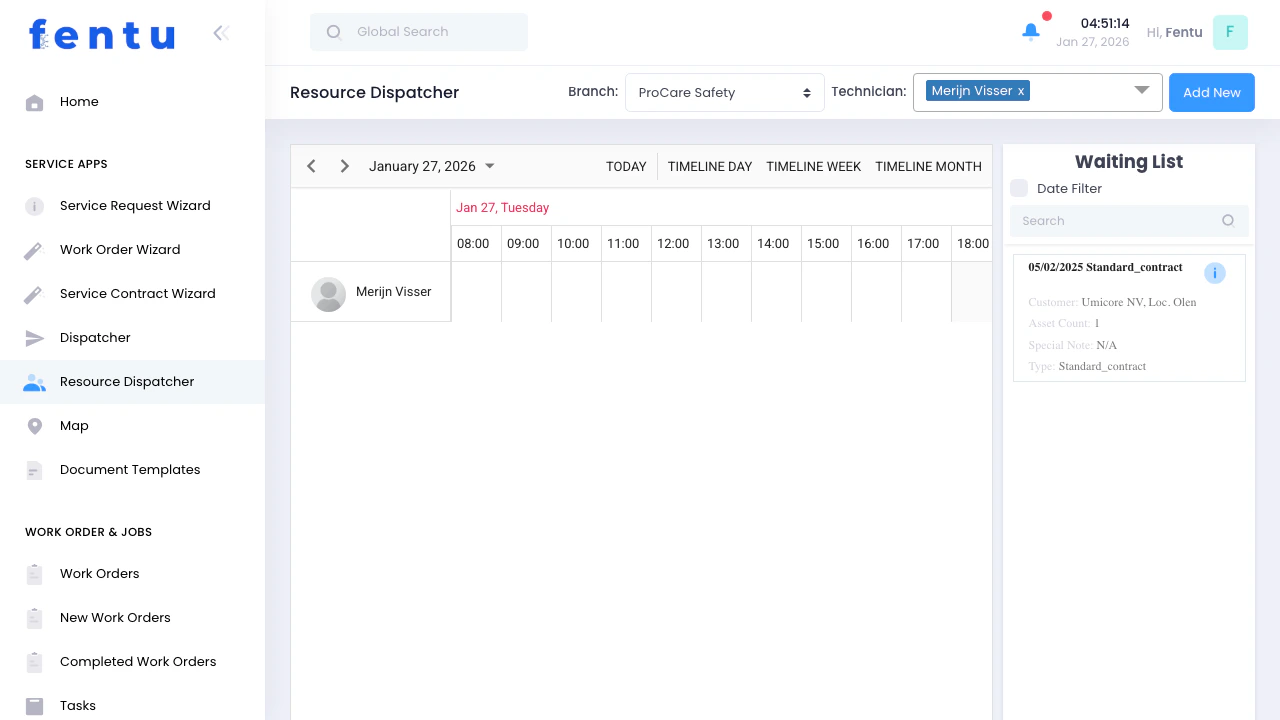 The Resource Dispatcher consists of three main areas:
1. **Calendar Timeline** (Left) - Visual schedule showing technicians as rows with their assigned tasks
2. **Waiting List** (Right) - Panel showing unassigned tasks waiting to be assigned to technicians
3. **Control Bar** (Top) - Filters, view options, and tools
***
## Calendar Timeline
The calendar displays each technician as a horizontal row with time slots:
### Timeline Structure
| Element | Description |
| ------------------- | ------------------------------------------------------------- |
| **Technician Rows** | Each row represents one technician with their photo and name |
| **Time Slots** | Hourly (Day), daily (Week), or monthly (Month) time divisions |
| **Task Blocks** | Colored blocks showing assigned tasks with duration |
| **Empty Slots** | Available time where new tasks can be assigned |
### Task Block Information
Each task block shows:
* **Task name** or work order description
* **Time span** (start to end time)
* **Color coding** by work order type (Installation, Maintenance, etc.)
Hover over task blocks to see full details. Click to edit task information, resources, or timing.
***
## Timeline Views
Switch between three view modes to match your planning needs:
### Timeline Day
Shows a single day with hourly time slots:
* **Best for**: Detailed daily scheduling and hour-by-hour planning
* **Time scale**: 24-hour view from midnight to midnight
* **Use when**: Managing today's assignments or planning tomorrow's schedule
### Timeline Week
Shows a full week with daily columns:
* **Best for**: Weekly planning and workload balancing
* **Time scale**: 7 days with hourly or daily divisions
* **Use when**: Planning the work week ahead or reviewing weekly capacity
### Timeline Month
Shows an entire month:
* **Best for**: Long-term planning and capacity overview
* **Time scale**: Full month with daily blocks
* **Use when**: Planning upcoming work or identifying busy/slow periods
Switch views using the **"Timeline Day"**, **"Timeline Week"**, and **"Timeline Month"** buttons in the control bar.
***
## Waiting List
The right panel shows tasks that haven't been assigned to technicians yet:
### Task List Display
Each unassigned task shows:
| Information | Description |
| ----------------- | ---------------------------------- |
| **Task Name** | Description of the work to be done |
| **Work Order ID** | Associated work order identifier |
| **Customer** | Customer name for the task |
| **Date** | Scheduled or planned date |
| **Duration** | Estimated time to complete |
### Assigning Tasks
To assign an unassigned task to a technician:
Locate the task in the Waiting List
Click and drag the task to a technician's row
Release the task in the desired time slot
Resize or move the task block to fine-tune the schedule
**Drag-and-drop is the primary way to assign tasks.** Make sure to drop tasks in time slots where the technician is available to avoid conflicts.
***
## Branch Filter
The **Branch** dropdown filters technicians and tasks by location:
| Option | Description |
| ------------------- | ---------------------------------------------- |
| **All** | Shows all technicians across all branches |
| **Specific Branch** | Shows only technicians assigned to that branch |
Use branch filtering to focus on regional operations and ensure you're scheduling the right technicians for the right locations.
***
## Date Navigation
Control which date range is displayed:
### Navigation Controls
| Control | Function |
| ---------------- | -------------------------------------------------- |
| **Previous** | Move back one day/week/month (depending on view) |
| **Next** | Move forward one day/week/month |
| **January 2026** | Date selector - click to jump to any specific date |
| **Today** | Quickly return to today's date |
### Date Filter Checkbox
Enable **"Date Filter"** to filter unassigned tasks by date range:
* When **checked**: Only shows unassigned tasks within the currently displayed date range
* When **unchecked**: Shows all unassigned tasks regardless of date
The date filter helps focus on tasks relevant to the time period you're scheduling, reducing clutter in the unassigned tasks list.
***
## Search and Tools
### Search Box
Filter unassigned tasks by typing:
* Customer name
* Work order ID
* Task description
* Location
Use search to quickly find specific unassigned tasks when you have a long list.
### Excel Export
Export the current schedule to Excel:
* Click **"Excel Export"** button
* Generates spreadsheet with technician assignments
* Includes task details, times, and resource information
* Useful for reporting or printing schedules
### Column Chooser
Customize which columns appear in the Waiting List:
* Click **"Columns"** button
* Check/uncheck columns to show/hide
* Drag columns to reorder
### Row Height Controls
Adjust the density of the technician rows:
| Height | Description |
| ---------- | ---------------------------------------------- |
| **Big** | Large rows with more spacing - easiest to read |
| **Medium** | Standard row height - balanced view |
| **Small** | Compact rows - fit more technicians on screen |
***
## Managing Tasks
### Editing Task Details
Click on any task block to open the task editor:
**From** and **To** fields let you adjust start and end times. Drag the time pickers to schedule exact work hours.
For Installation or Delivery work orders, add products that will be installed or delivered. Search and select from your product catalog.
For Maintenance or Repair work orders, add customer service objects. Select equipment from the customer's list.
Attach checklists that technicians must complete during the task. Ensures standard procedures are followed.
Add multiple technicians to a task if it requires a team. The task appears on all assigned technicians' calendars.
Specify tools needed for the job. Helps with resource planning and ensures technicians bring the right equipment.
Assign company vehicles if needed (service vans, trucks). Prevents double-booking of vehicles.
### Drag-and-Drop Actions
Tasks can be moved and adjusted visually:
| Action | How to Do It |
| ------------------------ | --------------------------------------------------- |
| **Assign to Technician** | Drag from Waiting List to a technician row |
| **Reschedule** | Drag task block left/right to different time slot |
| **Reassign** | Drag task block to a different technician row |
| **Adjust Duration** | Drag the left or right edge of task block to resize |
| **Unassign** | Drag task from technician row back to Waiting List |
When dragging tasks, watch for **conflicts** (overlapping task blocks). The system may highlight conflicts or prevent overlapping assignments.
***
## Adding New Tasks
Create new tasks directly from the Resource Dispatcher:
The **"Add New"** button opens the task creation modal
Choose which work order this task belongs to
Provide task name, description, and estimated duration
Optionally assign to a technician immediately, or leave in Waiting List for later
***
## Technician Availability
### Visual Indicators
The Resource Dispatcher helps identify availability:
White/blank areas indicate technician availability - perfect for scheduling new work
Colored blocks show scheduled work - avoid overlapping unless technician can multi-task
Rows completely filled indicate fully booked technicians - consider other resources
Small gaps may indicate travel time or breaks - be mindful when filling these slots
### Capacity Planning
Use the Resource Dispatcher to:
* **Identify overloaded technicians** - too many consecutive tasks without breaks
* **Find underutilized resources** - technicians with large gaps in their schedule
* **Balance workload** - move tasks from busy technicians to available ones
* **Plan for absences** - see who's available when others are off or unavailable
Switch to **Timeline Week** or **Timeline Month** view to spot capacity issues before they become problems.
***
## Workflow: Typical Resource Dispatcher Use
Here's how dispatchers typically use the Resource Dispatcher:
Open Resource Dispatcher and check Timeline Day or Week view to see who's scheduled
Review the Waiting List panel for work waiting to be scheduled
Look for empty time slots in technician rows
Consider which technicians have the right skills for each unassigned task
Drag tasks from Waiting List to appropriate technician time slots
Adjust task start/end times by resizing or moving blocks
Click tasks to add products, service object, tools, and other requirements
Scan for overlapping tasks or impossible schedules
Move tasks between technicians to prevent overload
Use Excel Export to share schedules with field supervisors or technicians
***
## Tips and Best Practices
The week view is perfect for planning several days in advance. You can see patterns, identify busy days, and balance work across the week.
Task blocks are color-coded by work order type. Learn the colors to quickly identify installation, maintenance, and repair work.
Leave buffers between tasks for travel time, unexpected delays, or emergencies. A fully packed schedule has no flexibility for urgent work.
If you manage multiple locations, always select the correct branch before scheduling. This ensures you're assigning local technicians.
When an urgent task comes in, use the search box to quickly find it in the Waiting List and assign it immediately.
Not all technicians can do all work. Consider certifications, experience, and specializations when assigning tasks.
Generate Excel exports at the start of each day and share with field supervisors. They can print or reference schedules offline.
Make it a habit to clear the Waiting List daily. Tasks left unassigned too long may miss their deadline.
***
## Common Questions
The system may prevent overlapping assignments or allow it depending on configuration. If overlap is allowed, both tasks show on the technician's calendar - but this typically means they're overbooked and adjustments are needed.
Yes! Open the task editor and add multiple technicians in the **Technicians** section. The task appears on all assigned technicians' calendars, showing it's a team effort.
Click on the task block in the calendar. The task editor shows all assigned resources, including tools, vehicles, products, assets, and checklists.
**Dispatcher** focuses on work orders and task groups - organizing work by job. **Resource Dispatcher** focuses on people - showing technician availability and making it easy to balance workload.
Currently, the Resource Dispatcher shows all technicians for the selected branch. Use the row height controls to make the view more compact if you have many technicians.
If you have **Date Filter** enabled, only tasks within the displayed date range appear. Uncheck Date Filter to see all unassigned tasks regardless of date.
Yes, if you provide them access to the Resource Dispatcher. Alternatively, use the Excel Export feature to generate and share individual schedules.
The task becomes unassigned again - removed from the technician's calendar and returned to the Waiting List. Useful if you need to reassign work.
***
## Related Documentation
Work order-focused scheduling and task group management
Manage your technician roster, skills, and availability
Create work orders that generate tasks for scheduling
Understand task lifecycle and management
The Resource Dispatcher consists of three main areas:
1. **Calendar Timeline** (Left) - Visual schedule showing technicians as rows with their assigned tasks
2. **Waiting List** (Right) - Panel showing unassigned tasks waiting to be assigned to technicians
3. **Control Bar** (Top) - Filters, view options, and tools
***
## Calendar Timeline
The calendar displays each technician as a horizontal row with time slots:
### Timeline Structure
| Element | Description |
| ------------------- | ------------------------------------------------------------- |
| **Technician Rows** | Each row represents one technician with their photo and name |
| **Time Slots** | Hourly (Day), daily (Week), or monthly (Month) time divisions |
| **Task Blocks** | Colored blocks showing assigned tasks with duration |
| **Empty Slots** | Available time where new tasks can be assigned |
### Task Block Information
Each task block shows:
* **Task name** or work order description
* **Time span** (start to end time)
* **Color coding** by work order type (Installation, Maintenance, etc.)
Hover over task blocks to see full details. Click to edit task information, resources, or timing.
***
## Timeline Views
Switch between three view modes to match your planning needs:
### Timeline Day
Shows a single day with hourly time slots:
* **Best for**: Detailed daily scheduling and hour-by-hour planning
* **Time scale**: 24-hour view from midnight to midnight
* **Use when**: Managing today's assignments or planning tomorrow's schedule
### Timeline Week
Shows a full week with daily columns:
* **Best for**: Weekly planning and workload balancing
* **Time scale**: 7 days with hourly or daily divisions
* **Use when**: Planning the work week ahead or reviewing weekly capacity
### Timeline Month
Shows an entire month:
* **Best for**: Long-term planning and capacity overview
* **Time scale**: Full month with daily blocks
* **Use when**: Planning upcoming work or identifying busy/slow periods
Switch views using the **"Timeline Day"**, **"Timeline Week"**, and **"Timeline Month"** buttons in the control bar.
***
## Waiting List
The right panel shows tasks that haven't been assigned to technicians yet:
### Task List Display
Each unassigned task shows:
| Information | Description |
| ----------------- | ---------------------------------- |
| **Task Name** | Description of the work to be done |
| **Work Order ID** | Associated work order identifier |
| **Customer** | Customer name for the task |
| **Date** | Scheduled or planned date |
| **Duration** | Estimated time to complete |
### Assigning Tasks
To assign an unassigned task to a technician:
Locate the task in the Waiting List
Click and drag the task to a technician's row
Release the task in the desired time slot
Resize or move the task block to fine-tune the schedule
**Drag-and-drop is the primary way to assign tasks.** Make sure to drop tasks in time slots where the technician is available to avoid conflicts.
***
## Branch Filter
The **Branch** dropdown filters technicians and tasks by location:
| Option | Description |
| ------------------- | ---------------------------------------------- |
| **All** | Shows all technicians across all branches |
| **Specific Branch** | Shows only technicians assigned to that branch |
Use branch filtering to focus on regional operations and ensure you're scheduling the right technicians for the right locations.
***
## Date Navigation
Control which date range is displayed:
### Navigation Controls
| Control | Function |
| ---------------- | -------------------------------------------------- |
| **Previous** | Move back one day/week/month (depending on view) |
| **Next** | Move forward one day/week/month |
| **January 2026** | Date selector - click to jump to any specific date |
| **Today** | Quickly return to today's date |
### Date Filter Checkbox
Enable **"Date Filter"** to filter unassigned tasks by date range:
* When **checked**: Only shows unassigned tasks within the currently displayed date range
* When **unchecked**: Shows all unassigned tasks regardless of date
The date filter helps focus on tasks relevant to the time period you're scheduling, reducing clutter in the unassigned tasks list.
***
## Search and Tools
### Search Box
Filter unassigned tasks by typing:
* Customer name
* Work order ID
* Task description
* Location
Use search to quickly find specific unassigned tasks when you have a long list.
### Excel Export
Export the current schedule to Excel:
* Click **"Excel Export"** button
* Generates spreadsheet with technician assignments
* Includes task details, times, and resource information
* Useful for reporting or printing schedules
### Column Chooser
Customize which columns appear in the Waiting List:
* Click **"Columns"** button
* Check/uncheck columns to show/hide
* Drag columns to reorder
### Row Height Controls
Adjust the density of the technician rows:
| Height | Description |
| ---------- | ---------------------------------------------- |
| **Big** | Large rows with more spacing - easiest to read |
| **Medium** | Standard row height - balanced view |
| **Small** | Compact rows - fit more technicians on screen |
***
## Managing Tasks
### Editing Task Details
Click on any task block to open the task editor:
**From** and **To** fields let you adjust start and end times. Drag the time pickers to schedule exact work hours.
For Installation or Delivery work orders, add products that will be installed or delivered. Search and select from your product catalog.
For Maintenance or Repair work orders, add customer service objects. Select equipment from the customer's list.
Attach checklists that technicians must complete during the task. Ensures standard procedures are followed.
Add multiple technicians to a task if it requires a team. The task appears on all assigned technicians' calendars.
Specify tools needed for the job. Helps with resource planning and ensures technicians bring the right equipment.
Assign company vehicles if needed (service vans, trucks). Prevents double-booking of vehicles.
### Drag-and-Drop Actions
Tasks can be moved and adjusted visually:
| Action | How to Do It |
| ------------------------ | --------------------------------------------------- |
| **Assign to Technician** | Drag from Waiting List to a technician row |
| **Reschedule** | Drag task block left/right to different time slot |
| **Reassign** | Drag task block to a different technician row |
| **Adjust Duration** | Drag the left or right edge of task block to resize |
| **Unassign** | Drag task from technician row back to Waiting List |
When dragging tasks, watch for **conflicts** (overlapping task blocks). The system may highlight conflicts or prevent overlapping assignments.
***
## Adding New Tasks
Create new tasks directly from the Resource Dispatcher:
The **"Add New"** button opens the task creation modal
Choose which work order this task belongs to
Provide task name, description, and estimated duration
Optionally assign to a technician immediately, or leave in Waiting List for later
***
## Technician Availability
### Visual Indicators
The Resource Dispatcher helps identify availability:
White/blank areas indicate technician availability - perfect for scheduling new work
Colored blocks show scheduled work - avoid overlapping unless technician can multi-task
Rows completely filled indicate fully booked technicians - consider other resources
Small gaps may indicate travel time or breaks - be mindful when filling these slots
### Capacity Planning
Use the Resource Dispatcher to:
* **Identify overloaded technicians** - too many consecutive tasks without breaks
* **Find underutilized resources** - technicians with large gaps in their schedule
* **Balance workload** - move tasks from busy technicians to available ones
* **Plan for absences** - see who's available when others are off or unavailable
Switch to **Timeline Week** or **Timeline Month** view to spot capacity issues before they become problems.
***
## Workflow: Typical Resource Dispatcher Use
Here's how dispatchers typically use the Resource Dispatcher:
Open Resource Dispatcher and check Timeline Day or Week view to see who's scheduled
Review the Waiting List panel for work waiting to be scheduled
Look for empty time slots in technician rows
Consider which technicians have the right skills for each unassigned task
Drag tasks from Waiting List to appropriate technician time slots
Adjust task start/end times by resizing or moving blocks
Click tasks to add products, service object, tools, and other requirements
Scan for overlapping tasks or impossible schedules
Move tasks between technicians to prevent overload
Use Excel Export to share schedules with field supervisors or technicians
***
## Tips and Best Practices
The week view is perfect for planning several days in advance. You can see patterns, identify busy days, and balance work across the week.
Task blocks are color-coded by work order type. Learn the colors to quickly identify installation, maintenance, and repair work.
Leave buffers between tasks for travel time, unexpected delays, or emergencies. A fully packed schedule has no flexibility for urgent work.
If you manage multiple locations, always select the correct branch before scheduling. This ensures you're assigning local technicians.
When an urgent task comes in, use the search box to quickly find it in the Waiting List and assign it immediately.
Not all technicians can do all work. Consider certifications, experience, and specializations when assigning tasks.
Generate Excel exports at the start of each day and share with field supervisors. They can print or reference schedules offline.
Make it a habit to clear the Waiting List daily. Tasks left unassigned too long may miss their deadline.
***
## Common Questions
The system may prevent overlapping assignments or allow it depending on configuration. If overlap is allowed, both tasks show on the technician's calendar - but this typically means they're overbooked and adjustments are needed.
Yes! Open the task editor and add multiple technicians in the **Technicians** section. The task appears on all assigned technicians' calendars, showing it's a team effort.
Click on the task block in the calendar. The task editor shows all assigned resources, including tools, vehicles, products, assets, and checklists.
**Dispatcher** focuses on work orders and task groups - organizing work by job. **Resource Dispatcher** focuses on people - showing technician availability and making it easy to balance workload.
Currently, the Resource Dispatcher shows all technicians for the selected branch. Use the row height controls to make the view more compact if you have many technicians.
If you have **Date Filter** enabled, only tasks within the displayed date range appear. Uncheck Date Filter to see all unassigned tasks regardless of date.
Yes, if you provide them access to the Resource Dispatcher. Alternatively, use the Excel Export feature to generate and share individual schedules.
The task becomes unassigned again - removed from the technician's calendar and returned to the Waiting List. Useful if you need to reassign work.
***
## Related Documentation
Work order-focused scheduling and task group management
Manage your technician roster, skills, and availability
Create work orders that generate tasks for scheduling
Understand task lifecycle and management