> ## Documentation Index
> Fetch the complete documentation index at: https://docs.fentufsm.com/llms.txt
> Use this file to discover all available pages before exploring further.
# Service Contract Wizard
> Create service contracts and automate scheduled maintenance
## Overview
The Service Contract Wizard helps you create service agreements with customers that automatically generate scheduled maintenance work orders. This wizard guides you through a 3-step process to set up recurring service, define covered Service Objects, and automatically create maintenance schedules.
Service Contracts are the foundation of **recurring revenue** and **preventive maintenance** in your FSM operation. They automatically generate work order drafts based on your specified service interval.
***
## When to Use the Service Contract Wizard
Use this wizard when:
* Signing a new maintenance agreement with a customer
* Setting up recurring preventive maintenance schedules
* Creating annual service agreements for equipment
* Establishing ongoing service relationships with regular visits
* Automating maintenance work order creation
***
## The 3-Step Process
Set up contract information, customer, dates, and service interval
Select covered Service Objects, assign resources, and add contract documents
Automatically create scheduled maintenance work orders for the contract period
***
## Step 1: Contract Details
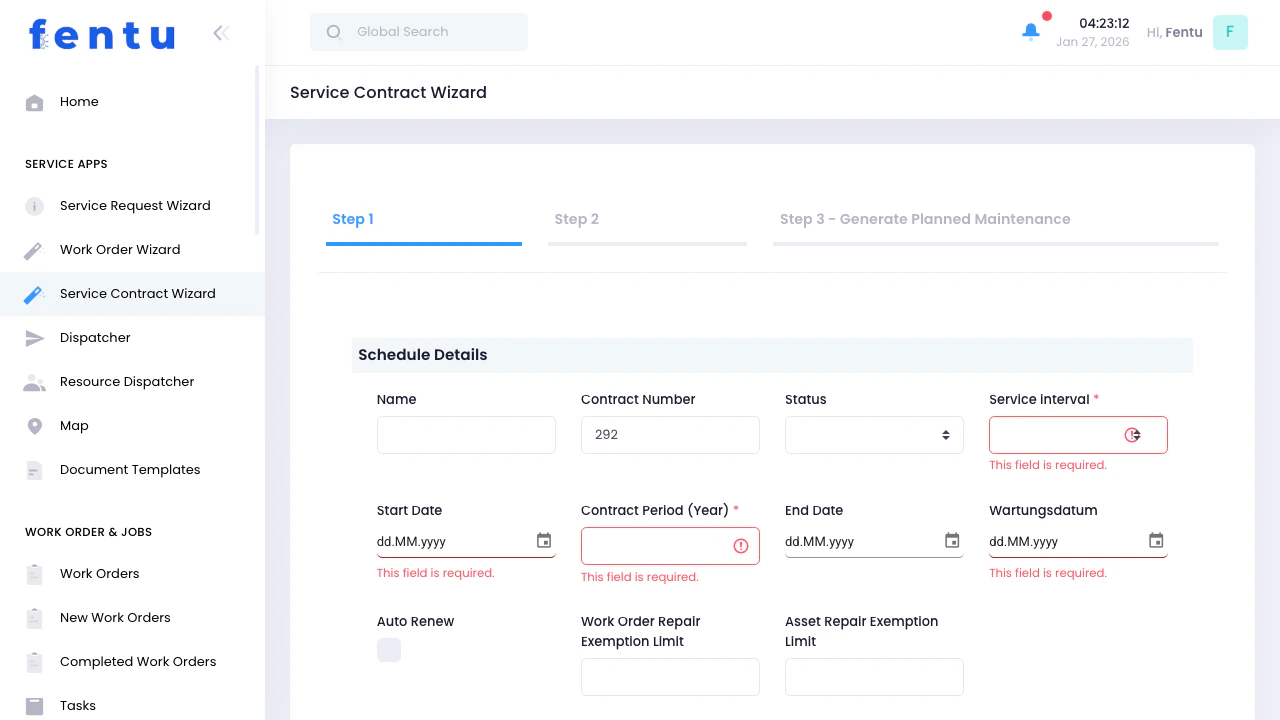 Set up the fundamental contract information and scheduling parameters:
### Contract Information
| Field | Description |
| -------------------- | -------------------------------------------------------------------------------------- |
| **Contract Number** | Unique identifier for this service contract. Auto-generated but can be customized. |
| **Contract Name** | Descriptive name for the contract (e.g., "Annual Machine Maintenance - Building A") |
| **Status** | Contract status: **Active** or **Inactive** |
| **Service Interval** | How often service visits occur: Weekly, Monthly, Quarterly, Semi-Annually, or Annually |
The **Service Interval** determines how often maintenance work orders are automatically generated.
***
### Contract Period
| Field | Description |
| --------------------------- | ---------------------------------- |
| **Contract Period (Years)** | Duration of the contract |
| **Start Date** | When the contract becomes active |
| **End Date** | Automatically calculated |
| **Activation Date** | When maintenance generation begins |
***
### Customer & Location
| Field | Description |
| ------------ | ----------------------- |
| **Customer** | Select the customer |
| **Building** | Select service location |
| **Contact** | Primary service contact |
The selected **Building** defines the service location for all generated maintenance.
***
## Step 2: Service Objects & Resources
Set up the fundamental contract information and scheduling parameters:
### Contract Information
| Field | Description |
| -------------------- | -------------------------------------------------------------------------------------- |
| **Contract Number** | Unique identifier for this service contract. Auto-generated but can be customized. |
| **Contract Name** | Descriptive name for the contract (e.g., "Annual Machine Maintenance - Building A") |
| **Status** | Contract status: **Active** or **Inactive** |
| **Service Interval** | How often service visits occur: Weekly, Monthly, Quarterly, Semi-Annually, or Annually |
The **Service Interval** determines how often maintenance work orders are automatically generated.
***
### Contract Period
| Field | Description |
| --------------------------- | ---------------------------------- |
| **Contract Period (Years)** | Duration of the contract |
| **Start Date** | When the contract becomes active |
| **End Date** | Automatically calculated |
| **Activation Date** | When maintenance generation begins |
***
### Customer & Location
| Field | Description |
| ------------ | ----------------------- |
| **Customer** | Select the customer |
| **Building** | Select service location |
| **Contact** | Primary service contact |
The selected **Building** defines the service location for all generated maintenance.
***
## Step 2: Service Objects & Resources
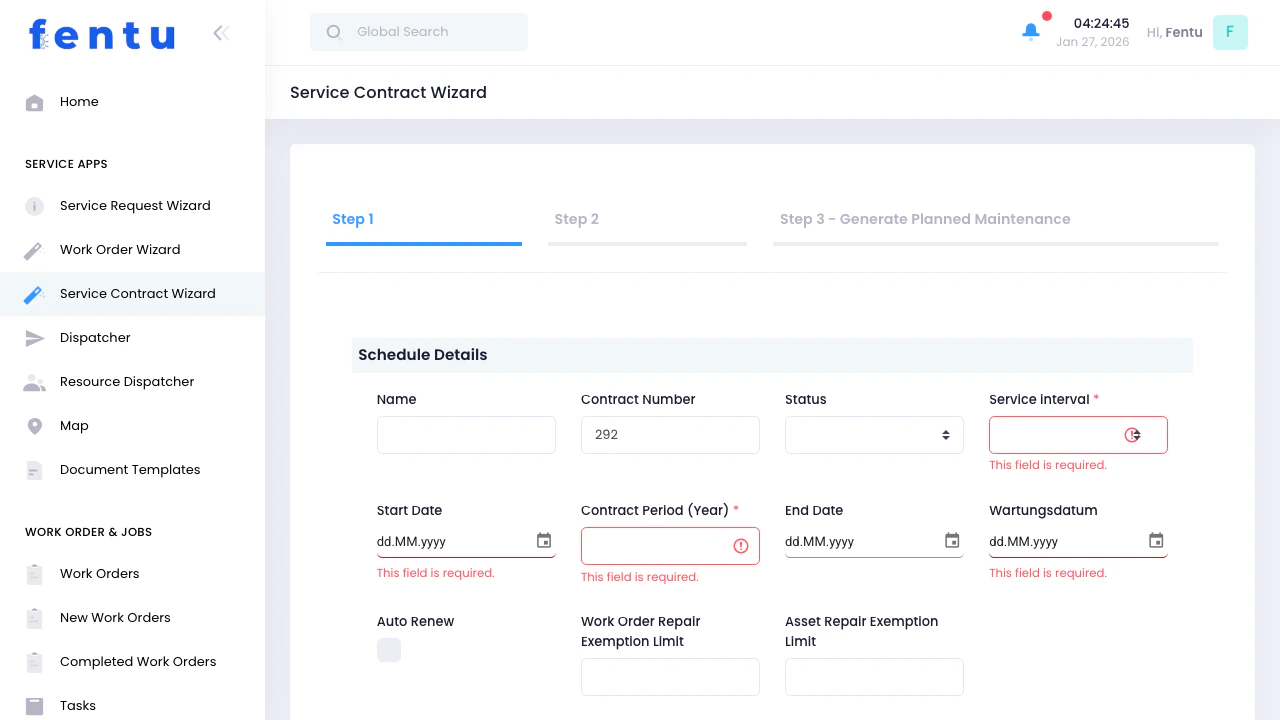 Define what **Service Objects** are covered and what resources are needed.
***
### Covered Service Objects
Opens a modal to select from the customer’s installed equipment
Find Service Objects by ID, serial number, or name
Multiple Service Objects can be included in one contract
Selected Service Objects are added to the contract scope
All selected Service Objects are automatically included in scheduled maintenance work orders.
***
### Resources & Teams
| Field | Description |
| --------------------------- | --------------------------------------------- |
| **Resources (Technicians)** | Assign technicians for all maintenance visits |
| **Teams** | Assign full service teams |
***
### Equipment & Materials
Tools required for servicing the selected Service Objects.
Service vehicles assigned for maintenance visits.
Standard parts typically used for maintenance of Service Objects.
***
## Step 3: Generate Planned Maintenance
Define what **Service Objects** are covered and what resources are needed.
***
### Covered Service Objects
Opens a modal to select from the customer’s installed equipment
Find Service Objects by ID, serial number, or name
Multiple Service Objects can be included in one contract
Selected Service Objects are added to the contract scope
All selected Service Objects are automatically included in scheduled maintenance work orders.
***
### Resources & Teams
| Field | Description |
| --------------------------- | --------------------------------------------- |
| **Resources (Technicians)** | Assign technicians for all maintenance visits |
| **Teams** | Assign full service teams |
***
### Equipment & Materials
Tools required for servicing the selected Service Objects.
Service vehicles assigned for maintenance visits.
Standard parts typically used for maintenance of Service Objects.
***
## Step 3: Generate Planned Maintenance
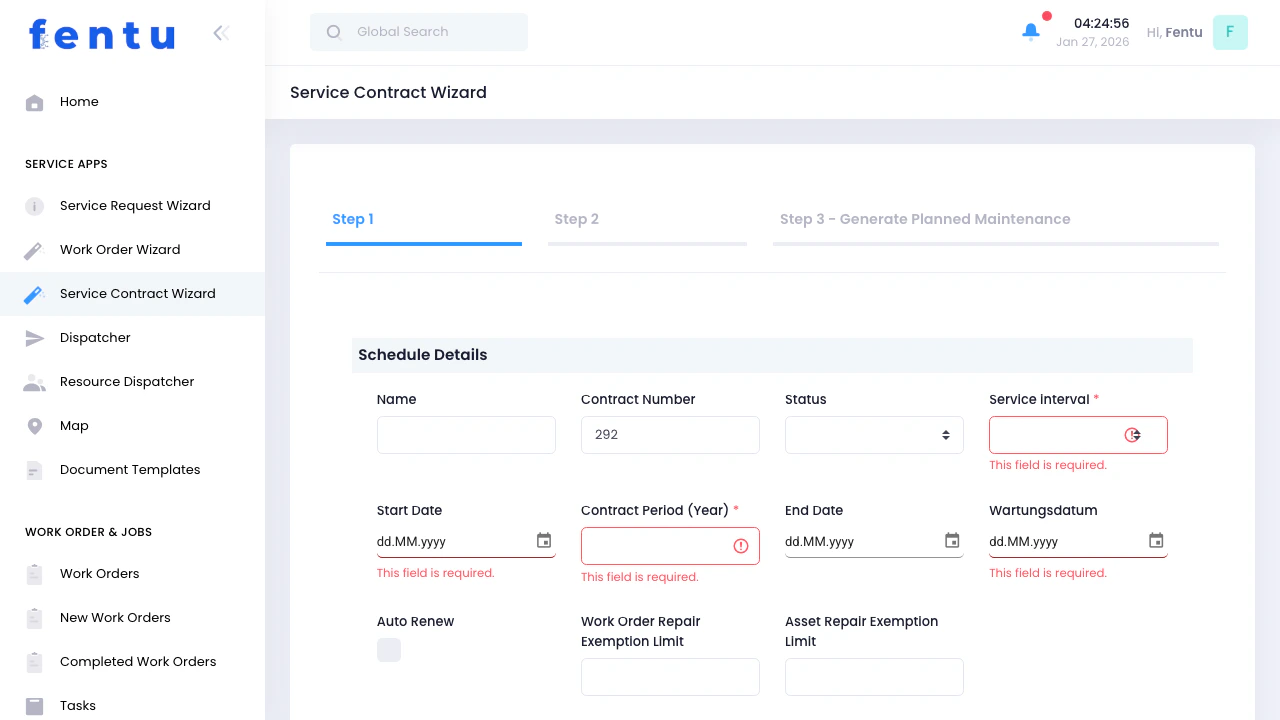 Automatically generate scheduled maintenance work orders.
***
### What Happens
The system:
Reads contract period, interval, and Service Objects
Calculates all maintenance occurrences
Creates planned maintenance records
Each draft includes assigned Service Objects
***
### Example Schedule
4 maintenance drafts generated
12 maintenance drafts generated
4 maintenance drafts generated
3 maintenance drafts generated
***
## What Each Draft Contains
Automatically inherited from the contract
All selected Service Objects are included
Assigned technicians and teams
Calculated maintenance dates
Links back to the Service Contract
***
Work Order Drafts are planned maintenance records. They must be converted into active Work Orders before execution.
***
## After Creating the Contract
Service Contract is created
Planned maintenance drafts are created
Contract becomes active
***
## Summary
Service Contracts automate preventive maintenance based on:
* Customer
* Service Objects
* Service Interval
* Assigned resources
They generate scheduled Work Order drafts that ensure consistent, recurring service delivery.
Automatically generate scheduled maintenance work orders.
***
### What Happens
The system:
Reads contract period, interval, and Service Objects
Calculates all maintenance occurrences
Creates planned maintenance records
Each draft includes assigned Service Objects
***
### Example Schedule
4 maintenance drafts generated
12 maintenance drafts generated
4 maintenance drafts generated
3 maintenance drafts generated
***
## What Each Draft Contains
Automatically inherited from the contract
All selected Service Objects are included
Assigned technicians and teams
Calculated maintenance dates
Links back to the Service Contract
***
Work Order Drafts are planned maintenance records. They must be converted into active Work Orders before execution.
***
## After Creating the Contract
Service Contract is created
Planned maintenance drafts are created
Contract becomes active
***
## Summary
Service Contracts automate preventive maintenance based on:
* Customer
* Service Objects
* Service Interval
* Assigned resources
They generate scheduled Work Order drafts that ensure consistent, recurring service delivery.