> ## Documentation Index
> Fetch the complete documentation index at: https://docs.fentufsm.com/llms.txt
> Use this file to discover all available pages before exploring further.
# Work Order Wizard
> Create work orders directly or convert Requests and Quotes into execution-ready field service jobs
## Overview
The Work Order Wizard is used to create execution-ready Work Orders or convert existing Requests or Quotes into Work Orders.
It combines service intake context, optional commercial reference, and full execution setup in a single guided process.
Unlike the Request Wizard, a Work Order created here is immediately ready for dispatch and field execution.
***
## When to Use the Work Order Wizard
Use this wizard when:
* A Request has been qualified and is ready for execution
* A Quote has been approved and work can begin
* You want to create a Work Order directly without a Request step
* Emergency or urgent work must be dispatched immediately
* Scheduled or contract-based maintenance must be executed
* A Request needs to be converted into operational work
***
```mdx theme={null}
## Structure
Work Order
└── Work Order Task
├── Service Object #1
│ ├── Exchange Part / Equipment / Device
│ ├── Checklist
│ ├── Time
│ └── Time & Material
│
├── Service Object #2
│ ├── Exchange Part / Equipment / Device
│ ├── Checklist
│ ├── Time
│ └── Time & Material
│
├── Material Request
└── Service Appointment
```
## Execution
Information already filled on the Service Request or Quote will be auto filled on the Work Order Wizard.
### Step 1: Customer Information
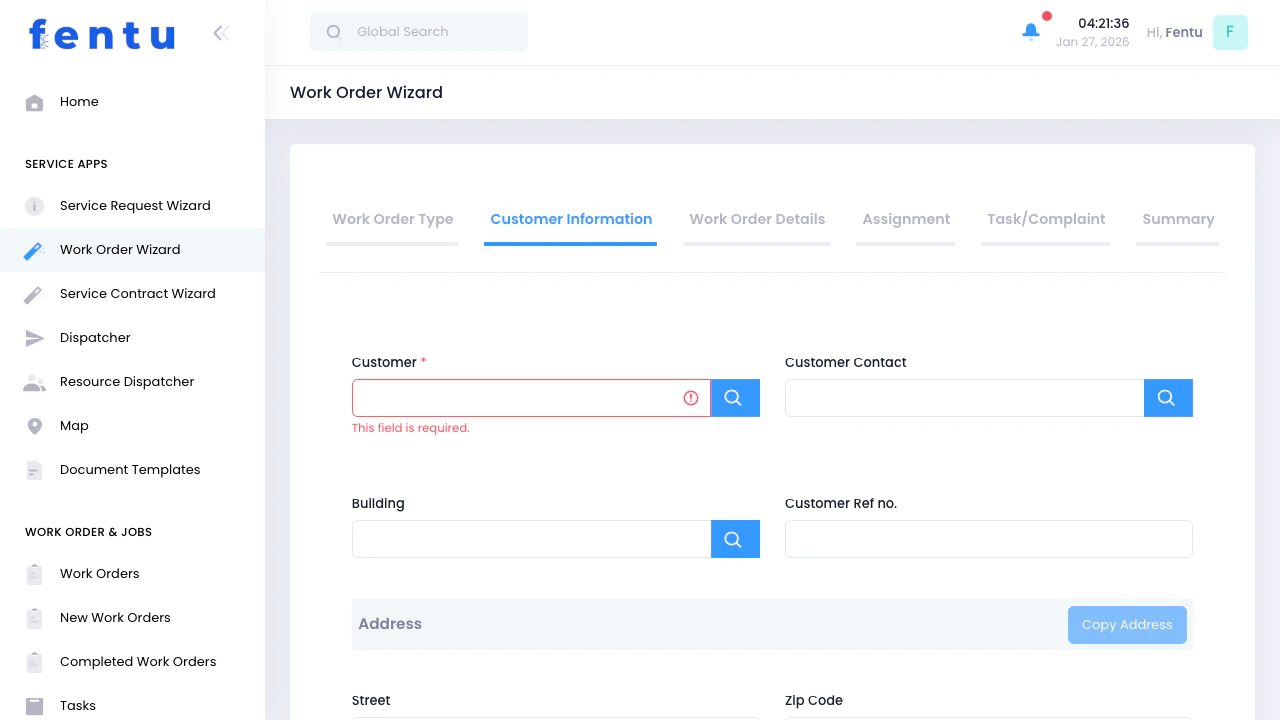 Enter or select customer and location information:
### Customer Information
| Field | Description |
| ------------ | ---------------------------------------------------------- |
| **Customer** | Search and select the customer for this work order |
| **Contact** | Select the primary contact person at the customer location |
| **Location** | Choose the specific location where work will be performed |
### Address Information
The system auto-populates address fields based on the selected building:
* **Street address** - Physical location of the work site
* **City** - City or municipality
* **State/Province** - State or provincial information
* **ZIP/Postal code** - Postal code for the location
### Branch Assignment
| Field | Description |
| ---------- | -------------------------------------------------------------------------------------------------------------------- |
| **Branch** | Select which company branch is responsible for this work order. This determines resource availability and reporting. |
The branch is typically pre-selected based on your user account, but can be changed if you manage multiple branches.
### Copy Address Feature
Click **"Copy Address"** to duplicate the building address to other address fields if needed for delivery or billing purposes.
***
## Step 2: Work Order Details
Enter or select customer and location information:
### Customer Information
| Field | Description |
| ------------ | ---------------------------------------------------------- |
| **Customer** | Search and select the customer for this work order |
| **Contact** | Select the primary contact person at the customer location |
| **Location** | Choose the specific location where work will be performed |
### Address Information
The system auto-populates address fields based on the selected building:
* **Street address** - Physical location of the work site
* **City** - City or municipality
* **State/Province** - State or provincial information
* **ZIP/Postal code** - Postal code for the location
### Branch Assignment
| Field | Description |
| ---------- | -------------------------------------------------------------------------------------------------------------------- |
| **Branch** | Select which company branch is responsible for this work order. This determines resource availability and reporting. |
The branch is typically pre-selected based on your user account, but can be changed if you manage multiple branches.
### Copy Address Feature
Click **"Copy Address"** to duplicate the building address to other address fields if needed for delivery or billing purposes.
***
## Step 2: Work Order Details
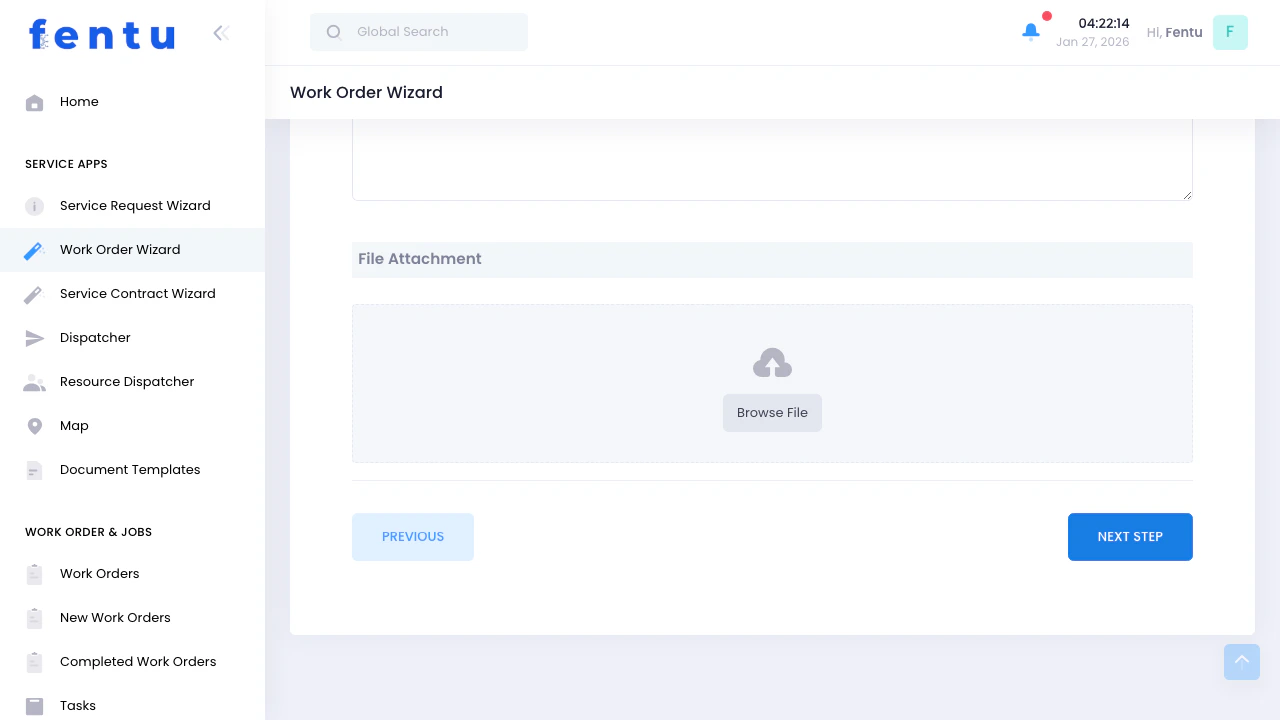 Add detailed work order information, scheduling, and asset assignment:
### Work Order Information
| Field | Description |
| ----------------------- | ---------------------------------------------------------------------------------- |
| **Work Order Name** | A descriptive name for quick identification |
| **Description** | Detailed description of the work to be performed |
| **Priority** | Set priority level: **High** (urgent), **Medium** (standard), or **Low** (routine) |
| **Special Information** | Any special notes, customer requirements, or important instructions |
### Scheduling
| Field | Description |
| -------------------- | ----------------------------------------------------------- |
| **Planned Date** | When the work should start |
| **Planned End Date** | Expected completion date/time |
| **Is Fixed Date** | Check if this date cannot be changed (customer requirement) |
| **Is Fixed Price** | Check if this is a fixed-price work order (from quotation) |
Setting **"Is Fixed Date"** prevents schedulers from changing the appointment without customer approval.
### Assets Selection
This is where you select which equipment or assets will be serviced:
Opens a modal to search and select service object
Find specific equipment from the customer's service object list
You can select multiple servcie objects for the same work order
See history, last service date, and maintenance requirements
### Additional Options
Add products if this is an installation or delivery work order. Products are different from assets - they represent new equipment to be installed or delivered.
Attach documents, photos, schematics, customer emails, or any relevant files. These will be available to technicians in the field.
Link this work order to an existing service contract if applicable. This will apply contract terms, pricing, and SLAs.
***
## Step 3: Assignment
Add detailed work order information, scheduling, and asset assignment:
### Work Order Information
| Field | Description |
| ----------------------- | ---------------------------------------------------------------------------------- |
| **Work Order Name** | A descriptive name for quick identification |
| **Description** | Detailed description of the work to be performed |
| **Priority** | Set priority level: **High** (urgent), **Medium** (standard), or **Low** (routine) |
| **Special Information** | Any special notes, customer requirements, or important instructions |
### Scheduling
| Field | Description |
| -------------------- | ----------------------------------------------------------- |
| **Planned Date** | When the work should start |
| **Planned End Date** | Expected completion date/time |
| **Is Fixed Date** | Check if this date cannot be changed (customer requirement) |
| **Is Fixed Price** | Check if this is a fixed-price work order (from quotation) |
Setting **"Is Fixed Date"** prevents schedulers from changing the appointment without customer approval.
### Assets Selection
This is where you select which equipment or assets will be serviced:
Opens a modal to search and select service object
Find specific equipment from the customer's service object list
You can select multiple servcie objects for the same work order
See history, last service date, and maintenance requirements
### Additional Options
Add products if this is an installation or delivery work order. Products are different from assets - they represent new equipment to be installed or delivered.
Attach documents, photos, schematics, customer emails, or any relevant files. These will be available to technicians in the field.
Link this work order to an existing service contract if applicable. This will apply contract terms, pricing, and SLAs.
***
## Step 3: Assignment
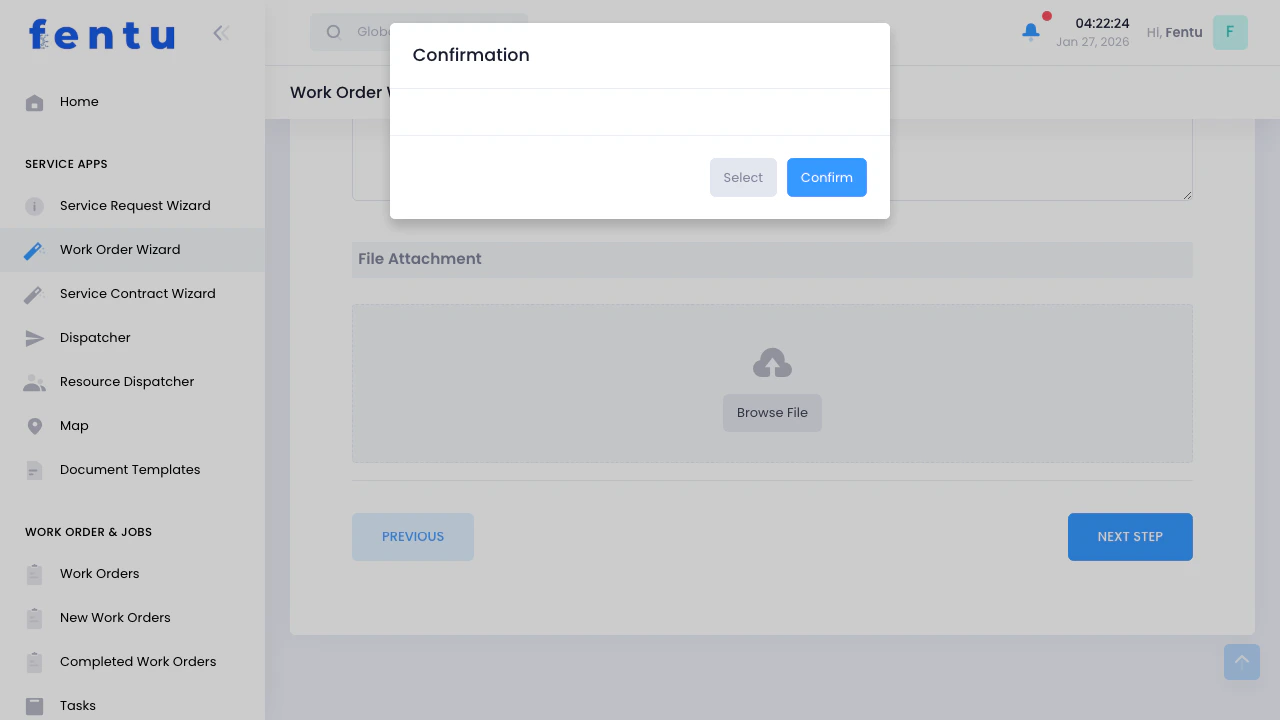 Assign resources, vehicles, and tool needed for this work order:
The system can suggest resources based on:
* Required skills for the assets being serviced
* Technician availability on the planned date
* Geographic proximity to the work location
* Previous work history with this customer
### Equipment & Materials
Specify which tools are required for this work order. This helps with tool allocation and ensures technicians have what they need.
Assign company vehicles needed for transportation or mobile service units. The system checks vehicle availability.
Pre-assign parts that are known to be needed. This helps with parts availability checking and material requests.
### Notification Options
When you assign resources, they automatically receive notifications via:
* Email notification
* In-app notification
* Mobile app push notification (if using mobile app)
Technicians can accept or reject the assignment.
***
## Step 4: Task/Complaint
Assign resources, vehicles, and tool needed for this work order:
The system can suggest resources based on:
* Required skills for the assets being serviced
* Technician availability on the planned date
* Geographic proximity to the work location
* Previous work history with this customer
### Equipment & Materials
Specify which tools are required for this work order. This helps with tool allocation and ensures technicians have what they need.
Assign company vehicles needed for transportation or mobile service units. The system checks vehicle availability.
Pre-assign parts that are known to be needed. This helps with parts availability checking and material requests.
### Notification Options
When you assign resources, they automatically receive notifications via:
* Email notification
* In-app notification
* Mobile app push notification (if using mobile app)
Technicians can accept or reject the assignment.
***
## Step 4: Task/Complaint
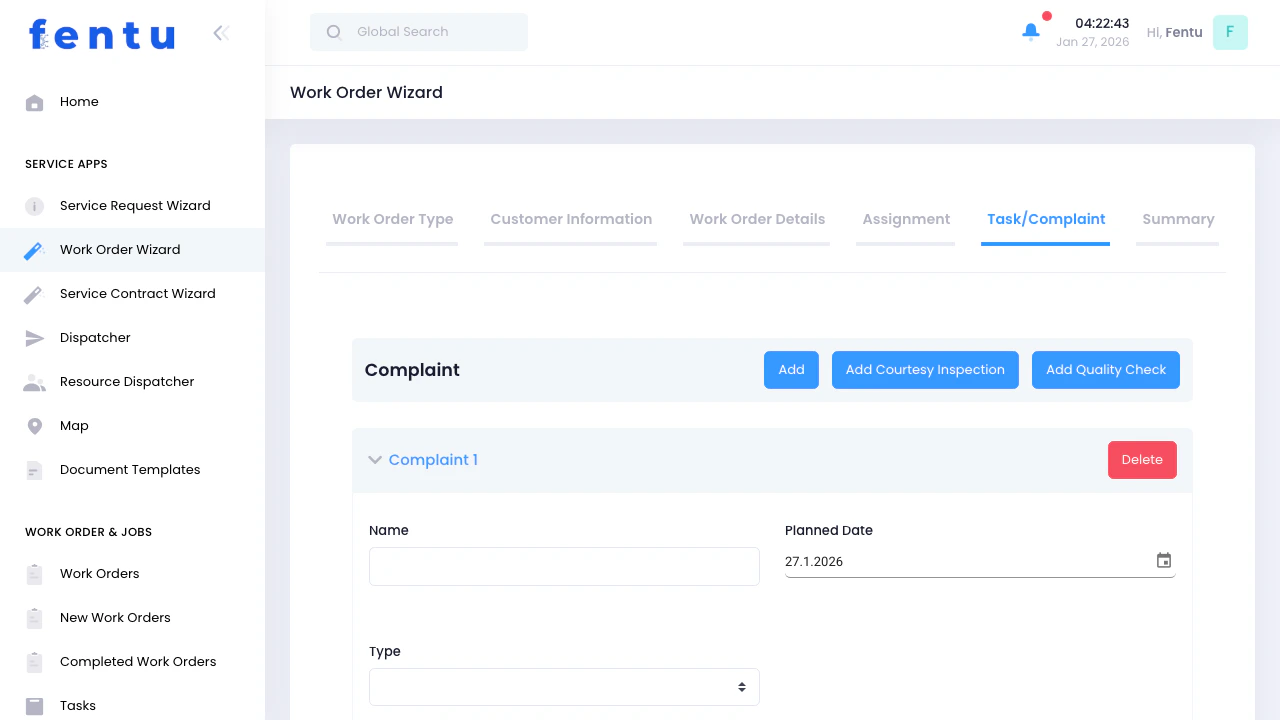 Define specific tasks or address complaints within this work order:
### Understanding Tasks
**Tasks** are the individual work items that technicians will complete. Each task can have:
* Its own schedule
* Assigned technicians (subset of work order resources)
* Line items (specific assets being serviced)
* Checklists
* Parts and materials
* Time tracking
### Adding Tasks
Click **"Add Task"** to create task records:
| Field | Description |
| ---------------- | --------------------------------------------------------------------- |
| **Task Name** | Brief name for the task (e.g., "Annual Inspection", "Replace Filter") |
| **Description** | Detailed description of what needs to be done |
| **Priority** | Task-specific priority (can differ from work order priority) |
| **Planned Date** | When this specific task should be performed |
| **Status** | Initial status (typically "Open" or "Assigned") |
### Task Line Items
For each task, you can add **Line Items** which represent specific service object being serviced:
Choose which service object(s) this task is for (from work order service objects)
Specify what work will be done on this service object
Attach maintenance checklists that must be completed
Indicate if work is under warranty, campaign, or paid
Multiple tasks can exist within a single work order. This allows you to organize complex jobs with different service requirements.
***
## Step 5: Summary
Define specific tasks or address complaints within this work order:
### Understanding Tasks
**Tasks** are the individual work items that technicians will complete. Each task can have:
* Its own schedule
* Assigned technicians (subset of work order resources)
* Line items (specific assets being serviced)
* Checklists
* Parts and materials
* Time tracking
### Adding Tasks
Click **"Add Task"** to create task records:
| Field | Description |
| ---------------- | --------------------------------------------------------------------- |
| **Task Name** | Brief name for the task (e.g., "Annual Inspection", "Replace Filter") |
| **Description** | Detailed description of what needs to be done |
| **Priority** | Task-specific priority (can differ from work order priority) |
| **Planned Date** | When this specific task should be performed |
| **Status** | Initial status (typically "Open" or "Assigned") |
### Task Line Items
For each task, you can add **Line Items** which represent specific service object being serviced:
Choose which service object(s) this task is for (from work order service objects)
Specify what work will be done on this service object
Attach maintenance checklists that must be completed
Indicate if work is under warranty, campaign, or paid
Multiple tasks can exist within a single work order. This allows you to organize complex jobs with different service requirements.
***
## Step 5: Summary
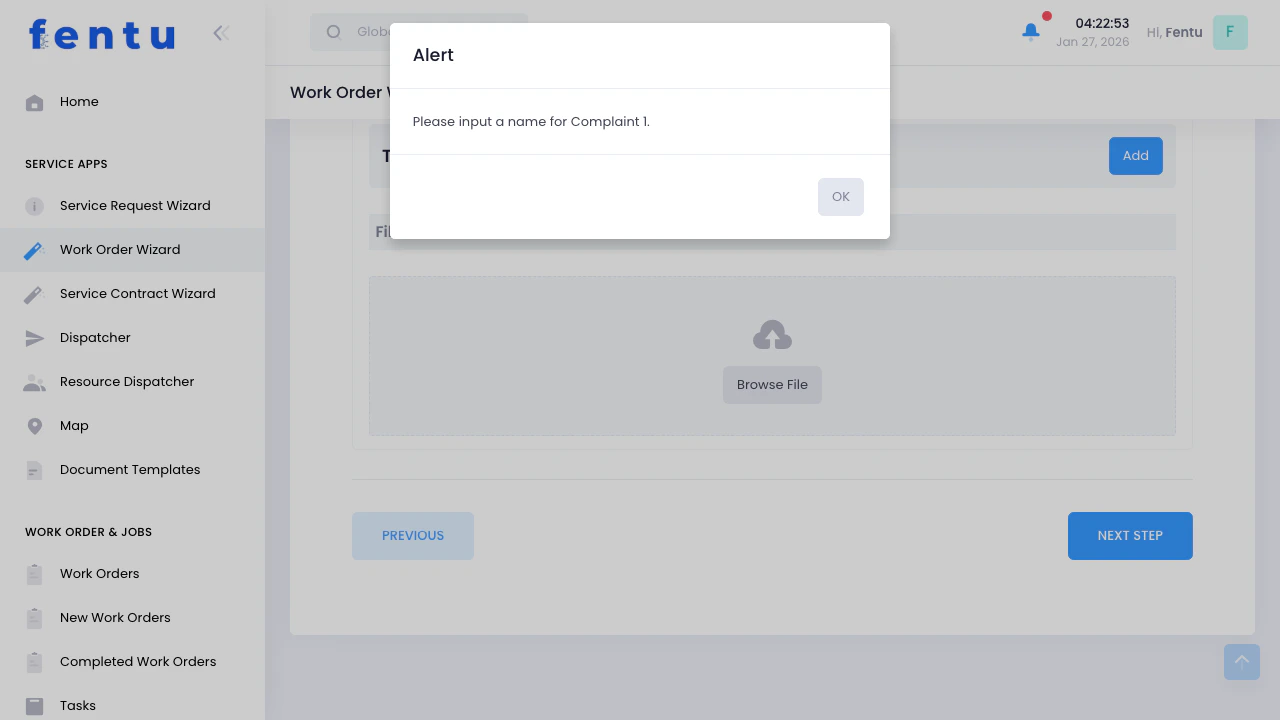 Review all information before creating the work order:
### Summary Sections
The summary page displays:
* Work order type and priority
* Customer and location
* Scheduled dates
* Branch assignment
* List of all service objects to be serviced
* IDs and serial numbers
* Current status
* Assigned technicians and teams
* Required tools and vehicles
* Pre-assigned parts
* All tasks with their details
* Task line items and checklists
* Complaints to be addressed
* All uploaded files and documents
### Actions Available
Go back to edit any step - all information is preserved
Create the work order and send notifications
### After Submission
Once you click **"Submit"**, the work order is created:
The system generates a unique work order ID (e.g., M-24-00123 for Maintenance)
All assigned technicians receive assignment notifications
Tasks become visible in the Dispatcher and technician's task list
The work order enters the active workflow
You receive a success message with the work order ID, the Material Request is automatically generated
***
## Work Order ID Format
Work orders are automatically numbered based on their type:
The format is: `{Type}-{Year}-{Sequential Number}`
***
## Next Steps After Creation
After creating a work order, you can:
See the work order on the dispatch board for scheduling and management
Monitor task progress and technician updates
Request additional parts from the warehouse
***
## Tips and Best Practices
Ensure customers, contacts, buildings, and assets are set up in the system before starting the wizard. This makes work order creation much faster.
Link work orders to service contracts to automatically apply terms, pricing, and SLAs. This ensures consistency and reduces errors.
Clear, detailed task descriptions help technicians prepare properly and reduce callbacks. Include reference numbers, part codes, or specific procedures.
Check asset requirements and assign technicians with matching skills. The system can help suggest qualified resources.
Include schematics, manuals, previous service reports, or customer emails. Technicians can access these in the field.
Use the "Special Information" field for important details like site access instructions, safety requirements, or customer preferences.
Consider technician availability, travel time, and work complexity when setting planned dates. Check the Dispatcher view before committing to dates.
The summary step is your last chance to catch errors. Review all sections carefully before clicking Submit.
***
## Common Questions
A **Work Order** is a confirmed job ready for execution. A **Service Request** is a preliminary record that captures customer needs but requires conversion to a work order before work can begin. Use the Work Order Wizard when you're ready to dispatch immediately.
Yes! Navigate to the Work Orders list, find your work order, and click to edit. You can modify most fields, reassign resources, add tasks, or update details before work begins.
No, you can create a work order without assignments and assign resources later via the Dispatcher. However, assigning during creation sends immediate notifications and reserves technician time.
Yes! Tasks support multiple resource assignments. This is useful for complex jobs requiring different specialties or when work requires a team.
You'll receive a notification, and the task status updates to show the rejection. You can then reassign to a different technician or discuss scheduling with the original assignee.
Recurring work orders are best created via Service Contracts with scheduled maintenance. The contract automatically generates work order drafts that can be converted.
Set priority to "High", mark as "Fixed Date" if time-critical, and assign available technicians immediately. You can also use fast-track workflows if configured.
***
## Related Documentation
Create service requests that can be converted to work orders later
Schedule and manage work orders and tasks
Understand the work order lifecycle and status changes
Learn how to manage and track tasks within work orders
```text theme={null}
```
Review all information before creating the work order:
### Summary Sections
The summary page displays:
* Work order type and priority
* Customer and location
* Scheduled dates
* Branch assignment
* List of all service objects to be serviced
* IDs and serial numbers
* Current status
* Assigned technicians and teams
* Required tools and vehicles
* Pre-assigned parts
* All tasks with their details
* Task line items and checklists
* Complaints to be addressed
* All uploaded files and documents
### Actions Available
Go back to edit any step - all information is preserved
Create the work order and send notifications
### After Submission
Once you click **"Submit"**, the work order is created:
The system generates a unique work order ID (e.g., M-24-00123 for Maintenance)
All assigned technicians receive assignment notifications
Tasks become visible in the Dispatcher and technician's task list
The work order enters the active workflow
You receive a success message with the work order ID, the Material Request is automatically generated
***
## Work Order ID Format
Work orders are automatically numbered based on their type:
The format is: `{Type}-{Year}-{Sequential Number}`
***
## Next Steps After Creation
After creating a work order, you can:
See the work order on the dispatch board for scheduling and management
Monitor task progress and technician updates
Request additional parts from the warehouse
***
## Tips and Best Practices
Ensure customers, contacts, buildings, and assets are set up in the system before starting the wizard. This makes work order creation much faster.
Link work orders to service contracts to automatically apply terms, pricing, and SLAs. This ensures consistency and reduces errors.
Clear, detailed task descriptions help technicians prepare properly and reduce callbacks. Include reference numbers, part codes, or specific procedures.
Check asset requirements and assign technicians with matching skills. The system can help suggest qualified resources.
Include schematics, manuals, previous service reports, or customer emails. Technicians can access these in the field.
Use the "Special Information" field for important details like site access instructions, safety requirements, or customer preferences.
Consider technician availability, travel time, and work complexity when setting planned dates. Check the Dispatcher view before committing to dates.
The summary step is your last chance to catch errors. Review all sections carefully before clicking Submit.
***
## Common Questions
A **Work Order** is a confirmed job ready for execution. A **Service Request** is a preliminary record that captures customer needs but requires conversion to a work order before work can begin. Use the Work Order Wizard when you're ready to dispatch immediately.
Yes! Navigate to the Work Orders list, find your work order, and click to edit. You can modify most fields, reassign resources, add tasks, or update details before work begins.
No, you can create a work order without assignments and assign resources later via the Dispatcher. However, assigning during creation sends immediate notifications and reserves technician time.
Yes! Tasks support multiple resource assignments. This is useful for complex jobs requiring different specialties or when work requires a team.
You'll receive a notification, and the task status updates to show the rejection. You can then reassign to a different technician or discuss scheduling with the original assignee.
Recurring work orders are best created via Service Contracts with scheduled maintenance. The contract automatically generates work order drafts that can be converted.
Set priority to "High", mark as "Fixed Date" if time-critical, and assign available technicians immediately. You can also use fast-track workflows if configured.
***
## Related Documentation
Create service requests that can be converted to work orders later
Schedule and manage work orders and tasks
Understand the work order lifecycle and status changes
Learn how to manage and track tasks within work orders
```text theme={null}
```