> ## Documentation Index
> Fetch the complete documentation index at: https://docs.fentufsm.com/llms.txt
> Use this file to discover all available pages before exploring further.
# Scheduled Maintenances
> Manage automated preventive maintenance schedules
## Overview
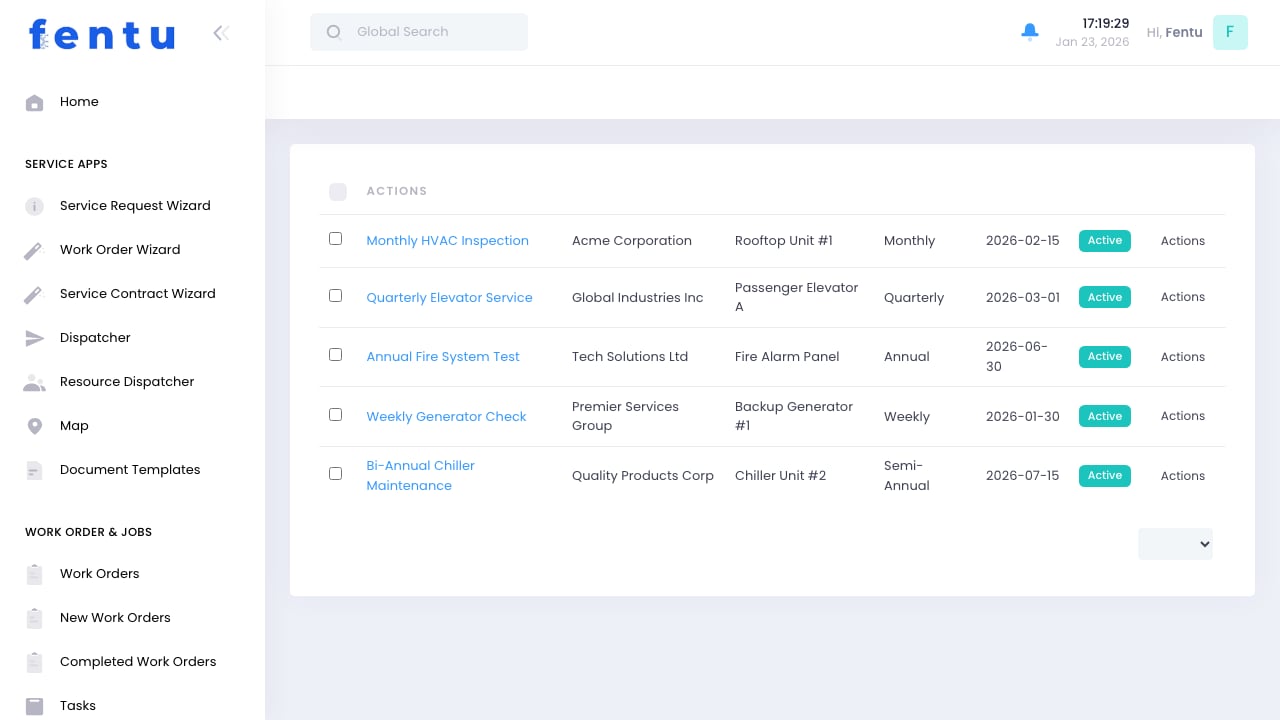
Scheduled Maintenances are recurring maintenance tasks automatically generated from service contracts. They define what work needs to be done, how often, and for which assets. The system uses scheduled maintenances to auto-create work orders, ensuring preventive maintenance never gets missed.
 Scheduled maintenances are the "automation engine" that transforms service contracts into actual work. They eliminate manual work order creation and ensure consistent, timely service delivery.
## When to Use Scheduled Maintenances
Use Scheduled Maintenances when you need to:
* View all upcoming preventive maintenance tasks across all contracts
* Check which maintenance visits are coming due
* Modify maintenance schedules or frequencies
* Assign technicians to recurring maintenance tasks
* Generate work orders for scheduled service visits
* Pause or resume scheduled maintenance temporarily
* Track maintenance completion rates
***
## How Scheduled Maintenances Work
### The Automation Flow
```
Service Contract Created
└─> Scheduled Maintenances Auto-Generated (based on frequency)
└─> Work Orders Auto-Created (when due date approaches)
└─> Technicians Complete Work
└─> Next Scheduled Maintenance Date Calculated
```
**Key Points:**
1. **Created Automatically** - When you save a service contract with a maintenance frequency, Fentu creates scheduled maintenance records
2. **Generate Work Orders** - When the scheduled date approaches (e.g., 7 days before), a work order is auto-created
3. **Self-Perpetuating** - After work completion, the next scheduled date is calculated automatically
4. **Linked to Contract** - Each scheduled maintenance ties back to its parent service contract
### Frequency Options
Scheduled maintenances can occur at various intervals:
| Frequency | Example Use Case |
| --------------- | ---------------------------------------------------------------------- |
| **Weekly** | Critical equipment requiring frequent checks (generators, life safety) |
| **Bi-Weekly** | Equipment with moderate service needs |
| **Monthly** | Regular maintenance (filter changes, minor inspections) |
| **Quarterly** | Seasonal equipment or comprehensive checks (4x per year) |
| **Semi-Annual** | Equipment needing service twice per year (spring and fall) |
| **Annual** | Once-per-year comprehensive service or inspections |
| **Custom** | Irregular frequencies (every 60 days, every 500 hours, etc.) |
***
## Scheduled Maintenances List View
### Key Features
See all scheduled maintenances organized by due date. Filter by week, month, or custom date range to plan technician schedules.
Visual status shows: Active (scheduled), Paused (temporarily suspended), Completed (last visit done), Overdue (missed schedule).
Each scheduled maintenance displays which customer and which specific asset needs service.
Generate work orders, edit schedules, reassign technicians, or pause maintenance directly from the list.
### List Columns
| Column | Description |
| ----------------------- | ---------------------------------------------------------------------------------- |
| **Maintenance Name** | Descriptive name like "Monthly Machine Inspection" or "Quarterly Elevator Service" |
| **Customer** | Which customer this maintenance is for |
| **Asset** | Specific equipment to be serviced |
| **Frequency** | How often this maintenance occurs (Monthly, Quarterly, etc.) |
| **Next Scheduled Date** | When the next maintenance visit is due |
| **Assigned To** | Technician or team responsible for this maintenance |
| **Status** | Active, Paused, Completed, or Overdue |
| **Linked Contract** | Parent service contract this maintenance comes from |
| **Actions** | Generate work order, edit schedule, pause, or view details |
***
## Creating Scheduled Maintenances
### Automatic Creation (Recommended)
The easiest way to create scheduled maintenances is through service contracts:
Open a service contract or create a new one.
Choose maintenance frequency: Monthly, Quarterly, Annual, etc.
Select which assets need scheduled maintenance.
System automatically generates scheduled maintenance records for each asset based on the frequency.
### Manual Creation
You can also create scheduled maintenances manually when needed:
Click the "+" button to create a maintenance schedule.
Choose which asset needs recurring service.
Set how often maintenance should occur.
When should the first maintenance occur?
Designate who will handle this maintenance (optional).
List specific tasks to be completed during each visit.
System begins generating work orders based on this schedule.
Let contracts generate scheduled maintenances automatically whenever possible. This ensures consistency between contract terms and actual service delivery.
***
## Scheduled Maintenance Fields
### Basic Information
| Field | Description |
| -------------------- | ------------------------------------------------------------------------------------------------------------------------------ |
| **Maintenance Name** | Descriptive name: "Monthly Machine Filter Change" or "Quarterly Generator Service". Should clearly identify what's being done. |
| **Customer** | Which customer this maintenance is for. Auto-populated from contract. |
| **Asset** | Specific equipment being serviced. Required field. |
| **Service Contract** | Parent contract this maintenance is part of. Links to contract terms and pricing. |
| **Status** | Active (ongoing), Paused (temporarily suspended), Completed (last cycle finished), Cancelled (permanently stopped). |
### Schedule Information
| Field | Description |
| ------------------------------ | ------------------------------------------------------------------------------------------------------- |
| **Frequency** | How often maintenance occurs: Weekly, Monthly, Quarterly, etc. |
| **Start Date** | When the maintenance schedule begins. First work order is created based on this date. |
| **End Date** | When the maintenance schedule ends (typically matches contract end date). |
| **Next Scheduled Date** | When the next work order will be generated. System calculates this automatically after each completion. |
| **Last Completed Date** | When the most recent maintenance visit was completed. |
| **Days Before to Generate WO** | How many days before the scheduled date should the work order be created (default: 7 days). |
### Service Details
| Field | Description |
| ----------------------- | -------------------------------------------------------------------------------------------------------- |
| **Tasks to Complete** | Checklist of tasks for each maintenance visit. Technicians follow this list to ensure nothing is missed. |
| **Estimated Duration** | Expected time for each maintenance visit (used for scheduling). |
| **Required Tools** | Specialized equipment needed for this maintenance. |
| **Required Parts** | Standard parts typically used during maintenance (filters, belts, etc.). |
| **Safety Requirements** | Special safety equipment or procedures needed. |
### Assignment
| Field | Description |
| ---------------------------- | ---------------------------------------------------------------------------------------- |
| **Assigned Technician** | Specific technician who handles this maintenance. |
| **Assigned Team** | Or assign to a team rather than individual technician. |
| **Backup Technician** | Who covers if primary technician is unavailable. |
| **Preferred Service Window** | When maintenance should occur: Morning, Afternoon, After Hours, Weekends, Specific Days. |
### Notes
| Field | Description |
| ------------------------- | -------------------------------------------------------------------------------------------------------------------------- |
| **Maintenance Notes** | Internal notes about this scheduled maintenance. Document special procedures, customer preferences, or historical context. |
| **Customer Instructions** | Information shared with customer in notifications: access instructions, preparation requirements, etc. |
***
## Managing Scheduled Maintenances
### Viewing and Filtering
Use filters to manage large numbers of scheduled maintenances:
Filter by:
* This Week - Maintenance coming due in the next 7 days
* This Month - Maintenance due within 30 days
* Overdue - Maintenance past its scheduled date
* Custom Range - Specific date range
* Active - Currently running schedules
* Paused - Temporarily suspended
* Completed - Last cycle finished
* Overdue - Missed scheduled dates
See all scheduled maintenances assigned to specific technician or team for workload planning.
View all scheduled maintenances for a specific customer to see their maintenance footprint.
Filter by maintenance frequency to see weekly, monthly, quarterly, or annual tasks separately.
### Modifying Schedules
Common schedule modifications:
**Change Frequency:**
* Edit the scheduled maintenance and update frequency
* Next scheduled date recalculates based on new frequency
* Use when customer wants more or less frequent service
**Pause Temporarily:**
* Change status to "Paused"
* Work orders stop generating
* Use for seasonal closures, renovations, or customer requests
**Resume After Pause:**
* Change status back to "Active"
* System calculates next scheduled date
* Work orders resume generating
**Reassign Technician:**
* Change assigned technician or team
* Future work orders use new assignment
* Use for technician changes, territory reassignments, or skill requirements
**Adjust Next Scheduled Date:**
* Manually set the next scheduled date
* Use when customer requests schedule adjustment
* System continues with normal frequency after adjusted date
Be careful when modifying scheduled maintenances that are auto-generated from contracts. Changes here don't update the contract terms. If you change the schedule significantly, consider updating the contract too.
***
## Work Order Generation
### Automatic Work Order Creation
The system automatically creates work orders from scheduled maintenances:
**Default Behavior:**
1. **7 Days Before Due Date** - System checks for upcoming scheduled maintenances
2. **Work Order Created** - New work order generated with:
* Customer and asset from scheduled maintenance
* Tasks from maintenance definition
* Assigned technician from schedule
* Linked to parent contract and scheduled maintenance
3. **Notification Sent** - Customer receives notification (if enabled)
4. **Available for Scheduling** - Work order appears in dispatcher's queue
**Customizable Timing:**
* Adjust "Days Before to Generate WO" field
* Some companies generate 14 days ahead for better planning
* Emergency services might generate 1-2 days ahead
* Match to your scheduling and planning processes
### Manual Work Order Creation
You can also manually generate work orders from scheduled maintenances:
Locate the maintenance in the list.
Use the action button to create a work order immediately.
Work order is created with maintenance details. Modify if needed.
Set specific date/time and confirm technician assignment.
**When to create manually:**
* Need to service ahead of schedule
* Customer requested early maintenance
* Testing automated system before enabling
* One-time additional visit within contract
***
## Scheduled Maintenance Actions
Create a work order for this scheduled maintenance immediately, regardless of scheduled date.
Modify frequency, tasks, assigned technician, or other schedule details.
Temporarily stop work order generation (customer closed, seasonal, etc.).
Restart work order generation after a pause.
See all work orders generated from this scheduled maintenance.
Jump to the service contract this maintenance is part of.
***
## Tips and Best Practices
Set "Days Before to Generate WO" based on your planning needs:
* **7-14 days** - Standard for most businesses (allows scheduling flexibility)
* **3-5 days** - Short lead time for highly responsive service
* **14-21 days** - Long lead time for complex scheduling or special equipment
* **30+ days** - Annual maintenance requiring extensive planning
Balance between giving enough time to schedule and not creating work orders too far in advance.
Define clear task lists for each scheduled maintenance:
* What to inspect
* What to clean or service
* What measurements to take
* What to document
* What parts to replace
Detailed task lists ensure consistent service quality across all technicians.
Pre-assign technicians to scheduled maintenances rather than assigning each work order individually:
* Reduces dispatcher workload
* Builds customer-technician relationships
* Allows technicians to plan ahead
* Ensures right skills for specialized equipment
Use team assignments when any qualified technician can handle the work.
Track which scheduled maintenances are consistently:
* Completed on time
* Delayed or rescheduled
* Cancelled by customer
* Generating callbacks or complaints
Low completion rates indicate scheduling problems, pricing issues, or customer dissatisfaction.
For seasonal equipment (heating/cooling, irrigation, etc.):
* Pause scheduled maintenance during off-season
* Resume before season starts
* Prevents unnecessary service calls and maintains schedule integrity
Example: Pause pool equipment maintenance October-April, resume in May.
Attach standardized checklists to scheduled maintenances:
* Ensures consistent inspections
* Provides compliance documentation
* Trains new technicians
* Identifies developing issues through trend analysis
Checklists turn scheduled maintenance from subjective to measurable.
Periodically review maintenance frequencies:
* Are you finding issues that could be caught earlier (increase frequency)?
* Are visits finding no issues (consider decreasing frequency)?
* Has equipment age or usage changed (adjust accordingly)?
* What do manufacturer recommendations say?
Right-sizing frequency optimizes both service quality and profitability.
When modifying scheduled maintenances:
* Notify affected customers of timing changes
* Update technician schedules
* Document reason for change in notes
* Adjust contract terms if change is permanent
Clear communication prevents confusion and missed appointments.
***
## Common Questions
A **Scheduled Maintenance** is the recurring schedule definition - it says "service this asset every month." A **Work Order** is a specific instance - "service this asset on January 15th."
Think of it like:
* **Scheduled Maintenance** = The rule ("check fire extinguishers monthly")
* **Work Order** = The specific task ("check fire extinguishers on January 15, 2026")
One scheduled maintenance generates many work orders over time.
Most commonly, they're **created automatically** when you save a service contract with a maintenance frequency. You can also create them manually, but automatic creation from contracts is recommended because it ensures consistency between contract terms and actual service delivery.
Yes, you can edit frequency, tasks, assigned technician, and other details. However, be aware:
* Changes don't automatically update the parent contract
* If you change frequency or scope significantly, consider updating the contract too
* Changes only affect future work orders, not already-created ones
Document significant changes in the maintenance notes.
When you change status to "Paused":
* Work order generation stops
* Existing open work orders remain (can still be completed)
* Schedule is preserved (knows what the next date would have been)
* When resumed, next scheduled date recalculates based on current date
Use pause for temporary suspensions (renovations, seasonal closures, customer budget issues).
Default is **7 days before** the scheduled date, but this is configurable in the "Days Before to Generate WO" field. You can set it anywhere from 1 day to 30+ days depending on your planning needs.
More lead time = Better scheduling flexibility but more outstanding work orders
Less lead time = Fewer open work orders but less scheduling flexibility
When a scheduled date passes without completion:
* Status shows as "Overdue"
* You can still generate a work order manually
* When completed, next scheduled date calculates from completion date (not original due date)
* Consider investigating why maintenance was missed
Frequent overdue maintenances indicate scheduling problems, understaffing, or contract issues.
Yes! Click on a scheduled maintenance to view details, then see the history section showing all work orders generated from this schedule. This provides complete service history for that recurring maintenance task.
You typically shouldn't delete scheduled maintenances because they're linked to contracts and work order history. Instead:
* **Pause** if suspending temporarily
* **Set end date** if stopping permanently (preserves history)
* **Cancel status** if the contract was terminated
Only delete if created in error and has no associated work orders.
***
## Related Documentation
Scheduled maintenances are generated from service contracts.
Work orders are created automatically from scheduled maintenances.
Scheduled maintenances define service for specific assets.
Schedule and assign work orders generated from maintenances.
Scheduled maintenances are the "automation engine" that transforms service contracts into actual work. They eliminate manual work order creation and ensure consistent, timely service delivery.
## When to Use Scheduled Maintenances
Use Scheduled Maintenances when you need to:
* View all upcoming preventive maintenance tasks across all contracts
* Check which maintenance visits are coming due
* Modify maintenance schedules or frequencies
* Assign technicians to recurring maintenance tasks
* Generate work orders for scheduled service visits
* Pause or resume scheduled maintenance temporarily
* Track maintenance completion rates
***
## How Scheduled Maintenances Work
### The Automation Flow
```
Service Contract Created
└─> Scheduled Maintenances Auto-Generated (based on frequency)
└─> Work Orders Auto-Created (when due date approaches)
└─> Technicians Complete Work
└─> Next Scheduled Maintenance Date Calculated
```
**Key Points:**
1. **Created Automatically** - When you save a service contract with a maintenance frequency, Fentu creates scheduled maintenance records
2. **Generate Work Orders** - When the scheduled date approaches (e.g., 7 days before), a work order is auto-created
3. **Self-Perpetuating** - After work completion, the next scheduled date is calculated automatically
4. **Linked to Contract** - Each scheduled maintenance ties back to its parent service contract
### Frequency Options
Scheduled maintenances can occur at various intervals:
| Frequency | Example Use Case |
| --------------- | ---------------------------------------------------------------------- |
| **Weekly** | Critical equipment requiring frequent checks (generators, life safety) |
| **Bi-Weekly** | Equipment with moderate service needs |
| **Monthly** | Regular maintenance (filter changes, minor inspections) |
| **Quarterly** | Seasonal equipment or comprehensive checks (4x per year) |
| **Semi-Annual** | Equipment needing service twice per year (spring and fall) |
| **Annual** | Once-per-year comprehensive service or inspections |
| **Custom** | Irregular frequencies (every 60 days, every 500 hours, etc.) |
***
## Scheduled Maintenances List View
### Key Features
See all scheduled maintenances organized by due date. Filter by week, month, or custom date range to plan technician schedules.
Visual status shows: Active (scheduled), Paused (temporarily suspended), Completed (last visit done), Overdue (missed schedule).
Each scheduled maintenance displays which customer and which specific asset needs service.
Generate work orders, edit schedules, reassign technicians, or pause maintenance directly from the list.
### List Columns
| Column | Description |
| ----------------------- | ---------------------------------------------------------------------------------- |
| **Maintenance Name** | Descriptive name like "Monthly Machine Inspection" or "Quarterly Elevator Service" |
| **Customer** | Which customer this maintenance is for |
| **Asset** | Specific equipment to be serviced |
| **Frequency** | How often this maintenance occurs (Monthly, Quarterly, etc.) |
| **Next Scheduled Date** | When the next maintenance visit is due |
| **Assigned To** | Technician or team responsible for this maintenance |
| **Status** | Active, Paused, Completed, or Overdue |
| **Linked Contract** | Parent service contract this maintenance comes from |
| **Actions** | Generate work order, edit schedule, pause, or view details |
***
## Creating Scheduled Maintenances
### Automatic Creation (Recommended)
The easiest way to create scheduled maintenances is through service contracts:
Open a service contract or create a new one.
Choose maintenance frequency: Monthly, Quarterly, Annual, etc.
Select which assets need scheduled maintenance.
System automatically generates scheduled maintenance records for each asset based on the frequency.
### Manual Creation
You can also create scheduled maintenances manually when needed:
Click the "+" button to create a maintenance schedule.
Choose which asset needs recurring service.
Set how often maintenance should occur.
When should the first maintenance occur?
Designate who will handle this maintenance (optional).
List specific tasks to be completed during each visit.
System begins generating work orders based on this schedule.
Let contracts generate scheduled maintenances automatically whenever possible. This ensures consistency between contract terms and actual service delivery.
***
## Scheduled Maintenance Fields
### Basic Information
| Field | Description |
| -------------------- | ------------------------------------------------------------------------------------------------------------------------------ |
| **Maintenance Name** | Descriptive name: "Monthly Machine Filter Change" or "Quarterly Generator Service". Should clearly identify what's being done. |
| **Customer** | Which customer this maintenance is for. Auto-populated from contract. |
| **Asset** | Specific equipment being serviced. Required field. |
| **Service Contract** | Parent contract this maintenance is part of. Links to contract terms and pricing. |
| **Status** | Active (ongoing), Paused (temporarily suspended), Completed (last cycle finished), Cancelled (permanently stopped). |
### Schedule Information
| Field | Description |
| ------------------------------ | ------------------------------------------------------------------------------------------------------- |
| **Frequency** | How often maintenance occurs: Weekly, Monthly, Quarterly, etc. |
| **Start Date** | When the maintenance schedule begins. First work order is created based on this date. |
| **End Date** | When the maintenance schedule ends (typically matches contract end date). |
| **Next Scheduled Date** | When the next work order will be generated. System calculates this automatically after each completion. |
| **Last Completed Date** | When the most recent maintenance visit was completed. |
| **Days Before to Generate WO** | How many days before the scheduled date should the work order be created (default: 7 days). |
### Service Details
| Field | Description |
| ----------------------- | -------------------------------------------------------------------------------------------------------- |
| **Tasks to Complete** | Checklist of tasks for each maintenance visit. Technicians follow this list to ensure nothing is missed. |
| **Estimated Duration** | Expected time for each maintenance visit (used for scheduling). |
| **Required Tools** | Specialized equipment needed for this maintenance. |
| **Required Parts** | Standard parts typically used during maintenance (filters, belts, etc.). |
| **Safety Requirements** | Special safety equipment or procedures needed. |
### Assignment
| Field | Description |
| ---------------------------- | ---------------------------------------------------------------------------------------- |
| **Assigned Technician** | Specific technician who handles this maintenance. |
| **Assigned Team** | Or assign to a team rather than individual technician. |
| **Backup Technician** | Who covers if primary technician is unavailable. |
| **Preferred Service Window** | When maintenance should occur: Morning, Afternoon, After Hours, Weekends, Specific Days. |
### Notes
| Field | Description |
| ------------------------- | -------------------------------------------------------------------------------------------------------------------------- |
| **Maintenance Notes** | Internal notes about this scheduled maintenance. Document special procedures, customer preferences, or historical context. |
| **Customer Instructions** | Information shared with customer in notifications: access instructions, preparation requirements, etc. |
***
## Managing Scheduled Maintenances
### Viewing and Filtering
Use filters to manage large numbers of scheduled maintenances:
Filter by:
* This Week - Maintenance coming due in the next 7 days
* This Month - Maintenance due within 30 days
* Overdue - Maintenance past its scheduled date
* Custom Range - Specific date range
* Active - Currently running schedules
* Paused - Temporarily suspended
* Completed - Last cycle finished
* Overdue - Missed scheduled dates
See all scheduled maintenances assigned to specific technician or team for workload planning.
View all scheduled maintenances for a specific customer to see their maintenance footprint.
Filter by maintenance frequency to see weekly, monthly, quarterly, or annual tasks separately.
### Modifying Schedules
Common schedule modifications:
**Change Frequency:**
* Edit the scheduled maintenance and update frequency
* Next scheduled date recalculates based on new frequency
* Use when customer wants more or less frequent service
**Pause Temporarily:**
* Change status to "Paused"
* Work orders stop generating
* Use for seasonal closures, renovations, or customer requests
**Resume After Pause:**
* Change status back to "Active"
* System calculates next scheduled date
* Work orders resume generating
**Reassign Technician:**
* Change assigned technician or team
* Future work orders use new assignment
* Use for technician changes, territory reassignments, or skill requirements
**Adjust Next Scheduled Date:**
* Manually set the next scheduled date
* Use when customer requests schedule adjustment
* System continues with normal frequency after adjusted date
Be careful when modifying scheduled maintenances that are auto-generated from contracts. Changes here don't update the contract terms. If you change the schedule significantly, consider updating the contract too.
***
## Work Order Generation
### Automatic Work Order Creation
The system automatically creates work orders from scheduled maintenances:
**Default Behavior:**
1. **7 Days Before Due Date** - System checks for upcoming scheduled maintenances
2. **Work Order Created** - New work order generated with:
* Customer and asset from scheduled maintenance
* Tasks from maintenance definition
* Assigned technician from schedule
* Linked to parent contract and scheduled maintenance
3. **Notification Sent** - Customer receives notification (if enabled)
4. **Available for Scheduling** - Work order appears in dispatcher's queue
**Customizable Timing:**
* Adjust "Days Before to Generate WO" field
* Some companies generate 14 days ahead for better planning
* Emergency services might generate 1-2 days ahead
* Match to your scheduling and planning processes
### Manual Work Order Creation
You can also manually generate work orders from scheduled maintenances:
Locate the maintenance in the list.
Use the action button to create a work order immediately.
Work order is created with maintenance details. Modify if needed.
Set specific date/time and confirm technician assignment.
**When to create manually:**
* Need to service ahead of schedule
* Customer requested early maintenance
* Testing automated system before enabling
* One-time additional visit within contract
***
## Scheduled Maintenance Actions
Create a work order for this scheduled maintenance immediately, regardless of scheduled date.
Modify frequency, tasks, assigned technician, or other schedule details.
Temporarily stop work order generation (customer closed, seasonal, etc.).
Restart work order generation after a pause.
See all work orders generated from this scheduled maintenance.
Jump to the service contract this maintenance is part of.
***
## Tips and Best Practices
Set "Days Before to Generate WO" based on your planning needs:
* **7-14 days** - Standard for most businesses (allows scheduling flexibility)
* **3-5 days** - Short lead time for highly responsive service
* **14-21 days** - Long lead time for complex scheduling or special equipment
* **30+ days** - Annual maintenance requiring extensive planning
Balance between giving enough time to schedule and not creating work orders too far in advance.
Define clear task lists for each scheduled maintenance:
* What to inspect
* What to clean or service
* What measurements to take
* What to document
* What parts to replace
Detailed task lists ensure consistent service quality across all technicians.
Pre-assign technicians to scheduled maintenances rather than assigning each work order individually:
* Reduces dispatcher workload
* Builds customer-technician relationships
* Allows technicians to plan ahead
* Ensures right skills for specialized equipment
Use team assignments when any qualified technician can handle the work.
Track which scheduled maintenances are consistently:
* Completed on time
* Delayed or rescheduled
* Cancelled by customer
* Generating callbacks or complaints
Low completion rates indicate scheduling problems, pricing issues, or customer dissatisfaction.
For seasonal equipment (heating/cooling, irrigation, etc.):
* Pause scheduled maintenance during off-season
* Resume before season starts
* Prevents unnecessary service calls and maintains schedule integrity
Example: Pause pool equipment maintenance October-April, resume in May.
Attach standardized checklists to scheduled maintenances:
* Ensures consistent inspections
* Provides compliance documentation
* Trains new technicians
* Identifies developing issues through trend analysis
Checklists turn scheduled maintenance from subjective to measurable.
Periodically review maintenance frequencies:
* Are you finding issues that could be caught earlier (increase frequency)?
* Are visits finding no issues (consider decreasing frequency)?
* Has equipment age or usage changed (adjust accordingly)?
* What do manufacturer recommendations say?
Right-sizing frequency optimizes both service quality and profitability.
When modifying scheduled maintenances:
* Notify affected customers of timing changes
* Update technician schedules
* Document reason for change in notes
* Adjust contract terms if change is permanent
Clear communication prevents confusion and missed appointments.
***
## Common Questions
A **Scheduled Maintenance** is the recurring schedule definition - it says "service this asset every month." A **Work Order** is a specific instance - "service this asset on January 15th."
Think of it like:
* **Scheduled Maintenance** = The rule ("check fire extinguishers monthly")
* **Work Order** = The specific task ("check fire extinguishers on January 15, 2026")
One scheduled maintenance generates many work orders over time.
Most commonly, they're **created automatically** when you save a service contract with a maintenance frequency. You can also create them manually, but automatic creation from contracts is recommended because it ensures consistency between contract terms and actual service delivery.
Yes, you can edit frequency, tasks, assigned technician, and other details. However, be aware:
* Changes don't automatically update the parent contract
* If you change frequency or scope significantly, consider updating the contract too
* Changes only affect future work orders, not already-created ones
Document significant changes in the maintenance notes.
When you change status to "Paused":
* Work order generation stops
* Existing open work orders remain (can still be completed)
* Schedule is preserved (knows what the next date would have been)
* When resumed, next scheduled date recalculates based on current date
Use pause for temporary suspensions (renovations, seasonal closures, customer budget issues).
Default is **7 days before** the scheduled date, but this is configurable in the "Days Before to Generate WO" field. You can set it anywhere from 1 day to 30+ days depending on your planning needs.
More lead time = Better scheduling flexibility but more outstanding work orders
Less lead time = Fewer open work orders but less scheduling flexibility
When a scheduled date passes without completion:
* Status shows as "Overdue"
* You can still generate a work order manually
* When completed, next scheduled date calculates from completion date (not original due date)
* Consider investigating why maintenance was missed
Frequent overdue maintenances indicate scheduling problems, understaffing, or contract issues.
Yes! Click on a scheduled maintenance to view details, then see the history section showing all work orders generated from this schedule. This provides complete service history for that recurring maintenance task.
You typically shouldn't delete scheduled maintenances because they're linked to contracts and work order history. Instead:
* **Pause** if suspending temporarily
* **Set end date** if stopping permanently (preserves history)
* **Cancel status** if the contract was terminated
Only delete if created in error and has no associated work orders.
***
## Related Documentation
Scheduled maintenances are generated from service contracts.
Work orders are created automatically from scheduled maintenances.
Scheduled maintenances define service for specific assets.
Schedule and assign work orders generated from maintenances.