> ## Documentation Index
> Fetch the complete documentation index at: https://docs.fentufsm.com/llms.txt
> Use this file to discover all available pages before exploring further.
# Branch
> Managing service locations and regional operations
 ## Overview
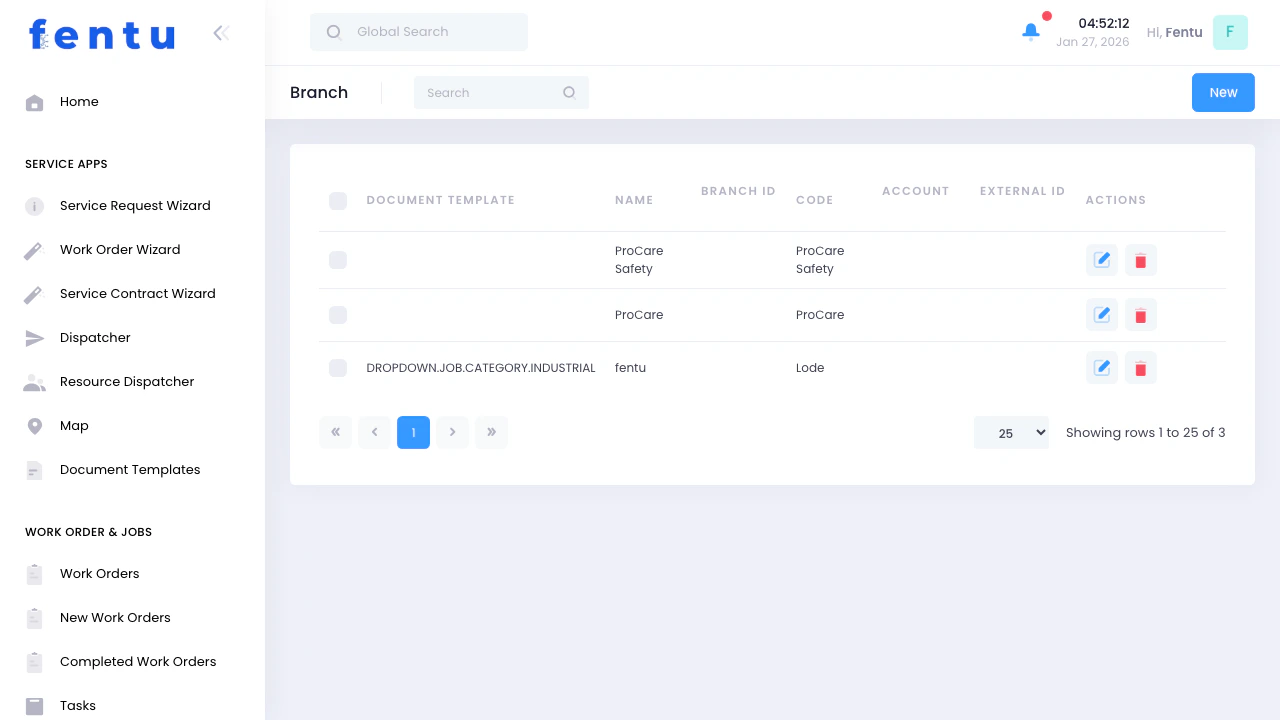
Branches represent your service locations, regional offices, or operational centers. They help you organize work, technicians, inventory, and resources by geographic area or business unit.
Branches enable multi-location management, allowing you to track work, resources, and performance separately for each service location.
## When to Use Branches
Use branches when:
* **Multiple service locations** - You operate from different offices or depots
* **Regional operations** - Serving different geographic areas
* **Franchise or dealer network** - Independent locations under one system
* **Warehouse management** - Separate inventory locations
* **Performance tracking** - Analyzing productivity by location
* **Resource allocation** - Assigning technicians and vehicles to specific areas
***
## Branch Information
Each branch displays:
| Field | Description |
| ----------------- | --------------------------------------- |
| **Branch Name** | Name of the service location |
| **Branch Code** | Unique identifier or abbreviation |
| **Address** | Physical location of the branch |
| **Phone** | Branch contact phone number |
| **Email** | Branch email address |
| **Manager** | Person responsible for this branch |
| **Active Status** | Whether branch is currently operational |
| **Service Area** | Geographic region covered |
***
## Using Branches in Daily Operations
### Work Order Assignment
Branches determine:
* Which work orders belong to which location
* Default branch for new work orders
* Filtering and reporting by location
* Resource availability by branch
### Resource Management
**By Branch:**
* **Technicians**: Assigned to specific branches
* **Vehicles**: Located at and dispatched from branches
* **Tools**: Equipment inventory by location
* **Parts**: Warehouse and stock by branch
Assign resources to the branch they primarily work from. This helps with dispatching, inventory management, and performance tracking.
***
## Filtering by Branch
Throughout the system, you can filter by branch:
### Work Orders View
* Show only work orders for a specific branch
* View all branches or select one
* Compare workload across branches
* Track completion rates by location
### Technician Schedules
* See technicians assigned to each branch
* Schedule work within branch service areas
* Monitor capacity by location
* Balance workload across branches
### Inventory Management
* View parts stock by branch
* Transfer inventory between branches
* Track usage by location
* Order for specific branches
The branch filter appears at the top of most views. Select a branch to see only data relevant to that location.
***
## Managing Branches
### Creating Branches
Navigate to Work Order & Jobs → Branch
Start new branch record
Fill in name, address, contact information
Select the person responsible for this location
Specify geographic region covered
Create the new branch
### Editing Branches
* Update contact information
* Change branch manager
* Modify service area
* Activate or deactivate branches
* Add notes or special instructions
Don't delete branches with historical data. Deactivate them instead to preserve work order history and reporting.
***
## Branch-Specific Features
### Service Areas
**Geographic Coverage:**
* Define territories by postal codes or cities
* Set preferred service regions
* Identify coverage overlaps
* Plan expansion areas
**Travel Time:**
* Estimate travel to common areas
* Plan realistic schedules
* Optimize routing by branch
* Minimize non-productive travel
### Performance Metrics
Track by branch:
* Work orders completed
* Revenue generated
* Customer satisfaction scores
* Technician productivity
* First-time fix rates
* Response times
### Resource Allocation
**Technicians per Branch:**
* View headcount by location
* Identify staffing needs
* Balance workload
* Plan hiring or transfers
**Inventory by Branch:**
* Stock levels at each location
* Fast-moving vs. slow-moving parts
* Transfer needs between branches
* Ordering by location
***
## Multi-Branch Operations
### Cross-Branch Work
**When to Assign Across Branches:**
* Branch closest to customer is at capacity
* Specialized skills only available at another branch
* Equipment or parts only at different location
* Customer preference for specific technicians
**Considerations:**
* Increased travel time and costs
* Coordination between branches
* Parts and tool availability
* Billing and revenue allocation
### Branch Transfers
**Technicians:**
* Permanent transfers to different branch
* Temporary assignments
* Updating technician home branch
* Impact on scheduling and availability
**Inventory:**
* Moving parts between branches
* Stock balancing
* Emergency transfers
* Tracking transfer costs
**Vehicles:**
* Relocating service vehicles
* Temporary loans between branches
* Updating vehicle home location
* Maintenance coordination
***
## Best Practices
Establish clear geographic boundaries for each branch. Prevents confusion about which branch serves which customers.
Monitor work distribution across branches. Redistribute work if one branch is overloaded while another has capacity.
Analyze metrics by branch to identify top performers and areas needing improvement. Fair comparison requires similar service areas.
Share stock information between branches. Transfer slow-moving parts from one location to where they're needed.
Share best practices, lessons learned, and successful approaches. Cross-branch communication improves overall performance.
Use consistent procedures across all branches. Makes training easier and ensures uniform customer experience.
Ensure adequate coverage for all service areas. Consider peak times, seasonal variations, and growth areas.
Track revenue, costs, and profitability by branch. Helps identify strong and weak performing locations.
***
## Common Questions
A work order is typically assigned to one primary branch, but technicians from different branches can work on it if needed.
Technicians have a home branch but can be assigned to work in other branch territories as needed.
Edit the work order and change the assigned branch. This reassigns the work to the new location's queue.
Yes, through inventory transfers. Parts can be moved between branch warehouses as needed.
Assign to the closer branch or the one with better availability. Some organizations assign by postal code or predefined territories.
No practical limit. Large organizations may have dozens or hundreds of branches across regions.
Yes. Deactivating keeps historical data but prevents new work from being assigned to that branch.
Most reports can be filtered or grouped by branch, allowing you to analyze performance by location.
***
## Related Documentation
Creating and managing work orders
Managing your service technicians
Scheduling and assigning work by branch
Managing parts and materials by location
## Overview
Branches represent your service locations, regional offices, or operational centers. They help you organize work, technicians, inventory, and resources by geographic area or business unit.
Branches enable multi-location management, allowing you to track work, resources, and performance separately for each service location.
## When to Use Branches
Use branches when:
* **Multiple service locations** - You operate from different offices or depots
* **Regional operations** - Serving different geographic areas
* **Franchise or dealer network** - Independent locations under one system
* **Warehouse management** - Separate inventory locations
* **Performance tracking** - Analyzing productivity by location
* **Resource allocation** - Assigning technicians and vehicles to specific areas
***
## Branch Information
Each branch displays:
| Field | Description |
| ----------------- | --------------------------------------- |
| **Branch Name** | Name of the service location |
| **Branch Code** | Unique identifier or abbreviation |
| **Address** | Physical location of the branch |
| **Phone** | Branch contact phone number |
| **Email** | Branch email address |
| **Manager** | Person responsible for this branch |
| **Active Status** | Whether branch is currently operational |
| **Service Area** | Geographic region covered |
***
## Using Branches in Daily Operations
### Work Order Assignment
Branches determine:
* Which work orders belong to which location
* Default branch for new work orders
* Filtering and reporting by location
* Resource availability by branch
### Resource Management
**By Branch:**
* **Technicians**: Assigned to specific branches
* **Vehicles**: Located at and dispatched from branches
* **Tools**: Equipment inventory by location
* **Parts**: Warehouse and stock by branch
Assign resources to the branch they primarily work from. This helps with dispatching, inventory management, and performance tracking.
***
## Filtering by Branch
Throughout the system, you can filter by branch:
### Work Orders View
* Show only work orders for a specific branch
* View all branches or select one
* Compare workload across branches
* Track completion rates by location
### Technician Schedules
* See technicians assigned to each branch
* Schedule work within branch service areas
* Monitor capacity by location
* Balance workload across branches
### Inventory Management
* View parts stock by branch
* Transfer inventory between branches
* Track usage by location
* Order for specific branches
The branch filter appears at the top of most views. Select a branch to see only data relevant to that location.
***
## Managing Branches
### Creating Branches
Navigate to Work Order & Jobs → Branch
Start new branch record
Fill in name, address, contact information
Select the person responsible for this location
Specify geographic region covered
Create the new branch
### Editing Branches
* Update contact information
* Change branch manager
* Modify service area
* Activate or deactivate branches
* Add notes or special instructions
Don't delete branches with historical data. Deactivate them instead to preserve work order history and reporting.
***
## Branch-Specific Features
### Service Areas
**Geographic Coverage:**
* Define territories by postal codes or cities
* Set preferred service regions
* Identify coverage overlaps
* Plan expansion areas
**Travel Time:**
* Estimate travel to common areas
* Plan realistic schedules
* Optimize routing by branch
* Minimize non-productive travel
### Performance Metrics
Track by branch:
* Work orders completed
* Revenue generated
* Customer satisfaction scores
* Technician productivity
* First-time fix rates
* Response times
### Resource Allocation
**Technicians per Branch:**
* View headcount by location
* Identify staffing needs
* Balance workload
* Plan hiring or transfers
**Inventory by Branch:**
* Stock levels at each location
* Fast-moving vs. slow-moving parts
* Transfer needs between branches
* Ordering by location
***
## Multi-Branch Operations
### Cross-Branch Work
**When to Assign Across Branches:**
* Branch closest to customer is at capacity
* Specialized skills only available at another branch
* Equipment or parts only at different location
* Customer preference for specific technicians
**Considerations:**
* Increased travel time and costs
* Coordination between branches
* Parts and tool availability
* Billing and revenue allocation
### Branch Transfers
**Technicians:**
* Permanent transfers to different branch
* Temporary assignments
* Updating technician home branch
* Impact on scheduling and availability
**Inventory:**
* Moving parts between branches
* Stock balancing
* Emergency transfers
* Tracking transfer costs
**Vehicles:**
* Relocating service vehicles
* Temporary loans between branches
* Updating vehicle home location
* Maintenance coordination
***
## Best Practices
Establish clear geographic boundaries for each branch. Prevents confusion about which branch serves which customers.
Monitor work distribution across branches. Redistribute work if one branch is overloaded while another has capacity.
Analyze metrics by branch to identify top performers and areas needing improvement. Fair comparison requires similar service areas.
Share stock information between branches. Transfer slow-moving parts from one location to where they're needed.
Share best practices, lessons learned, and successful approaches. Cross-branch communication improves overall performance.
Use consistent procedures across all branches. Makes training easier and ensures uniform customer experience.
Ensure adequate coverage for all service areas. Consider peak times, seasonal variations, and growth areas.
Track revenue, costs, and profitability by branch. Helps identify strong and weak performing locations.
***
## Common Questions
A work order is typically assigned to one primary branch, but technicians from different branches can work on it if needed.
Technicians have a home branch but can be assigned to work in other branch territories as needed.
Edit the work order and change the assigned branch. This reassigns the work to the new location's queue.
Yes, through inventory transfers. Parts can be moved between branch warehouses as needed.
Assign to the closer branch or the one with better availability. Some organizations assign by postal code or predefined territories.
No practical limit. Large organizations may have dozens or hundreds of branches across regions.
Yes. Deactivating keeps historical data but prevents new work from being assigned to that branch.
Most reports can be filtered or grouped by branch, allowing you to analyze performance by location.
***
## Related Documentation
Creating and managing work orders
Managing your service technicians
Scheduling and assigning work by branch
Managing parts and materials by location