> ## Documentation Index
> Fetch the complete documentation index at: https://docs.fentufsm.com/llms.txt
> Use this file to discover all available pages before exploring further.
# Quotations
> Creating and managing price quotes for customers
 ## Overview
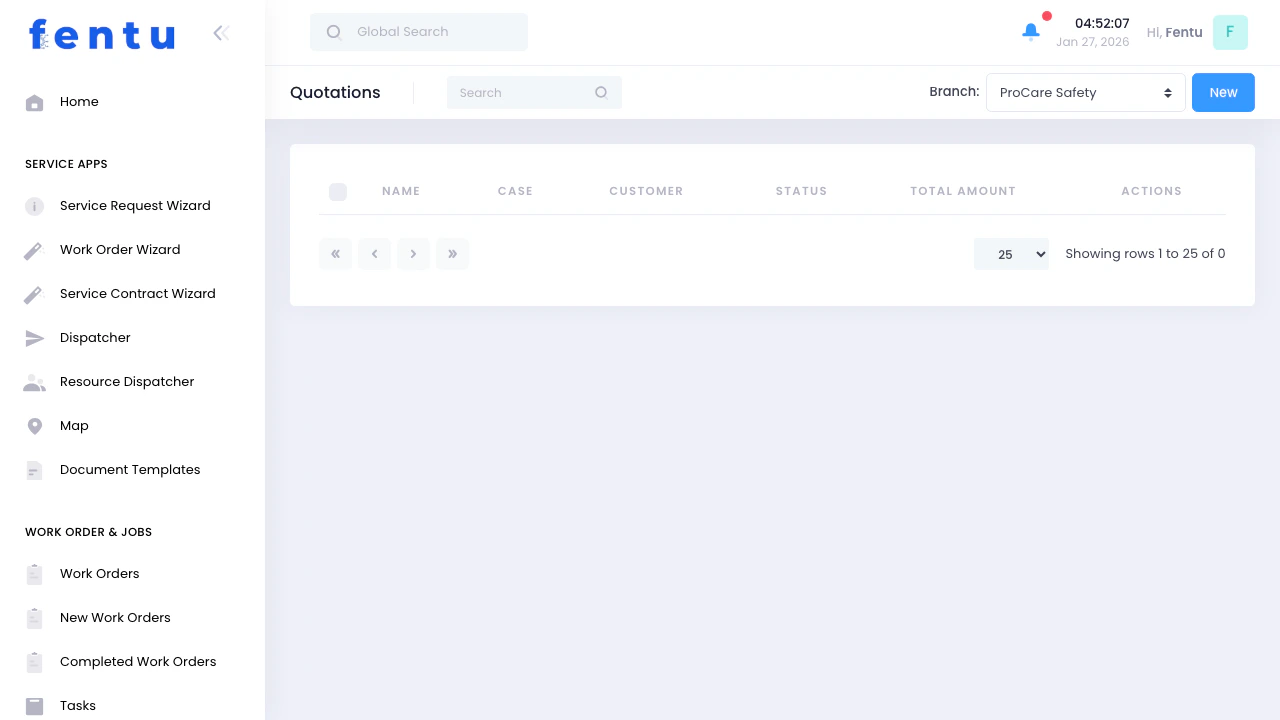
Quotations are price estimates provided to customers before performing work. They detail the cost of parts, labor, and other charges, allowing customers to approve or decline the proposed work before you proceed.
Always get customer approval on quotations before performing non-emergency work. Quotes protect both you and the customer by establishing clear expectations about cost.
## When to Use Quotations
Create quotations when:
* **Diagnostic work reveals repairs needed** - Quote the repair cost after finding the problem
* **Customers request estimates** - Before scheduling any non-contract work
* **Additional work discovered** - Found during scheduled maintenance
* **Large or expensive jobs** - Installations, major repairs, or system replacements
* **Non-warranty work** - Any work not covered by service contracts
* **Customers require written approval** - Corporate clients or purchase order requirements
Never perform work beyond the original scope without customer approval. Always quote additional work discovered during service calls.
***
## Quotation Information
Each quotation displays:
| Field | Description |
| ---------------- | ----------------------------------------------------- |
| **Quote ID** | Unique identifier for this quotation |
| **Work Order** | Associated work order or service request |
| **Customer** | Customer receiving the quote |
| **Quote Date** | When the quotation was created |
| **Status** | Current status (Pending, Approved, Declined, Expired) |
| **Total Amount** | Total quoted price including all charges |
| **Valid Until** | Expiration date for quoted prices |
| **Created By** | Technician or user who created the quote |
### Quotation Statuses
| Status | What It Means | Next Action |
| ------------- | -------------------------------------- | ------------------------------------------------------ |
| **Pending** | Quote sent, awaiting customer decision | Follow up with customer |
| **Approved** | Customer accepted the quote | Schedule and perform the work |
| **Declined** | Customer rejected the quote | Document reason, close quotation |
| **Expired** | Validity period passed | Contact customer, create new quote if still interested |
| **Converted** | Turned into work order | Proceed with approved work |
***
## Creating Quotations
### From Service Requests
Technician identifies issue and required work
View the service request or work order
Start new quotation from the request
List all parts, labor, and other charges
Apply pricing for each item
Set expiration date (typically 30 days)
Verify total cost is accurate
Save and send to customer
### Direct Creation
Navigate to Quotations menu
Start new quotation
Choose customer and location
Describe the work to be performed
List all parts, labor, and charges
System calculates total cost
Email or print quotation
***
## Key Behaviour
Before acceptance, a Quote and its related Case are **independent** — changes to one do not automatically affect the other.
Quotes mirror the Case/Service Request planning structure: line items can represent service requests, assets, and parts — matching how the actual work will be organized.
A single Case can have more than one associated quotation (for example, when the customer wants separate quotes for different scopes of work).
Once a quote is accepted, it synchronizes with the Case. Use **Generate Work Order** to accept the quote and create the linked work order in a single action.
Clicking **Generate Work Order** on an accepted quote will approve the quote and simultaneously create a work order. A confirmation prompt will appear before any action is taken.
***
## ERP Pricing
When Fentu FSM is integrated with an ERP system, use the **Price Request** action button to pull pricing directly from the ERP based on the customer, ship-to address, and other pre-configured fields. This ensures accurate, up-to-date pricing from the ERP rather than manually entered rates.
With ERP integration, standard sales prices and costs are typically pre-filled on quotation line items. Parts markup and labor rates are sourced directly from the ERP price book.
***
## Quotation Line Items
### Types of Charges
**Labor:**
* Hourly rates by technician skill level
* Flat-rate pricing for specific tasks
* Emergency or after-hours rates
* Travel time charges
**Parts and Materials:**
* Individual parts with part numbers
* Materials and supplies
* Equipment or system costs
* Shipping and handling
**Other Charges:**
* Trip charges or service call fees
* Equipment rental (lifts, generators, etc.)
* Permit or inspection fees
* Disposal fees
* Taxes
### Item Details
For each line item, specify:
| Field | Description |
| --------------- | ------------------------------------------------- |
| **Description** | What the item is or service being provided |
| **Part Number** | Part or item identifier (if applicable) |
| **Quantity** | How many units needed |
| **Unit Price** | Cost per unit |
| **Discount** | Any applicable discount percentage |
| **Total** | Extended price (quantity × unit price - discount) |
| **Notes** | Additional details or options |
Break down quotes into clear line items. Detailed quotes help customers understand what they're paying for and reduce disputes.
***
## Pricing Strategies
### Standard Pricing
* Use predefined labor rates
* Apply standard parts markup
* Follow company pricing policy
* Consistent across all quotes
### Competitive Pricing
* Research competitor pricing
* Adjust for market conditions
* Consider customer relationship value
* Balance profitability with competitiveness
### Value-Based Pricing
* Price based on value to customer
* Consider urgency and impact
* Emergency work vs. routine service
* Critical equipment vs. non-essential
Many organizations maintain price books with standard rates for common services, parts, and labor categories.
***
## Managing Quotations
### Sending Quotations
**By Email:**
* Generate PDF from system
* Send to customer email address
* Include payment terms and validity period
* Request confirmation or questions
**By Print:**
* Print quotation
* Deliver in person or mail
* Get customer signature on copy
* Keep signed copy for records
**Via Customer Portal:**
* Post to customer online portal
* Customer can review and approve online
* Automatic notifications
* Digital approval process
### Following Up
Allow customer time to review
Call or email to discuss the quote
Address any concerns or confusion
Discuss pricing or alternatives
Ask for approval or decline
Mark quote as approved, declined, or expired
### Handling Approvals
**When Approved:**
Update quotation status to Approved
Note how approval was received (email, verbal, signed copy)
Convert quote to work order if not already linked
Coordinate timing with customer
Purchase any parts not in stock
Complete the job as quoted
**When Declined:**
Update status to Declined
Note why customer declined (too expensive, going with competitor, etc.)
Suggest lower-cost options if appropriate
Mark as closed if no further action
Consider following up if situation changes
Get written approval (email, signed quote, or system approval) before starting work. Verbal approvals can lead to disputes.
***
## Quotation Best Practices
Itemize labor, parts, and other charges separately. Customers appreciate transparency and detailed explanations.
Explain what work will be done in plain language. Avoid technical jargon customers won't understand.
Quotes should expire after 30-90 days. Prices can change, and you need to protect your pricing.
Provide good/better/best pricing options when appropriate. Gives customers choice and control.
State payment methods accepted, when payment is due, and any deposit requirements.
Keep records of all quotes sent, customer responses, and approval methods. Protects against disputes.
Contact customers within 2-3 days of sending quote. Shows attentiveness and professionalism.
Ensure quotes are well-formatted, free of errors, and include your company branding.
***
## Common Questions
Typically 30-60 days, but varies by organization and industry. Set validity periods based on how volatile your costs are.
Yes, create a revised quote with new pricing. Clearly mark it as "Revised" and reference the original quote.
You must absorb the difference unless you get customer approval for additional charges. Always quote conservatively.
Not usually. Contract work is pre-approved and pre-priced. Only quote work outside the contract scope.
Depends on your company policy. Some allow negotiation, others have firm pricing. Be consistent.
The quote may expire. Contact the customer, and if still valid, honor the original pricing. If expired, create new quote with current pricing.
Many organizations charge a diagnostic fee upfront, then quote the repair. Others offer free diagnostics but quote the full repair cost.
Document the reason for future reference. Follow up later if appropriate. Use data to identify pricing or service issues.
***
## Related Documentation
Creating and managing work orders
Requesting parts and materials
Managing customer service requests
Generating invoices from approved work
## Overview
Quotations are price estimates provided to customers before performing work. They detail the cost of parts, labor, and other charges, allowing customers to approve or decline the proposed work before you proceed.
Always get customer approval on quotations before performing non-emergency work. Quotes protect both you and the customer by establishing clear expectations about cost.
## When to Use Quotations
Create quotations when:
* **Diagnostic work reveals repairs needed** - Quote the repair cost after finding the problem
* **Customers request estimates** - Before scheduling any non-contract work
* **Additional work discovered** - Found during scheduled maintenance
* **Large or expensive jobs** - Installations, major repairs, or system replacements
* **Non-warranty work** - Any work not covered by service contracts
* **Customers require written approval** - Corporate clients or purchase order requirements
Never perform work beyond the original scope without customer approval. Always quote additional work discovered during service calls.
***
## Quotation Information
Each quotation displays:
| Field | Description |
| ---------------- | ----------------------------------------------------- |
| **Quote ID** | Unique identifier for this quotation |
| **Work Order** | Associated work order or service request |
| **Customer** | Customer receiving the quote |
| **Quote Date** | When the quotation was created |
| **Status** | Current status (Pending, Approved, Declined, Expired) |
| **Total Amount** | Total quoted price including all charges |
| **Valid Until** | Expiration date for quoted prices |
| **Created By** | Technician or user who created the quote |
### Quotation Statuses
| Status | What It Means | Next Action |
| ------------- | -------------------------------------- | ------------------------------------------------------ |
| **Pending** | Quote sent, awaiting customer decision | Follow up with customer |
| **Approved** | Customer accepted the quote | Schedule and perform the work |
| **Declined** | Customer rejected the quote | Document reason, close quotation |
| **Expired** | Validity period passed | Contact customer, create new quote if still interested |
| **Converted** | Turned into work order | Proceed with approved work |
***
## Creating Quotations
### From Service Requests
Technician identifies issue and required work
View the service request or work order
Start new quotation from the request
List all parts, labor, and other charges
Apply pricing for each item
Set expiration date (typically 30 days)
Verify total cost is accurate
Save and send to customer
### Direct Creation
Navigate to Quotations menu
Start new quotation
Choose customer and location
Describe the work to be performed
List all parts, labor, and charges
System calculates total cost
Email or print quotation
***
## Key Behaviour
Before acceptance, a Quote and its related Case are **independent** — changes to one do not automatically affect the other.
Quotes mirror the Case/Service Request planning structure: line items can represent service requests, assets, and parts — matching how the actual work will be organized.
A single Case can have more than one associated quotation (for example, when the customer wants separate quotes for different scopes of work).
Once a quote is accepted, it synchronizes with the Case. Use **Generate Work Order** to accept the quote and create the linked work order in a single action.
Clicking **Generate Work Order** on an accepted quote will approve the quote and simultaneously create a work order. A confirmation prompt will appear before any action is taken.
***
## ERP Pricing
When Fentu FSM is integrated with an ERP system, use the **Price Request** action button to pull pricing directly from the ERP based on the customer, ship-to address, and other pre-configured fields. This ensures accurate, up-to-date pricing from the ERP rather than manually entered rates.
With ERP integration, standard sales prices and costs are typically pre-filled on quotation line items. Parts markup and labor rates are sourced directly from the ERP price book.
***
## Quotation Line Items
### Types of Charges
**Labor:**
* Hourly rates by technician skill level
* Flat-rate pricing for specific tasks
* Emergency or after-hours rates
* Travel time charges
**Parts and Materials:**
* Individual parts with part numbers
* Materials and supplies
* Equipment or system costs
* Shipping and handling
**Other Charges:**
* Trip charges or service call fees
* Equipment rental (lifts, generators, etc.)
* Permit or inspection fees
* Disposal fees
* Taxes
### Item Details
For each line item, specify:
| Field | Description |
| --------------- | ------------------------------------------------- |
| **Description** | What the item is or service being provided |
| **Part Number** | Part or item identifier (if applicable) |
| **Quantity** | How many units needed |
| **Unit Price** | Cost per unit |
| **Discount** | Any applicable discount percentage |
| **Total** | Extended price (quantity × unit price - discount) |
| **Notes** | Additional details or options |
Break down quotes into clear line items. Detailed quotes help customers understand what they're paying for and reduce disputes.
***
## Pricing Strategies
### Standard Pricing
* Use predefined labor rates
* Apply standard parts markup
* Follow company pricing policy
* Consistent across all quotes
### Competitive Pricing
* Research competitor pricing
* Adjust for market conditions
* Consider customer relationship value
* Balance profitability with competitiveness
### Value-Based Pricing
* Price based on value to customer
* Consider urgency and impact
* Emergency work vs. routine service
* Critical equipment vs. non-essential
Many organizations maintain price books with standard rates for common services, parts, and labor categories.
***
## Managing Quotations
### Sending Quotations
**By Email:**
* Generate PDF from system
* Send to customer email address
* Include payment terms and validity period
* Request confirmation or questions
**By Print:**
* Print quotation
* Deliver in person or mail
* Get customer signature on copy
* Keep signed copy for records
**Via Customer Portal:**
* Post to customer online portal
* Customer can review and approve online
* Automatic notifications
* Digital approval process
### Following Up
Allow customer time to review
Call or email to discuss the quote
Address any concerns or confusion
Discuss pricing or alternatives
Ask for approval or decline
Mark quote as approved, declined, or expired
### Handling Approvals
**When Approved:**
Update quotation status to Approved
Note how approval was received (email, verbal, signed copy)
Convert quote to work order if not already linked
Coordinate timing with customer
Purchase any parts not in stock
Complete the job as quoted
**When Declined:**
Update status to Declined
Note why customer declined (too expensive, going with competitor, etc.)
Suggest lower-cost options if appropriate
Mark as closed if no further action
Consider following up if situation changes
Get written approval (email, signed quote, or system approval) before starting work. Verbal approvals can lead to disputes.
***
## Quotation Best Practices
Itemize labor, parts, and other charges separately. Customers appreciate transparency and detailed explanations.
Explain what work will be done in plain language. Avoid technical jargon customers won't understand.
Quotes should expire after 30-90 days. Prices can change, and you need to protect your pricing.
Provide good/better/best pricing options when appropriate. Gives customers choice and control.
State payment methods accepted, when payment is due, and any deposit requirements.
Keep records of all quotes sent, customer responses, and approval methods. Protects against disputes.
Contact customers within 2-3 days of sending quote. Shows attentiveness and professionalism.
Ensure quotes are well-formatted, free of errors, and include your company branding.
***
## Common Questions
Typically 30-60 days, but varies by organization and industry. Set validity periods based on how volatile your costs are.
Yes, create a revised quote with new pricing. Clearly mark it as "Revised" and reference the original quote.
You must absorb the difference unless you get customer approval for additional charges. Always quote conservatively.
Not usually. Contract work is pre-approved and pre-priced. Only quote work outside the contract scope.
Depends on your company policy. Some allow negotiation, others have firm pricing. Be consistent.
The quote may expire. Contact the customer, and if still valid, honor the original pricing. If expired, create new quote with current pricing.
Many organizations charge a diagnostic fee upfront, then quote the repair. Others offer free diagnostics but quote the full repair cost.
Document the reason for future reference. Follow up later if appropriate. Use data to identify pricing or service issues.
***
## Related Documentation
Creating and managing work orders
Requesting parts and materials
Managing customer service requests
Generating invoices from approved work