> ## Documentation Index
> Fetch the complete documentation index at: https://docs.fentufsm.com/llms.txt
> Use this file to discover all available pages before exploring further.
# Tasks
> Managing and tracking individual work activities within work orders
 ## Overview
Tasks are individual work activities within a work order. While a work order represents the overall job (such as "Install new Machine system"), tasks break that job into specific, manageable steps like "Remove old unit", "Install new unit", "Test system", and "Train customer".
Tasks allow you to divide complex work orders into smaller pieces, assign different technicians to different parts, and track progress at a granular level.
## When to Use Tasks
Use tasks when:
* Work orders involve multiple distinct activities
* Different technicians need to work on different parts of the job
* You need to track progress of individual steps
* Complex jobs require better planning and coordination
* Equipment servicing needs detailed asset-specific tracking
***
## Service Scenarios
Fentu FSM supports four service scenarios. They share the same lifecycle (request → work order → execution → completion → ERP) but differ in how they start and which steps are optional.
## Tasks Interface
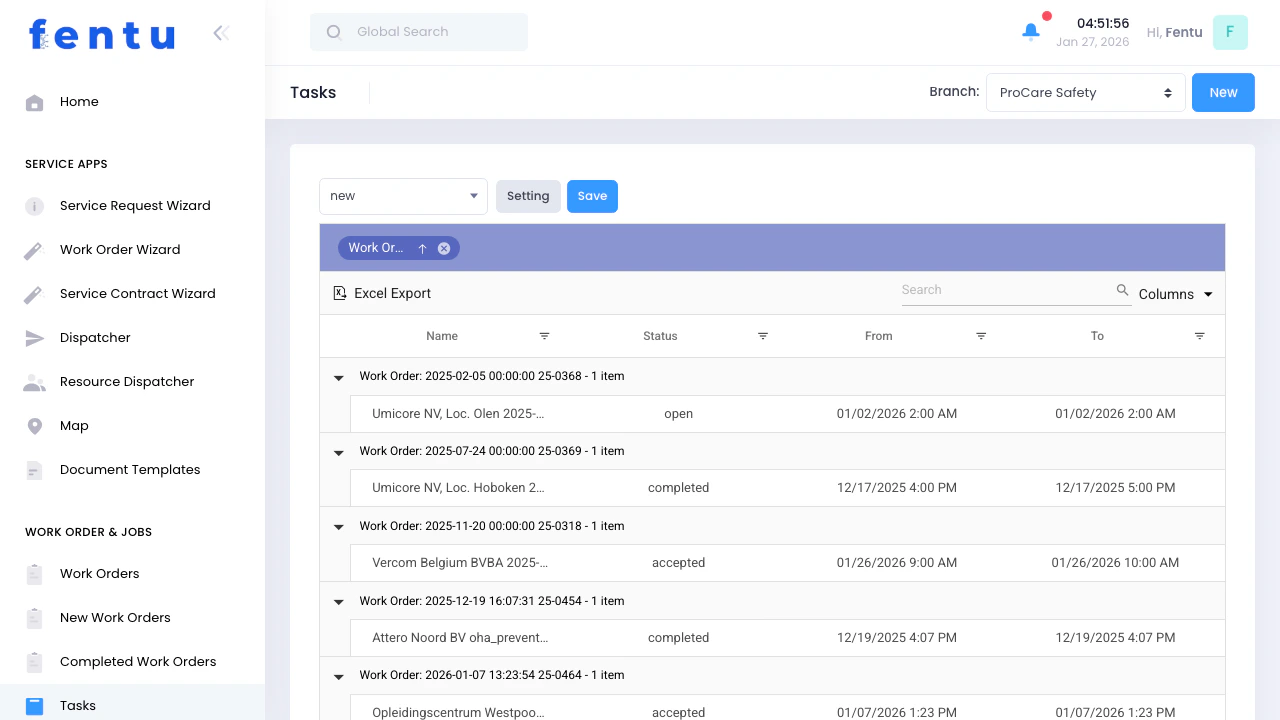
The Tasks list shows all tasks across your organization, grouped by work order. Each task displays:
| Field | Description |
| -------------- | ------------------------------------------------------------------ |
| **Name** | Task description and associated customer/location |
| **Status** | Current task status (Open, Assigned, In Progress, Completed, etc.) |
| **From** | Scheduled start date and time |
| **To** | Scheduled end date and time |
| **Work Order** | Parent work order this task belongs to |
| **Technician** | Assigned technician(s) for this task |
### Filtering Tasks
Use the filters to find specific tasks:
* **Status Filter**: Show only tasks with specific statuses
* **Date Range**: Filter by scheduled date
* **Technician**: See tasks assigned to specific technicians
* **Work Order**: View all tasks for a specific work order
* **Customer**: Find tasks for a particular customer
Tasks are grouped by work order by default. Click the work order group header to expand or collapse all tasks within that work order.
***
## Task Statuses
Tasks progress through several statuses during their lifecycle:
| Status | Description | What It Means |
| --------------- | -------------------- | -------------------------------------------------- |
| **Open** | Newly created | Task exists but hasn't been assigned yet |
| **Assigned** | Technician assigned | Scheduled and ready for the assigned technician |
| **Accepted** | Technician confirmed | Technician has acknowledged and accepted the task |
| **In Progress** | Work started | Technician is actively working on this task |
| **Paused** | Temporarily stopped | Waiting for parts, approval, or other dependencies |
| **Completed** | Work finished | Task has been successfully completed |
### Status Workflow
```text theme={null}
Open → Assigned → Accepted → In Progress → Completed
↓
Paused (temporary)
```
Technicians update task status from their mobile app or web portal as they work. Real-time status updates help dispatchers monitor progress and identify delays.
***
## Viewing Task Details
Click on any task in the list to view complete details:
### Task Information
* **Task Description**: What work needs to be done
* **Work Order**: Parent work order and customer information
* **Scheduled Times**: Start and end date/time
* **Priority**: Task priority level
* **Status**: Current task status
### Resources
* **Assigned Technicians**: Who will perform the work
* **Parts**: Materials needed for this task
* **Tools**: Equipment required
* **Vehicles**: Service vehicles assigned
* **Assets**: Customer equipment being serviced
### Documentation
* **Work Reports**: Detailed reports of work performed
* **Attachments**: Photos, documents, and files
* **Notes**: Internal notes and observations
* **History**: Complete change history and audit trail
Always review task details before starting work. Ensure you have all required parts, tools, and information before heading to the customer site.
***
## Creating Tasks
Tasks are typically created from work orders:
Navigate to the work order where you want to add tasks
Scroll to the Tasks section within the work order
Click the "Add" button to create a new task
Fill in task description, schedule, and resources
Select who will perform this task
Save the task to add it to the work order
### Task Assignment Options
**Single Technician:**
* Assign one technician for individual accountability
* Best for most standard service tasks
* Clear ownership and responsibility
**Multiple Technicians:**
* Assign a team to work together
* Useful for large or complex tasks
* Requires coordination between team members
**Unassigned:**
* Create task without assignment
* Appears in dispatcher's unassigned queue
* Assign later based on availability and skills
***
## Managing Task Resources
### Parts and Materials
Add specific parts needed for each task:
* Search and select from inventory
* Specify quantities required
* Reserve parts to ensure availability
* Track usage and consumption
### Tools and Equipment
Assign specialized tools or equipment:
* Company-owned equipment (lifts, generators, etc.)
* Specialized diagnostic tools
* Rental equipment
* Ensure availability before scheduling
### Customer Assets
Link tasks to specific customer equipment:
* Track which assets are being serviced
* View asset history and previous service
* Document asset-specific work
* Maintain complete service records
Assigning resources at the task level (not just work order level) ensures everything needed is available when the technician starts that specific task.
***
## Task Line Items
For tasks involving multiple pieces of service objects (equipment or assets), the system creates Task Line Items. Each line item represents work on a specific service object.
### When to Use Line Items
* Maintenance tasks covering multiple service objects (e.g., "Inspect 10 rooftop units")
* Each service object needs individual documentation
* Per-service object billing or reporting required
* Quality control checklists for each piece of equipment
### Line Item Features
Each line item links to a specific customer service object, allowing you to track work performed, parts used, and findings for each piece of equipment individually.
Attach quality control checklists to each line item. Ensure consistent service procedures across all service objects and technicians.
Upload before and after photos for each asset serviced. Provides proof of work and evidence of conditions found.
Document findings and work performed for each service object separately. Creates detailed service history for every piece of equipment.
***
## Best Practices
Don't create single-task work orders for complex jobs. Multiple tasks improve scheduling flexibility, resource allocation, and progress tracking.
Write clear, specific task descriptions. "Install Machine unit in conference room" is better than "Machine work". Include equipment models and specific locations.
Account for travel time, setup, actual work, and cleanup. Add buffer time for unexpected issues. Under-estimating causes scheduling conflicts.
Match technician expertise to task requirements. Electrical tasks need electricians, plumbing tasks need plumbers. Check certifications and specializations.
Encourage technicians to update task status in real-time. Current status information helps dispatchers make informed decisions and respond to delays.
Assign and reserve required parts when creating tasks. Prevents parts shortages and ensures materials are available when technicians need them.
Add notes, upload photos, and complete work reports. Good documentation prevents disputes, supports billing, and helps with future service.
Analyze completed tasks to improve estimates and planning. Learn from what worked and what didn't. Identify problematic patterns.
***
## Common Questions
No. Simple work orders with a single activity can go without separate tasks. Use tasks when work is complex, involves multiple steps, or requires multiple technicians.
Yes. Set the task start date on one day and end date on another. Multi-day tasks are common for large installations or projects requiring multiple visits.
Yes. Open the task, edit the assigned technician field, and save. The new technician will see it in their schedule. Notify both technicians of the change.
The task shows as overdue. Dispatchers can see overdue tasks and take action: reassign to another technician, add resources, adjust timeline, or reschedule.
Yes. Assign multiple technicians to one task for team-based work. Or create separate tasks and assign different technicians to each for parallel work.
Set the task status to "Paused" and add a note explaining you're waiting for parts. When parts arrive, change status to "Assigned" or "In Progress" to resume work.
Yes. Many common service procedures can be saved as task templates. Using templates speeds up work order creation and ensures consistency across jobs.
Dispatchers or managers can manually update task status based on technician reports. Consider implementing mobile app reminders or requiring status updates.
***
## Related Documentation
Understanding work orders and overall job management
Scheduling and assigning tasks visually
Technician-focused task assignment and scheduling
Creating work orders with tasks step-by-step
## Overview
Tasks are individual work activities within a work order. While a work order represents the overall job (such as "Install new Machine system"), tasks break that job into specific, manageable steps like "Remove old unit", "Install new unit", "Test system", and "Train customer".
Tasks allow you to divide complex work orders into smaller pieces, assign different technicians to different parts, and track progress at a granular level.
## When to Use Tasks
Use tasks when:
* Work orders involve multiple distinct activities
* Different technicians need to work on different parts of the job
* You need to track progress of individual steps
* Complex jobs require better planning and coordination
* Equipment servicing needs detailed asset-specific tracking
***
## Service Scenarios
Fentu FSM supports four service scenarios. They share the same lifecycle (request → work order → execution → completion → ERP) but differ in how they start and which steps are optional.
## Tasks Interface
The Tasks list shows all tasks across your organization, grouped by work order. Each task displays:
| Field | Description |
| -------------- | ------------------------------------------------------------------ |
| **Name** | Task description and associated customer/location |
| **Status** | Current task status (Open, Assigned, In Progress, Completed, etc.) |
| **From** | Scheduled start date and time |
| **To** | Scheduled end date and time |
| **Work Order** | Parent work order this task belongs to |
| **Technician** | Assigned technician(s) for this task |
### Filtering Tasks
Use the filters to find specific tasks:
* **Status Filter**: Show only tasks with specific statuses
* **Date Range**: Filter by scheduled date
* **Technician**: See tasks assigned to specific technicians
* **Work Order**: View all tasks for a specific work order
* **Customer**: Find tasks for a particular customer
Tasks are grouped by work order by default. Click the work order group header to expand or collapse all tasks within that work order.
***
## Task Statuses
Tasks progress through several statuses during their lifecycle:
| Status | Description | What It Means |
| --------------- | -------------------- | -------------------------------------------------- |
| **Open** | Newly created | Task exists but hasn't been assigned yet |
| **Assigned** | Technician assigned | Scheduled and ready for the assigned technician |
| **Accepted** | Technician confirmed | Technician has acknowledged and accepted the task |
| **In Progress** | Work started | Technician is actively working on this task |
| **Paused** | Temporarily stopped | Waiting for parts, approval, or other dependencies |
| **Completed** | Work finished | Task has been successfully completed |
### Status Workflow
```text theme={null}
Open → Assigned → Accepted → In Progress → Completed
↓
Paused (temporary)
```
Technicians update task status from their mobile app or web portal as they work. Real-time status updates help dispatchers monitor progress and identify delays.
***
## Viewing Task Details
Click on any task in the list to view complete details:
### Task Information
* **Task Description**: What work needs to be done
* **Work Order**: Parent work order and customer information
* **Scheduled Times**: Start and end date/time
* **Priority**: Task priority level
* **Status**: Current task status
### Resources
* **Assigned Technicians**: Who will perform the work
* **Parts**: Materials needed for this task
* **Tools**: Equipment required
* **Vehicles**: Service vehicles assigned
* **Assets**: Customer equipment being serviced
### Documentation
* **Work Reports**: Detailed reports of work performed
* **Attachments**: Photos, documents, and files
* **Notes**: Internal notes and observations
* **History**: Complete change history and audit trail
Always review task details before starting work. Ensure you have all required parts, tools, and information before heading to the customer site.
***
## Creating Tasks
Tasks are typically created from work orders:
Navigate to the work order where you want to add tasks
Scroll to the Tasks section within the work order
Click the "Add" button to create a new task
Fill in task description, schedule, and resources
Select who will perform this task
Save the task to add it to the work order
### Task Assignment Options
**Single Technician:**
* Assign one technician for individual accountability
* Best for most standard service tasks
* Clear ownership and responsibility
**Multiple Technicians:**
* Assign a team to work together
* Useful for large or complex tasks
* Requires coordination between team members
**Unassigned:**
* Create task without assignment
* Appears in dispatcher's unassigned queue
* Assign later based on availability and skills
***
## Managing Task Resources
### Parts and Materials
Add specific parts needed for each task:
* Search and select from inventory
* Specify quantities required
* Reserve parts to ensure availability
* Track usage and consumption
### Tools and Equipment
Assign specialized tools or equipment:
* Company-owned equipment (lifts, generators, etc.)
* Specialized diagnostic tools
* Rental equipment
* Ensure availability before scheduling
### Customer Assets
Link tasks to specific customer equipment:
* Track which assets are being serviced
* View asset history and previous service
* Document asset-specific work
* Maintain complete service records
Assigning resources at the task level (not just work order level) ensures everything needed is available when the technician starts that specific task.
***
## Task Line Items
For tasks involving multiple pieces of service objects (equipment or assets), the system creates Task Line Items. Each line item represents work on a specific service object.
### When to Use Line Items
* Maintenance tasks covering multiple service objects (e.g., "Inspect 10 rooftop units")
* Each service object needs individual documentation
* Per-service object billing or reporting required
* Quality control checklists for each piece of equipment
### Line Item Features
Each line item links to a specific customer service object, allowing you to track work performed, parts used, and findings for each piece of equipment individually.
Attach quality control checklists to each line item. Ensure consistent service procedures across all service objects and technicians.
Upload before and after photos for each asset serviced. Provides proof of work and evidence of conditions found.
Document findings and work performed for each service object separately. Creates detailed service history for every piece of equipment.
***
## Best Practices
Don't create single-task work orders for complex jobs. Multiple tasks improve scheduling flexibility, resource allocation, and progress tracking.
Write clear, specific task descriptions. "Install Machine unit in conference room" is better than "Machine work". Include equipment models and specific locations.
Account for travel time, setup, actual work, and cleanup. Add buffer time for unexpected issues. Under-estimating causes scheduling conflicts.
Match technician expertise to task requirements. Electrical tasks need electricians, plumbing tasks need plumbers. Check certifications and specializations.
Encourage technicians to update task status in real-time. Current status information helps dispatchers make informed decisions and respond to delays.
Assign and reserve required parts when creating tasks. Prevents parts shortages and ensures materials are available when technicians need them.
Add notes, upload photos, and complete work reports. Good documentation prevents disputes, supports billing, and helps with future service.
Analyze completed tasks to improve estimates and planning. Learn from what worked and what didn't. Identify problematic patterns.
***
## Common Questions
No. Simple work orders with a single activity can go without separate tasks. Use tasks when work is complex, involves multiple steps, or requires multiple technicians.
Yes. Set the task start date on one day and end date on another. Multi-day tasks are common for large installations or projects requiring multiple visits.
Yes. Open the task, edit the assigned technician field, and save. The new technician will see it in their schedule. Notify both technicians of the change.
The task shows as overdue. Dispatchers can see overdue tasks and take action: reassign to another technician, add resources, adjust timeline, or reschedule.
Yes. Assign multiple technicians to one task for team-based work. Or create separate tasks and assign different technicians to each for parallel work.
Set the task status to "Paused" and add a note explaining you're waiting for parts. When parts arrive, change status to "Assigned" or "In Progress" to resume work.
Yes. Many common service procedures can be saved as task templates. Using templates speeds up work order creation and ensures consistency across jobs.
Dispatchers or managers can manually update task status based on technician reports. Consider implementing mobile app reminders or requiring status updates.
***
## Related Documentation
Understanding work orders and overall job management
Scheduling and assigning tasks visually
Technician-focused task assignment and scheduling
Creating work orders with tasks step-by-step