> ## Documentation Index
> Fetch the complete documentation index at: https://docs.fentufsm.com/llms.txt
> Use this file to discover all available pages before exploring further.
# Leave Management
> Managing technician time off and availability
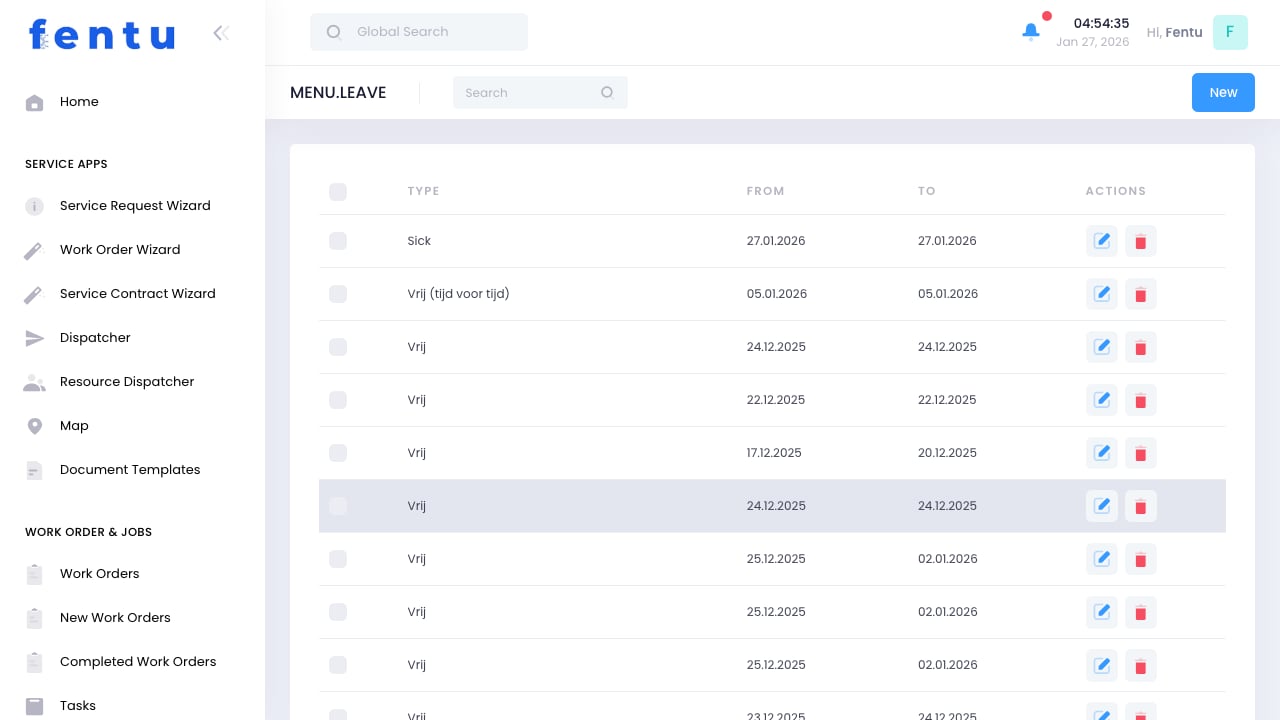 ## Overview
Leave Management tracks technician time off, ensuring dispatchers know who is available and can plan coverage accordingly. This includes vacation, sick days, training, and any other scheduled absences.
Accurate leave tracking prevents scheduling conflicts. Nothing frustrates customers more than appointments being rescheduled because the technician is unexpectedly unavailable.
## When to Use Leave Management
Manage leave for:
* **Vacation Requests** - Planned time off
* **Sick Days** - Illness-related absences
* **Training** - Off-site training and certifications
* **Personal Days** - Other planned absences
* **Company Holidays** - Organization-wide time off
* **Jury Duty/Other** - Required absences
Encourage technicians to submit leave requests well in advance. Early notice allows better coverage planning.
***
## Leave Information
Each leave record includes:
| Field | Description |
| -------------- | -------------------------------------- |
| **Technician** | Who is taking leave |
| **Leave Type** | Category of absence |
| **Start Date** | When leave begins |
| **End Date** | When leave ends |
| **Hours/Days** | Duration of absence |
| **Status** | Requested, Approved, Denied, Cancelled |
| **Notes** | Additional information |
| **Approver** | Who approved the leave |
### Leave Types
| Type | Description |
| --------------- | -------------------------------- |
| **Vacation** | Planned paid time off |
| **Sick** | Illness or medical appointment |
| **Personal** | Personal day or floating holiday |
| **Training** | Education or certification |
| **Jury Duty** | Court-required service |
| **Bereavement** | Family loss |
| **Unpaid** | Leave without pay |
| **Other** | Miscellaneous absences |
***
## Submitting Leave Requests
### For Technicians
Access leave request function
Start new request
Choose appropriate category
Specify start and end dates
Provide any relevant details
Send for approval
### For Managers
Managers can enter leave on behalf of technicians:
1. Select technician
2. Create leave record
3. Set type and dates
4. Approve immediately or save as pending
Always check scheduled work before approving leave. Conflicting appointments need to be reassigned first.
***
## Leave Approval
### Approval Workflow
Technician submits leave request
Approving manager receives notification
Manager checks dates and coverage
System identifies any scheduling conflicts
Manager makes decision
Requester informed of decision
Approved leave blocks scheduling
### Approval Considerations
Before approving, check:
* Are there scheduled appointments during the leave period?
* Is adequate coverage available?
* Are other team members already off?
* Is this during a peak period?
Configure rules for automatic conflict detection. The system can alert when leave would create coverage problems.
***
## Calendar Integration
### Blocking Availability
Approved leave:
* Removes technician from available pool
* Blocks new scheduling during leave
* Shows on dispatch calendar
* Appears in technician's schedule
### Viewing Leave
See leave information in:
* Dispatcher calendar
* Resource dispatcher view
* Technician schedule
* Leave reports
### Conflict Resolution
When leave is requested for dates with existing appointments:
1. System flags the conflict
2. Work must be reassigned before approval
3. Or leave request is modified
4. Or request is denied
***
## Leave Policies
### Configurable Settings
| Setting | Description |
| ---------------------- | ------------------------------ |
| **Accrual Rules** | How leave is earned |
| **Maximum Balance** | Cap on accumulated leave |
| **Advance Notice** | Required request lead time |
| **Blackout Dates** | Dates when leave is restricted |
| **Approval Hierarchy** | Who can approve |
### Holiday Management
For company-wide holidays:
1. Define holiday calendar
2. Holidays automatically block scheduling
3. Apply to all or specific technicians
4. Handle emergency coverage separately
Set up blackout dates for peak seasons when you can't afford reduced staffing. Requests during blackouts require additional approval.
***
## Reporting
### Available Reports
| Report | Shows |
| ------------------ | -------------------------------------- |
| **Leave Balances** | Remaining leave by type per technician |
| **Leave History** | Past leave taken |
| **Leave Calendar** | Visual calendar of all leave |
| **Coverage Gaps** | Dates with reduced coverage |
| **Leave Trends** | Patterns in leave usage |
### Using Reports
* **Capacity Planning** - Anticipate staffing levels
* **Balance Monitoring** - Identify technicians with high unused balances
* **Trend Analysis** - Spot patterns (e.g., high sick days on certain days)
* **Compliance** - Ensure policies are followed
***
## Best Practices
Encourage early leave requests. More notice means better coverage planning.
Document and communicate leave policies clearly. Consistency prevents conflicts.
Ensure multiple technicians can cover each territory and skill set. Single points of failure cause problems.
Monitor leave balances. Encourage use before year-end to prevent everyone requesting off simultaneously.
Ensure holidays and peak times are shared fairly. Rotate who works holidays annually.
Have procedures for unplanned absences. Who covers when someone calls in sick?
***
## Common Questions
Yes, technicians can typically view their accrued and used leave through the technician portal or mobile app.
Configure automatic handling - they can expire, be auto-denied, or remain pending for manual review.
Yes, both technicians and managers can cancel approved leave before it begins. Work rescheduling may be needed.
Most leave systems support partial day entries. Specify hours instead of full days.
System can be configured to warn or prevent overlapping leave that reduces coverage below thresholds.
Leave records can integrate with payroll systems if configured. Otherwise, export leave data for payroll processing.
***
## Related Documentation
Technician profiles
Scheduling and dispatch
Resource calendar view
Team coverage
## Overview
Leave Management tracks technician time off, ensuring dispatchers know who is available and can plan coverage accordingly. This includes vacation, sick days, training, and any other scheduled absences.
Accurate leave tracking prevents scheduling conflicts. Nothing frustrates customers more than appointments being rescheduled because the technician is unexpectedly unavailable.
## When to Use Leave Management
Manage leave for:
* **Vacation Requests** - Planned time off
* **Sick Days** - Illness-related absences
* **Training** - Off-site training and certifications
* **Personal Days** - Other planned absences
* **Company Holidays** - Organization-wide time off
* **Jury Duty/Other** - Required absences
Encourage technicians to submit leave requests well in advance. Early notice allows better coverage planning.
***
## Leave Information
Each leave record includes:
| Field | Description |
| -------------- | -------------------------------------- |
| **Technician** | Who is taking leave |
| **Leave Type** | Category of absence |
| **Start Date** | When leave begins |
| **End Date** | When leave ends |
| **Hours/Days** | Duration of absence |
| **Status** | Requested, Approved, Denied, Cancelled |
| **Notes** | Additional information |
| **Approver** | Who approved the leave |
### Leave Types
| Type | Description |
| --------------- | -------------------------------- |
| **Vacation** | Planned paid time off |
| **Sick** | Illness or medical appointment |
| **Personal** | Personal day or floating holiday |
| **Training** | Education or certification |
| **Jury Duty** | Court-required service |
| **Bereavement** | Family loss |
| **Unpaid** | Leave without pay |
| **Other** | Miscellaneous absences |
***
## Submitting Leave Requests
### For Technicians
Access leave request function
Start new request
Choose appropriate category
Specify start and end dates
Provide any relevant details
Send for approval
### For Managers
Managers can enter leave on behalf of technicians:
1. Select technician
2. Create leave record
3. Set type and dates
4. Approve immediately or save as pending
Always check scheduled work before approving leave. Conflicting appointments need to be reassigned first.
***
## Leave Approval
### Approval Workflow
Technician submits leave request
Approving manager receives notification
Manager checks dates and coverage
System identifies any scheduling conflicts
Manager makes decision
Requester informed of decision
Approved leave blocks scheduling
### Approval Considerations
Before approving, check:
* Are there scheduled appointments during the leave period?
* Is adequate coverage available?
* Are other team members already off?
* Is this during a peak period?
Configure rules for automatic conflict detection. The system can alert when leave would create coverage problems.
***
## Calendar Integration
### Blocking Availability
Approved leave:
* Removes technician from available pool
* Blocks new scheduling during leave
* Shows on dispatch calendar
* Appears in technician's schedule
### Viewing Leave
See leave information in:
* Dispatcher calendar
* Resource dispatcher view
* Technician schedule
* Leave reports
### Conflict Resolution
When leave is requested for dates with existing appointments:
1. System flags the conflict
2. Work must be reassigned before approval
3. Or leave request is modified
4. Or request is denied
***
## Leave Policies
### Configurable Settings
| Setting | Description |
| ---------------------- | ------------------------------ |
| **Accrual Rules** | How leave is earned |
| **Maximum Balance** | Cap on accumulated leave |
| **Advance Notice** | Required request lead time |
| **Blackout Dates** | Dates when leave is restricted |
| **Approval Hierarchy** | Who can approve |
### Holiday Management
For company-wide holidays:
1. Define holiday calendar
2. Holidays automatically block scheduling
3. Apply to all or specific technicians
4. Handle emergency coverage separately
Set up blackout dates for peak seasons when you can't afford reduced staffing. Requests during blackouts require additional approval.
***
## Reporting
### Available Reports
| Report | Shows |
| ------------------ | -------------------------------------- |
| **Leave Balances** | Remaining leave by type per technician |
| **Leave History** | Past leave taken |
| **Leave Calendar** | Visual calendar of all leave |
| **Coverage Gaps** | Dates with reduced coverage |
| **Leave Trends** | Patterns in leave usage |
### Using Reports
* **Capacity Planning** - Anticipate staffing levels
* **Balance Monitoring** - Identify technicians with high unused balances
* **Trend Analysis** - Spot patterns (e.g., high sick days on certain days)
* **Compliance** - Ensure policies are followed
***
## Best Practices
Encourage early leave requests. More notice means better coverage planning.
Document and communicate leave policies clearly. Consistency prevents conflicts.
Ensure multiple technicians can cover each territory and skill set. Single points of failure cause problems.
Monitor leave balances. Encourage use before year-end to prevent everyone requesting off simultaneously.
Ensure holidays and peak times are shared fairly. Rotate who works holidays annually.
Have procedures for unplanned absences. Who covers when someone calls in sick?
***
## Common Questions
Yes, technicians can typically view their accrued and used leave through the technician portal or mobile app.
Configure automatic handling - they can expire, be auto-denied, or remain pending for manual review.
Yes, both technicians and managers can cancel approved leave before it begins. Work rescheduling may be needed.
Most leave systems support partial day entries. Specify hours instead of full days.
System can be configured to warn or prevent overlapping leave that reduces coverage below thresholds.
Leave records can integrate with payroll systems if configured. Otherwise, export leave data for payroll processing.
***
## Related Documentation
Technician profiles
Scheduling and dispatch
Resource calendar view
Team coverage