> ## Documentation Index
> Fetch the complete documentation index at: https://docs.fentufsm.com/llms.txt
> Use this file to discover all available pages before exploring further.
# Dynamic Teams
> Automatic team membership based on rules and criteria
 ## Overview
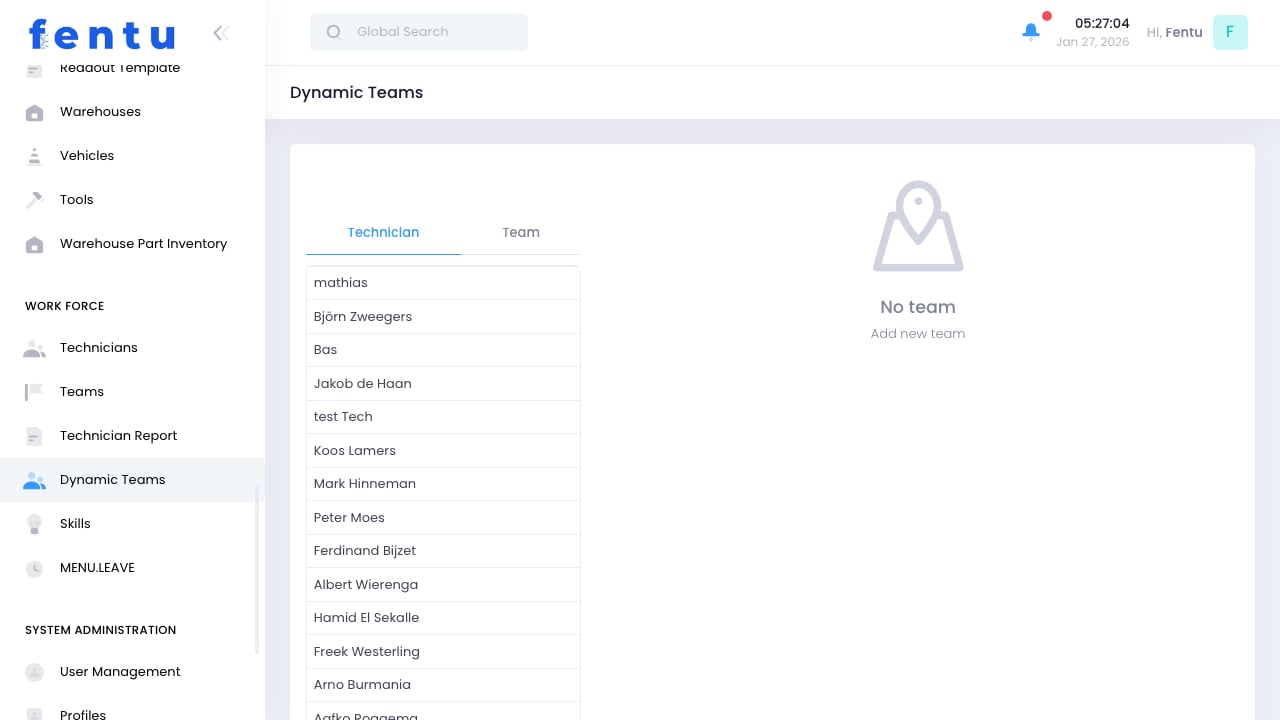
Dynamic Teams automatically determine membership based on rules and criteria you define. Unlike static teams where you manually add members, dynamic teams automatically include technicians who match specified conditions.
Dynamic teams are powerful for creating groups that automatically update as technician attributes change. When a technician gains a new skill or changes location, they're automatically included or excluded from relevant dynamic teams.
## When to Use Dynamic Teams
Create dynamic teams for:
* **Skill-Based Groups** - All technicians with specific certifications
* **Location-Based Groups** - Technicians within a geographic area
* **Availability Groups** - Technicians currently on duty
* **Experience-Based Groups** - Senior technicians or apprentices
* **Combined Criteria** - Complex conditions using multiple attributes
Use dynamic teams when membership should change automatically based on data. Use static teams when you want direct control over membership.
***
## Dynamic Team Information
Each dynamic team includes:
| Field | Description |
| ------------------- | ------------------------------------- |
| **Team Name** | Descriptive name |
| **Description** | Explanation of the team's purpose |
| **Rules** | Criteria that determine membership |
| **Current Members** | Technicians who currently match rules |
| **Status** | Active or inactive |
### Rule Components
Rules can be based on:
| Attribute | Example Rule |
| ------------------ | ---------------------------------------------------- |
| **Skills** | Has skill "Machine Installation" with level "Expert" |
| **Certifications** | Has valid EPA 608 certification |
| **Location** | Home address within 20 miles of branch |
| **Branch** | Assigned to North Branch |
| **Status** | Is currently Active |
| **Experience** | Start date before 2020 |
| **Team** | Member of Service Team |
***
## Creating Dynamic Teams
Go to Workforce > Dynamic Teams
Start a new dynamic team
Provide name and description
Create rules that determine membership
Choose AND/OR combinations for multiple rules
Review who currently matches the rules
Activate the dynamic team
### Building Rules
Choose what to evaluate (skill, location, etc.)
Select comparison type (equals, contains, greater than)
Define the value to match
Optionally add additional conditions
Choose whether ALL rules must match (AND) or ANY rule (OR)
Test your rules before activating. Preview the resulting membership to ensure the rules capture the intended technicians.
***
## Rule Logic
### AND Logic
ALL conditions must be true:
```
Has skill "Machine"
AND Has skill "Refrigeration"
AND Status is Active
```
Result: Only technicians with both skills who are active
### OR Logic
ANY condition can be true:
```
Has skill "Machine Installation"
OR Has skill "Machine Repair"
```
Result: Technicians with either (or both) skills
### Combined Logic
Complex rules combine AND and OR:
```
(Has skill "Electrical" OR Has skill "Machine")
AND Status is Active
AND Branch is "North"
```
Start with simple rules and add complexity as needed. Complex rules are harder to troubleshoot when membership doesn't match expectations.
***
## Dynamic Team Examples
### Certification-Based Team
**Emergency Response Team**
* Has certification "Emergency Response"
* Certification is not expired
* Status is Active
### Skill-Level Team
**Senior Technicians**
* Start date before 2020
* Has skill level "Expert" in at least one skill
* Status is Active
### Geographic Team
**Downtown Coverage**
* Home address within 10 miles of downtown office
* OR Assigned to Downtown branch
### Combined Team
**Machine Emergency Response**
* Has skill "Machine"
* Has certification "EPA 608" (not expired)
* Currently on duty
* Status is Active
***
## Managing Dynamic Teams
### Monitoring Membership
Dynamic teams update automatically, but you should:
* Periodically review current membership
* Check that expected technicians are included
* Verify no one is incorrectly excluded
* Adjust rules if results don't match intent
### Troubleshooting
When membership isn't as expected:
1. Check technician attributes match rule criteria
2. Verify rule logic (AND vs OR)
3. Look for typos in rule values
4. Check if attributes have been updated
5. Review certification expiration dates
### Rule Maintenance
Keep rules current:
* Update when skill names change
* Adjust geographic boundaries as territory changes
* Modify certification requirements as regulations change
* Remove obsolete criteria
***
## Best Practices
Name dynamic teams descriptively. The name should indicate what criteria defines membership.
Add descriptions explaining why rules are configured as they are. Future administrators will thank you.
Begin with straightforward rules. Add complexity only when needed.
Periodically review dynamic team membership. Ensure rules still align with business needs.
Preview membership changes before saving rule modifications. Unexpected changes can affect dispatch.
Use dynamic teams for automatic membership and static teams for manual overrides when needed.
***
## Common Questions
Dynamic team membership is evaluated when needed (e.g., at dispatch time). Changes to technician attributes are reflected immediately.
No, dynamic team membership is automatic. If you need to include someone who doesn't match rules, adjust the rules or use a static team.
A technician can be in multiple dynamic teams simultaneously if they match the criteria for each.
Add exclusion rules (e.g., "Employee ID is not 12345") or use a static team for direct control.
Rules are typically based on technician attributes, not history. For history-based assignment, use dispatch rules instead.
The team will have no members. Work assigned to an empty dynamic team cannot be dispatched until someone matches.
***
## Related Documentation
Static team management
Skill definitions
Technician attributes
Dispatch and assignment
## Overview
Dynamic Teams automatically determine membership based on rules and criteria you define. Unlike static teams where you manually add members, dynamic teams automatically include technicians who match specified conditions.
Dynamic teams are powerful for creating groups that automatically update as technician attributes change. When a technician gains a new skill or changes location, they're automatically included or excluded from relevant dynamic teams.
## When to Use Dynamic Teams
Create dynamic teams for:
* **Skill-Based Groups** - All technicians with specific certifications
* **Location-Based Groups** - Technicians within a geographic area
* **Availability Groups** - Technicians currently on duty
* **Experience-Based Groups** - Senior technicians or apprentices
* **Combined Criteria** - Complex conditions using multiple attributes
Use dynamic teams when membership should change automatically based on data. Use static teams when you want direct control over membership.
***
## Dynamic Team Information
Each dynamic team includes:
| Field | Description |
| ------------------- | ------------------------------------- |
| **Team Name** | Descriptive name |
| **Description** | Explanation of the team's purpose |
| **Rules** | Criteria that determine membership |
| **Current Members** | Technicians who currently match rules |
| **Status** | Active or inactive |
### Rule Components
Rules can be based on:
| Attribute | Example Rule |
| ------------------ | ---------------------------------------------------- |
| **Skills** | Has skill "Machine Installation" with level "Expert" |
| **Certifications** | Has valid EPA 608 certification |
| **Location** | Home address within 20 miles of branch |
| **Branch** | Assigned to North Branch |
| **Status** | Is currently Active |
| **Experience** | Start date before 2020 |
| **Team** | Member of Service Team |
***
## Creating Dynamic Teams
Go to Workforce > Dynamic Teams
Start a new dynamic team
Provide name and description
Create rules that determine membership
Choose AND/OR combinations for multiple rules
Review who currently matches the rules
Activate the dynamic team
### Building Rules
Choose what to evaluate (skill, location, etc.)
Select comparison type (equals, contains, greater than)
Define the value to match
Optionally add additional conditions
Choose whether ALL rules must match (AND) or ANY rule (OR)
Test your rules before activating. Preview the resulting membership to ensure the rules capture the intended technicians.
***
## Rule Logic
### AND Logic
ALL conditions must be true:
```
Has skill "Machine"
AND Has skill "Refrigeration"
AND Status is Active
```
Result: Only technicians with both skills who are active
### OR Logic
ANY condition can be true:
```
Has skill "Machine Installation"
OR Has skill "Machine Repair"
```
Result: Technicians with either (or both) skills
### Combined Logic
Complex rules combine AND and OR:
```
(Has skill "Electrical" OR Has skill "Machine")
AND Status is Active
AND Branch is "North"
```
Start with simple rules and add complexity as needed. Complex rules are harder to troubleshoot when membership doesn't match expectations.
***
## Dynamic Team Examples
### Certification-Based Team
**Emergency Response Team**
* Has certification "Emergency Response"
* Certification is not expired
* Status is Active
### Skill-Level Team
**Senior Technicians**
* Start date before 2020
* Has skill level "Expert" in at least one skill
* Status is Active
### Geographic Team
**Downtown Coverage**
* Home address within 10 miles of downtown office
* OR Assigned to Downtown branch
### Combined Team
**Machine Emergency Response**
* Has skill "Machine"
* Has certification "EPA 608" (not expired)
* Currently on duty
* Status is Active
***
## Managing Dynamic Teams
### Monitoring Membership
Dynamic teams update automatically, but you should:
* Periodically review current membership
* Check that expected technicians are included
* Verify no one is incorrectly excluded
* Adjust rules if results don't match intent
### Troubleshooting
When membership isn't as expected:
1. Check technician attributes match rule criteria
2. Verify rule logic (AND vs OR)
3. Look for typos in rule values
4. Check if attributes have been updated
5. Review certification expiration dates
### Rule Maintenance
Keep rules current:
* Update when skill names change
* Adjust geographic boundaries as territory changes
* Modify certification requirements as regulations change
* Remove obsolete criteria
***
## Best Practices
Name dynamic teams descriptively. The name should indicate what criteria defines membership.
Add descriptions explaining why rules are configured as they are. Future administrators will thank you.
Begin with straightforward rules. Add complexity only when needed.
Periodically review dynamic team membership. Ensure rules still align with business needs.
Preview membership changes before saving rule modifications. Unexpected changes can affect dispatch.
Use dynamic teams for automatic membership and static teams for manual overrides when needed.
***
## Common Questions
Dynamic team membership is evaluated when needed (e.g., at dispatch time). Changes to technician attributes are reflected immediately.
No, dynamic team membership is automatic. If you need to include someone who doesn't match rules, adjust the rules or use a static team.
A technician can be in multiple dynamic teams simultaneously if they match the criteria for each.
Add exclusion rules (e.g., "Employee ID is not 12345") or use a static team for direct control.
Rules are typically based on technician attributes, not history. For history-based assignment, use dispatch rules instead.
The team will have no members. Work assigned to an empty dynamic team cannot be dispatched until someone matches.
***
## Related Documentation
Static team management
Skill definitions
Technician attributes
Dispatch and assignment