> ## Documentation Index
> Fetch the complete documentation index at: https://docs.fentufsm.com/llms.txt
> Use this file to discover all available pages before exploring further.
# Teams
> Organizing technicians into groups for dispatch and management
 ## Overview
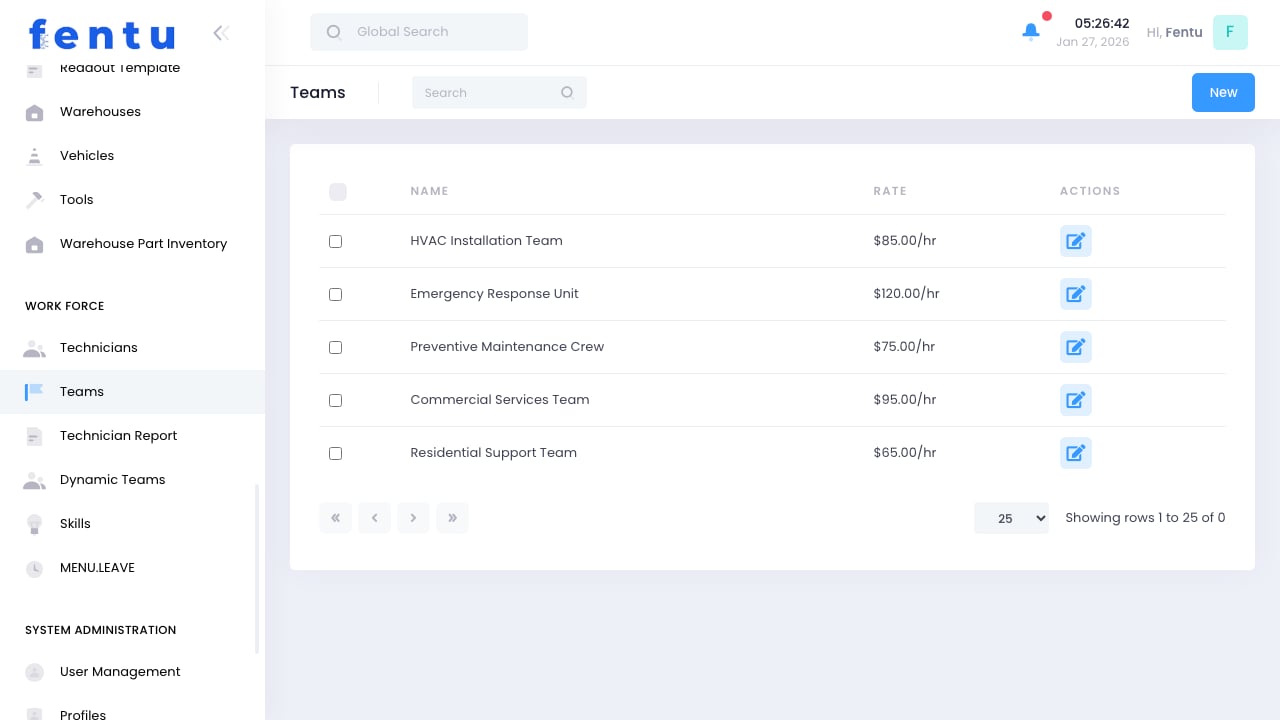
Teams group technicians together for organizational and operational purposes. Teams can be based on geography, specialty, management structure, or any other logical grouping that supports your dispatch and management needs.
Well-structured teams simplify dispatch by allowing work to be assigned to a team rather than specific technicians. The dispatcher or system can then select the best available technician from the team.
## When to Use Teams
Create teams for:
* **Geographic Coverage** - Technicians serving a specific area
* **Skill Specialization** - Groups with particular expertise
* **Management Structure** - Reporting hierarchies
* **Dispatch Groups** - Flexible work assignment
* **Shift Coverage** - Day shift, night shift, weekend teams
Start with simple team structures. You can add complexity as your dispatch needs become clearer.
***
## Team Information
Each team includes:
| Field | Description |
| ---------------- | ------------------------------------ |
| **Team Name** | Descriptive name for the team |
| **Team Code** | Short identifier |
| **Team Leader** | Manager or supervisor for the team |
| **Branch** | Associated service branch |
| **Members** | Technicians belonging to this team |
| **Service Area** | Geographic territory (if applicable) |
| **Status** | Active or inactive |
### Team Types
| Type | Description | Example |
| -------------- | ------------------------------- | ------------------------- |
| **Geographic** | Based on service territory | North Region Team |
| **Specialty** | Based on skills/expertise | Machine Installation Team |
| **Management** | Based on reporting structure | John's Team |
| **Shift** | Based on working schedule | Weekend Team |
| **Project** | Temporary for specific projects | Mall Renovation Team |
***
## Creating Teams
Go to Workforce > Teams
Start a new team
Provide name, code, and description
Select the team supervisor
Link to service branch
Set geographic boundaries if applicable
Select technicians to include
Save the team configuration
### Adding Team Members
Select the team to modify
Navigate to team membership
Open member selection
Choose technicians to add
Confirm the additions
When removing technicians from teams, ensure their pending work orders are reassigned. Orphaned work orders can fall through the cracks.
***
## Team Dispatch
### Assignment Methods
| Method | Description |
| --------------------- | ---------------------------------------- |
| **Auto-Assign** | System selects best available technician |
| **Team Lead Assigns** | Leader distributes work to members |
| **First Available** | Work goes to whoever accepts first |
| **Round Robin** | Work distributed evenly across members |
### Dispatch Priority
When assigning to a team, consider:
1. **Skill Match** - Does the technician have required skills?
2. **Availability** - Is the technician available at the needed time?
3. **Location** - How far is the technician from the job site?
4. **Workload** - Is the technician already overloaded?
Configure dispatch rules to automatically select the best technician based on your priority criteria.
***
## Managing Teams
### Team Performance
Monitor team metrics:
* Work orders completed
* First-time fix rate
* Average response time
* Customer satisfaction
* Utilization rate
### Workload Balancing
Ensure even distribution:
* Review individual workloads within team
* Transfer work between team members
* Adjust territories if imbalanced
* Add capacity if consistently overloaded
### Coverage Planning
Ensure adequate coverage:
* Track skill coverage across team
* Plan for absences and leave
* Cross-train for backup coverage
* Maintain minimum staffing levels
***
## Best Practices
Define clear team boundaries, whether geographic or skill-based. Overlapping responsibilities cause confusion.
Teams should be large enough for coverage but small enough for manageable communication. Typically 5-15 members.
Ensure each team has diverse skills for coverage. Don't put all experts in one team.
Give team leaders authority to manage their teams. They're closest to the work.
Review team structure periodically. Adjust as your business and workforce change.
Establish communication channels for each team. Team chat, regular meetings, etc.
***
## Common Questions
Depending on configuration, technicians may belong to multiple teams. This is useful for technicians who cover multiple areas or have multiple specialties.
Team members remain as technicians but lose team association. Reassign them to other teams before or after deletion.
Teams are typically associated with one branch. Some organizations have teams that span branches for specialized work.
The standard structure is flat. For hierarchies, use management relationships or create team naming conventions.
Work orders can specify a team, or dispatch rules can automatically select teams based on job location, type, or other criteria.
Regular teams are static - you manually add and remove members. Dynamic teams use rules to automatically determine membership.
***
## Related Documentation
Rule-based team membership
Managing technician profiles
Work assignment
Skill management
## Overview
Teams group technicians together for organizational and operational purposes. Teams can be based on geography, specialty, management structure, or any other logical grouping that supports your dispatch and management needs.
Well-structured teams simplify dispatch by allowing work to be assigned to a team rather than specific technicians. The dispatcher or system can then select the best available technician from the team.
## When to Use Teams
Create teams for:
* **Geographic Coverage** - Technicians serving a specific area
* **Skill Specialization** - Groups with particular expertise
* **Management Structure** - Reporting hierarchies
* **Dispatch Groups** - Flexible work assignment
* **Shift Coverage** - Day shift, night shift, weekend teams
Start with simple team structures. You can add complexity as your dispatch needs become clearer.
***
## Team Information
Each team includes:
| Field | Description |
| ---------------- | ------------------------------------ |
| **Team Name** | Descriptive name for the team |
| **Team Code** | Short identifier |
| **Team Leader** | Manager or supervisor for the team |
| **Branch** | Associated service branch |
| **Members** | Technicians belonging to this team |
| **Service Area** | Geographic territory (if applicable) |
| **Status** | Active or inactive |
### Team Types
| Type | Description | Example |
| -------------- | ------------------------------- | ------------------------- |
| **Geographic** | Based on service territory | North Region Team |
| **Specialty** | Based on skills/expertise | Machine Installation Team |
| **Management** | Based on reporting structure | John's Team |
| **Shift** | Based on working schedule | Weekend Team |
| **Project** | Temporary for specific projects | Mall Renovation Team |
***
## Creating Teams
Go to Workforce > Teams
Start a new team
Provide name, code, and description
Select the team supervisor
Link to service branch
Set geographic boundaries if applicable
Select technicians to include
Save the team configuration
### Adding Team Members
Select the team to modify
Navigate to team membership
Open member selection
Choose technicians to add
Confirm the additions
When removing technicians from teams, ensure their pending work orders are reassigned. Orphaned work orders can fall through the cracks.
***
## Team Dispatch
### Assignment Methods
| Method | Description |
| --------------------- | ---------------------------------------- |
| **Auto-Assign** | System selects best available technician |
| **Team Lead Assigns** | Leader distributes work to members |
| **First Available** | Work goes to whoever accepts first |
| **Round Robin** | Work distributed evenly across members |
### Dispatch Priority
When assigning to a team, consider:
1. **Skill Match** - Does the technician have required skills?
2. **Availability** - Is the technician available at the needed time?
3. **Location** - How far is the technician from the job site?
4. **Workload** - Is the technician already overloaded?
Configure dispatch rules to automatically select the best technician based on your priority criteria.
***
## Managing Teams
### Team Performance
Monitor team metrics:
* Work orders completed
* First-time fix rate
* Average response time
* Customer satisfaction
* Utilization rate
### Workload Balancing
Ensure even distribution:
* Review individual workloads within team
* Transfer work between team members
* Adjust territories if imbalanced
* Add capacity if consistently overloaded
### Coverage Planning
Ensure adequate coverage:
* Track skill coverage across team
* Plan for absences and leave
* Cross-train for backup coverage
* Maintain minimum staffing levels
***
## Best Practices
Define clear team boundaries, whether geographic or skill-based. Overlapping responsibilities cause confusion.
Teams should be large enough for coverage but small enough for manageable communication. Typically 5-15 members.
Ensure each team has diverse skills for coverage. Don't put all experts in one team.
Give team leaders authority to manage their teams. They're closest to the work.
Review team structure periodically. Adjust as your business and workforce change.
Establish communication channels for each team. Team chat, regular meetings, etc.
***
## Common Questions
Depending on configuration, technicians may belong to multiple teams. This is useful for technicians who cover multiple areas or have multiple specialties.
Team members remain as technicians but lose team association. Reassign them to other teams before or after deletion.
Teams are typically associated with one branch. Some organizations have teams that span branches for specialized work.
The standard structure is flat. For hierarchies, use management relationships or create team naming conventions.
Work orders can specify a team, or dispatch rules can automatically select teams based on job location, type, or other criteria.
Regular teams are static - you manually add and remove members. Dynamic teams use rules to automatically determine membership.
***
## Related Documentation
Rule-based team membership
Managing technician profiles
Work assignment
Skill management