> ## Documentation Index
> Fetch the complete documentation index at: https://docs.fentufsm.com/llms.txt
> Use this file to discover all available pages before exploring further.
# Technician Management
> Creating and managing technician profiles
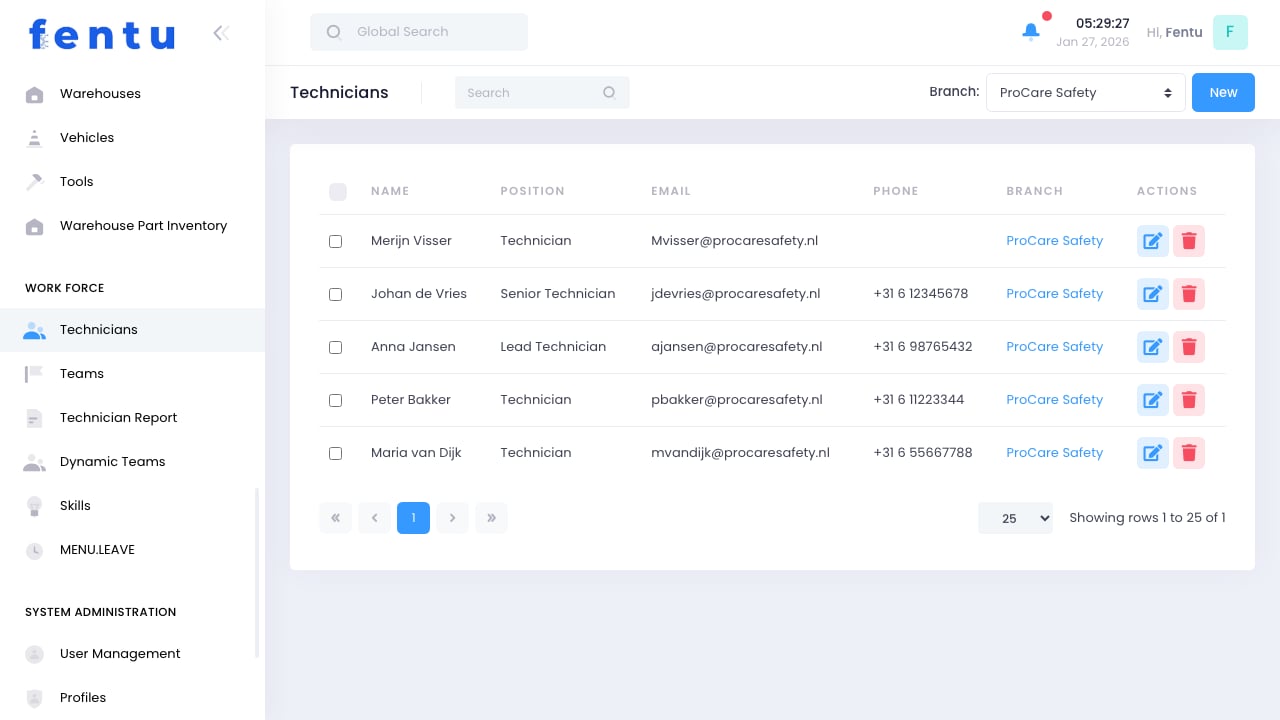 ## Overview
Technician Management is where you create and maintain profiles for all field service technicians. Each profile contains contact information, skills, certifications, vehicle assignments, and scheduling details.
Complete and accurate technician profiles enable skill-based dispatching, ensuring the right technician is sent to each job.
## When to Manage Technicians
Access this module when:
* **Onboarding** - Adding new technicians to the system
* **Updating Profiles** - Changing skills, certifications, or contact info
* **Assignment Changes** - Updating team, vehicle, or territory assignments
* **Performance Review** - Reviewing technician details and history
* **Offboarding** - Deactivating departing technicians
***
## Technician Information
Each technician profile includes:
### Basic Information
| Field | Description |
| --------------- | ------------------------------------- |
| **Employee ID** | Internal employee number |
| **Name** | Full name |
| **Email** | Work email address |
| **Phone** | Mobile phone number |
| **Address** | Home address (for route optimization) |
| **Start Date** | Employment start date |
| **Status** | Active, Inactive, On Leave |
### Work Information
| Field | Description |
| --------------- | ------------------------- |
| **Branch** | Service branch assignment |
| **Team** | Team membership |
| **Manager** | Reporting manager |
| **Role** | Job title/role |
| **Hourly Rate** | Labor rate for billing |
| **Cost Rate** | Internal cost rate |
### Skills & Certifications
| Field | Description |
| ------------------------ | --------------------------------- |
| **Skills** | Competencies the technician has |
| **Skill Levels** | Proficiency levels for each skill |
| **Certifications** | Professional certifications held |
| **Certification Expiry** | When certifications expire |
| **Training Completed** | Training courses completed |
### Assignments
| Field | Description |
| ------------- | ---------------------------- |
| **Vehicle** | Assigned service vehicle |
| **Territory** | Geographic service area |
| **Warehouse** | Mobile inventory location |
| **Tools** | Assigned tools and equipment |
***
## Creating Technicians
Go to Workforce > Technicians
Start a new technician profile
Provide name, contact details, and employee ID
Set branch, team, and manager
Add skills and certification records
Assign vehicle, territory, and tools
Configure working hours and availability
Set up system login if technician will use mobile app
Save the complete profile
Technicians need a user account to access the mobile app or technician portal. Create the user account as part of onboarding.
***
## Managing Skills
### Adding Skills
Select the technician to update
Navigate to skills and certifications
Select skill from available skills list
Choose skill level (Basic, Intermediate, Expert)
Attach training records if applicable
Save the skill assignment
### Skill Levels
| Level | Description | Assignment |
| ---------------- | ---------------------------------- | ---------------- |
| **Basic** | Can perform simple tasks | Simple jobs only |
| **Intermediate** | Can handle most situations | Standard work |
| **Expert** | Full proficiency, can train others | Complex work |
### Certification Tracking
For certifications that expire:
* Enter certification date
* Set expiration date
* System alerts before expiration
* Expired certifications affect dispatch eligibility
Configure alert thresholds for certification expiration (e.g., 30, 60, 90 days before). This allows time to schedule recertification.
***
## Schedule Configuration
### Working Hours
Set standard working hours for each technician:
| Setting | Description |
| --------------------- | --------------------------- |
| **Work Days** | Days of the week worked |
| **Start Time** | Daily start time |
| **End Time** | Daily end time |
| **Break Time** | Scheduled breaks |
| **Overtime Eligible** | Whether overtime is allowed |
### Availability
Track technician availability:
* **Regular Schedule** - Standard working hours
* **On Call** - Available for emergency calls
* **Leave** - Planned time off
* **Training** - In training, not available for dispatch
* **Unavailable** - Temporarily unavailable
Set realistic schedules that account for travel time and administrative tasks. Over-scheduling leads to missed appointments and frustrated technicians.
***
## Assignments
### Vehicle Assignment
Link technicians to their service vehicles:
1. Select vehicle from fleet
2. Set assignment type (permanent, temporary)
3. Configure vehicle warehouse access
4. Enable mobile inventory features
### Territory Assignment
Define service areas:
* Geographic boundaries
* ZIP codes or postal codes
* Distance from home
* Branch coverage area
### Team Assignment
Add technicians to teams for:
* Dispatch grouping
* Management hierarchy
* Skill coverage
* Workload balancing
***
## Best Practices
Fill in all profile fields. Incomplete data limits dispatch optimization and reporting accuracy.
Update skills as technicians gain experience. Accurate skill data improves dispatch matching.
Maintain certification records with expiration dates. Stay ahead of renewals to avoid gaps.
Enter accurate home addresses. This enables route optimization from home for first calls.
Set working hours that reflect actual availability. Include buffer time for travel and admin.
When technicians leave, deactivate rather than delete. This preserves historical records.
***
## Common Questions
Permissions control what technicians can edit. Typically they can update contact info but not skills or pay rates.
Add all applicable skills with appropriate proficiency levels. Dispatch can then match any combination of required skills.
The technician may be excluded from dispatch for jobs requiring that certification, depending on system configuration.
Configuration determines this. Some setups allow multiple team membership for flexible dispatch.
Create technician profiles for subcontractors with appropriate type designation. This enables dispatch and tracking same as employees.
A user is a system login account. A technician is a workforce record. Technicians need user accounts to access the mobile app.
***
## Related Documentation
Managing skill definitions
Team management
Vehicle assignment
Creating user accounts
## Overview
Technician Management is where you create and maintain profiles for all field service technicians. Each profile contains contact information, skills, certifications, vehicle assignments, and scheduling details.
Complete and accurate technician profiles enable skill-based dispatching, ensuring the right technician is sent to each job.
## When to Manage Technicians
Access this module when:
* **Onboarding** - Adding new technicians to the system
* **Updating Profiles** - Changing skills, certifications, or contact info
* **Assignment Changes** - Updating team, vehicle, or territory assignments
* **Performance Review** - Reviewing technician details and history
* **Offboarding** - Deactivating departing technicians
***
## Technician Information
Each technician profile includes:
### Basic Information
| Field | Description |
| --------------- | ------------------------------------- |
| **Employee ID** | Internal employee number |
| **Name** | Full name |
| **Email** | Work email address |
| **Phone** | Mobile phone number |
| **Address** | Home address (for route optimization) |
| **Start Date** | Employment start date |
| **Status** | Active, Inactive, On Leave |
### Work Information
| Field | Description |
| --------------- | ------------------------- |
| **Branch** | Service branch assignment |
| **Team** | Team membership |
| **Manager** | Reporting manager |
| **Role** | Job title/role |
| **Hourly Rate** | Labor rate for billing |
| **Cost Rate** | Internal cost rate |
### Skills & Certifications
| Field | Description |
| ------------------------ | --------------------------------- |
| **Skills** | Competencies the technician has |
| **Skill Levels** | Proficiency levels for each skill |
| **Certifications** | Professional certifications held |
| **Certification Expiry** | When certifications expire |
| **Training Completed** | Training courses completed |
### Assignments
| Field | Description |
| ------------- | ---------------------------- |
| **Vehicle** | Assigned service vehicle |
| **Territory** | Geographic service area |
| **Warehouse** | Mobile inventory location |
| **Tools** | Assigned tools and equipment |
***
## Creating Technicians
Go to Workforce > Technicians
Start a new technician profile
Provide name, contact details, and employee ID
Set branch, team, and manager
Add skills and certification records
Assign vehicle, territory, and tools
Configure working hours and availability
Set up system login if technician will use mobile app
Save the complete profile
Technicians need a user account to access the mobile app or technician portal. Create the user account as part of onboarding.
***
## Managing Skills
### Adding Skills
Select the technician to update
Navigate to skills and certifications
Select skill from available skills list
Choose skill level (Basic, Intermediate, Expert)
Attach training records if applicable
Save the skill assignment
### Skill Levels
| Level | Description | Assignment |
| ---------------- | ---------------------------------- | ---------------- |
| **Basic** | Can perform simple tasks | Simple jobs only |
| **Intermediate** | Can handle most situations | Standard work |
| **Expert** | Full proficiency, can train others | Complex work |
### Certification Tracking
For certifications that expire:
* Enter certification date
* Set expiration date
* System alerts before expiration
* Expired certifications affect dispatch eligibility
Configure alert thresholds for certification expiration (e.g., 30, 60, 90 days before). This allows time to schedule recertification.
***
## Schedule Configuration
### Working Hours
Set standard working hours for each technician:
| Setting | Description |
| --------------------- | --------------------------- |
| **Work Days** | Days of the week worked |
| **Start Time** | Daily start time |
| **End Time** | Daily end time |
| **Break Time** | Scheduled breaks |
| **Overtime Eligible** | Whether overtime is allowed |
### Availability
Track technician availability:
* **Regular Schedule** - Standard working hours
* **On Call** - Available for emergency calls
* **Leave** - Planned time off
* **Training** - In training, not available for dispatch
* **Unavailable** - Temporarily unavailable
Set realistic schedules that account for travel time and administrative tasks. Over-scheduling leads to missed appointments and frustrated technicians.
***
## Assignments
### Vehicle Assignment
Link technicians to their service vehicles:
1. Select vehicle from fleet
2. Set assignment type (permanent, temporary)
3. Configure vehicle warehouse access
4. Enable mobile inventory features
### Territory Assignment
Define service areas:
* Geographic boundaries
* ZIP codes or postal codes
* Distance from home
* Branch coverage area
### Team Assignment
Add technicians to teams for:
* Dispatch grouping
* Management hierarchy
* Skill coverage
* Workload balancing
***
## Best Practices
Fill in all profile fields. Incomplete data limits dispatch optimization and reporting accuracy.
Update skills as technicians gain experience. Accurate skill data improves dispatch matching.
Maintain certification records with expiration dates. Stay ahead of renewals to avoid gaps.
Enter accurate home addresses. This enables route optimization from home for first calls.
Set working hours that reflect actual availability. Include buffer time for travel and admin.
When technicians leave, deactivate rather than delete. This preserves historical records.
***
## Common Questions
Permissions control what technicians can edit. Typically they can update contact info but not skills or pay rates.
Add all applicable skills with appropriate proficiency levels. Dispatch can then match any combination of required skills.
The technician may be excluded from dispatch for jobs requiring that certification, depending on system configuration.
Configuration determines this. Some setups allow multiple team membership for flexible dispatch.
Create technician profiles for subcontractors with appropriate type designation. This enables dispatch and tracking same as employees.
A user is a system login account. A technician is a workforce record. Technicians need user accounts to access the mobile app.
***
## Related Documentation
Managing skill definitions
Team management
Vehicle assignment
Creating user accounts