
Overview
Connect Objects define the data structures used for integration. Each Connect Object represents a type of record (like Customers, Products, or Work Orders) and contains fields that can be mapped during inbound or outbound synchronization.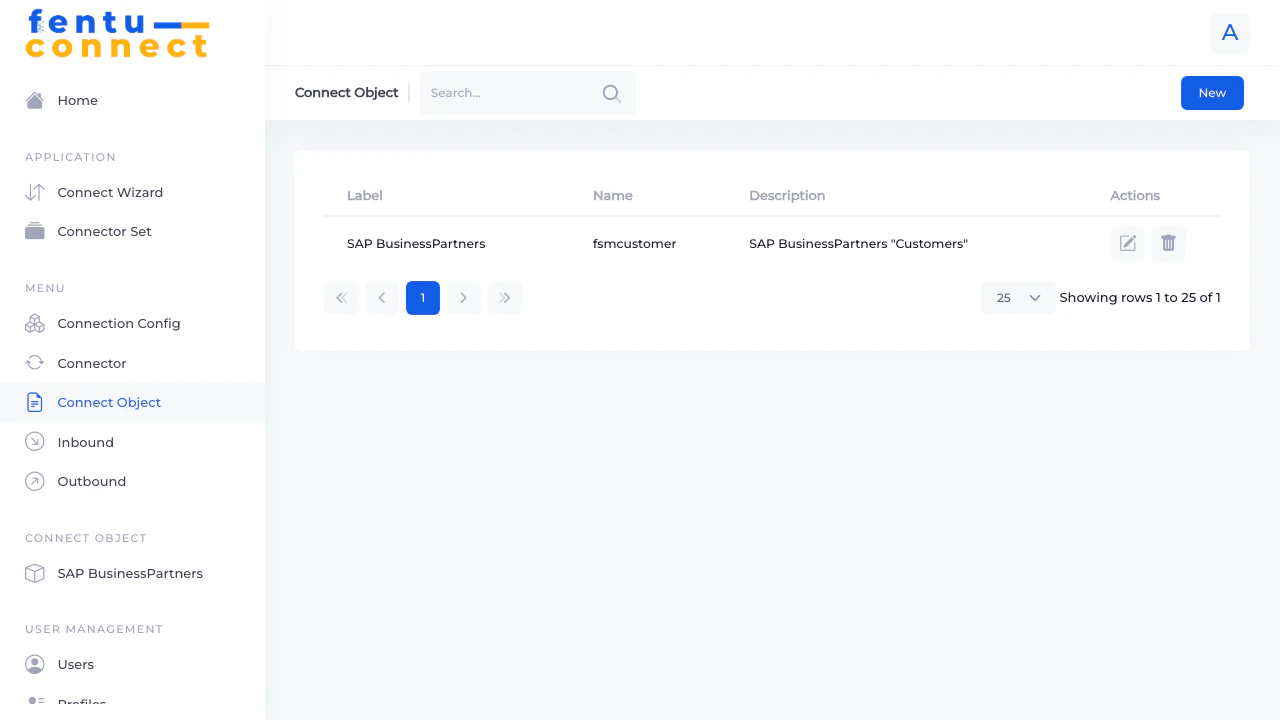
Connect Object List
The list displays all defined Connect Objects:List Features
- Search - Filter Connect Objects by name
- New Button - Create a new Connect Object
- Pagination - Navigate through multiple pages
- Items per Page - Choose 5, 10, 25, 50, or 100 items per page
Connect Object Detail View
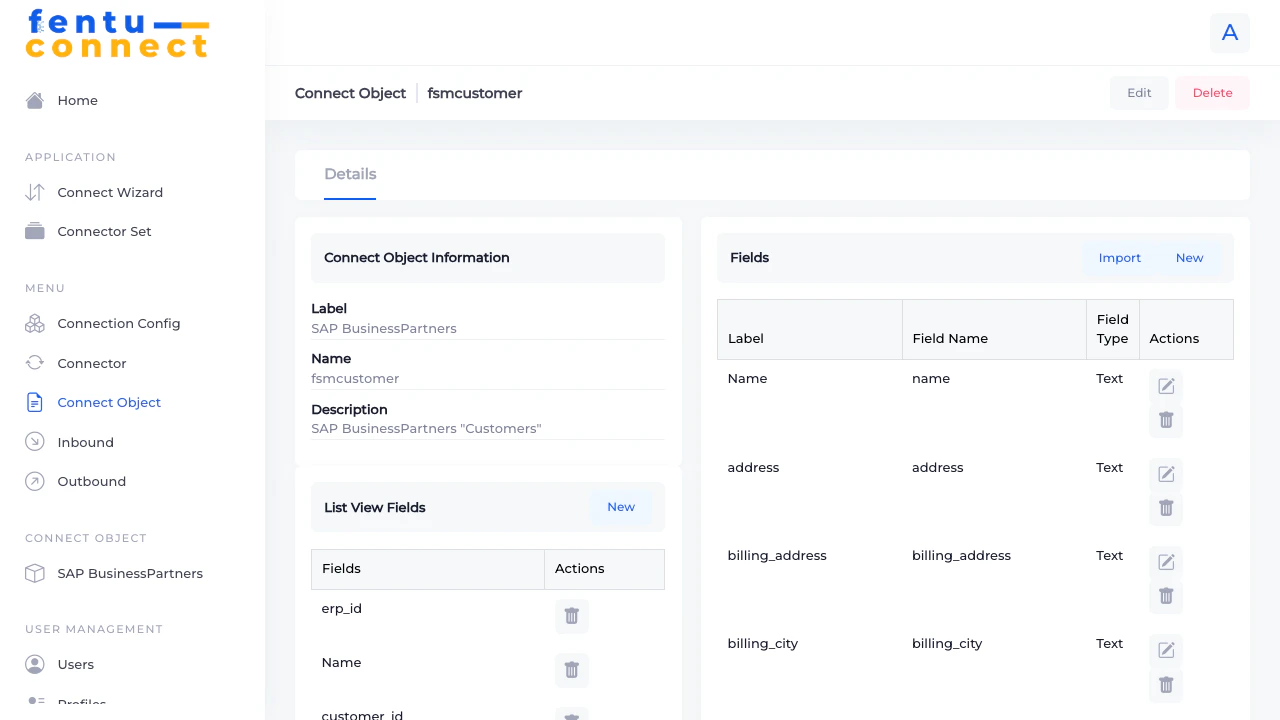
- Edit Button - Modify the object settings
- Delete Button - Remove the Connect Object
- Details Tab - View object information
Fields Section
The detail view displays all fields defined for this Connect Object in two sections:- Connect Fields - Fields available for mapping (with New, Edit, Delete buttons)
- Listview Fields - Fields displayed in list views (with New, Edit, Delete buttons)
- Field name
- Edit button (pencil icon)
- Delete button (trash icon)
Creating a Connect Object
To create a new Connect Object:- Click the New button from the list
- Fill in the required fields
- Click Save
Fields
Editing a Connect Object
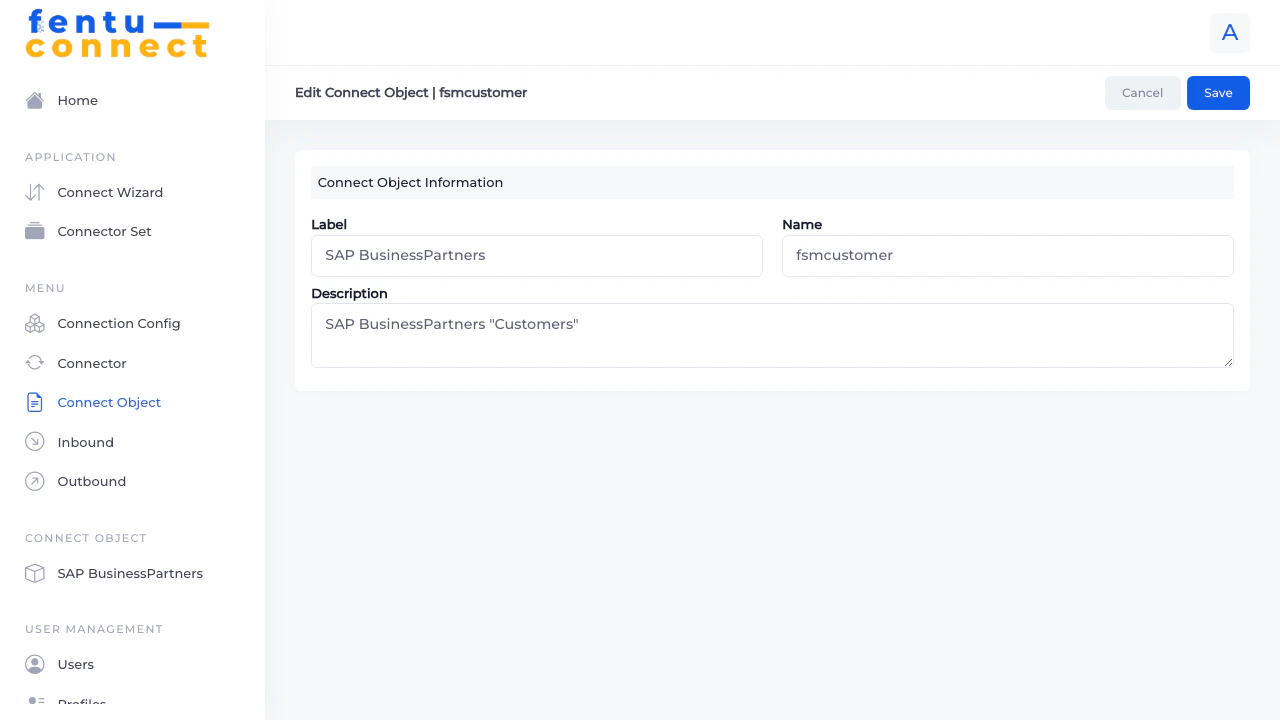
- Navigate to the Connect Object detail
- Click the Edit button
- Modify the fields
- Click Save
Managing Fields
Each Connect Object contains fields that define the data structure. Fields are used for:- Mapping - Defining which source fields map to destination fields
- List Views - Showing data in the UI
Adding Fields
Click the New button in either the Connect Fields or Listview Fields section to add a field.Import Fields
Click the Import button to bulk import fields from a text file. The file should contain one field name per line.Field import is useful when migrating from another system or when the external API provides a field list.
Connect Fields vs Listview Fields
Connect Fields contain all fields available for synchronization. Listview Fields are a subset that determines what users see in the interface.
Predefined Object Types
Fentu Connect comes with some predefined object types that map to Fentu FSM entities:
You can also create custom object types for data that doesn’t directly map to FSM entities.
Best Practices
Match Source System Structure
Match Source System Structure
When creating Connect Objects, mirror the field structure of your source system. This makes mapping more intuitive and reduces transformation complexity.
Include Key Fields
Include Key Fields
Always include unique identifier fields (IDs, codes) that allow records to be matched across systems. These are essential for update operations.
Document Field Meanings
Document Field Meanings
Add descriptions to fields that explain their purpose, especially for fields with non-obvious names or fields that require transformation.
Keep Listview Fields Minimal
Keep Listview Fields Minimal
Only add essential fields to Listview Fields. Too many columns make the UI difficult to read and slow to load.
Use Consistent Naming
Use Consistent Naming
Use consistent field naming conventions across all Connect Objects (e.g., snake_case or camelCase) to make mappings easier to understand.
Common Questions
Can I have multiple Connect Objects for the same data?
Can I have multiple Connect Objects for the same data?
Yes, you can create multiple Connect Objects that represent similar data. This is useful when:
- Different systems use different field structures
- You need different views of the same data
- You want to separate test and production objects
What happens if I delete a Connect Object?
What happens if I delete a Connect Object?
Deleting a Connect Object will break any inbound or outbound connections that use it. The connections will fail until they’re reconfigured with a different object.
Can I rename fields after creating them?
Can I rename fields after creating them?
Yes, you can edit fields to change their names. However, changing field names may require updating any inbound/outbound mappings that reference those fields.
How do I handle nested data structures?
How do I handle nested data structures?
For nested data (like addresses within a customer record), you can:
- Flatten the structure by creating individual fields (e.g.,
shipping_street,shipping_city) - Use array fields for repeating structures (e.g.,
BPAddressesarray) - Use formulas to extract specific values from nested structures
Related Documentation
Inbound Connections
Configure inbound connections using Connect Objects
Outbound Connections
Configure outbound connections using Connect Objects
Formula Reference
Learn how to transform data during mapping
Field Mapping
Detailed guide to field mapping configuration