
Overview
Outbound connections push data FROM Fentu FSM TO external systems. This is typically used for sending completed work orders, time entries, material usage, and other transactional data to your ERP or CRM system.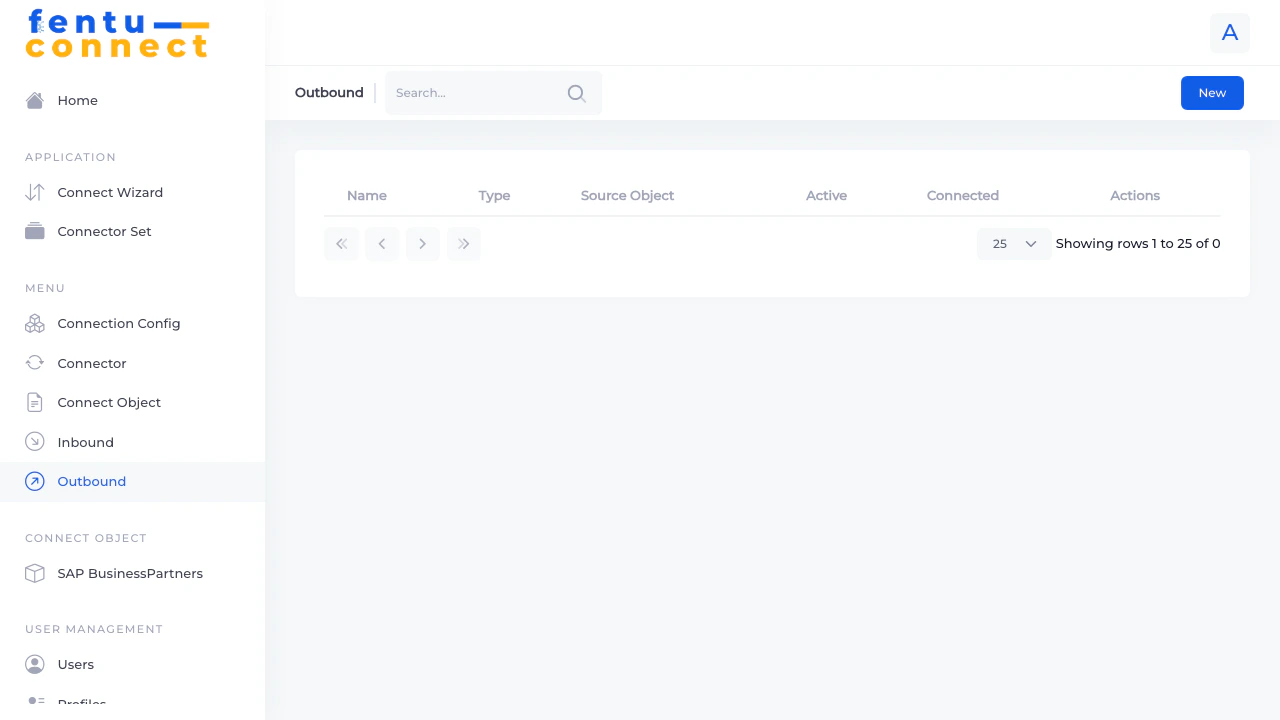
Outbound Connection List
The list displays all configured outbound connections:List Features
- Search - Filter connections by name
- New Button - Create a new outbound connection
- Pagination - Navigate through pages
- Items per Page - Choose display count
Creating an Outbound Connection
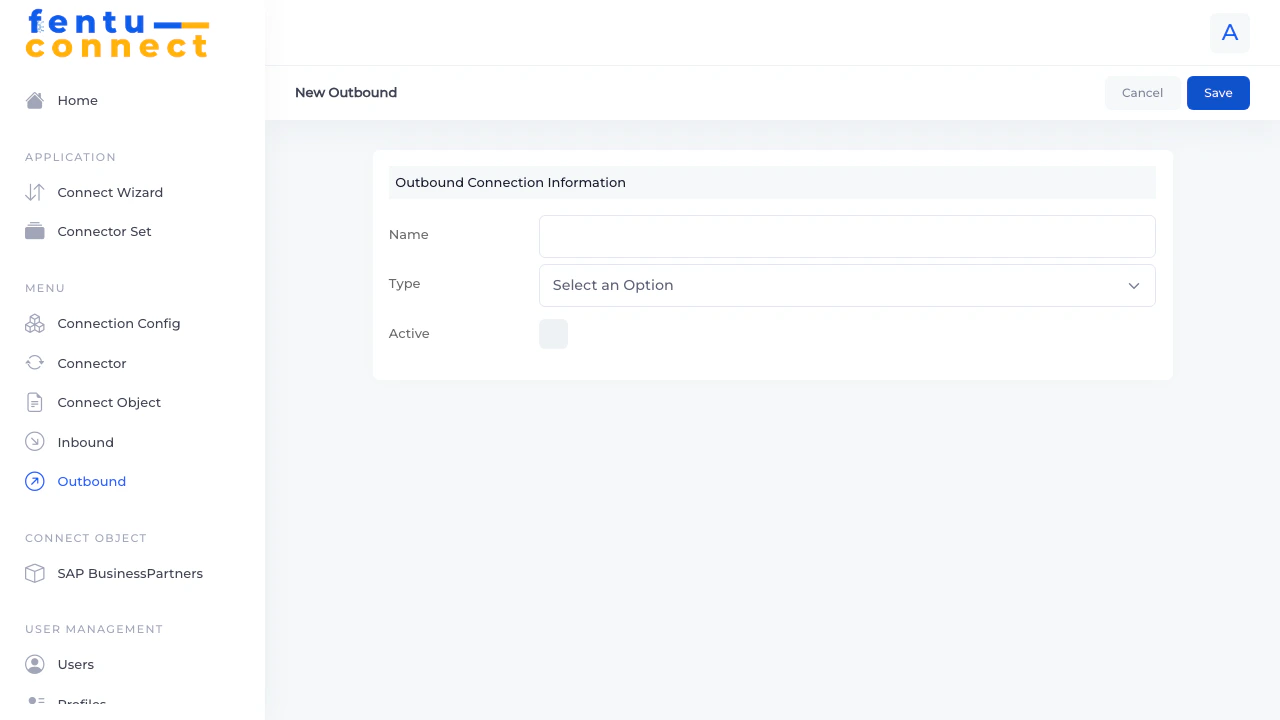
- Click New from the Outbound list
- Enter a name for the connection
- Select the system type
- Configure the Active checkbox
- Click Save
Basic Fields
Available System Types
- SAP B1 - SAP Business One
- Fentu-FSM - Another Fentu FSM instance
- Salesforce - Salesforce CRM
- Acumatica - Acumatica ERP
- Shopware - Shopware e-commerce
- ABAS-ERP - ABAS ERP
- HRlab - HR management
- Window Maker - Window manufacturing
- Internal Connect - Internal connections
- Jsonblob Shopware - Shopware via JSON
Outbound Connection Configuration
After creating the basic connection, edit it to configure:Connection Settings
Object Mapping
Field Mapping
Map Fentu FSM fields to external system fields using:- Field - Direct field-to-field mapping
- Raw Data - Static values
- Formula - Calculated values using formula syntax
Outbound vs Inbound: Key Differences
Common Outbound Use Cases
Work Order Completion to ERP
Work Order Completion to ERP
Purpose: Send completed work order data to your ERP for invoicingData typically includes:
- Work order ID and status
- Labor hours and costs
- Parts used
- Customer information
- Completion dates
- Map Fentu FSM work order fields to ERP sales order or service call fields
- Include all required fields for ERP document creation
- Use formulas to format data according to ERP requirements
Time Tracking Export
Time Tracking Export
Purpose: Export technician time entries to payroll or billing systemsData typically includes:
- Employee ID
- Date and hours
- Work order reference
- Activity codes
- Ensure employee IDs match between systems
- Format dates according to the target system’s requirements
- Include project/cost center codes if required
Inventory Updates
Inventory Updates
Purpose: Sync inventory movements and usage to ERPData typically includes:
- Item codes
- Quantities used
- Warehouse locations
- Work order reference
- Match item codes exactly between systems
- Include warehouse/location information
- Consider batch/serial number tracking requirements
Customer Updates
Customer Updates
Purpose: Push customer information changes back to CRM/ERPData typically includes:
- Customer contact updates
- Address changes
- New site locations
- Only sync changed fields to avoid overwriting ERP master data
- Use conditions to sync only approved changes
- Maintain primary key consistency
Best Practices
Validate Data Before Sending
Validate Data Before Sending
Use conditions and formulas to validate data before sending to external systems. This prevents errors and rejected records.
Include Required Fields
Include Required Fields
External systems often have required fields. Ensure all mandatory fields are mapped, even if they need default values.
Handle Errors Gracefully
Handle Errors Gracefully
Configure error handling to prevent data loss. Failed outbound records should be logged for retry.
Test with Non-Production Data
Test with Non-Production Data
Before activating outbound connections, test with sandbox/development environments to verify records are created correctly.
Use Conditions to Filter
Use Conditions to Filter
Only send records that meet specific criteria (e.g., status = ‘completed’, type = ‘billable’) to avoid sending incomplete data.
Common Questions
When is outbound data sent?
When is outbound data sent?
Outbound sync can be triggered by:
- Scheduled intervals
- Record status changes (e.g., work order completion)
- Manual trigger Check with your administrator for the specific configuration.
What if the external system is down?
What if the external system is down?
Failed outbound attempts are typically queued for retry. Check the sync logs for failed records and their error messages.
Can I send partial updates?
Can I send partial updates?
Yes, you can configure outbound connections to only send specific fields rather than the entire record. This is useful for updating just status fields or specific attributes.
How do I handle record creation vs updates?
How do I handle record creation vs updates?
The Primary Key Field determines whether to create or update:
- If a matching record exists in the external system, it’s updated
- If no match exists, a new record is created
Troubleshooting
Records Not Sent
Records Not Sent
Check:
- Is the connection Active?
- Do records meet the condition criteria?
- Are connection credentials valid?
- Is the sync schedule running?
Records Rejected by External System
Records Rejected by External System
Common causes:
- Missing required fields
- Invalid data format
- Duplicate key errors
- Validation rule failures
- Review error messages in sync logs
- Verify field mappings include all required fields
- Use formulas to format data correctly
Wrong Data Sent
Wrong Data Sent
Check:
- Field mapping configuration
- Formula syntax for calculated fields
- Source field names match expected values
Related Documentation
Inbound Connections
Configure inbound data pull from external systems
Connect Objects
Define data structures for integration
Formula Reference
Learn formula syntax for data transformation
Connection Config
Configure connection credentials