
Overview
User Management in Fentu Connect allows you to create and manage user accounts, assign permissions through profiles, and control access to different features of the application.Users
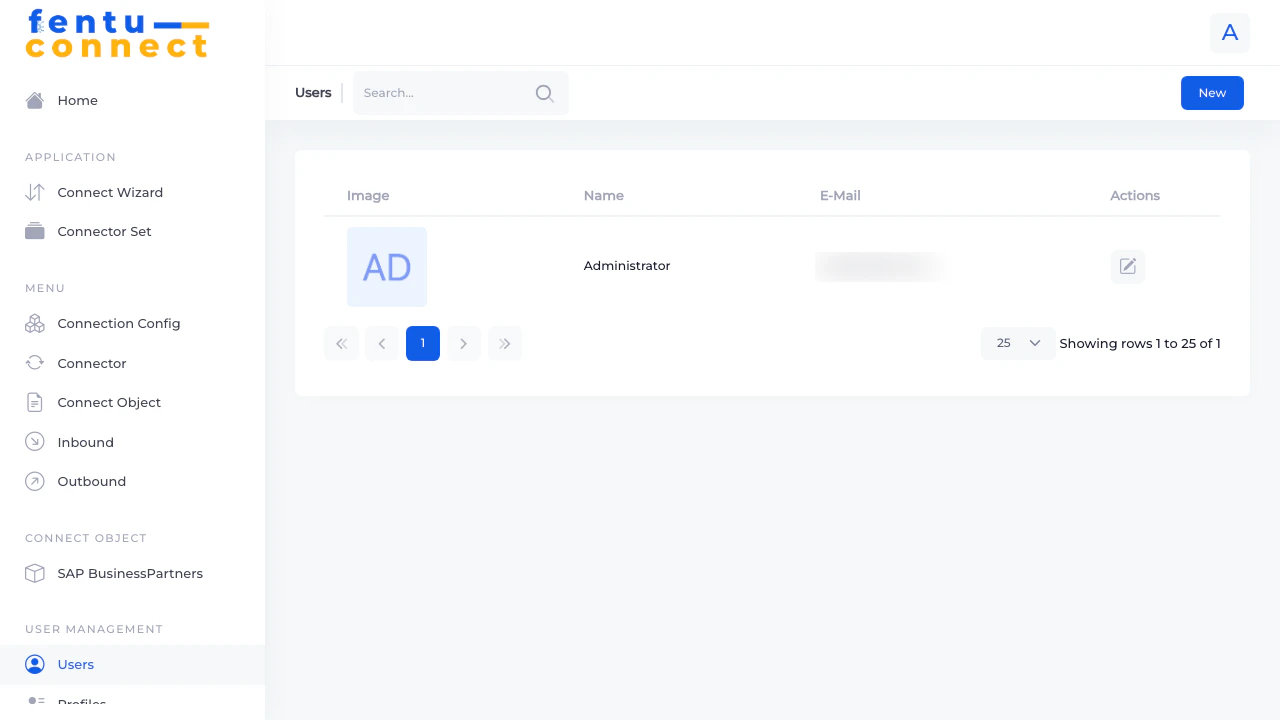
Creating a User
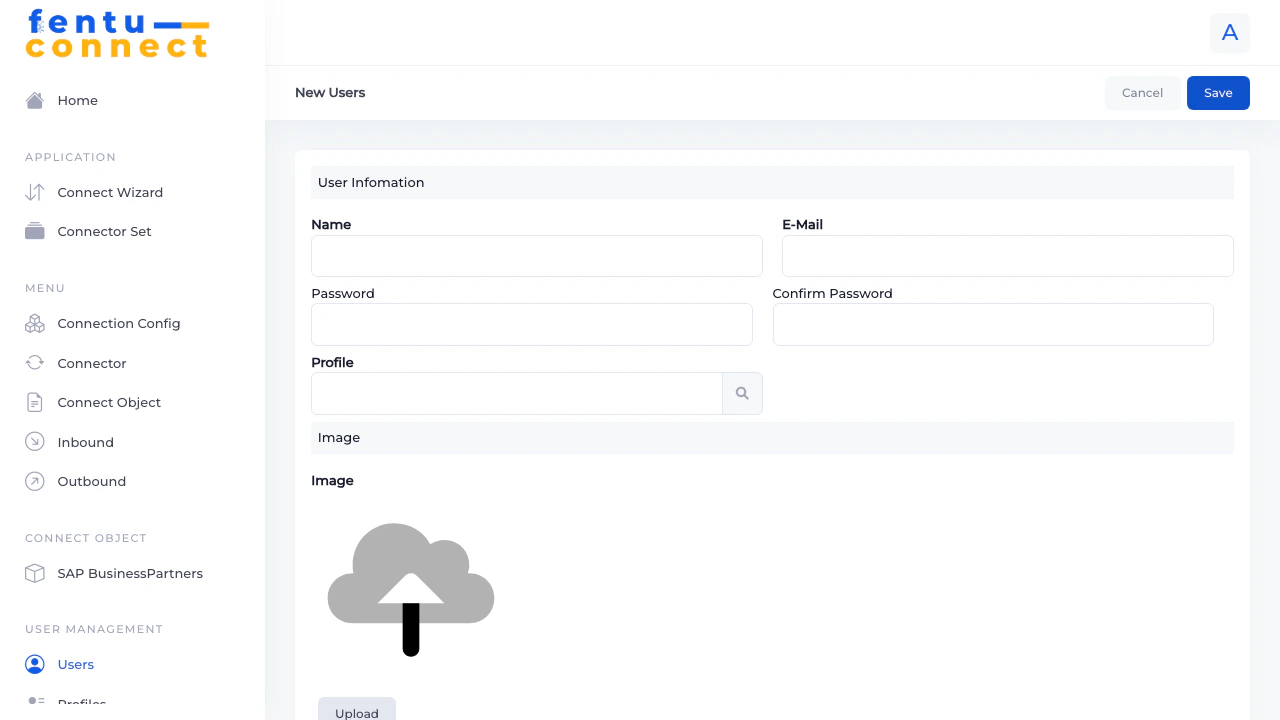
- Click the New button from the Users list
- Fill in the required fields
- Click Save
Editing a User
- Find the user in the list
- Click the edit icon in the Actions column
- Modify the fields (leave password blank to keep existing)
- Click Save
Deleting a User
- Find the user in the list
- Click the delete icon in the Actions column
- Confirm the deletion
Profiles
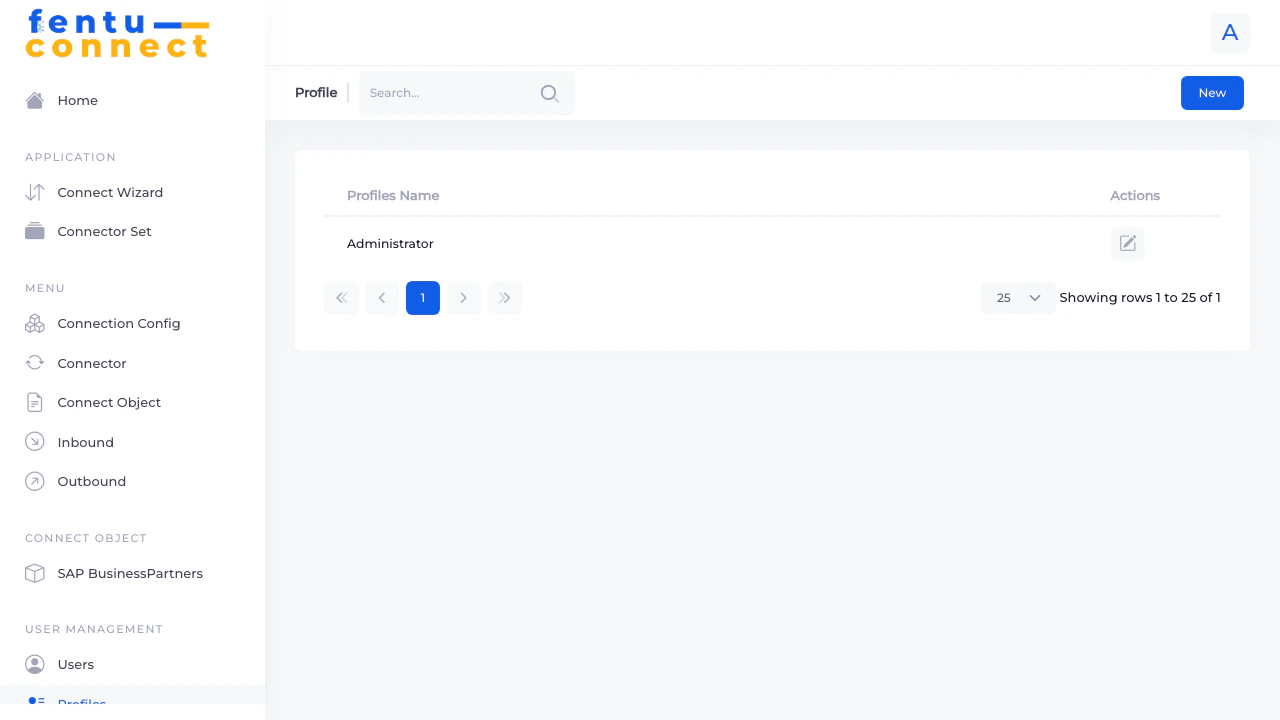
Profile List
Profile Detail
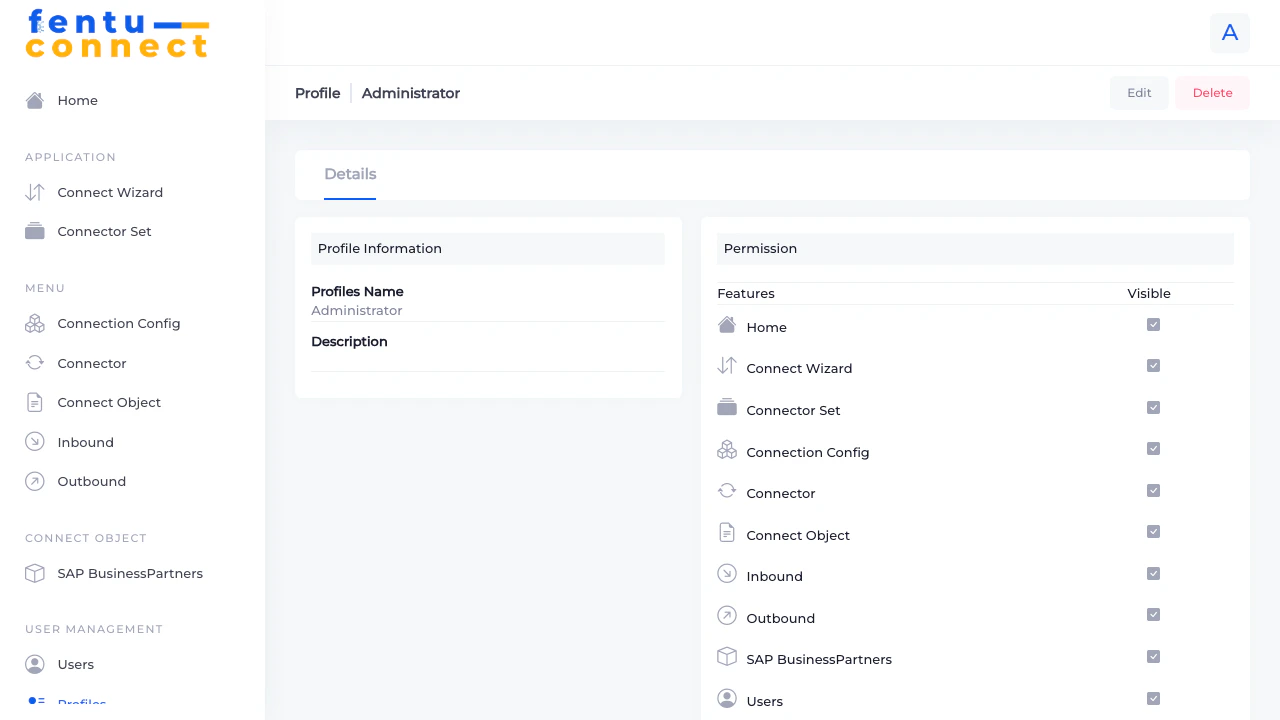
- Edit Button - Modify profile settings
- Delete Button - Remove the profile
- Details Tab - View profile information
Creating a Profile
- Click New from the Profiles list
- Enter a name and description
- Configure permissions
- Click Save
Editing a Profile
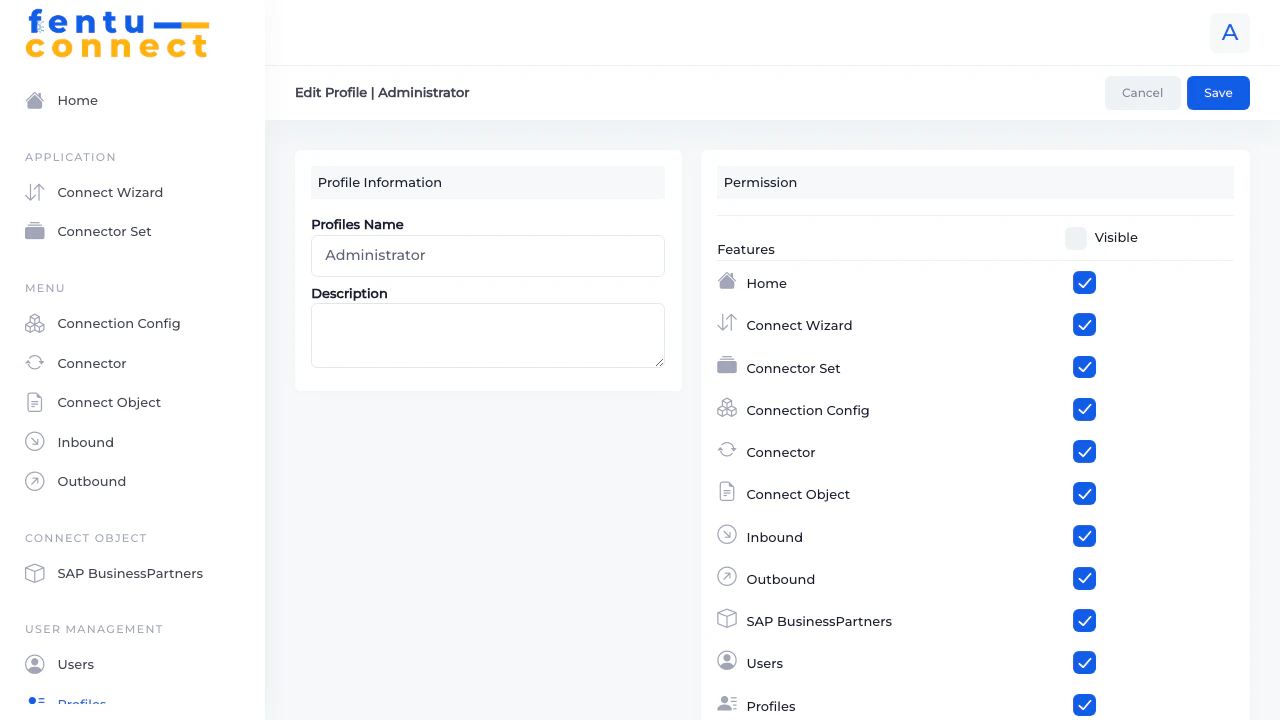
- Navigate to the profile detail
- Click the Edit button
- Configure the profile settings
Permission Checkboxes
The profile edit form shows a list of features with checkboxes:Checked permissions grant access; unchecked permissions hide those features from users with this profile.
Deleting a Profile
- Navigate to the profile detail or list
- Click the delete icon or Delete button
- Confirm the deletion
Profile Configuration Best Practices
Create Role-Based Profiles
Create Role-Based Profiles
Design profiles around job functions:
- Administrator - Full access to all features
- Integration Manager - Access to connections and objects, no user management
- Viewer - Read-only access to monitor sync status
Principle of Least Privilege
Principle of Least Privilege
Give users only the permissions they need:
- Not everyone needs access to Connection Config (credentials)
- Viewer roles shouldn’t need edit capabilities
- User management should be restricted to administrators
Document Profile Purposes
Document Profile Purposes
Use the description field to explain:
- Who should have this profile
- What access it provides
- When it was last reviewed
Review Periodically
Review Periodically
Audit profiles and user assignments regularly:
- Remove access for departed employees
- Adjust permissions as job roles change
- Review administrator access quarterly
Common User Management Scenarios
New Employee Onboarding
New Employee Onboarding
- Create a new user account with their email
- Set a temporary password
- Assign the appropriate profile based on their role
- Have them change their password on first login
Employee Role Change
Employee Role Change
- Review the user’s current profile
- Either assign them to a different profile, or
- Create a new profile if their access needs are unique
Employee Departure
Employee Departure
- Immediately delete or deactivate the user account
- Review any connections they managed
- Transfer ownership of integrations if needed
Restricting Sensitive Access
Restricting Sensitive Access
For sensitive operations like Connection Config (which stores credentials):
- Create a restricted profile without Connection Config access
- Assign to users who don’t need to manage credentials
- Only grant Connection Config access to trusted administrators
Common Questions
How do I reset a user's password?
How do I reset a user's password?
Edit the user and enter a new password in the password fields. The user will need to use the new password on their next login.
Can a user have multiple profiles?
Can a user have multiple profiles?
Users are typically assigned one profile at a time. If a user needs a unique combination of permissions, create a new profile for their specific needs.
What happens if I delete the only admin?
What happens if I delete the only admin?
Be careful not to delete or restrict all administrator accounts. Always maintain at least one account with full administrative access.
Can I see user activity or login history?
Can I see user activity or login history?
Check with your system administrator for audit log capabilities. User activity tracking may be available through system logs.
Related Documentation
Introduction
Overview of Fentu Connect features
Connection Config
Manage sensitive connection credentials