
Overview
Fentu Connect is a powerful middleware application that enables seamless data synchronization between Fentu FSM (Field Service Management) and various external systems including ERP platforms, CRM systems, and other business applications.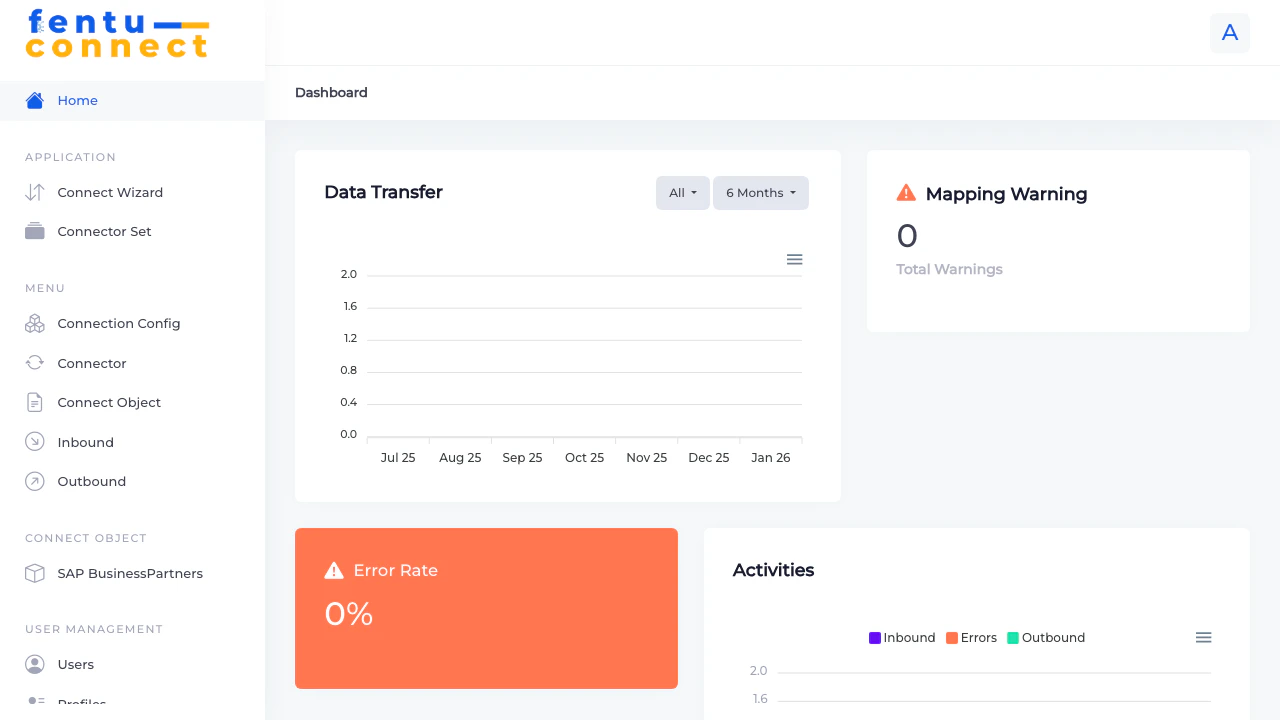
Fentu Connect acts as a bridge between your field service operations and back-office systems, ensuring data consistency across your entire business ecosystem.
Key Features
Multi-System Integration
Connect Fentu FSM with SAP B1, Salesforce, Acumatica, and other business systems through pre-built connectors.
Bidirectional Sync
Configure inbound connections to pull data into Fentu FSM and outbound connections to push data to external systems.
Flexible Field Mapping
Map fields between systems using direct field mapping, raw data values, or powerful formula expressions.
Visual Configuration
Use the Connect Wizard to quickly set up new integrations without writing code.
Supported Integration Types
Fentu Connect supports integration with multiple system types:How It Works
1
Configure Connection
Set up connection credentials for your external system (API endpoints, authentication, etc.)
2
Define Connect Objects
Create objects that define the data structures you want to synchronize (customers, products, work orders, etc.)
3
Set Up Field Mapping
Map fields between your source system and Fentu FSM, using direct mappings or formula transformations
4
Create Inbound/Outbound Connections
Configure how data flows between systems - inbound to receive data, outbound to send data
5
Activate and Monitor
Enable your connections and monitor the data synchronization from the dashboard
Application Menu Structure
The Fentu Connect application is organized into the following sections:Application
- Connect Wizard - Quick setup wizard for creating new integrations
- Connector Set - Group related connectors together
Menu
- Connection Config - Configure connection credentials and endpoints
- Connector - Create and manage individual connectors
- Connect Object - Define data objects and their fields
- Inbound - Configure inbound data connections
- Outbound - Configure outbound data connections
Connect Objects
- Dynamic menu items for each defined Connect Object (e.g., SAP BusinessPartners, FSM WorkOrder)
User Management
- Users - Manage user accounts
- Profiles - Configure user roles and permissions
Getting Started
Connect Wizard
Use the guided wizard to quickly set up a new integration
Configuration Guide
Learn how to configure connection credentials