
Overview
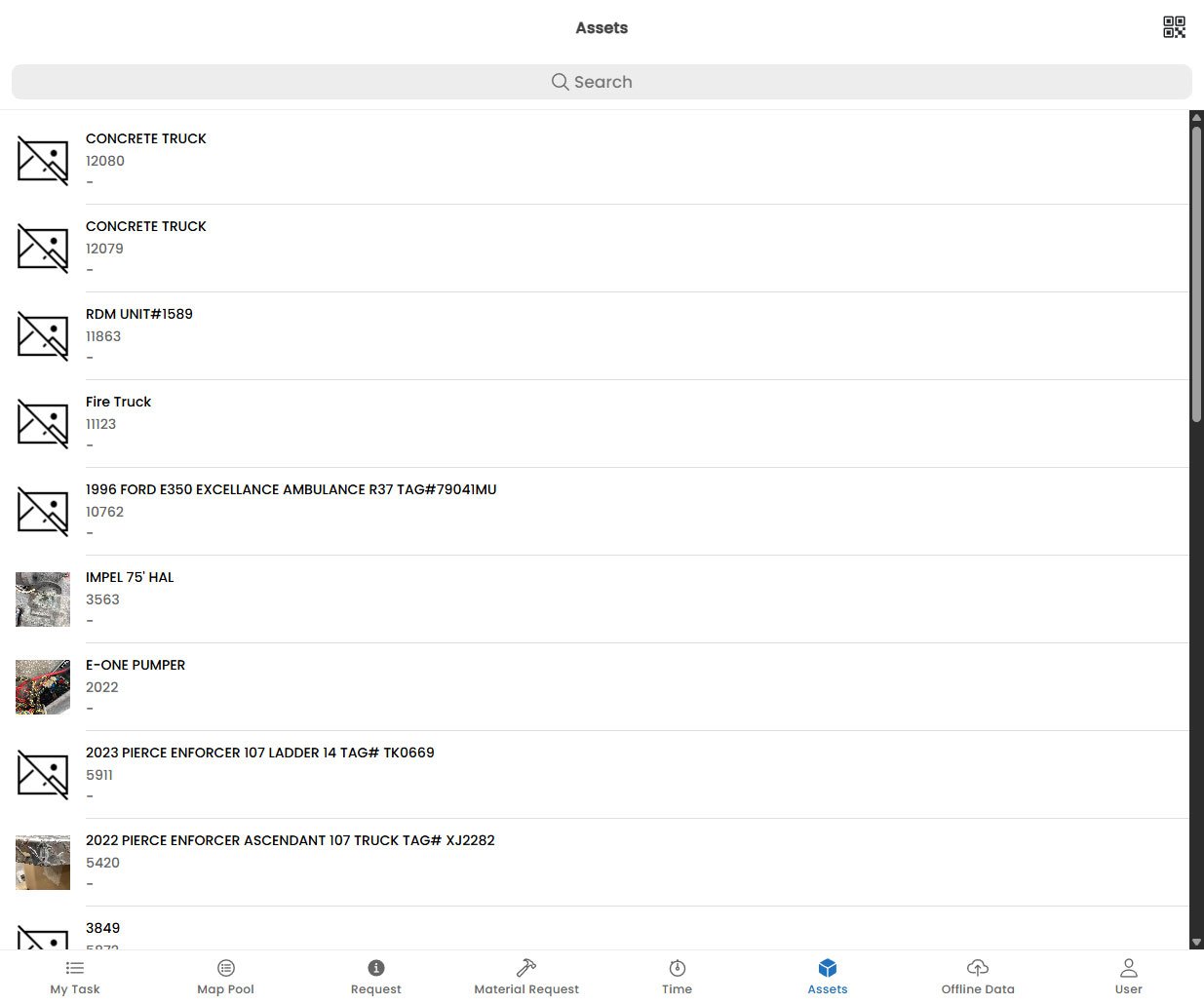
The Assets screen allows technicians to access the full catalogue of customer assets — the equipment and installations that Fentu FSM tracks and services. From the mobile app, you can search for assets, scan their QR codes or barcodes, view their service history, and update their condition during a task.Assets shown in the mobile app are the same records managed in Fentu FSM by back-office users. Any updates you make (condition notes, readouts, checklists) are immediately reflected in the desktop application upon sync.
Asset List
The Assets screen displays a searchable list of assets associated with your current tasks and the customers in your territory. Each asset card shows:Searching for an Asset
Use the search bar at the top of the Assets screen to find an asset by:- Asset name or model
- Serial number
- Customer name
- Location address
Scanning an Asset
1
Tap the Scan Icon
On the Assets screen, tap the QR / Barcode Scan icon in the top-right corner. This opens the device camera.
2
Point at the Label
Aim the camera at the QR code or barcode on the asset’s label or plate. Keep the code within the scanning frame — the app will detect it automatically.
3
Review the Match
If the scanned code matches an asset in Fentu FSM, the asset detail screen opens immediately. If no match is found, you can manually search or create a new asset record.
Asset Detail
Tapping an asset card (or scanning its code) opens the Asset Detail screen, which shows the complete profile of the equipment.General Information
General Information
- Asset name, brand, and model
- Serial number and internal reference code
- Installation date and warranty expiry
- Current location (customer site, floor, room)
- Assigned technician team (if any)
Service History
Service History
A chronological list of all past service tasks performed on this asset:
- Task name, date, and technician
- Work done (brief summary from task notes)
- Parts used
- Readout values recorded at each visit
Parts
Parts
A list of asset parts — the sub-components that make up this asset (e.g. filters, belts, sensors). Each part shows its expected replacement interval and last replacement date. This helps technicians identify components that are due for replacement during the current visit.
Documents & Manuals
Documents & Manuals
Attached documents such as technical manuals, wiring diagrams, warranty certificates, and installation reports. Tap a document to open it. Files with a download icon need to be fetched before they are available offline.
Condition Notes
Condition Notes
Notes about the current observed condition of the asset. Technicians can add or update condition notes during a visit. These notes are visible to dispatchers and engineers in Fentu FSM.
Updating an Asset During a Task
When you are working on a task linked to a specific asset, you can update the asset’s details directly:- Open the Task Detail screen.
- Tap the asset listed under Customer Assets.
- From the asset detail, you can:
- Update condition: Tap Edit Condition and select the new condition (Good, Fair, Poor, Critical, Failed).
- Add a note: Tap Add Note to describe what you observed or what work was done.
- Record a readout: Tap Add Readout to log a measurement (if a readout template is configured for this asset).
Condition updates and readouts recorded during a task are automatically linked to that task in the service history, providing a traceable record of every visit.