
Overview
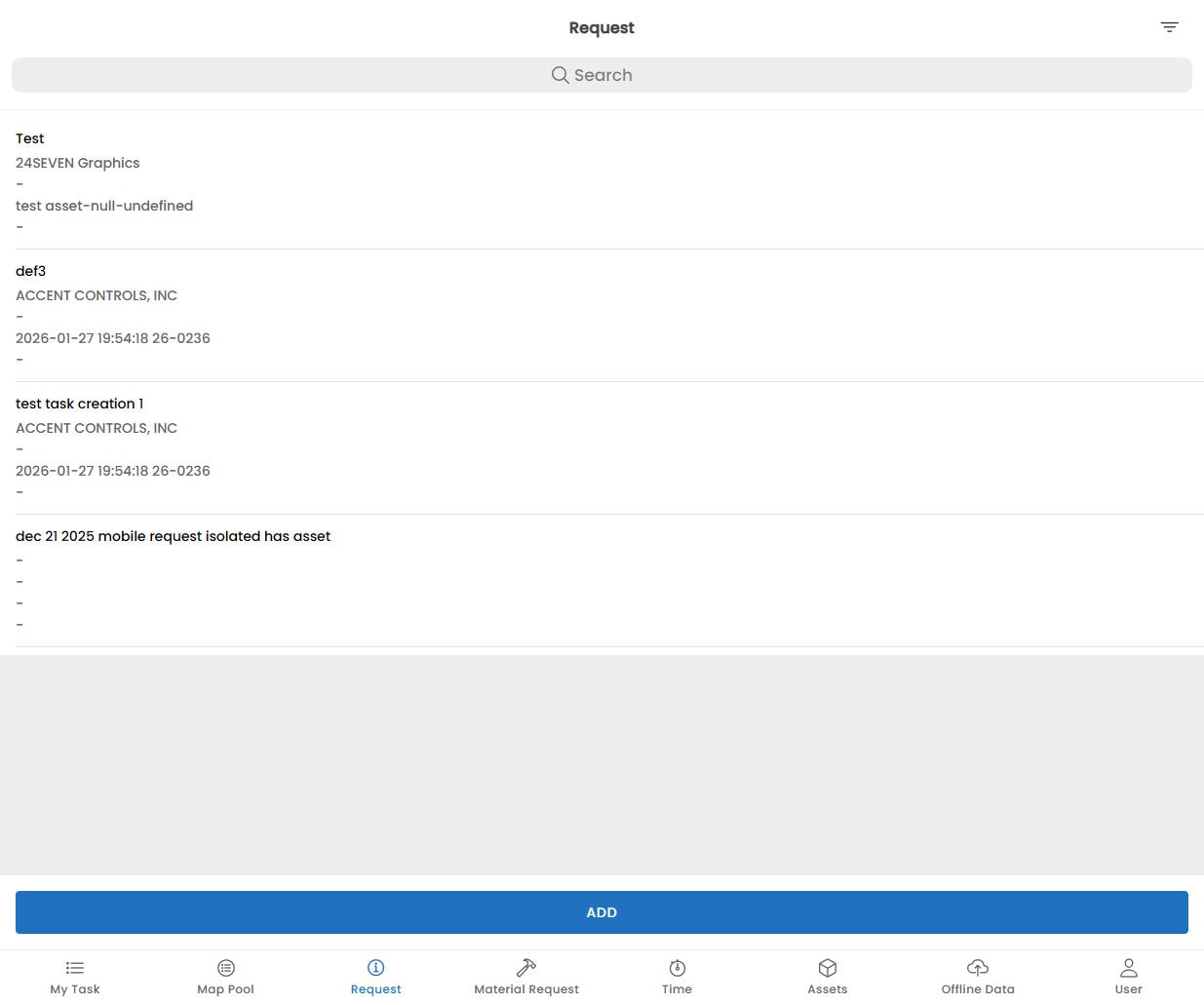
The Request section allows field technicians to create new service requests directly from the mobile app. This is useful when a customer reports an issue on-site that is outside the scope of the current task, or when you encounter a problem that needs to be logged and handled by the back office. Requests created from the mobile app are immediately visible to dispatchers and administrators in Fentu FSM, who can then triage and schedule follow-up work.Creating a request from the mobile app does not automatically create a new work order. The back office reviews each request and decides whether to schedule a follow-up task.
Viewing Incoming Requests & Notifications
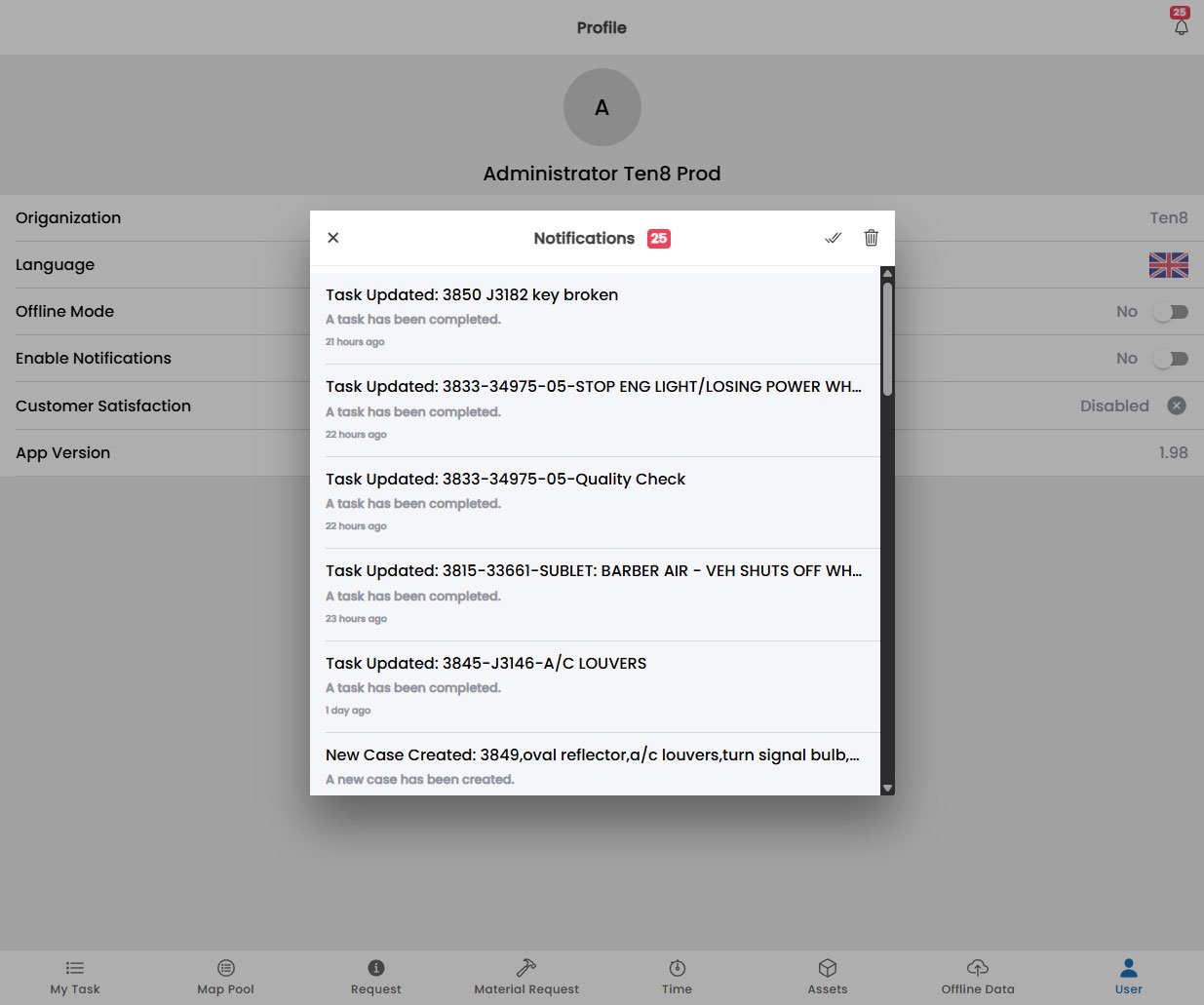
- New task assignments and schedule changes
- Material request approvals or rejections
- Messages from dispatchers
- System alerts (e.g. work order status changes)
Notification Types
Task Assignment
Task Assignment
A notification is sent when a new task is assigned to you or when an existing task’s schedule is changed. Tap the notification to go directly to the Task Detail screen.
Task Reminder
Task Reminder
A reminder is sent before a scheduled task start time (configurable by your administrator). Tap the reminder to open the task and begin your preparation.
Material Request Update
Material Request Update
Notifies you when a material request you submitted has been approved, rejected, or fulfilled. See Material Request for more details.
Message from Dispatcher
Message from Dispatcher
Dispatchers and back-office staff can send you direct messages. Tap the message notification to read and reply.
Creating a New Service Request
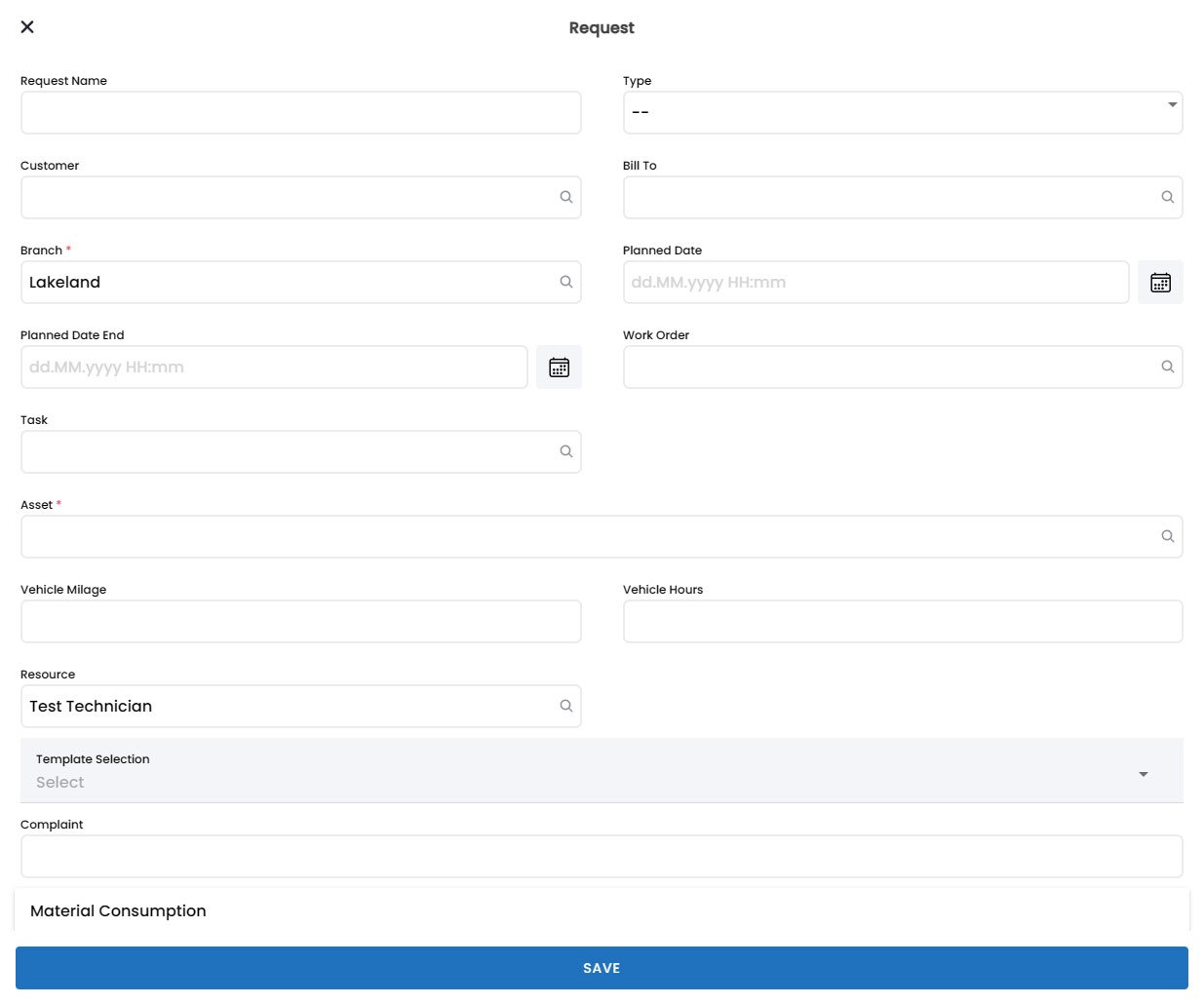
To log a new service request from the field:1
Open the Request Screen
Tap the Request icon in the bottom navigation bar, then tap the + New Request button in the top-right corner.
2
Select the Customer
Search for and select the customer linked to this request. You can search by customer name, account number, or address.
3
Choose the Request Type
Select the appropriate service request type:
- Corrective — An unexpected fault or breakdown that needs repair
- Preventive — A scheduled maintenance visit that needs to be logged
- Installation — A request to install new equipment
- Other — Any other type of request
4
Describe the Issue
Enter a clear description of the problem or requirement. Include as much detail as possible — what the customer reported, what you observed, any error codes or symptoms.
5
Add Photos (Optional)
Tap the Camera icon to take photos of the issue. Photos are attached to the request and visible to the back office.
6
Set Priority
Indicate the urgency of the request:
- Low — Can be scheduled at the next available slot
- Medium — Should be addressed within a few days
- High — Needs to be scheduled soon
- Urgent — Requires immediate attention
7
Submit the Request
Tap Submit to send the request to Fentu FSM. You will see a confirmation with the request reference number.
Request Status
After submitting, you can track the status of your request from the Request screen:Linking a Request to an Existing Work Order
If the issue you want to report is related to the current work order you are executing, you can link the new request directly:- Open the Task Detail screen for the current task.
- Tap Related Requests → Add Request.
- Fill in the request details as described above.
- The new request will be automatically linked to the current work order for traceability.