
Overview
The scanning feature allows technicians to quickly identify customer assets by scanning QR codes or barcodes with their device camera. This provides instant access to the asset’s service history, condition notes, and related tasks without needing to search manually. Scanning is available from the Assets screen and can be used to verify you are working on the correct piece of equipment, check past service records, and update asset information during a task.How to Scan an Asset
1
Navigate to the Assets Screen
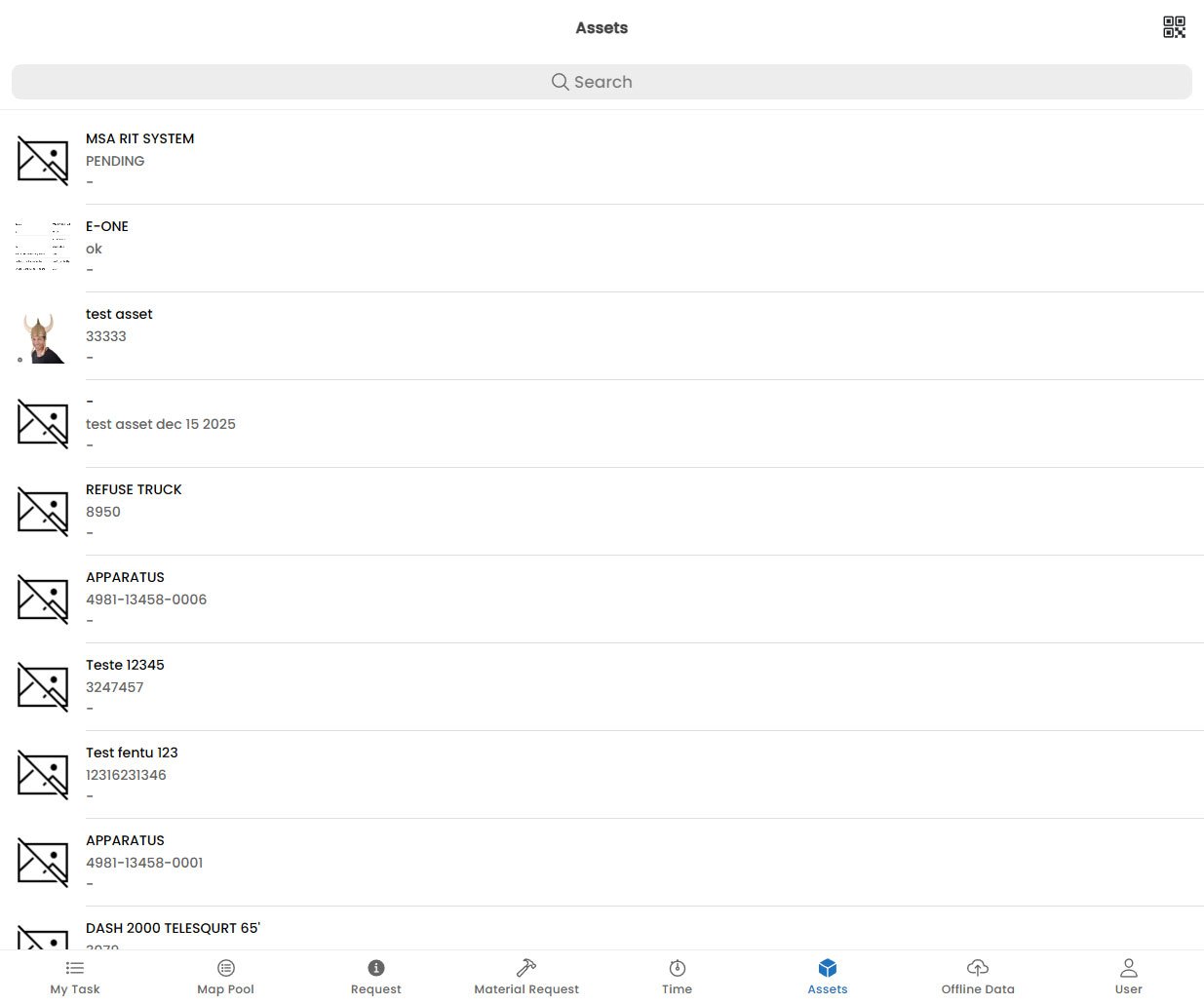
Tap the Assets icon in the bottom navigation bar to view the list of customer assets.
2
Tap the Scan Icon
In the top-right corner of the Assets screen, tap the QR / Barcode Scan icon. This will open your device camera.
3
Scan the Asset Label
Point your camera at the QR code or barcode label on the asset. The app will automatically detect and scan the code when it is within the frame.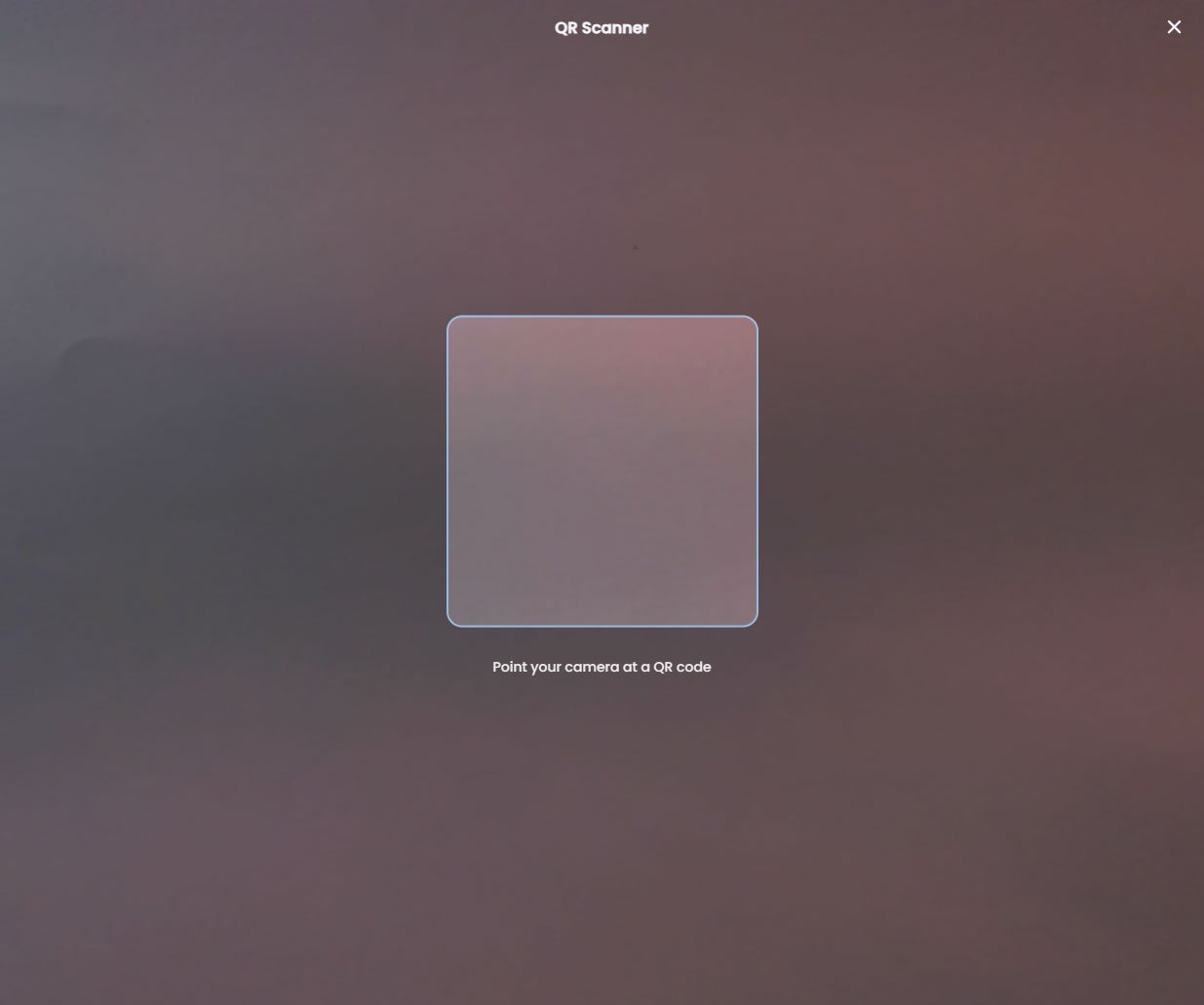
4
View Asset Details
If a matching asset is found in Fentu FSM, its detail screen will open immediately, showing service history, condition notes, and related tasks. If no match is found, you can search manually or create a new asset record.