
Overview
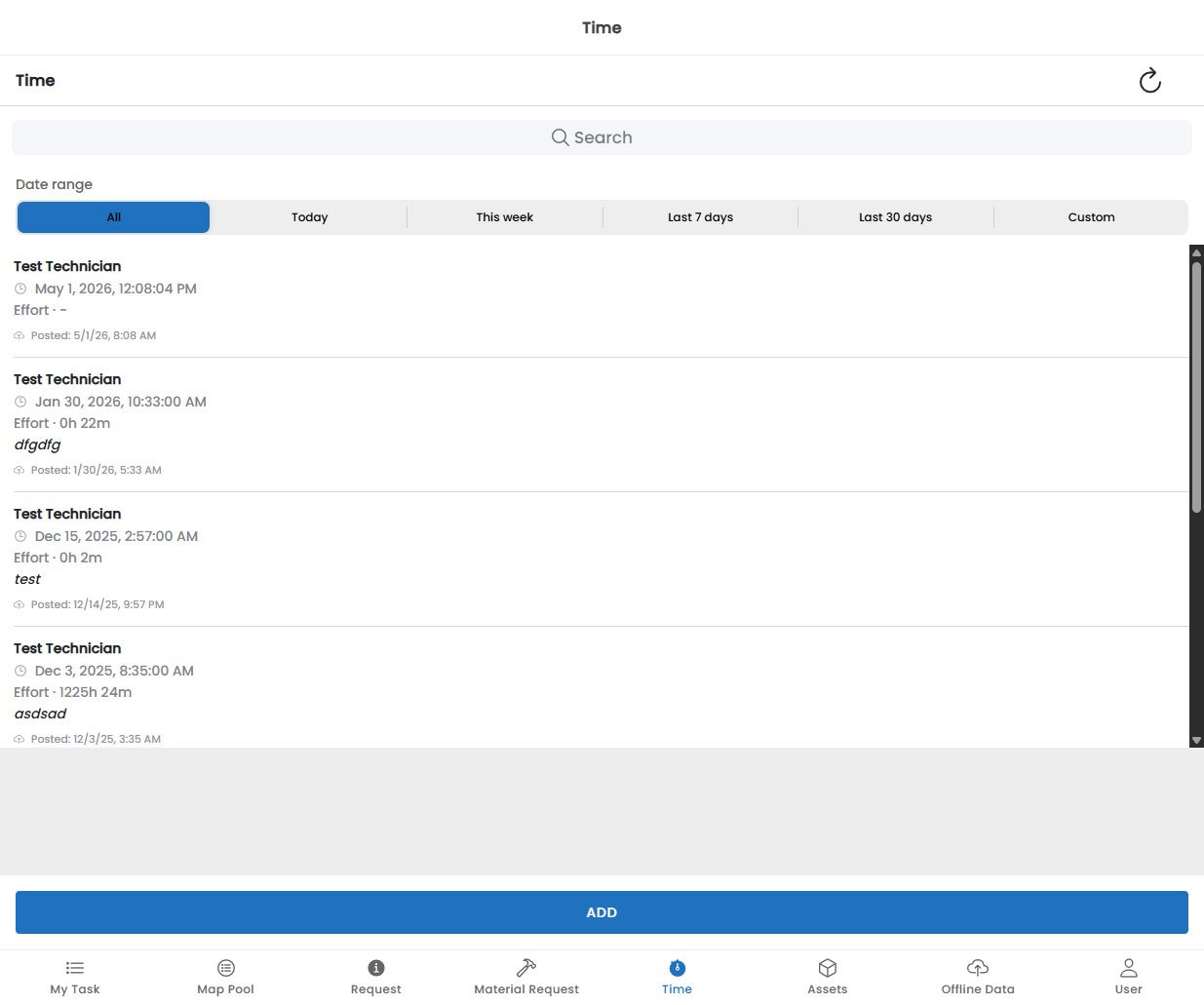
The Time screen allows technicians to record all time spent on a task — including travel to the site, active work on-site, and any breaks taken. Accurate time tracking is essential for billing, payroll, and service reporting. Time entries are linked to specific tasks and synced to Fentu FSM where they are visible to managers and used for invoicing.Your administrator may require time to be logged before a task can be marked as complete. Check with your back office if you are unsure of the time tracking policy at your organisation.
Time Entry Types
The app supports several categories of time that can be logged against a task:Logging Time
Using the Timer
The simplest way to log time is to use the built-in timer:1
Open the Task
Navigate to your task from the My Tasks screen.
2
Start the Timer
On the Task Detail screen, tap Start Timer. Select the time type (Travel, Work, Break, etc.) from the drop-down that appears.
3
Work on the Task
The timer runs in the background. You can navigate away from the screen — the timer will keep running and a persistent notification will show the elapsed time.
4
Stop the Timer
When you finish or switch activities, tap Stop Timer. The time entry is automatically saved to the task.
5
Switch Time Types
If you move from travelling to working on-site, stop the Travel timer and start a new Work timer. You do not need to navigate away from the task.
Manual Time Entry
If you forgot to start the timer, you can enter time manually:- On the Time screen (or the Task Detail screen under the Time tab), tap + Add Time Entry.
- Select the time type.
- Enter the Start Time and End Time (or the total Duration).
- Add an optional note to describe what was done during this time.
- Tap Save.
Viewing Time Entries
The Time screen shows all time entries for your tasks, grouped by day. Each entry displays:- Time type (colour-coded icon)
- Start time and end time
- Duration
- Associated task and work order
- Any notes added
Total Summary
At the top of the screen, a summary card shows:- Total Work Time for the selected day
- Total Travel Time
- Total Break Time
Editing or Deleting a Time Entry
Tap any time entry to open it. From the detail view you can:- Edit the start/end times, duration, or type
- Add or update notes
- Delete the entry (if allowed by your organisation’s policy)
Once a time entry has been submitted and approved as part of an invoice or payroll run, it can no longer be edited from the mobile app. Contact your administrator if corrections are needed.
Break Tracking
If your organisation requires break tracking:- Tap Start Break when you take a break. This stops any active Work timer and starts a Break timer.
- Tap End Break when you resume work. The Work timer restarts automatically.