
Overview
Parts represent consumable items, replacement components, and service materials used during maintenance and repair work. Unlike Products (which are installed equipment), Parts are items that technicians consume or replace while servicing assets.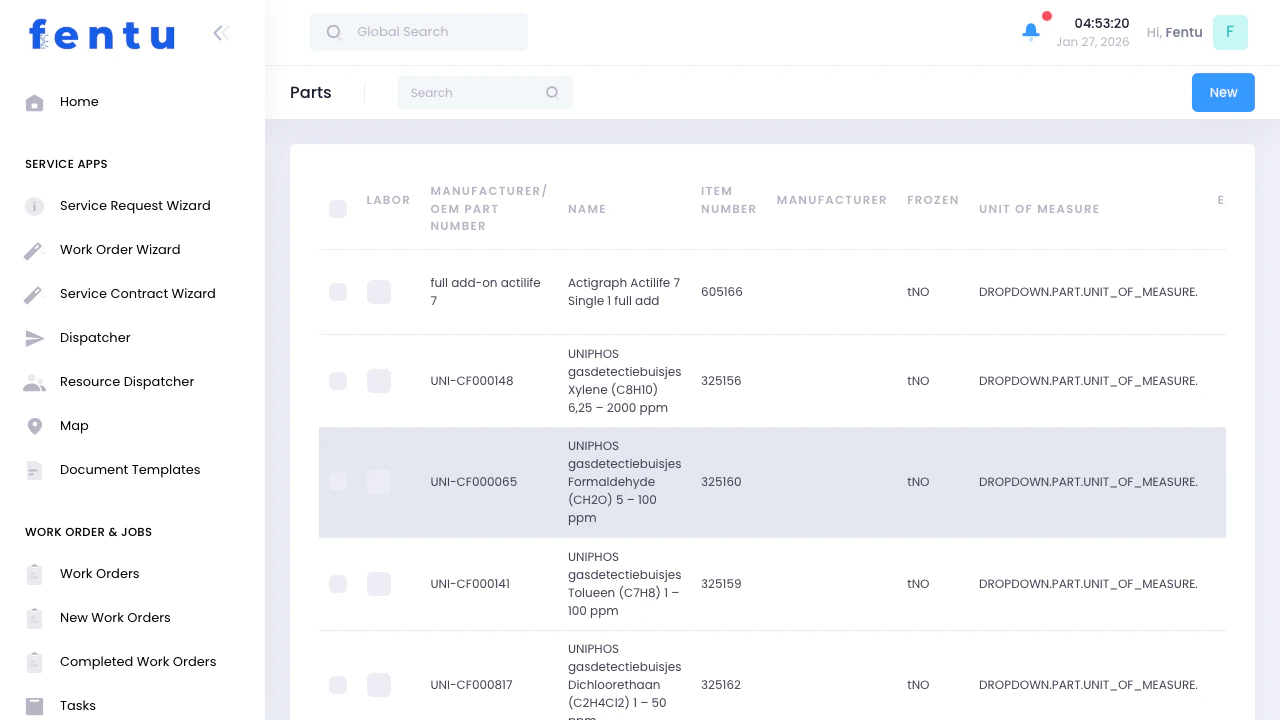
Parts are consumables (filters, batteries, sensors) while Products are the equipment being serviced (Machine units, fire doors). Parts get used up during service; Products get maintained.
When to Use Parts
Use the Parts module to:- Catalog replacement components for serviced equipment
- Track consumable materials (filters, fluids, batteries)
- Define spare parts inventory
- Set up automatic part addition to tasks
- Manage part costs for billing and inventory
- Schedule replacement based on wear cycles
- Link parts to specific equipment checklists
Parts List View
What You See
The Parts list displays your parts catalog:List Features
- Search - Find parts by name, article number, or manufacturer
- New - Add new part to catalog
- Actions - Edit or delete parts
- Filter - Filter by type, manufacturer, or status
- Sort - Click columns to sort
Creating a Part
When you click New:Basic Information
Classification
Supplier & Pricing
Inventory Flags
Automation Settings
Usage Notes
Part Detail View
When you click on a part:Information Tab
All part specifications, pricing, and settings.Related Items Tabs
Checklists
Checklists
Maintenance checklists that include this part. Links parts to inspection procedures.Example: “Machine Filter” part linked to “Machine Quarterly Maintenance” checklist.
Task Usage
Task Usage
All tasks where this part has been used. Track consumption history and patterns.Insights: Identify frequently used parts, consumption rates, common failure items.
Asset Parts
Asset Parts
Assets that have this part installed as a trackable component. Used when parts have serial numbers or require individual tracking.Use Case: Battery packs with replacement dates, safety-critical components with certifications.
Warehouse Stock
Warehouse Stock
Inventory levels per warehouse if marked as Inventory Item.Management: View stock, adjust quantities, transfer between warehouses.
History
History
Complete audit trail of part record changes.
Common Part Scenarios
Scenario 1: Adding Consumable Parts
Goal: Set up air filters that technicians use regularly Steps:- Click New Part
- Enter details:
- Name: “Machine Air Filter 20x25x4 MERV-13”
- Article Number: “FILT-20254-M13”
- Type: “Consumable”
- Cost: $12.50
- Manufacturer: “FilterPro Inc”
- Check Inventory Item (you stock these)
- Check Auto Add for New Task on Wizard if used in most Machine tasks
- Set Replacement Cycle: “Quarterly”
- Save
Scenario 2: Parts with Replacement Cycles
Goal: Track battery replacements with automatic scheduling Steps:- Create part: “Fire Door Battery 12V 7Ah”
- Set Code: “battery” (enables auto-population to asset parts)
- Set Replacement Cycle: “Every 2 Years”
- Set Cost: $45.00
- Link to checklist: “Fire Door Annual Inspection”
- Enable Report with template: “Battery replacement recommended - inspect voltage and load test results”
Scenario 3: Auto-Adding Parts to Tasks
Goal: Automatically include lubricant in all door maintenance tasks Setup:- Create part: “Door Hinge Lubricant 400ml”
- Check Auto Add for Task Type
- Set Allowed Task Type: “preventive_maintenance,scheduled_maintenance”
- Check Auto Approved for Material Request
Scenario 4: Tracking Spare Parts
Goal: Manage critical spare components kept in stock Setup:- Create part: “Smoke Detector Replacement Head”
- Type: “Sparepart”
- Check Inventory Item, Purchase Item, Sales Item
- Set min/max stock levels (in warehouse settings)
- Link to assets where used
Part Actions
Edit Part
Update details, pricing, or settings. Changes apply to future usage; doesn’t affect historical records.
Delete Part
Remove from catalog. Only possible if not linked to tasks, assets, or inventory transactions.
View Usage
See consumption history across tasks and work orders. Identify high-usage parts.
Check Stock
Quick view of inventory levels across warehouses (if Inventory Item enabled).
Tips and Best Practices
Use Consistent Part Numbering
Use Consistent Part Numbering
Create a logical part numbering system:
- Category prefix: FILT- (filters), BAT- (batteries), SEN- (sensors)
- Specification: 20254 (size), 12V (voltage)
- Variant: M13 (MERV rating), LA (lead acid)
Set Accurate Replacement Cycles
Set Accurate Replacement Cycles
Base replacement cycles on:
- Manufacturer recommendations
- Regulatory requirements (smoke detectors, batteries)
- Historical failure data
- Environmental conditions
Use Auto-Add Strategically
Use Auto-Add Strategically
Enable auto-add for parts that are:
- Used in every service of a type (lubricants, cleaning supplies)
- Required by procedure (safety items, compliance materials)
- Frequently forgotten but needed
Link Parts to Checklists
Link Parts to Checklists
Connect parts to relevant checklists:
- Ensures technicians know which parts are needed
- Checklist reminds them to check/replace part
- Standardizes part usage across team
Track Inventory for Critical Parts
Track Inventory for Critical Parts
Enable Inventory Item for:
- Long lead-time parts
- Critical safety components
- High-cost items requiring approval
- Commonly used consumables
Document Part Specifications
Document Part Specifications
Use Description field for:
- Technical specifications
- Compatibility notes (“Use only with Model X”)
- Installation instructions
- Safety warnings
- Acceptable substitutes
Set Realistic Costs
Set Realistic Costs
Keep cost data current:
- Update when supplier prices change
- Include average shipping if applicable
- Account for bulk discounts
- Track cost trends over time
Use Special Codes for Auto-Population
Use Special Codes for Auto-Population
Set Code field for parts that auto-populate to asset parts:
battery- Auto-adds to battery fieldssmoke_switch- Auto-adds to smoke detector fieldsceiling_detector- Auto-adds to ceiling detector fields
Common Questions
What's the difference between Parts and Products?
What's the difference between Parts and Products?
Products:
- Equipment you service (fire doors, Machine units)
- Installed at customer sites as assets
- Have maintenance schedules
- Example: “Commercial Machine Unit RTU-500”
- Items consumed during service
- Replaced components or materials
- Tracked by consumption, not installation
- Example: “Machine Filter 20x25”, “Door Hinge Lubricant”
Should every part be an Inventory Item?
Should every part be an Inventory Item?
Enable Inventory Item for:
- Parts you stock in warehouses
- Expensive items requiring approval
- Critical parts with long lead times
- Items you want to track consumption of
- Low-value consumables bought as-needed
- Customer-supplied parts
- Service labor (use Type: Service instead)
- One-time special order items
How do replacement cycles work?
How do replacement cycles work?
Replacement Cycle defines:
- How often part should be replaced
- System calculates next replacement date
- Generates alerts when replacement overdue
- Appears in proactive maintenance reports
- Batteries (every 2 years)
- Smoke detectors (every 8 years per code)
- Filters (quarterly)
- Wear parts (based on hours/cycles)
What does Auto Add for Task Type do?
What does Auto Add for Task Type do?
Automatically includes part when:
- Technician creates task via wizard
- Task type matches allowed types
- Saves technician time on common tasks
- Part: “Door Hinge Lubricant”
- Auto Add: Enabled
- Allowed Types: “preventive_maintenance”
- Result: Every preventive task auto-includes lubricant
Can I set different prices per customer?
Can I set different prices per customer?
Part records store base cost/pricing:
- Cost: Your purchase cost
- PE/ME fields: Standard pricing
- Use service contract pricing rules
- Configure markup percentages per customer
- Override prices on individual work orders
What's the Report field used for?
What's the Report field used for?
Report field is a template for:
- Automatic replacement reports
- Triggered when part passes replacement cycle
- Populated to asset part replacement notifications
- Part: “Battery 12V”
- Report template: “Battery voltage test shows [X]V under load. Recommend replacement per 2-year cycle. Last install date: [DATE].”
How do parts link to checklists?
How do parts link to checklists?
Two ways to link:1. Part to Checklist:
- Open part record
- Go to Checklists tab
- Add relevant checklists
- Part appears when checklist is used
- Configure checklist item
- Link to specific part
- Part auto-suggests during task
Can I delete a part?
Can I delete a part?
Deletion only possible if part is not:
- Used in any tasks (historical or active)
- Linked to assets as tracked component
- Referenced in work orders
- Has inventory transactions
Related Documentation
Products
Equipment that uses these parts. Parts are consumed servicing products.
Tasks
Add parts to tasks for material tracking and billing.
Asset Parts
Track individual part installations on specific assets with serial numbers.
Warehouses
Manage part inventory across warehouse locations.