
Overview
Scheduled Maintenances are recurring maintenance tasks automatically generated from service contracts. They define what work needs to be done, how often, and for which assets. The system uses scheduled maintenances to auto-create work orders, ensuring preventive maintenance never gets missed.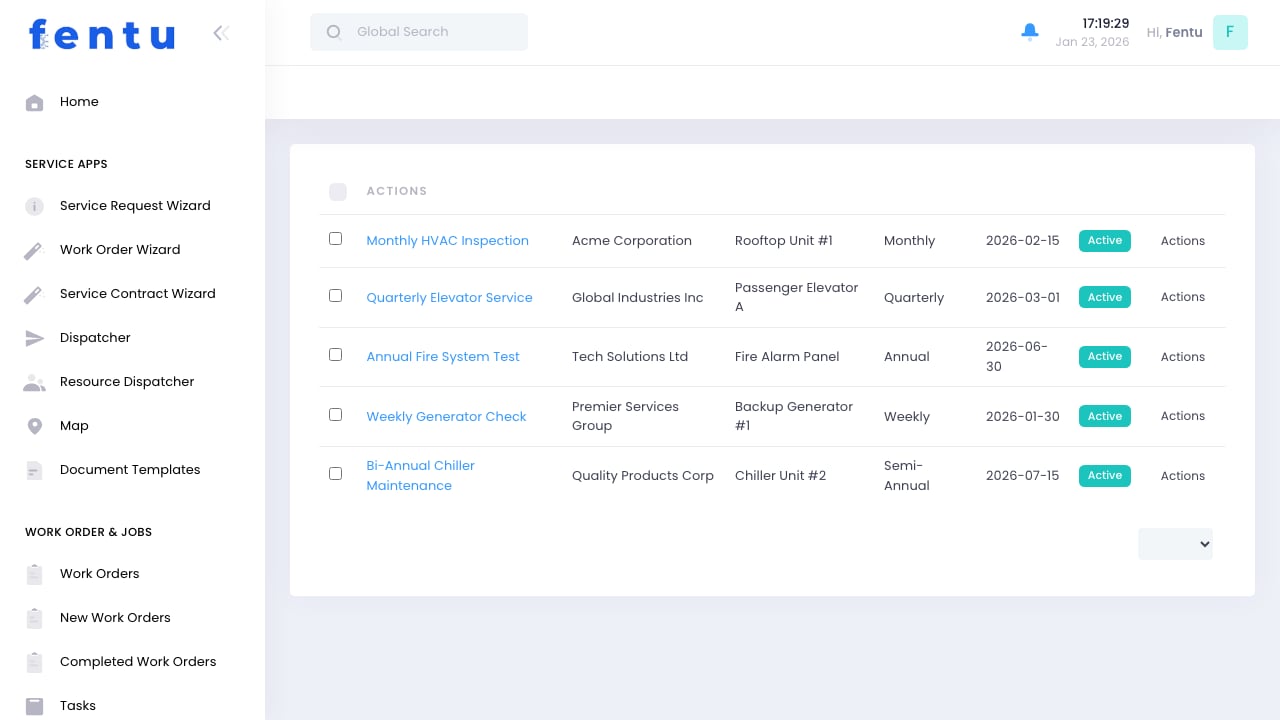
When to Use Scheduled Maintenances
Use Scheduled Maintenances when you need to:- View all upcoming preventive maintenance tasks across all contracts
- Check which maintenance visits are coming due
- Modify maintenance schedules or frequencies
- Assign technicians to recurring maintenance tasks
- Generate work orders for scheduled service visits
- Pause or resume scheduled maintenance temporarily
- Track maintenance completion rates
How Scheduled Maintenances Work
The Automation Flow
- Created Automatically - When you save a service contract with a maintenance frequency, Fentu creates scheduled maintenance records
- Generate Work Orders - When the scheduled date approaches (e.g., 7 days before), a work order is auto-created
- Self-Perpetuating - After work completion, the next scheduled date is calculated automatically
- Linked to Contract - Each scheduled maintenance ties back to its parent service contract
Frequency Options
Scheduled maintenances can occur at various intervals:Scheduled Maintenances List View
Key Features
Upcoming Maintenance Calendar
Upcoming Maintenance Calendar
Status Indicators
Status Indicators
Asset and Customer Info
Asset and Customer Info
Quick Actions
Quick Actions
List Columns
Creating Scheduled Maintenances
Automatic Creation (Recommended)
The easiest way to create scheduled maintenances is through service contracts:Create or Edit Service Contract
Set Planning Frequency
Add Covered Assets
Save Contract
Manual Creation
You can also create scheduled maintenances manually when needed:Click 'New Scheduled Maintenance'
Select Asset
Define Frequency
Set Start Date
Assign Technician
Define Tasks
Save
Scheduled Maintenance Fields
Basic Information
Schedule Information
Service Details
Assignment
Notes
Managing Scheduled Maintenances
Viewing and Filtering
Use filters to manage large numbers of scheduled maintenances:By Due Date
By Due Date
- This Week - Maintenance coming due in the next 7 days
- This Month - Maintenance due within 30 days
- Overdue - Maintenance past its scheduled date
- Custom Range - Specific date range
By Status
By Status
- Active - Currently running schedules
- Paused - Temporarily suspended
- Completed - Last cycle finished
- Overdue - Missed scheduled dates
By Technician
By Technician
By Customer
By Customer
By Frequency
By Frequency
Modifying Schedules
Common schedule modifications: Change Frequency:- Edit the scheduled maintenance and update frequency
- Next scheduled date recalculates based on new frequency
- Use when customer wants more or less frequent service
- Change status to “Paused”
- Work orders stop generating
- Use for seasonal closures, renovations, or customer requests
- Change status back to “Active”
- System calculates next scheduled date
- Work orders resume generating
- Change assigned technician or team
- Future work orders use new assignment
- Use for technician changes, territory reassignments, or skill requirements
- Manually set the next scheduled date
- Use when customer requests schedule adjustment
- System continues with normal frequency after adjusted date
Work Order Generation
Automatic Work Order Creation
The system automatically creates work orders from scheduled maintenances: Default Behavior:- 7 Days Before Due Date - System checks for upcoming scheduled maintenances
- Work Order Created - New work order generated with:
- Customer and asset from scheduled maintenance
- Tasks from maintenance definition
- Assigned technician from schedule
- Linked to parent contract and scheduled maintenance
- Notification Sent - Customer receives notification (if enabled)
- Available for Scheduling - Work order appears in dispatcher’s queue
- Adjust “Days Before to Generate WO” field
- Some companies generate 14 days ahead for better planning
- Emergency services might generate 1-2 days ahead
- Match to your scheduling and planning processes
Manual Work Order Creation
You can also manually generate work orders from scheduled maintenances:Find Scheduled Maintenance
Click 'Generate Work Order'
Review and Adjust
Schedule and Assign
- Need to service ahead of schedule
- Customer requested early maintenance
- Testing automated system before enabling
- One-time additional visit within contract
Scheduled Maintenance Actions
Generate Work Order
Edit Schedule
Pause Maintenance
Resume Maintenance
View History
View Parent Contract
Tips and Best Practices
Use Appropriate Lead Times
Use Appropriate Lead Times
- 7-14 days - Standard for most businesses (allows scheduling flexibility)
- 3-5 days - Short lead time for highly responsive service
- 14-21 days - Long lead time for complex scheduling or special equipment
- 30+ days - Annual maintenance requiring extensive planning
Document Standard Tasks
Document Standard Tasks
- What to inspect
- What to clean or service
- What measurements to take
- What to document
- What parts to replace
Assign Technicians at the Schedule Level
Assign Technicians at the Schedule Level
- Reduces dispatcher workload
- Builds customer-technician relationships
- Allows technicians to plan ahead
- Ensures right skills for specialized equipment
Monitor Completion Rates
Monitor Completion Rates
- Completed on time
- Delayed or rescheduled
- Cancelled by customer
- Generating callbacks or complaints
Use Pause for Seasonal Equipment
Use Pause for Seasonal Equipment
- Pause scheduled maintenance during off-season
- Resume before season starts
- Prevents unnecessary service calls and maintains schedule integrity
Link to Checklists
Link to Checklists
- Ensures consistent inspections
- Provides compliance documentation
- Trains new technicians
- Identifies developing issues through trend analysis
Review and Optimize Frequencies
Review and Optimize Frequencies
- Are you finding issues that could be caught earlier (increase frequency)?
- Are visits finding no issues (consider decreasing frequency)?
- Has equipment age or usage changed (adjust accordingly)?
- What do manufacturer recommendations say?
Communicate Schedule Changes
Communicate Schedule Changes
- Notify affected customers of timing changes
- Update technician schedules
- Document reason for change in notes
- Adjust contract terms if change is permanent
Common Questions
What's the difference between a scheduled maintenance and a work order?
What's the difference between a scheduled maintenance and a work order?
- Scheduled Maintenance = The rule (“check fire extinguishers monthly”)
- Work Order = The specific task (“check fire extinguishers on January 15, 2026”)
How are scheduled maintenances created?
How are scheduled maintenances created?
Can I modify a scheduled maintenance?
Can I modify a scheduled maintenance?
- Changes don’t automatically update the parent contract
- If you change frequency or scope significantly, consider updating the contract too
- Changes only affect future work orders, not already-created ones
What happens when I pause a scheduled maintenance?
What happens when I pause a scheduled maintenance?
- Work order generation stops
- Existing open work orders remain (can still be completed)
- Schedule is preserved (knows what the next date would have been)
- When resumed, next scheduled date recalculates based on current date
How far in advance are work orders created?
How far in advance are work orders created?
What if a scheduled maintenance is overdue?
What if a scheduled maintenance is overdue?
- Status shows as “Overdue”
- You can still generate a work order manually
- When completed, next scheduled date calculates from completion date (not original due date)
- Consider investigating why maintenance was missed
Can I see work order history for a scheduled maintenance?
Can I see work order history for a scheduled maintenance?
How do I delete a scheduled maintenance?
How do I delete a scheduled maintenance?
- Pause if suspending temporarily
- Set end date if stopping permanently (preserves history)
- Cancel status if the contract was terminated