
Overview
The Resource Dispatcher provides a technician-focused scheduling view where you can see each technician’s availability and assigned tasks. Unlike the Dispatcher which focuses on work orders, the Resource Dispatcher focuses on people - showing who is available, when they’re busy, and allowing you to drag-and-drop unassigned tasks directly onto technician calendars.Assignment Sources
Technicians can be assigned to tasks through several paths before or alongside manual dispatcher assignment:When to Use the Resource Dispatcher
Use the Resource Dispatcher when:- Viewing technician schedules and availability at a glance
- Balancing workload across your technician team
- Assigning unassigned tasks to available technicians
- Managing technician capacity and preventing overbooking
- Seeing which technicians are free for urgent work
- Planning resource allocation for the week or month ahead
Resource Dispatcher Interface
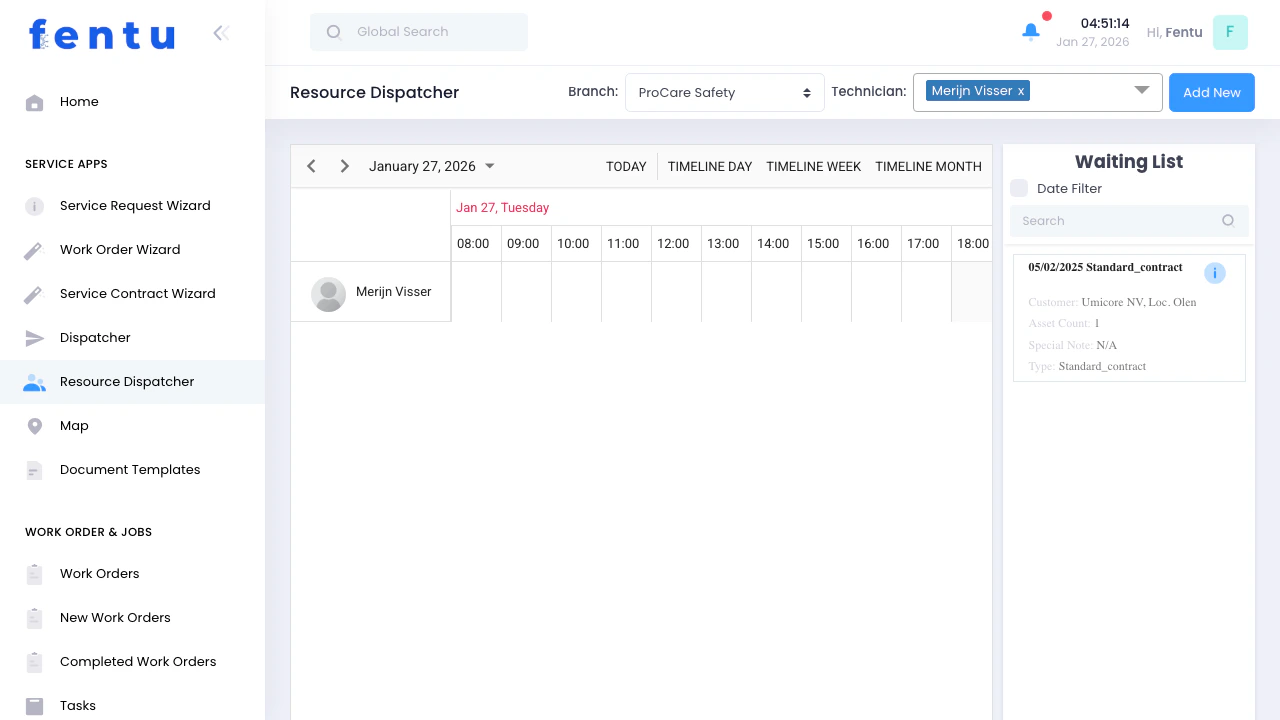
- Calendar Timeline (Left) - Visual schedule showing technicians as rows with their assigned tasks
- Waiting List (Right) - Panel showing unassigned tasks waiting to be assigned to technicians
- Control Bar (Top) - Filters, view options, and tools
Calendar Timeline
The calendar displays each technician as a horizontal row with time slots:Timeline Structure
Task Block Information
Each task block shows:- Task name or work order description
- Time span (start to end time)
- Color coding by work order type (Installation, Maintenance, etc.)
Timeline Views
Switch between three view modes to match your planning needs:Timeline Day
Shows a single day with hourly time slots:- Best for: Detailed daily scheduling and hour-by-hour planning
- Time scale: 24-hour view from midnight to midnight
- Use when: Managing today’s assignments or planning tomorrow’s schedule
Timeline Week
Shows a full week with daily columns:- Best for: Weekly planning and workload balancing
- Time scale: 7 days with hourly or daily divisions
- Use when: Planning the work week ahead or reviewing weekly capacity
Timeline Month
Shows an entire month:- Best for: Long-term planning and capacity overview
- Time scale: Full month with daily blocks
- Use when: Planning upcoming work or identifying busy/slow periods
Waiting List
The right panel shows tasks that haven’t been assigned to technicians yet:Task List Display
Each unassigned task shows:Assigning Tasks
To assign an unassigned task to a technician:Find Task
Drag to Calendar
Drop in Time Slot
Adjust if Needed
Branch Filter
The Branch dropdown filters technicians and tasks by location:Date Navigation
Control which date range is displayed:Navigation Controls
Date Filter Checkbox
Enable “Date Filter” to filter unassigned tasks by date range:- When checked: Only shows unassigned tasks within the currently displayed date range
- When unchecked: Shows all unassigned tasks regardless of date
Search and Tools
Search Box
Filter unassigned tasks by typing:- Customer name
- Work order ID
- Task description
- Location
Excel Export
Export the current schedule to Excel:- Click “Excel Export” button
- Generates spreadsheet with technician assignments
- Includes task details, times, and resource information
- Useful for reporting or printing schedules
Column Chooser
Customize which columns appear in the Waiting List:- Click “Columns” button
- Check/uncheck columns to show/hide
- Drag columns to reorder
Row Height Controls
Adjust the density of the technician rows:Managing Tasks
Editing Task Details
Click on any task block to open the task editor:Time Settings
Time Settings
Products
Products
Service Object
Service Object
Checklists
Checklists
Technicians
Technicians
Tools
Tools
Vehicles
Vehicles
Drag-and-Drop Actions
Tasks can be moved and adjusted visually:Adding New Tasks
Create new tasks directly from the Resource Dispatcher:Click Add New
Select Work Order
Enter Task Details
Assign or Leave Unassigned
Technician Availability
Visual Indicators
The Resource Dispatcher helps identify availability:Empty Time Slots
Task Blocks
Full Days
Gaps Between Tasks
Capacity Planning
Use the Resource Dispatcher to:- Identify overloaded technicians - too many consecutive tasks without breaks
- Find underutilized resources - technicians with large gaps in their schedule
- Balance workload - move tasks from busy technicians to available ones
- Plan for absences - see who’s available when others are off or unavailable
Workflow: Typical Resource Dispatcher Use
Here’s how dispatchers typically use the Resource Dispatcher:Review Technician Calendars
Check Waiting List
Identify Available Technicians
Match Skills to Tasks
Drag and Drop
Fine-Tune Timing
Add Task Details
Check for Conflicts
Balance Workload
Export Schedule
Tips and Best Practices
Use Timeline Week for Planning Ahead
Use Timeline Week for Planning Ahead
Color Coding Helps at a Glance
Color Coding Helps at a Glance
Don't Overpack Schedules
Don't Overpack Schedules
Filter by Branch First
Filter by Branch First
Use Search for Urgent Tasks
Use Search for Urgent Tasks
Check Technician Skills
Check Technician Skills
Export Schedules Daily
Export Schedules Daily
Review Waiting List Daily
Review Waiting List Daily
Common Questions
What happens if I drag a task to a time slot that's already occupied?
What happens if I drag a task to a time slot that's already occupied?
Can I assign one task to multiple technicians?
Can I assign one task to multiple technicians?
How do I see what tools or products are assigned to a task?
How do I see what tools or products are assigned to a task?
What's the difference between Resource Dispatcher and Dispatcher?
What's the difference between Resource Dispatcher and Dispatcher?
Can I filter to see only specific technicians?
Can I filter to see only specific technicians?
Why don't I see some tasks in the Waiting List?
Why don't I see some tasks in the Waiting List?
Can technicians see their own schedules?
Can technicians see their own schedules?
What happens when I drag a task back to the Waiting List?
What happens when I drag a task back to the Waiting List?