
Overview
The Time module displays a comprehensive log of all technician work time entries. These entries are created automatically when technicians use the work timer on tasks, or can be entered manually for retrospective adjustments. Time entries track working hours, travel time, expenses, and link directly to work orders, tasks, customers, and assets.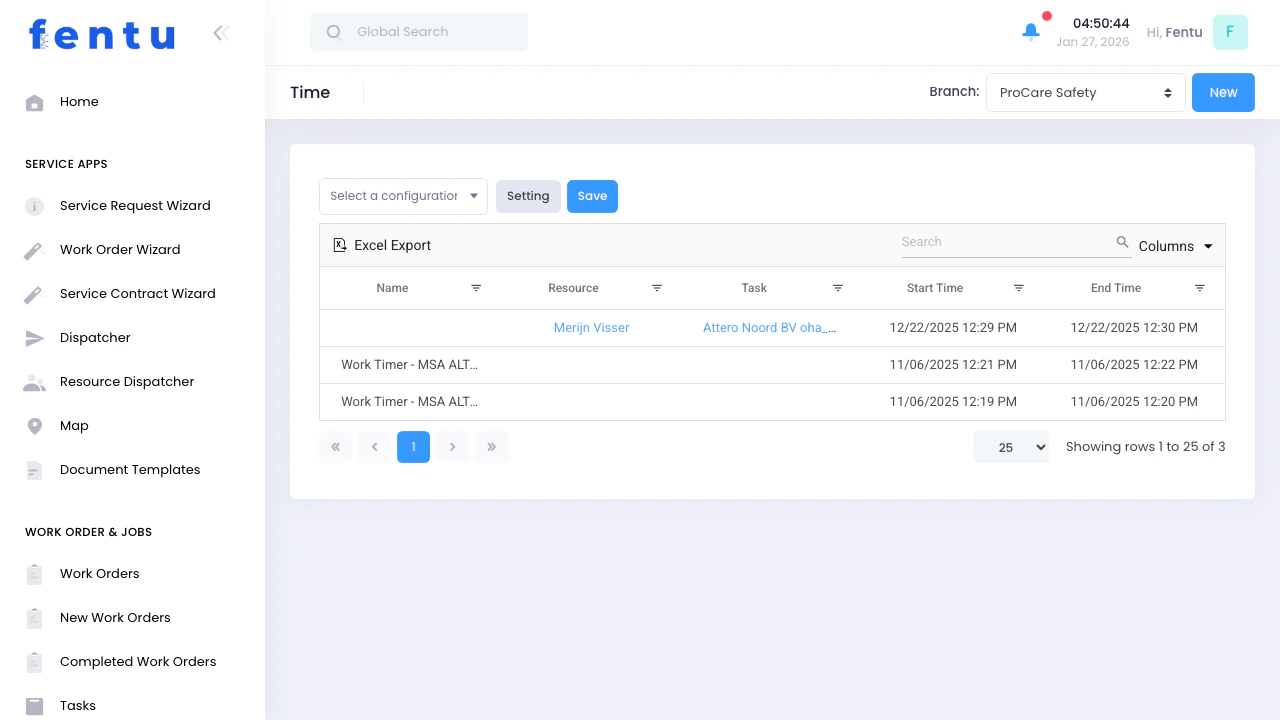
Time entries are the source of truth for labor hours. Every task worked, every work order completed, and every customer visit creates a time entry that tracks who did the work, how long it took, and what it cost.
When to Use Time Tracking
Access the Time module when you need to:- Review all technician labor hours across work orders
- Verify time logged against work orders and tasks
- Manually create time entries for work done offline
- Adjust or correct automatically-created time entries
- Analyze labor hours by technician, customer, or job type
- Export time data for payroll or billing purposes
- Track expenses incurred during service calls
- Monitor working time vs travel time patterns
Where Time Entries Come From
Time entries are created in two ways:1. Automatic (from Mobile/PWA Apps)
Most time entries are created automatically when technicians use the Work Timer feature in the Fentu PWA or Mobile Technician apps. When technicians clock in and out of tasks in the field, the system automatically creates time entries with:- Technician name
- Start and end times from the timer
- Working time calculated in minutes
- Work notes (mandatory)
- Links to work order, task, task line item, and customer
- Marked as chargeable by default
For details on how technicians use the work timer, see the PWA Technician or Mobile Technician documentation.
2. Manual Entry (from FSM Web UI)
Dispatchers and managers can create time entries manually when needed: When to Use:- Recording work done before timer feature was available
- Adjusting time that wasn’t logged properly
- Adding administrative time or non-task work
- Correcting timer mistakes
- Navigate to Service Management → Time
- Click New button
- Fill in required fields
- Save the entry
Time Tracking List View
What You See
The Time list displays all time entries across your organization:List Features
Branch Filtering
Branch Filtering
Filter time entries by branch location using the branch dropdown at the top of the page. Only shows entries for the selected branch.
Search and Filter
Search and Filter
Use the search box to find specific entries by name, technician, task, or work order number. Narrows results in real-time.
Column Customization
Column Customization
Click Columns button to show/hide additional columns:
- Customer
- Work Order
- Task Line Item
- Type (work classification)
- Working Time
- Travel Time
- Pause Time
- Expense Amount
- Notes
- Remarks
- Chargeable status
Excel Export
Excel Export
Export all visible time entries to Excel for analysis, payroll processing, or billing. Respects current filters and column selection.
Creating and Editing Time Entries
Creating a New Time Entry
When you click New, you’ll see a form with the following fields organized by section:Time Entry Fields
Time and Duration
Work Type
Documentation
Additional Fields
Time Entry Detail View
When you click on a time entry from the list, you’ll see all the details organized in sections:Detail View Sections
Work Information
Work Information
Shows the complete work context:
- Customer - Who the work was for
- Work Order - Which job this time applies to
- Task - Specific task within the work order
- Task Line Item - Individual work item or asset serviced
- Employee - Technician who performed the work
- Branch - Location where work was performed
Time Details
Time Details
Time breakdown and calculations:
- Start Time - When work began
- End Time - When work finished
- Working Time - Net time worked (minutes)
- Travel Time - Time spent traveling (minutes)
- Pause Time Quantity - Break time deducted (minutes)
- Break Time - Description of breaks
- Type - Classification of work performed
Documentation
Documentation
Work notes and remarks:
- Notes - Detailed description of work performed (mandatory for timer entries)
- Remarks - Additional comments or special circumstances
- Chargeable - Whether time can be billed to customer
Supporting Documentation
Supporting Documentation
Additional information captured via mobile/PWA:
- Expense Amount - Out-of-pocket costs incurred
- Signature - Customer signature (if captured on-site)
- Photos - Up to 4 images documenting the work
History
History
Complete audit trail showing:
- When entry was created
- Who created it (technician or admin)
- All modifications made
- Who made each change
- Field-by-field change log
Recognizing Timer-Created Entries
Time entries created by the work timer (from mobile/PWA apps) have these characteristics:- Name: Auto-generated as “Work Timer - [Asset Name]”
- Type: Set to “effort”
- Chargeable: Checked by default
- Notes: Always filled in (mandatory before timer stops)
- Start/End Times: Hidden when editing (timer data is authoritative)
When editing timer-created entries, Start and End Time fields are hidden to preserve timer accuracy. If times need adjustment, modify the Working Time field directly or create a new manual entry.
Common Time Tracking Scenarios
Scenario 1: Reviewing Daily Technician Time
Goal: See what technicians worked on today How:- Go to Service Management → Time
- Filter by branch if needed
- Sort by Start Time (most recent first)
- Click on entries to see detailed notes
- Export to Excel for reporting
Scenario 2: Verifying Time Before Payroll
Goal: Ensure all technician time is logged accurately How:- Filter by date range for payroll period
- Export to Excel
- Sum working time by technician
- Cross-reference with scheduled work orders
- Identify missing time entries or discrepancies
- Gaps in time coverage (days with no entries)
- Unusual working time amounts (very short or very long)
- Missing notes or documentation
Scenario 3: Correcting a Timer Entry
Goal: Technician forgot to stop timer, now shows 8 hours instead of 2 Options: Option A - Edit the Entry:- Find the time entry in the list
- Click to open detail view
- Click Edit
- Modify Working Time field to correct minutes
- Add a remark explaining the correction
- Save
- Delete the incorrect entry
- Click New to create manual entry
- Fill in correct start/end times
- Copy notes from original entry
- Save
Scenario 4: Analyzing Labor by Customer
Goal: See how much time we spend on specific customers How:- Export all time entries to Excel
- Create pivot table with:
- Rows: Customer
- Values: Sum of Working Time
- Convert minutes to hours (divide by 60)
- Sort by total hours descending
- Which customers require most labor
- Whether contract pricing covers actual time
- Which customers have longest travel times
Scenario 5: Finding Time for a Specific Work Order
Goal: See all labor hours logged against work order WO-2026-045 How:- Use search box to search “WO-2026-045”
- Or use Columns button to add Work Order column
- Filter/sort to find entries
- Sum Working Time for all matching entries
Time Entry Actions
Edit Entry
Modify time entry details. Note: Start/End times hidden for timer-created entries to preserve accuracy.
Delete Entry
Remove incorrect or duplicate time entries. Creates audit trail of deletion.
Export to Excel
Export filtered time entries for external analysis, payroll processing, or billing.
View Related Records
Click links to Customer, Work Order, Task, or Resource to see full context.
Tips and Best Practices
Regularly Review Time Entries
Regularly Review Time Entries
Make it a habit to review time entries weekly:
- Check for missing entries (technicians who forgot to log time)
- Verify notes are filled in completely
- Look for unusually long or short entries
- Confirm travel time is being tracked separately
Enforce Work Notes Standards
Enforce Work Notes Standards
Require technicians to write meaningful notes:
- ✅ Good: “Replaced worn drive belt, adjusted tension, tested motor operation”
- ❌ Bad: “Maintenance”
- ✅ Good: “Diagnosed faulty relay, replaced part #R-4429, confirmed heating cycle”
- ❌ Bad: “Fixed heater”
Use Type Classification Consistently
Use Type Classification Consistently
Train technicians on when to use each Type:
- Fault - Emergency breakdown requiring immediate response
- Preventive Cluster - Scheduled maintenance per service contract
- Installation - New equipment setup
- Support Contract - Work covered under maintenance agreement
- Incidental Maintenance - Minor unscheduled repairs
Track Travel Time Separately
Track Travel Time Separately
Always log travel time in the Travel Time field, not working time:
- Helps optimize technician routing
- Shows impact of service area geography
- Identifies jobs where travel exceeds working time
- Supports billing if travel is separately charged
Verify Documentation Quality
Verify Documentation Quality
For major work, ensure time entries include:
- Detailed work notes explaining what was done
- Photos (if captured via mobile/PWA)
- Customer signature (if obtained on-site)
- Expense amounts for materials purchased
Review Chargeable Status
Review Chargeable Status
Not all time should be marked chargeable:
- Chargeable: T&M work, billable service calls, installations
- Non-Chargeable: Warranty repairs, rework, goodwill service, work under all-inclusive contracts
Use Expense Amount Field
Use Expense Amount Field
Track expenses incurred during service calls:
- Parts purchased at local supplier
- Mileage or fuel costs
- Parking fees
- Equipment rental
Use Documentation for Verification
Use Documentation for Verification
When reviewing or verifying time entries:
- Open time entry detail view
- Review work notes for what was done
- Check supporting photos (if available)
- View customer signature (if captured)
- Reference history for when entry was created and by whom
Common Questions
Why can't I edit Start/End Time on some entries?
Why can't I edit Start/End Time on some entries?
Time entries created by the work timer have Start and End Time fields hidden during editing. This is intentional.Reason: Timer data is the authoritative record of when work actually occurred. Allowing edits would compromise this accuracy.If you need to adjust: Modify the Working Time field directly (in minutes), or delete the entry and create a new manual entry with correct times.
What's the difference between Notes and Remarks?
What's the difference between Notes and Remarks?
Notes: Describes the actual work performed. This is mandatory for timer entries and should detail what was done, parts replaced, issues found, and results.Remarks: Additional context like special circumstances, why extra time was needed, customer requests, or internal notes about the job.Example:
- Notes: “Replaced failed capacitor on outdoor unit, tested system operation, confirmed cooling”
- Remarks: “Customer requested we return next week to check filter. Ordered replacement on account.”
How do I know if time came from the timer or was manually entered?
How do I know if time came from the timer or was manually entered?
Look at the Name field:
- Timer entries: “Work Timer - [Asset Name]” (auto-generated)
- Manual entries: Custom name or empty
- Shows who created the entry
- Timer entries created by the technician via mobile/PWA
- Manual entries created by dispatcher/admin in web UI
Can technicians edit time entries after they're created?
Can technicians edit time entries after they're created?
This depends on your system permissions. Generally:Technicians: May be able to edit their own entries for a short period after creation
Dispatchers/Managers: Can edit any time entry
Admins: Full edit and delete accessBest Practice: Lock time entries after a certain period (e.g., end of work week) to prevent retroactive changes.
What if a technician forgets to start the timer?
What if a technician forgets to start the timer?
Option 1 - Estimate and Create Manually:
- Dispatcher creates manual time entry
- Estimates start/end times based on work order schedule
- Adds note: “Entry created manually - timer not used”
- Saves entry
- Technician provides start/end times
- Dispatcher creates entry with reported times
- Notes indicate self-reported vs timer data
How is Working Time calculated?
How is Working Time calculated?
For Timer Entries:Working Time (minutes) = End Time - Start Time - Pause TimeSystem calculates automatically when timer stops.For Manual Entries:
You enter Working Time directly in minutes, or the system can calculate from Start/End times you provide.Travel Time is tracked separately and not included in Working Time calculation.
What do the Type options mean?
What do the Type options mean?
The Type field classifies the kind of maintenance work:
Why it matters: Reporting on Type helps you understand your maintenance mix - are you mostly reactive (faults) or proactive (preventive)?
Can I delete time entries?
Can I delete time entries?
Yes, if you have appropriate permissions:
- Select time entry from list
- Use delete action
- Confirm deletion
- Duplicate entries (technician started timer twice)
- Test entries created during training
- Entries created in error on wrong work order
Related Documentation
Work Orders
Time entries link to work orders for complete job costing and labor tracking.
Tasks
Tasks break down work orders into assignable units. Time is tracked at the task level.
Technicians
View all time entries by technician for productivity and performance analysis.
Service Requests
Service requests generate work orders, which generate tasks, which technicians log time against.