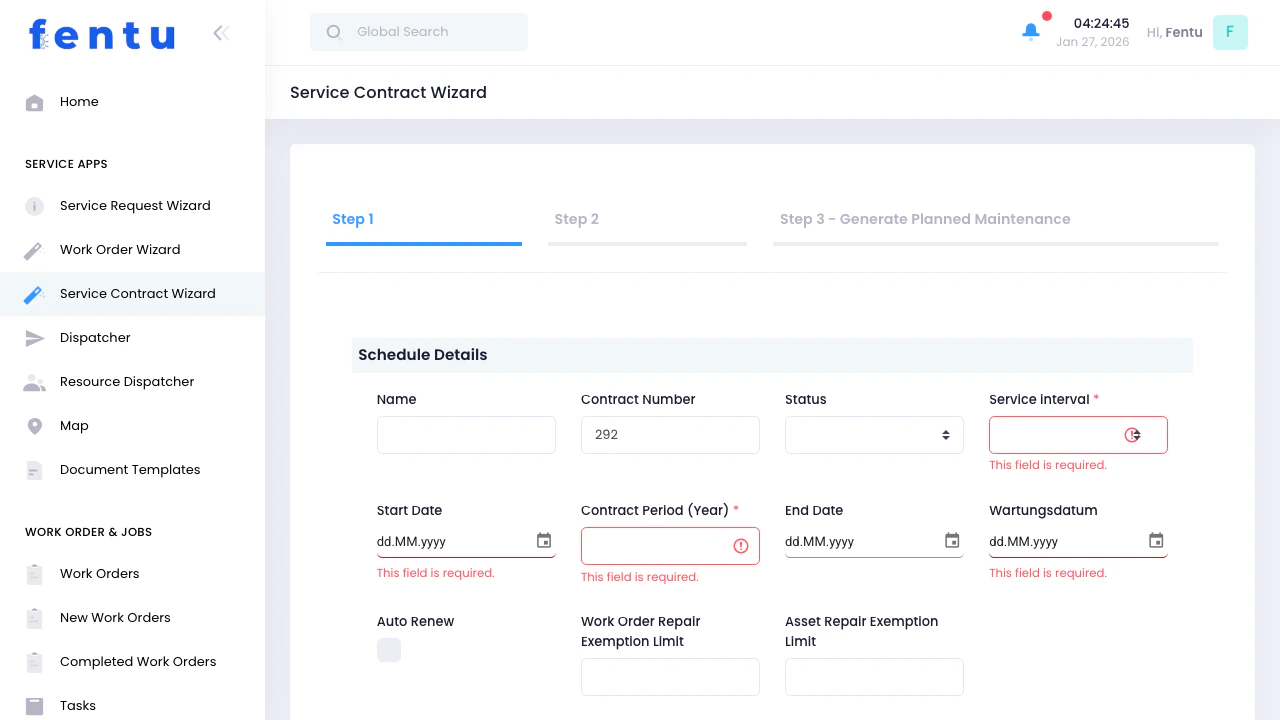
Overview

The Service Contract Wizard helps you create service agreements with customers that automatically generate scheduled maintenance work orders. This wizard guides you through a 3-step process to set up recurring service, define covered assets, and automatically create maintenance schedules.
Service Contracts are the foundation of recurring revenue and preventive maintenance in your FSM operation. They automatically generate work order drafts based on your specified service interval.

When to Use the Service Contract Wizard

Use this wizard when:
  • Signing a new maintenance agreement with a customer
  • Setting up recurring preventive maintenance schedules
  • Creating annual service agreements for equipment
  • Establishing ongoing service relationships with regular visits
  • Automating maintenance work order creation

The 3-Step Process

1

Contract Details

Set up contract information, customer, dates, and service interval
2

Assets & Resources

Select covered assets, assign resources, and add contract documents
3

Generate Planned Maintenance

Automatically create scheduled maintenance work orders for the contract period

Step 1: Contract Details
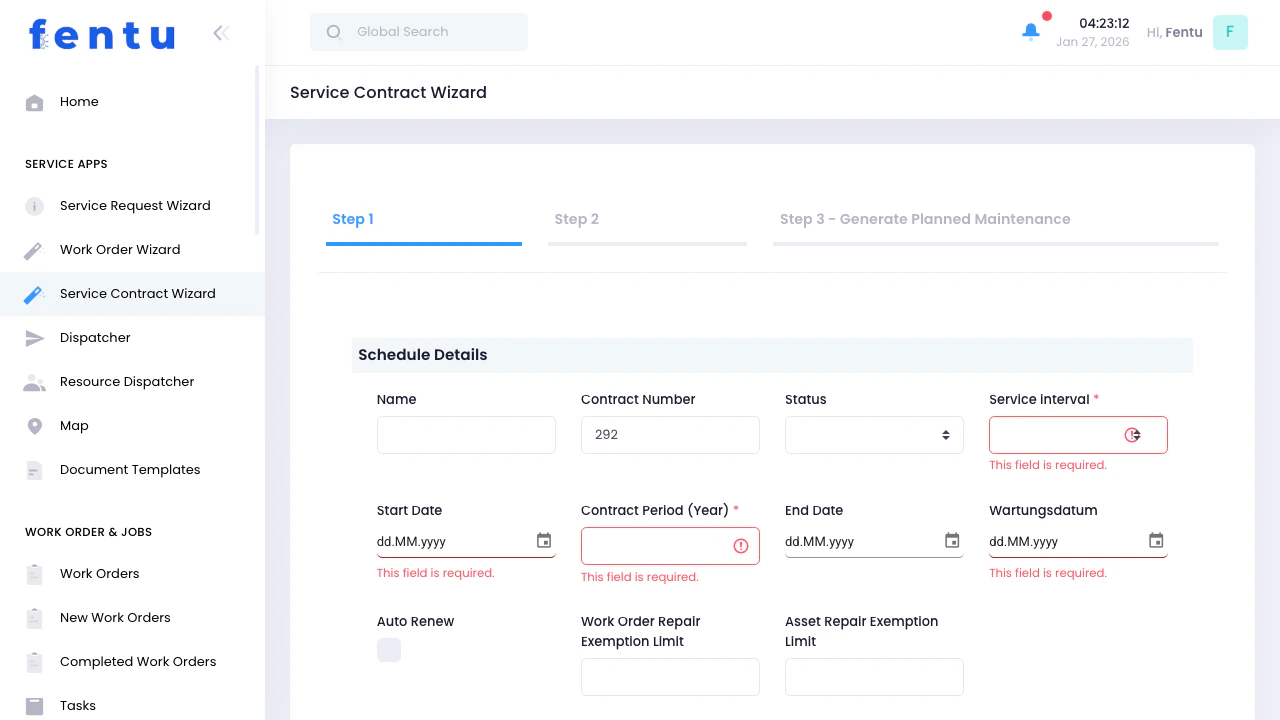
Service Contract Details Set up the fundamental contract information and scheduling parameters:

Contract Information

FieldDescription
Contract NumberUnique identifier for this service contract. Auto-generated but can be customized.
Contract NameDescriptive name for the contract (e.g., “Annual HVAC Maintenance - Building A”)
StatusContract status: Active (in effect), Inactive (not yet started or paused)
Service IntervalHow often service visits occur: Weekly, Monthly, Quarterly, Semi-Annually, or Annually
The Service Interval determines how often maintenance work orders are automatically generated. For example, “Quarterly” creates 4 maintenance visits per year.

Contract Period

FieldDescription
Contract Period (Years)Duration of the contract in years (e.g., 1, 2, 3 years)
Start DateWhen the contract becomes active
End DateAutomatically calculated based on start date + contract period
Activation DateWhen scheduled maintenance generation begins (usually same as start date)
Setting Contract Period to 1 year with a Quarterly service interval will automatically generate 4 work order drafts (one for each quarter).

Auto-Renewal

FieldDescription
Auto RenewCheck this to automatically extend the contract when it expires. The system will create a new contract period with the same terms.

Customer & Location

FieldDescription
CustomerSearch and select the customer for this service contract
BuildingSelect the specific location covered by this contract
ContactPrimary contact person for service appointments
When you select a Building, the system automatically populates the address fields with the building’s location information.

Address Information

The wizard auto-fills these based on the selected building:
  • Street - Physical address of the service location
  • City - City or municipality
  • State - State or province
  • ZIP - Postal code
  • Location Map - Geographic coordinates for dispatcher mapping
Click “Copy Address” if you need to use this address elsewhere in the form.

Financial Terms

FieldDescription
Contract PriceTotal value of the contract for the entire period
InvoicingHow often invoices are sent (e.g., Monthly, Quarterly, Annually)
Payment TermsNet payment terms (e.g., Net 30, Net 60 days)
Repair Exemption LimitMaximum cost for repairs covered without additional approval
Work Order Repair Exemption LimitPer-visit repair limit without requiring approval
Repair Exemption Limits are important for controlling costs. Any repair exceeding this amount will require customer approval via a quotation before proceeding.

Contract Type & Details

FieldDescription
Approval StatusContract approval state: Pending, Rejected, or Approved
Contract TypeType of work covered: PDI (Installation), STF (Maintenance), Delivery, Repair, Conversion
Work Order Name TemplateDefault name format for generated work orders
PriorityDefault priority for generated work orders: High, Medium, or Low

Additional Information

FieldDescription
DescriptionDetailed description of services covered by the contract
Special InformationAny special notes, customer requirements, or important instructions for technicians
BranchWhich company branch manages this contract

Step 2: Assets & Resources

Assets and Resources Define what assets are covered and what resources are needed:

Covered Assets

This is the most important part of a service contract - specifying which equipment is covered:
1

Click 'Add Assets'

Opens a modal to select assets from the customer’s asset list
2

Search and Select

Find assets by Asset ID, Serial Number, or Name. Select multiple assets at once.
3

View Asset Details

See asset information including last service date, warranty status, and maintenance history
4

Confirm Selection

Selected assets appear in the contract. These assets will be included in all scheduled maintenance.
All assets added here will be automatically included in every scheduled maintenance work order generated by this contract.

Resources & Teams

Assign default resources for maintenance visits:
FieldDescription
Resources (Technicians)Assign specific technicians who will handle maintenance for this contract
TeamsAlternatively, assign entire teams responsible for this contract
Assigning resources at the contract level means they’re automatically assigned to all generated maintenance work orders. This ensures consistency and familiarity with the customer’s equipment.

Equipment & Materials

Specify standard tools required for maintenance visits. These will be pre-assigned to generated work orders.
Assign company vehicles needed for service visits (e.g., mobile service units).
Pre-define parts that are typically used during maintenance. This helps with inventory planning and faster work order creation.

Contract Documents

Upload the signed service contract, terms and conditions, SLA agreements, or any reference documents. These will be available to technicians and can be attached to generated work orders.

Step 3: Generate Planned Maintenance
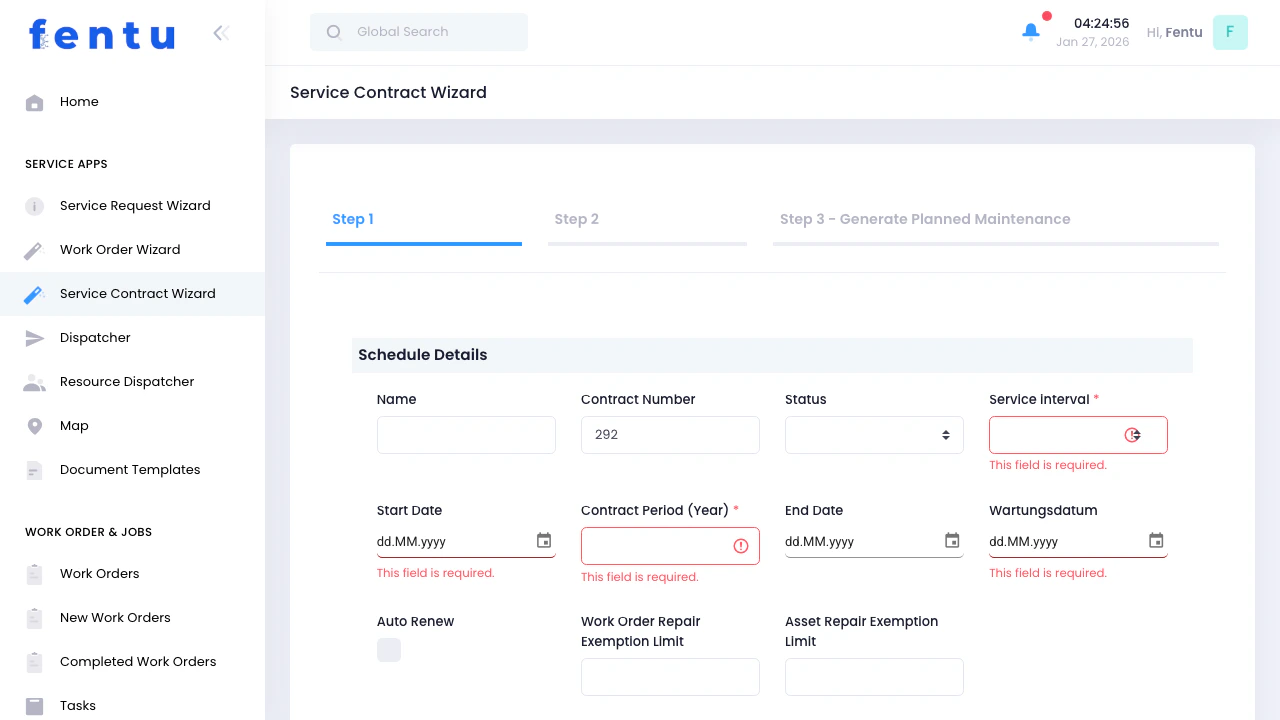
Generate Planned Maintenance Automatically create scheduled maintenance work orders:

What Happens in This Step

When you reach Step 3, the system:
1

Analyzes Contract Parameters

Reviews contract period, start date, and service interval
2

Calculates Schedule

Determines how many maintenance visits are needed and when
3

Generates Work Order Drafts

Creates work order drafts for each scheduled maintenance visit
4

Pre-Populates Information

Each draft includes customer, assets, resources, and contract details

Work Order Draft Generation

Based on your contract settings, the system creates Work Order Drafts (scheduled maintenance):

Example Schedule Calculations:

Quarterly - 1 Year

4 work order drafts created
  • One every 3 months
  • Covers entire year

Monthly - 1 Year

12 work order drafts created
  • One per month
  • Regular monthly visits

Semi-Annually - 2 Years

4 work order drafts created
  • One every 6 months
  • Covers 2-year period

Annually - 3 Years

3 work order drafts created
  • One per year
  • Multi-year contract

What’s Included in Each Draft

Every generated work order draft contains:
Customer, contact, and building automatically populated from the contract
All assets from the service contract are included and ready to be serviced
Technicians and teams from the contract are pre-assigned
Calculated based on service interval (e.g., first quarterly visit, second quarterly visit, etc.)
Default work order name, priority, and type from contract settings
Work Order Drafts are not active work orders yet. They’re scheduled maintenance records that can be reviewed, edited, and converted to active work orders when the time comes.

Viewing Generated Drafts

After generation, you can:

View Scheduled Maintenances

See all generated work order drafts in the Scheduled Maintenances section

Convert to Work Orders

When it’s time for a maintenance visit, convert the draft to an active work order

Edit Draft Details

Adjust dates, add notes, or modify resources before conversion

Bulk Conversion

Convert multiple drafts at once for efficient scheduling

After Creating the Service Contract

Once you complete the wizard, the service contract is created with all scheduled maintenance:
1

Contract Saved

The service contract is saved with all details, terms, and covered assets
2

Work Order Drafts Created

All scheduled maintenance visits are generated as work order drafts
3

Notifications Sent

Assigned resources may receive notifications about the new contract
4

Contract Becomes Active

If status is set to “Active”, the contract is now in effect

Next Actions

View Service Contract

Review contract details, terms, and covered assets

Manage Scheduled Maintenance

View and convert work order drafts to active work orders

Convert Drafts to Work Orders

When maintenance is due, convert drafts to active work orders for dispatch

Track Contract Performance

Monitor completed maintenance, customer satisfaction, and contract value

Understanding Work Order Drafts

Work Order Drafts (Scheduled Maintenances) are different from regular work orders:
FeatureWork Order DraftActive Work Order
StatusScheduled/PlannedActive and ready for execution
AssignmentPre-assigned from contractCan be reassigned
VisibilityIn Scheduled Maintenances listIn Dispatcher and technician task list
EditableFully editable before conversionLimited editing once active
NotificationsNo notifications until convertedTechnicians receive assignment notifications
Think of Work Order Drafts as “scheduled appointments” that become “active appointments” when you convert them to work orders.

Contract Lifecycle Management

During Contract Period

You can add new assets to an existing service contract. New scheduled maintenance will be generated for these assets for the remaining contract period.
Contract terms can be updated during the period. Changes apply to future maintenance visits, not already completed ones.
Set status to “Inactive” to temporarily pause the contract. Scheduled maintenance won’t be converted during this time.
As each maintenance date approaches, convert the draft to an active work order and dispatch technicians.

Contract Renewal

When a contract approaches its end date:
1

Auto-Renewal (If Enabled)

If “Auto Renew” was checked, the system automatically extends the contract and generates new maintenance schedules
2

Manual Renewal

Create a new service contract with the same or updated terms
3

Contract Completion

If not renewing, set status to “Inactive” and complete any remaining maintenance visits

Tips and Best Practices

Start Date is when the contract legally begins. Activation Date is when maintenance generation starts. They’re usually the same, but you can delay activation if needed for planning.
Match the interval to equipment requirements:
  • Weekly/Monthly: Critical equipment, high-use systems
  • Quarterly: Standard commercial equipment
  • Semi-Annually: Light-duty equipment
  • Annually: Basic maintenance contracts
Repair Exemption Limits should balance customer flexibility with cost control. Too low = constant approval requests. Too high = unexpected costs.
Assigning the same technicians builds familiarity with equipment and customer preferences, leading to better service quality.
Don’t forget ancillary equipment. A comprehensive asset list ensures nothing is missed during maintenance visits.
Upload the signed contract and SLA to ensure technicians understand response times and service commitments.
Check work order drafts before converting them. You can adjust dates, add special instructions, or update resource assignments.
Enable auto-renewal for evergreen contracts with long-term customers. Disable for trial periods or fixed-term agreements.

Common Questions

A Service Contract is an ongoing agreement that automatically generates scheduled maintenance. A Work Order is a single service job. The contract creates multiple work orders over time.
Yes! You can edit contract details, add/remove assets, adjust terms, or change assigned resources at any time. Changes affect future maintenance, not completed work.
The draft remains in your Scheduled Maintenances list. You can convert it late and adjust the scheduled date. The system doesn’t auto-delete past-due drafts.
No, a single contract has one service interval for all covered assets. If you need different intervals, create separate service contracts.
Create a regular work order and link it to the service contract. The repair exemption limits will apply automatically for approval requirements.
Yes! You can add new assets (new maintenance will be generated) or remove assets (future drafts won’t include them). This is common when equipment is added, replaced, or decommissioned.
If Auto Renew is enabled, a new contract period begins automatically. If not, the contract status becomes “Inactive” and no new maintenance is generated. Existing drafts remain.
You can update the interval, but it won’t automatically regenerate existing drafts. You may need to manually adjust or recreate future scheduled maintenance.

Service Contracts Overview

Learn more about managing service contracts

Scheduled Maintenance

Manage and convert work order drafts

Work Order Wizard

Create one-time work orders outside of contracts

Asset Management

Understand asset tracking and maintenance history