
Overview
Product Types provide a flexible classification system for organizing your service catalog. Products can be assigned to multiple types, enabling filtering, reporting, and workflow automation based on equipment categories.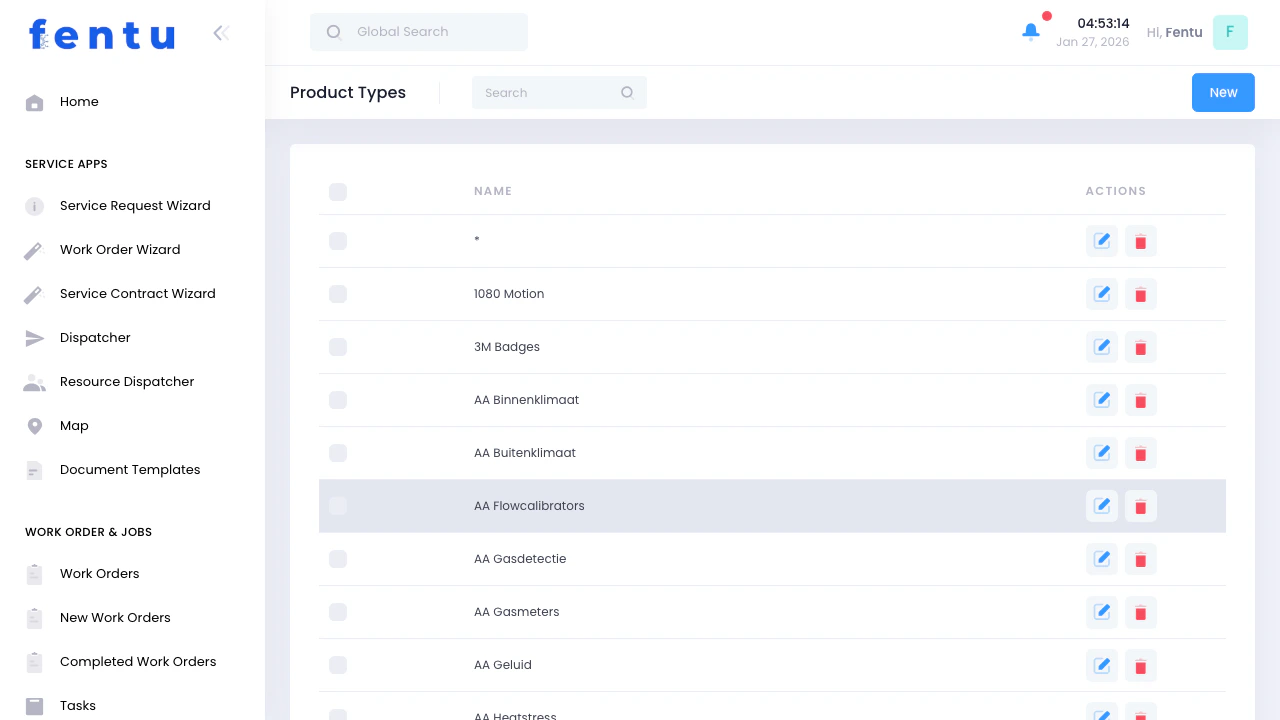
Product Types are tags for categorization, not hierarchical categories. One product can have multiple types assigned (e.g., “Fire Safety” + “Door Systems” + “Life Safety Critical”).
When to Use Product Types
Create product types to:- Group similar equipment for reporting
- Filter products during work order creation
- Assign type-specific checklists automatically
- Route work to specialized teams
- Generate compliance reports by equipment class
- Organize large product catalogs
Product Types List View
What You See
The list displays all defined product types:List Features
- Search - Find types by name
- New - Create new product type
- Edit - Modify existing types
- Delete - Remove unused types
- Sort - Click Name header to sort alphabetically
Creating a Product Type
When you click New:Using Product Types
Assigning Types to Products
When creating or editing a product:- Use the Type lookup field
- Select one or more product types
- Product inherits properties from assigned types
Type-Based Filtering
Product types enable filtering in:- Product list views
- Work order product selection
- Asset searches
- Inventory reports
- Scheduled maintenance planning
Automatic Checklist Assignment
Link checklists to product types:- All products of that type inherit the checklist
- Simplifies maintenance standardization
- Ensures compliance across equipment categories
Common Product Type Examples
By Equipment Category
- Machine Systems
- Fire Safety Equipment
- Security Systems
- Door Systems
- Electrical Equipment
- Plumbing Systems
By Service Complexity
- Basic Maintenance
- Advanced Technical
- Specialist Equipment
- Certified-Only Equipment
By Regulatory Class
- Life Safety Critical
- Building Code Compliance
- Optional Equipment
- Comfort Systems
By Contract Type
- Preventive Maintenance
- Repair-Only
- Full Service Contract
- Inspection-Only
Product Type Scenarios
Scenario 1: Organizing Fire Safety Equipment
Goal: Group all fire-related products for compliance reporting Steps:- Create product type: “Fire Safety Equipment”
- Assign to products:
- Fire doors
- Fire alarms
- Emergency lighting
- Fire extinguishers
- Smoke detectors
- Link checklist: “Fire Safety Annual Inspection”
Scenario 2: Routing to Specialized Teams
Goal: Ensure certified technicians handle specific equipment Setup:- Create type: “Machine - Refrigerant Systems”
- Assign to all refrigeration equipment
- Link required skill: “EPA 608 Certification”
Scenario 3: Multi-Type Classification
Goal: Classify equipment by multiple dimensions Example Product: Emergency Exit Fire Door Assigned Types:- Fire Safety Equipment (regulatory category)
- Door Systems (equipment category)
- Life Safety Critical (priority level)
- Monthly Inspection Required (service frequency)
Product Type Actions
Edit Type
Modify name or description. Changes reflect immediately across all assigned products.
Delete Type
Remove type from system. Only possible if no products are assigned to it.
View Products
See all products assigned to this type. Quick access for bulk updates.
Link Checklists
Assign checklists at type level to inherit across all products of this type.
Tips and Best Practices
Create Meaningful Categories
Create Meaningful Categories
Design types that serve actual business needs:
- Good: “Life Safety Critical” (drives priority), “Machine Systems” (drives routing)
- Avoid: “Group A”, “Type 1” (meaningless labels)
Use Multiple Classification Dimensions
Use Multiple Classification Dimensions
Create types across different dimensions:
- Equipment category (Machine, Fire, Electrical)
- Service level (Basic, Advanced, Specialist)
- Compliance class (Life Safety, Building Code, Standard)
- Contract type (PM, Repair-Only, Full Service)
Standardize Naming Conventions
Standardize Naming Conventions
Use consistent patterns:
- Title case: “Machine Systems” not “Machine systems”
- Descriptive: “Fire Safety Equipment” not “Fire Stuff”
- Specific: “Commercial Refrigeration” not “Cooling”
Link Checklists at Type Level
Link Checklists at Type Level
For procedures common to all products of a type:
- Attach checklist to product type
- All products inherit the checklist
- Update once, applies to all
Review and Consolidate Periodically
Review and Consolidate Periodically
Avoid type proliferation:
- Quarterly review: are all types still useful?
- Merge overlapping types
- Delete unused types
- Standardize names across team
Document Type Usage
Document Type Usage
For each type, clarify:
- What products should have this type?
- Why does this type exist?
- Who uses it for filtering/reporting?
Common Questions
How many types should a product have?
How many types should a product have?
As many as useful, but typically 2-4 types per product:Recommended:
- One equipment category type (Machine, Fire, Security)
- One service/complexity type (Basic, Advanced, Specialist)
- One or more special classification types (Life Safety, Compliance)
Can I rename a product type?
Can I rename a product type?
Yes, edit the type name anytime:
- Changes apply immediately to all products
- Historical data retains the type linkage
- Reports update with new name
What happens if I delete a type?
What happens if I delete a type?
Deletion only possible if:
- No products are assigned to this type
- No checklists link to it
- No workflows reference it
Should I create types for brands/manufacturers?
Should I create types for brands/manufacturers?
Generally no. Use the Manufacturer field on products instead.Create brand/manufacturer types only if:
- Different service procedures per brand
- Brand-specific technician certification
- Contract routing by manufacturer
How do types differ from product categories in other systems?
How do types differ from product categories in other systems?
Fentu Product Types:
- Flat structure (no hierarchy)
- Multiple types per product (tags, not exclusive categories)
- Flexible filtering on any combination
- Hierarchical (parent/child relationships)
- One category per product
- Structured browsing
Can types have checklists?
Can types have checklists?
Yes, link checklists to product types:How:
- Open product type
- Go to Checklists tab
- Add relevant checklists
Do types affect scheduling or routing?
Do types affect scheduling or routing?
Indirectly yes:Affects Scheduling When:
- Types have required skills linked
- System suggests technicians with matching skills
- Helps route specialized equipment to certified staff
- Creating work orders (filter products by type)
- Planning preventive maintenance (select types for campaigns)
- Generating reports (group by type)
Related Documentation
Products
Assign product types when creating or editing products.
Checklists
Link checklists to product types for automatic assignment across products.
Assets
Assets inherit product types from their parent product.
Skills
Combine types with required skills for intelligent technician routing.