
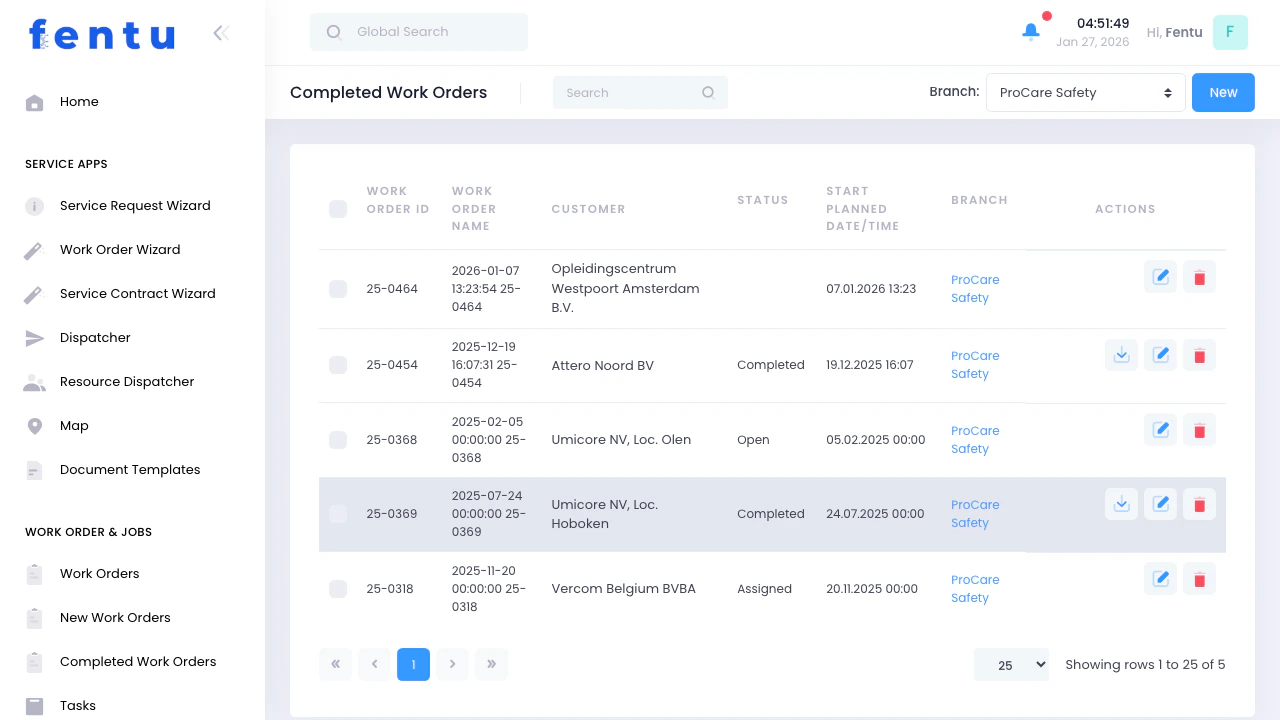
Overview
The Completed Work Orders view shows all work orders that have been finished by technicians. This is where you review completed work, verify documentation, generate invoices, and close out jobs.Completed work orders have “Completed” or “Paid” status. They represent finished work ready for invoicing, quality review, or archiving.
When to Use Completed Work Orders
Use this view when:- Reviewing finished work - Verify all work was completed properly
- Invoicing - Generate bills for completed jobs
- Quality control - Review technician work and documentation
- Customer follow-up - Check satisfaction and close out jobs
- Reporting - Analyze completed work for productivity and revenue
- Archiving - Move old completed work to long-term storage
Work Order Information
Each completed work order displays:| Field | Description |
|---|---|
| Work Order ID | Unique identifier (e.g., 25-0454, W-2026-123) |
| Work Order Name | Description or auto-generated name |
| Customer | Customer name for this work order |
| Status | Completed or Paid |
| Start Planned Date/Time | When work was scheduled |
| Completion Date/Time | When work was actually finished |
| Branch | Service branch that performed the work |
| Type | Work order type (Installation, Maintenance, Repair, etc.) |
| Total Amount | Total cost of work (if invoiced) |
Work Order Statuses in This View
| Status | What It Means | Next Action |
|---|---|---|
| Completed | Work finished, ready for invoicing | Generate invoice and send to customer |
| Paid | Invoice paid in full | Archive or close permanently |
Reviewing Completed Work
Quality Checklist
Before invoicing, verify:Invoicing Completed Work
Generating Invoices
Invoice Information
Invoices typically include:- Labor Charges: Technician time at appropriate rates
- Parts and Materials: All parts used with markup
- Travel/Trip Charges: If applicable
- Equipment/Tool Rentals: If specialized equipment was needed
- Taxes: Applicable sales tax or VAT
- Discounts: Contract discounts or promotions
- Total Amount Due: Final amount
Many organizations integrate Fentu with accounting systems to streamline invoice generation and payment tracking.
Analyzing Completed Work
Common Reports
Productivity Reports:- Work orders completed per technician
- Average time to completion
- First-time fix rate
- Customer satisfaction scores
- Total revenue by time period
- Revenue by work order type
- Revenue by technician or team
- Parts vs. labor revenue breakdown
- Work order cycle time
- Time from completion to invoice
- Time from invoice to payment
- Repeat work or callbacks
Filtering and Searching
Available Filters
By Completion Date:- Today, this week, this month
- Custom date ranges
- Last 30/60/90 days
- View all completed work for specific customer
- Track customer history
- Review specific technician’s completed work
- Evaluate performance
- Completed but not invoiced
- Invoiced but not paid
- Fully paid
- Installation jobs
- Maintenance work
- Repairs
- Emergency service
- Filter by service location
- Regional performance analysis
Managing Payment Status
Tracking Payments
Handling Payment Issues
Late Payments:- Send payment reminders
- Contact customer about status
- Apply late fees if applicable
- Escalate to collections if necessary
- Review work order documentation
- Discuss with customer
- Provide photos and work reports as evidence
- Adjust invoice if error found
- Record payment amount
- Note remaining balance
- Follow up on outstanding amount
Best Practices
Invoice Promptly
Invoice Promptly
Send invoices within 24-48 hours of completion. Prompt invoicing improves cash flow and reduces collection time.
Verify Documentation
Verify Documentation
Review work reports and photos before invoicing. Complete documentation prevents disputes and supports billing.
Track Collection Metrics
Track Collection Metrics
Monitor time from completion to invoice and invoice to payment. Identify and address delays in the billing cycle.
Follow Up on Unpaid Invoices
Follow Up on Unpaid Invoices
Contact customers with overdue invoices promptly. Friendly reminders often resolve payment delays.
Archive Old Work Orders
Archive Old Work Orders
Move work orders older than 1-2 years to archive. Keeps active database performant while maintaining history.
Use Completed Work for Training
Use Completed Work for Training
Review well-documented completed work as training examples. Show new technicians what good documentation looks like.
Gather Customer Feedback
Gather Customer Feedback
Contact customers after work completion. Collect feedback to improve service quality and identify issues.
Analyze Trends
Analyze Trends
Look for patterns in completed work. Identify recurring problems, popular services, or problematic equipment types.
Common Questions
How long should completed work orders stay in this view?
How long should completed work orders stay in this view?
Until invoiced and paid. Once payment is received, work orders can be archived. Some organizations keep recent completed work (3-6 months) easily accessible for reference.
Can I reopen a completed work order?
Can I reopen a completed work order?
Yes, if additional work is needed. Change the status back to Open or In Progress, document why it was reopened, and complete the additional work.
What if a customer disputes the work after completion?
What if a customer disputes the work after completion?
Review the work order documentation (photos, reports, signature). Contact the technician for details. Schedule a follow-up visit if needed to resolve issues.
Should I invoice warranty work?
Should I invoice warranty work?
Typically no. Warranty work is covered by the warranty terms. Create the work order but mark it as warranty/no charge and don’t generate an invoice.
How do I handle completed work that wasn't invoiced?
How do I handle completed work that wasn't invoiced?
Investigate why it wasn’t invoiced. If it should have been, generate the invoice now. If it was no-charge work, update the work order to reflect that.
Can I see technician notes from completed work?
Can I see technician notes from completed work?
Yes. Open the work order and view the Work Reports, Notes, and Attachments sections. Technicians document their work, findings, and observations there.
What if parts used don't match parts assigned?
What if parts used don't match parts assigned?
Common scenario. Review with technician to understand why. Update work order with actual parts used. Adjust invoice accordingly.
How do I archive old completed work orders?
How do I archive old completed work orders?
Most systems have an archive function. Set criteria (e.g., completed more than 2 years ago and fully paid) and archive in batches. Archived records are still accessible but don’t clutter active views.
Related Documentation
Work Orders
Complete guide to work order management
New Work Orders
Managing unassigned and pending work
Invoicing
Generating and managing invoices
Reporting
Analyzing business performance