
Overview
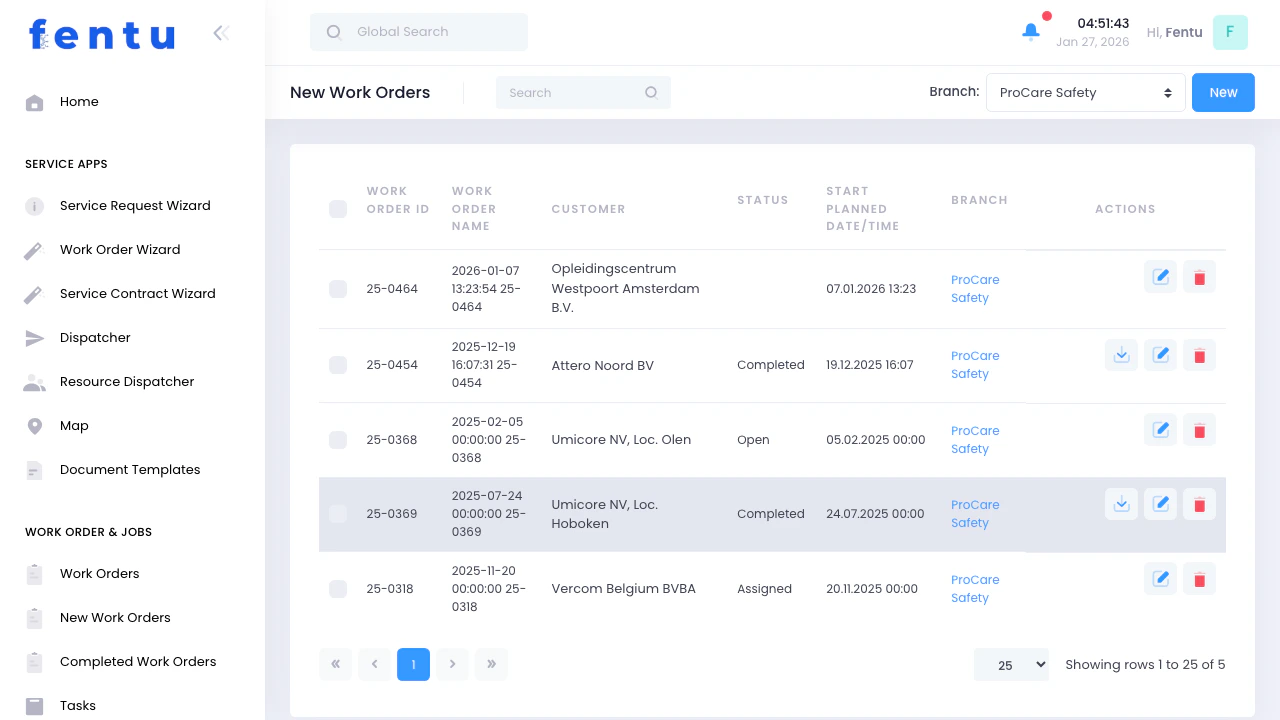
The New Work Orders view shows all work orders that have been created but not yet fully assigned or started. This is your dispatcher’s queue - work that needs attention, resource allocation, and scheduling.New work orders typically have “Open” or “Assigned” status. They represent pending work that needs to be scheduled and dispatched to technicians.
When to Use New Work Orders
Use this view when:- Starting your day - Review what needs to be scheduled
- Dispatching work - Assign technicians and resources to pending jobs
- Prioritizing - Identify urgent work that needs immediate attention
- Planning schedules - See upcoming work that needs scheduling
- Checking backlog - Monitor unassigned work orders
Work Order Information
Each work order in the list displays:| Field | Description |
|---|---|
| Work Order ID | Unique identifier (e.g., 25-0368, W-2026-001) |
| Work Order Name | Description or auto-generated name with date |
| Customer | Customer name for this work order |
| Status | Current status (typically Open or Assigned) |
| Start Planned Date/Time | When work is scheduled to begin |
| Branch | Service branch responsible for this work |
| Type | Work order type (Installation, Maintenance, Repair, etc.) |
Work Order Statuses in This View
| Status | What It Means | Next Action |
|---|---|---|
| Open | Just created, no technician assigned | Assign technician and schedule |
| Assigned | Technician selected but not yet accepted | Wait for technician acceptance or reassign |
Managing New Work Orders
Assigning Work Orders
Once assigned and accepted by the technician, the work order moves out of the New Work Orders view and into the technician’s schedule.
Prioritizing Work
Urgent Work Orders:- Check for high or urgent priority flags
- Review planned dates to identify overdue items
- Look for customer complaints or emergency requests
- Consider customer contract SLAs
- Technician availability and current workload
- Travel time between jobs
- Parts and equipment availability
- Customer preferred times
- Dependencies on other work orders
Filtering and Searching
Available Filters
Use filters to manage your workload effectively: By Status:- Show only Open work orders needing assignment
- View Assigned but not yet accepted work orders
- Filter by planned start date
- Find overdue work orders
- See today’s or this week’s work
- View all pending work for a specific customer
- Group work orders for efficient routing
- Installation work orders
- Maintenance contracts
- Emergency repairs
- Delivery jobs
- Show work for specific service locations
- Manage regional workload
Common Workflows
Morning Dispatch Routine
Handling Emergency Requests
Best Practices
Clear the Queue Daily
Clear the Queue Daily
Make it a daily goal to assign all new work orders. A large backlog indicates scheduling or capacity problems that need attention.
Match Skills to Work
Match Skills to Work
Assign work to technicians with appropriate skills and certifications. Don’t send electrical work to plumbers or vice versa.
Consider Travel Time
Consider Travel Time
Group work orders by geographic area. Minimize travel time between jobs to maximize productive work time.
Verify Parts Before Scheduling
Verify Parts Before Scheduling
Check inventory before assigning work. Order missing parts immediately. Don’t schedule work without required materials.
Communicate with Customers
Communicate with Customers
Contact customers to confirm scheduled times. Provide arrival windows. Set expectations appropriately.
Use the Dispatcher Tools
Use the Dispatcher Tools
Use the Dispatcher or Resource Dispatcher for visual scheduling. Drag-and-drop makes assignment faster and more efficient.
Monitor Acceptance
Monitor Acceptance
Follow up on assigned work that hasn’t been accepted by technicians. Reassign if needed.
Document Special Requirements
Document Special Requirements
Add notes about access codes, parking, special tools, or customer preferences. Help technicians succeed on first visit.
Common Questions
What's the difference between New and Open work orders?
What's the difference between New and Open work orders?
“New Work Orders” is the view showing unassigned/recently created work. “Open” is a status meaning the work order hasn’t been assigned to a technician yet.
How long should work orders stay in this view?
How long should work orders stay in this view?
Ideally less than 24 hours. Work orders should be reviewed and assigned promptly. Longer delays risk customer dissatisfaction and missed SLAs.
Can I assign work orders to teams instead of individuals?
Can I assign work orders to teams instead of individuals?
Yes. You can assign multiple technicians to a work order, or create separate tasks within the work order and assign each to different technicians.
What if no technicians are available?
What if no technicians are available?
Options include: schedule for a later date, reassign lower-priority work, call in overtime technicians, or outsource to contractors if available.
Should I schedule all work orders immediately?
Should I schedule all work orders immediately?
No. Some work orders are created in advance for future dates. Schedule based on the planned date and customer requirements, not just when created.
How do I handle work orders with missing information?
How do I handle work orders with missing information?
Contact the person who created the work order or the customer directly. Get missing details before assigning. Incomplete information causes job failures.
Can I delete work orders from this view?
Can I delete work orders from this view?
You can delete duplicate or mistakenly created work orders if no work has been performed. Generally, it’s better to cancel or reject than delete for audit trail purposes.
Related Documentation
Work Orders
Complete guide to work order management
Dispatcher
Visual scheduling and assignment tool
Resource Dispatcher
Technician-focused scheduling view
Work Order Wizard
Creating new work orders step-by-step