
Overview

Objects represent physical locations or buildings where you perform service for customers. They could be office buildings, retail stores, warehouses, production facilities, or any other site. Objects help you organize customer assets by location and track service history at each site. Objects List View
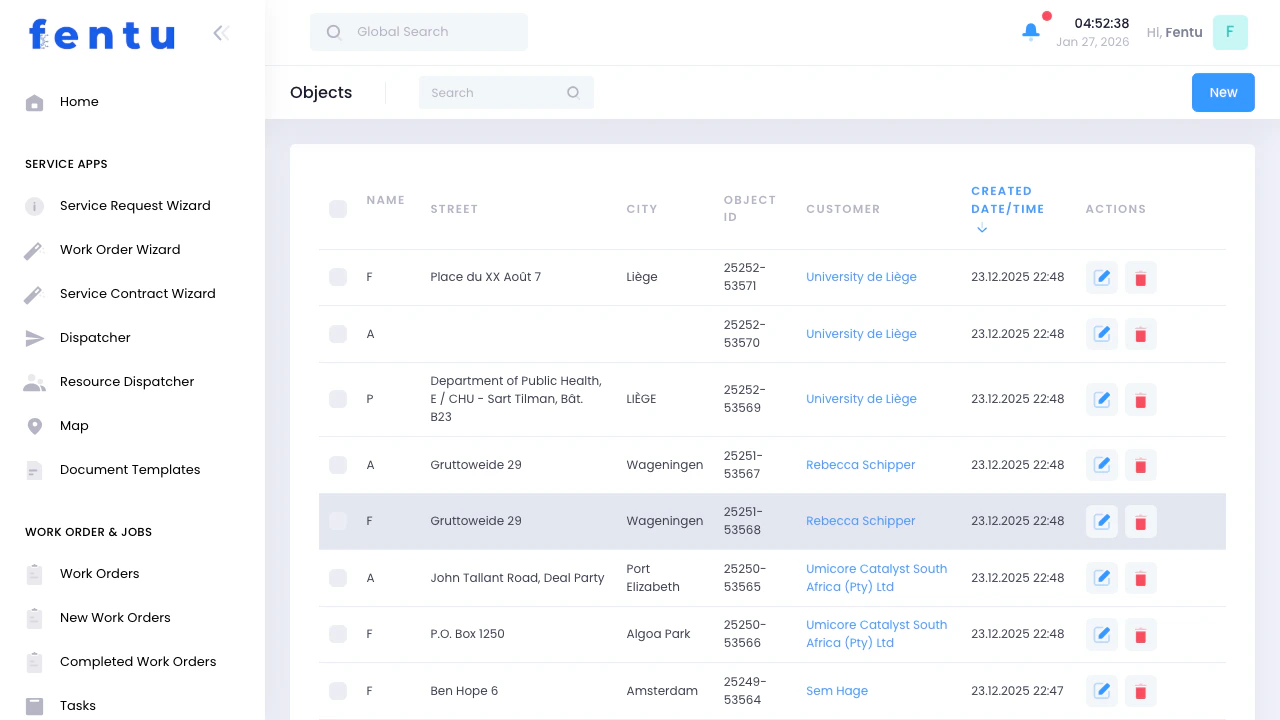
Objects are child records of Customers. Each object must belong to a customer and represents a specific location where that customer has equipment or requires service.

When to Use Objects

Use the Objects module when you need to:
  • Define multiple service locations for a single customer
  • Track which assets are at which location
  • Organize work orders by site or building
  • Maintain site-specific access information (gate codes, parking, etc.)
  • Generate reports by location
  • Assign technicians based on geographic area

Understanding Objects

Object Hierarchy

Customer (Company)
  └─ Object (Location/Building)
      └─ Assets (Equipment at this location)
Example:
  • Customer: “Acme Corporation”
    • Object: “Acme HQ - Downtown”
      • Assets: HVAC System #1, HVAC System #2, Elevator #1
    • Object: “Acme Warehouse - Industrial Park”
      • Assets: Forklift #1, Loading Dock Door #1, Dock Door #2

Objects vs Customers vs Assets

Customer

The Company or organization.
Example: “Acme Corp”

Object

A Physical Location where the customer operates.
Example: “123 Main St Office”

Asset

Equipment at that location that requires service.
Example: “Rooftop HVAC Unit”

Objects List View

Key Features

Filter objects by branch to see locations relevant to your service area.
Search by object name, address, or customer. Sort by any column to organize your view.
View all objects for a specific customer to see all their locations at once.
Click object names to view details, assets at that location, and service history.

Object List Columns

ColumnDescription
Object NameDescriptive name for the location (click to view details)
Object CodeShort code or identifier for internal use
CustomerWhich customer this object belongs to
AddressPhysical street address of the location
CityCity or town
State/ProvinceState, province, or region
Postal CodeZIP or postal code
Active AssetsNumber of assets registered at this location
ActionsQuick links to view, edit, or create work orders

Creating a New Object

1

Click 'New Object'

Click the “New Object” or ”+” button in the top right corner.
2

Select Customer

Choose which customer this object belongs to from the dropdown.
3

Enter Location Details

Fill in the object name, address, and other location information.
4

Add Access Information

Document gate codes, parking instructions, key locations, etc.
5

Save

Click “Save” to create the object record.

Object Information Fields

Basic Information

FieldDescription
Object NameDescriptive name for this location. Be specific enough to distinguish from other locations. Required field.
Object CodeOptional short code for internal reference (e.g., “ACME-DT” for Acme Downtown location).
CustomerWhich customer owns or operates this location. Required field.
Object TypeCategorize the location: Office, Warehouse, Retail, Production, Data Center, etc.
StatusActive or Inactive. Inactive objects are hidden from most searches.
Use clear, descriptive object names that include the customer name and location identifier. For example: “Acme Corp - Downtown Office” or “Global Industries - Warehouse #3”. This prevents confusion when selecting locations in work orders.

Address Information

FieldDescription
Street AddressPhysical street address of the location.
Address Line 2Suite, building, floor, or additional address details.
CityCity or town.
State/ProvinceState, province, or region.
Postal CodeZIP code or postal code.
CountryCountry name.

Access Information

FieldDescription
Gate CodeSecurity gate access code or key fob number.
Parking InstructionsWhere technicians should park (visitor parking, loading dock, street, etc.).
Building AccessHow to enter the building (front desk check-in, side entrance, loading dock).
Key LocationWhere keys are stored or who has keys on-site.
Access HoursWhen the facility is accessible (24/7, weekdays 8-5, etc.).
Never include sensitive security information in fields visible to customers. Gate codes and access instructions should only be visible to internal staff and technicians.

Contact Information

FieldDescription
Site ContactPrimary contact person at this specific location (may differ from customer’s main contact).
Site PhonePhone number specific to this location.
Emergency ContactWho to call for emergencies at this site.

Site Details

FieldDescription
Building SizeSquare footage or building size for planning purposes.
FloorsNumber of floors or levels.
Operating HoursWhen the facility operates (helps schedule service during appropriate times).
Special RequirementsAny unique requirements for this site (safety equipment, background checks, insurance, etc.).

Service Information

FieldDescription
Service AreaGeographic area or territory this object falls under.
BranchWhich branch services this location.
Response Time SLAExpected response time for service calls at this location.
Preferred Service WindowWhen service can be performed (after hours, weekends, etc.).

Notes and Instructions

FieldDescription
NotesInternal notes about the location. Document anything technicians should know: difficult access, special requirements, historical issues, etc.
Technician InstructionsSpecific instructions for technicians visiting this site.
Use the Notes and Instructions fields liberally. Document things like:
  • “Park in visitor lot on west side of building”
  • “Check in at security desk, ask for Bob in facilities”
  • “Equipment located on roof, access via interior stairwell”
  • “Site requires hard hats and safety vests”

Common Object Types

Typical Assets: HVAC systems, elevators, security systems, lightingKey Information to Track: Floor number, access hours, parking validation, reception check-in procedures
Typical Assets: Refrigeration units, HVAC, point-of-sale systems, lighting, security camerasKey Information to Track: Store hours (service typically after closing), manager contact, loading dock access
Typical Assets: Forklifts, dock doors, lighting, security systems, material handling equipmentKey Information to Track: Loading dock hours, forklift certification requirements, safety equipment requirements
Typical Assets: Production machinery, HVAC, electrical systems, specialized equipmentKey Information to Track: Production schedules (to avoid service during production), safety requirements, specialized training needs
Typical Assets: HVAC/cooling systems, electrical/UPS systems, security systems, fire suppressionKey Information to Track: Strict access control procedures, change management requirements, uptime SLAs

Object Actions

From the List View

View Details

Click the object name to see complete information, assets at this location, and service history.

Edit Object

Update address, access information, or other object details.

View Assets

See all equipment and assets registered at this location.

Create Work Order

Quickly create a new work order for service at this location.

From the Detail View

When viewing an object record, you can:
  • See all assets at this location
  • View complete service history for the site
  • Access site-specific contacts
  • Review access instructions and notes
  • Generate location-specific reports

Multi-Location Customers

Best Practices for Managing Multiple Locations

When a customer has multiple objects (locations), follow these strategies:
1

Use Consistent Naming

Establish a naming convention: “Customer Name - Location Descriptor”
Example: “Acme Corp - Headquarters”, “Acme Corp - Warehouse 1”, “Acme Corp - Retail Store North”
2

Assign Site-Specific Contacts

Create contacts for key people at each location, not just corporate contacts.
3

Document Site Differences

Each location may have different access procedures, hours, and requirements. Document these carefully.
4

Assign to Service Territories

Use the service area or branch field to route work orders to the appropriate technicians.

Tips and Best Practices

Even if a customer only has one location now, create an object record. This makes it easy to add more locations later without restructuring your data. It also provides a place to document site-specific access information.
Object names should clearly identify the location. “Building 3” is unclear, but “Acme Corp - Warehouse Building 3, Industrial Park” tells technicians exactly where to go.
Gate codes, key locations, and access procedures change frequently. Review and update access information regularly, especially after security changes.
Technicians waste time and create poor impressions when they can’t find parking or don’t know how to access the building. Document clear instructions for first-time visits.
Establish standard object types and use them consistently for better filtering and reporting. Examples: Office, Retail, Warehouse, Production, Data Center, Remote Site.
Some sites require background checks, safety certifications, insurance certificates, or special equipment. Document these requirements so technicians are prepared before arriving.
Use the service area or branch field to ensure work orders are routed to technicians who cover that geographic area.

Common Questions

Yes, it’s recommended. Creating an object even for single-location customers:
  • Provides a place to document site-specific access information
  • Makes it easy to add more locations later
  • Maintains consistent data structure across all customers
  • Improves reporting and analytics
The customer address is typically the billing or corporate headquarters address. The object address is where service is actually performed. For many small customers, these are the same. For larger customers, they’re often different (corporate HQ vs various service locations).
No, each asset is registered at one specific object (location). If equipment is moved to a different location, update the asset record to reflect the new object.
Create object records for temporary locations (construction sites, pop-up stores, etc.) and mark them as inactive once the project is complete. This preserves historical service records while keeping current location lists clean.
It depends on your service needs. If buildings have different access procedures, contacts, or equipment types, create separate objects. If they’re managed as one unified site, a single object may suffice. Consider: Do technicians need different instructions or contacts for each building?
You can delete objects that have no associated assets or work orders. Objects with historical data should be marked as inactive instead of deleted to preserve service history.
Edit the asset record and change its assigned object. This is useful when equipment is relocated from one site to another. The service history moves with the asset.
Use a short, memorable code for internal reference. Common approaches:
  • Customer abbreviation + location: “ACME-DT”, “ACME-WH1”
  • Geographic code: “NYC-001”, “CHI-SOUTH”
  • Facility number: “FAC-0123” Keep codes short (under 10 characters) and consistent across your organization.

Customers

Manage parent customer records for objects.

Assets

Register equipment at each object location.

Work Order Wizard

Select objects when creating work orders.

Contacts

Assign site-specific contacts to objects.